
Introduction
This manual provides comprehensive instructions for the PowerA Enhanced Wireless Controller, designed for use with Nintendo Switch, Nintendo Switch Lite, Nintendo Switch – OLED Model, and Nintendo Switch 2. Please read this manual thoroughly before use to ensure proper setup and operation.
Package Contents
- PowerA Enhanced Wireless Controller (Pikachu Vibrant)
- 10ft (3m) USB-C Charge Cable
- User Manual (this document)
Controller Features
The PowerA Enhanced Wireless Controller offers a range of features for an optimized gaming experience:
- Wireless Connectivity: Utilizes Bluetooth 5.0 technology for seamless connection.
- Rechargeable Battery: Internal lithium-ion battery provides up to 30 hours of gameplay per charge.
- Advanced Gaming Buttons: Two mappable buttons for custom control configurations.
- Motion Controls: Integrated motion sensors for intuitive gameplay.
- Ergonomic Design: Superior ergonomics for extended comfortable gaming sessions.
- Smooth Thumbsticks: Embedded anti-friction rings ensure precise thumbstick control.
Note: This controller does not support HD rumble, IR camera, or Amiibo NFC functionality.
Controller Layout
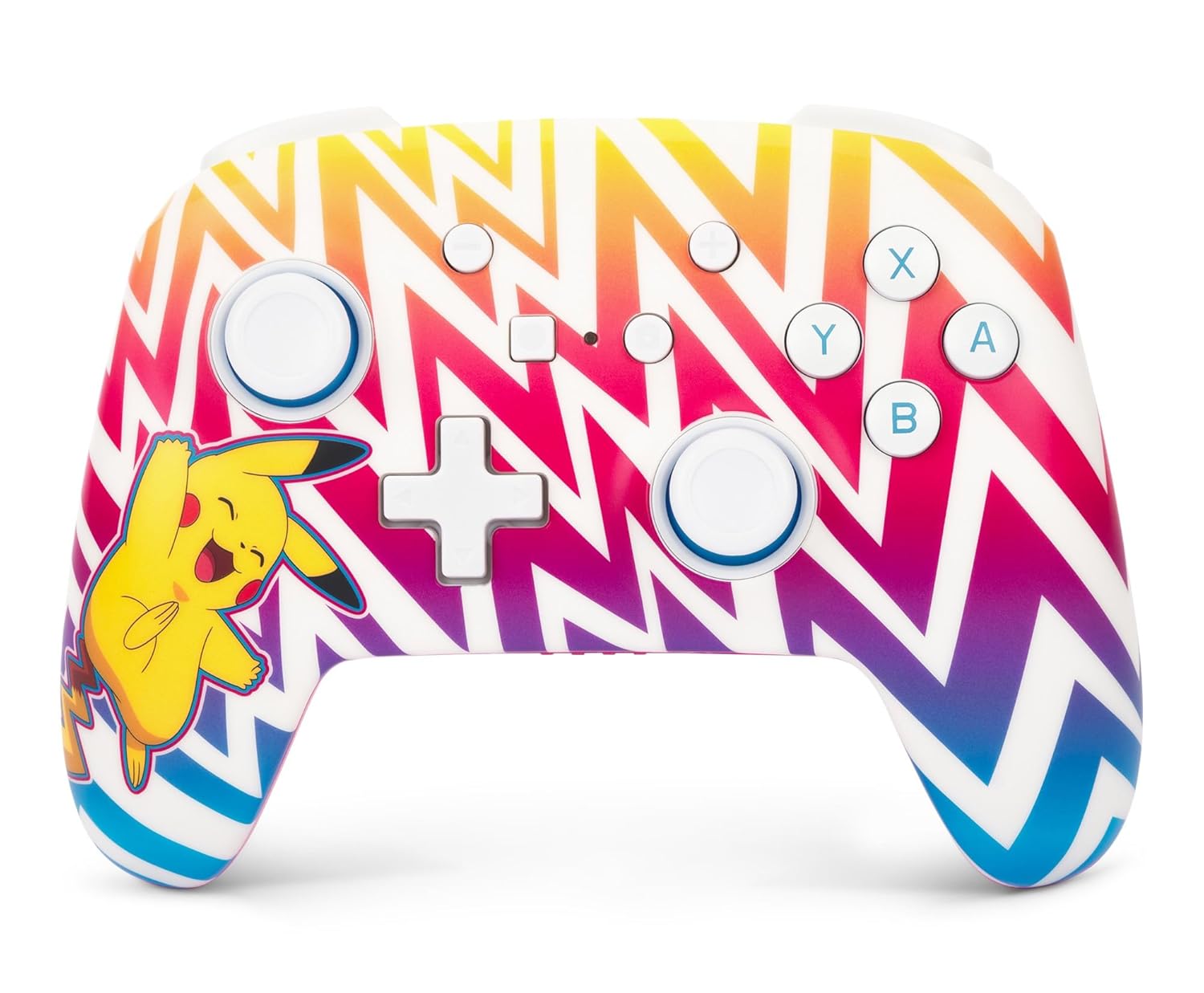
Image 1: Front view of the PowerA Enhanced Wireless Controller, featuring a vibrant Pikachu design on a zigzag pattern. Shows the left and right analog sticks, D-pad, A/B/X/Y buttons, Home button, Capture button, Plus and Minus buttons, and indicator lights.

Image 2: Back view of the PowerA Enhanced Wireless Controller. This image highlights the two mappable Advanced Gaming Buttons (AGB) located on the grips, and the program button in the center.

Image 3: Top view of the PowerA Enhanced Wireless Controller. This perspective shows the L, R, ZL, and ZR shoulder buttons, along with the USB-C charging port located between the ZL and ZR buttons.
Setup
Charging the Controller
- Connect the small end of the included USB-C cable to the USB-C port on the top of the controller.
- Connect the large end of the USB-C cable to a USB power source (e.g., Nintendo Switch dock, USB wall adapter, computer USB port).
- The LED indicator lights on the front of the controller will illuminate to show charging status. All four LEDs will be solid when fully charged.
- A full charge provides up to 30 hours of gameplay. Actual battery life may vary based on usage.

Image 4: Side view of the controller with the USB-C charging cable connected to the port on the top edge.
Pairing with Nintendo Switch
Follow these steps to pair your PowerA Enhanced Wireless Controller with your Nintendo Switch console:
- Ensure your Nintendo Switch console is powered on and updated to the latest system software.
- From the HOME Menu, select "Controllers", then "Change Grip/Order".
- On the PowerA controller, press and hold the SYNC Button (small button next to the USB-C port) for at least three seconds. The LED indicator lights will begin to flash.
- Once the controller is successfully paired, the player LED(s) corresponding to the controller number will remain solid.
- Press the Home button on the controller to return to the HOME Menu and begin playing.
The controller can be used whether the Nintendo Switch is docked or in handheld mode.
Operating Instructions
Programming Advanced Gaming Buttons (AGB)
The controller features two mappable Advanced Gaming Buttons (AGB) on the back. These can be programmed on-the-fly:
- Press the Program Button (small white button on the back, between the AGBs). The Program LED will flash, indicating the controller is in programming mode.
- Press the button you wish to map (e.g., A, B, X, Y, L, R, ZL, ZR, D-pad directions, Left Stick Click, Right Stick Click).
- Press the Advanced Gaming Button (AGB L or AGB R) you want to assign the function to. The Program LED will stop flashing, indicating the AGB has been successfully programmed.
- To clear an AGB assignment, repeat steps 1-2, but instead of pressing a button to map, press the Program Button again to exit programming mode without assigning a new function.
Motion Controls
This controller supports motion controls in compatible Nintendo Switch games. No special setup is required; motion controls will function automatically when supported by the game.
Maintenance
- Cleaning: Use a soft, dry cloth to clean the controller. Avoid using harsh chemicals or abrasive materials.
- Storage: Store the controller in a cool, dry place away from direct sunlight and extreme temperatures.
- Battery Care: To prolong battery life, avoid fully discharging the controller frequently. Charge it regularly, even if not in constant use.
Troubleshooting
- Controller not connecting:
- Ensure the controller is fully charged.
- Verify the Nintendo Switch console is powered on and within range.
- Repeat the pairing process as described in the "Pairing with Nintendo Switch" section.
- If issues persist, try restarting both the controller and the Nintendo Switch console.
- Buttons or joysticks not responding:
- Check if the controller is properly connected to the console.
- Ensure no debris is obstructing the buttons or joysticks.
- Test the controller in another game or on the Switch's controller test menu to isolate the issue.
- Short battery life:
- Ensure the controller is fully charged before use.
- Battery life can be affected by game intensity and environmental factors.
- If battery life significantly degrades over time, contact customer support.
Specifications
| Model Number | NSGP0262-01 |
| Connectivity | Bluetooth 5.0 |
| Battery Type | Rechargeable Lithium-ion |
| Battery Life | Up to 30 hours per charge (approximate) |
| Dimensions | 6.02 x 4.41 x 2.48 inches |
| Weight | 8 ounces (approx. 227 grams) |
| Compatibility | Nintendo Switch, Switch Lite, Switch – OLED Model, Switch 2 |
| Included Cable | 10ft (3m) USB-C Charge Cable |
Warranty Information
PowerA backs all products with a 2-year limited warranty. For detailed warranty terms and conditions, please refer to the official PowerA website or contact customer support.
Support
For further assistance, technical support, or warranty claims, please visit the official PowerA support website or contact their customer service department. Contact information can typically be found on the PowerA website or product packaging.
Online Resources: www.powera.com/support


