
GL.iNet GL-MT6000, GL-AXT1800
Contents
GL.iNet Router User Manual
Models: GL-AXT1800 (Slate AX) & GL-MT6000 (Flint 2)
1. Introduction
This manual provides comprehensive instructions for the GL.iNet GL-AXT1800 (Slate AX) and GL-MT6000 (Flint 2) Wi-Fi 6 routers. These devices are designed to provide high-speed, secure, and reliable network connectivity for various applications, from travel to home gaming.
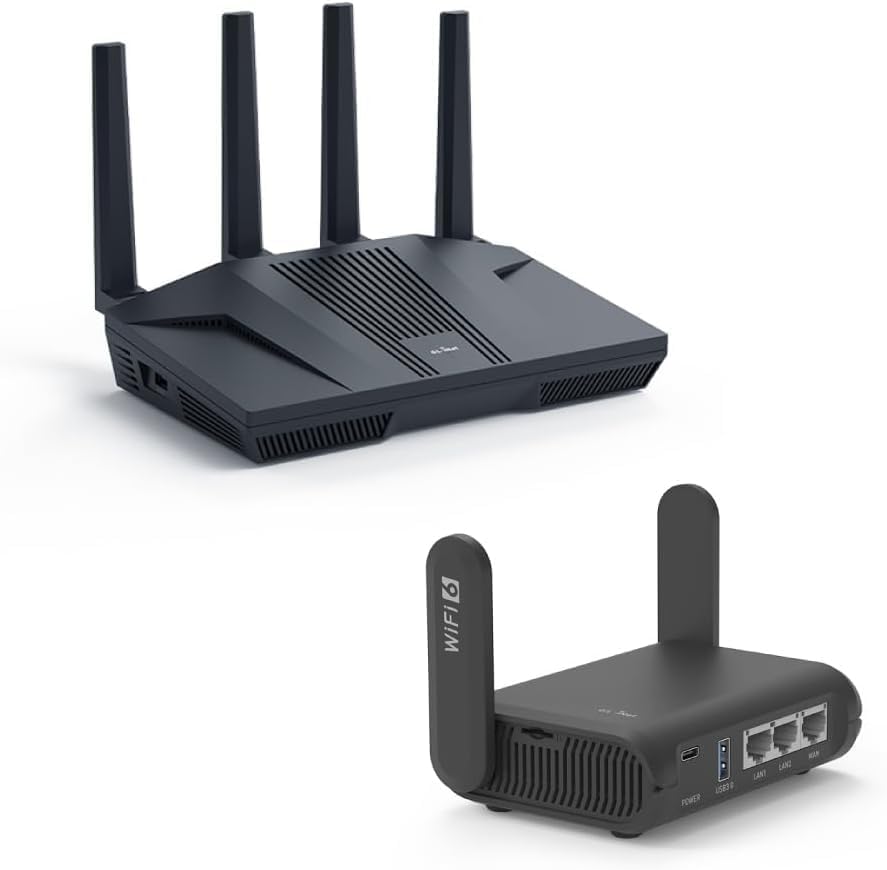
Figure 1.1: The GL.iNet GL-MT6000 (Flint 2) router (top) and GL-AXT1800 (Slate AX) travel router (bottom). The Flint 2 is a larger, more powerful home router, while the Slate AX is compact and designed for portability.
2. Setup and Initial Configuration
This section guides you through the initial setup process for both GL.iNet routers.
2.1 GL-AXT1800 (Slate AX) Setup

Figure 2.1: Rear view of the GL-AXT1800 (Slate AX) router, highlighting its power input, USB 3.0 port, two LAN ports, and one WAN port.

Figure 2.2: The compact GL-AXT1800 (Slate AX) router, ideal for travel and on-the-go connectivity, shown alongside typical travel items.
- Power Connection: Connect the provided power adapter to the router's power input and plug it into an electrical outlet.
- Internet Connection:
- For wired internet, connect an Ethernet cable from your modem or existing router's LAN port to the WAN port on the Slate AX.
- For wireless internet (repeater mode), you will configure this later via the web interface.
- Device Connection:
- Wired: Connect your computer or device to one of the LAN ports using an Ethernet cable.
- Wireless: Search for the router's default Wi-Fi SSID (printed on the router's label) and connect to it. The default password is also on the label.
- Access Web Interface: Open a web browser and navigate to http://192.168.8.1. Follow the on-screen instructions to set up your administrative password and configure your internet connection.
2.2 GL-MT6000 (Flint 2) Setup

Figure 2.3: Rear view of the GL-MT6000 (Flint 2) router, illustrating its DC 12V power input, 2.5G WAN port, 2.5G WAN/LAN port, three 1G LAN ports, and reset button.
- Power Connection: Connect the provided power adapter to the router's DC 12V input and plug it into an electrical outlet.
- Internet Connection: Connect an Ethernet cable from your modem or existing router's LAN port to the 2.5G WAN port on the Flint 2.
- Device Connection:
- Wired: Connect your computer or device to any of the LAN ports (2.5G WAN/LAN, LAN1, LAN2, LAN3) using an Ethernet cable.
- Wireless: Search for the router's default Wi-Fi SSID (printed on the router's label) and connect to it. The default password is also on the label.
- Access Web Interface: Open a web browser and navigate to http://192.168.8.1. Follow the on-screen instructions to set up your administrative password and configure your internet connection.
3. Operating Your Routers
Both GL.iNet routers offer advanced features for enhanced network performance and security.
3.1 Wi-Fi 6 Connectivity
Both the Slate AX and Flint 2 support Wi-Fi 6 (802.11ax) standard, providing faster speeds, lower latency, and increased capacity for multiple devices.

Figure 3.1: The Slate AX router efficiently managing connections for multiple devices, including gaming consoles and smartphones, leveraging Wi-Fi 6 technology for optimal performance.

Figure 3.2: The Flint 2 router delivering lightning-fast Wi-Fi 6 speeds, with specific bandwidths for 2.4GHz and 5GHz bands highlighted.
- Dual-Band Operation: Both routers operate on 2.4GHz and 5GHz bands. The Slate AX offers combined speeds of 1800 Mbps (600 Mbps for 2.4GHz, 1200 Mbps for 5GHz). The Flint 2 provides up to 6 Gbps (1148 Mbps for 2.4GHz, 4804 Mbps for 5GHz).
- MU-MIMO & OFDMA: These technologies improve efficiency by allowing the router to communicate with multiple devices simultaneously, reducing congestion and improving overall network performance.
3.2 VPN and Security Features
GL.iNet routers are known for their robust security features, including pre-installed VPN clients.

Figure 3.3: The Slate AX router's security capabilities, featuring support for OpenVPN (up to 120 Mbps) and WireGuard (up to 550 Mbps), along with Cloudflare and IPv6 compatibility.

Figure 3.4: The Flint 2 router's advanced security features, including OpenVPN (up to 190 Mbps) and WireGuard (up to 900 Mbps) support, alongside Cloudflare and IPv6.
- OpenVPN & WireGuard: Both routers come with OpenVPN and WireGuard clients pre-installed, allowing you to connect to over 30 VPN service providers.
- Slate AX: OpenVPN up to 120 Mbps, WireGuard up to 550 Mbps.
- Flint 2: OpenVPN up to 190 Mbps, WireGuard up to 900 Mbps.
- Cloudflare Encryption: Supported for enhanced privacy and security.
- IPv6 Support: Ensures compatibility with the latest internet protocols.
3.3 Advanced Features (Flint 2)
The GL-MT6000 (Flint 2) offers additional features for high-demand users.
- 2.5G Ethernet Ports: Equipped with 2.5G WAN and 2.5G WAN/LAN ports, providing ultra-fast wired connections for gaming and high-bandwidth applications.
- High-Speed Gaming: Designed for uninterrupted performance with 8-stream Wi-Fi 6 technology, ensuring stable and high-speed connections for online gaming.
4. Maintenance
Regular maintenance ensures optimal performance and longevity of your GL.iNet routers.
- Firmware Updates: Periodically check for and install firmware updates via the router's web interface. Updates often include performance improvements, security patches, and new features.
- Physical Cleaning: Keep the routers free from dust. Use a soft, dry cloth to wipe the exterior. Ensure ventilation holes are not obstructed.
- Restarting: If you experience network issues, a simple restart of the router (unplugging power for 10 seconds and plugging back in) can often resolve minor glitches.
- Backup Configuration: Regularly back up your router's configuration settings through the web interface. This allows for quick restoration in case of a factory reset or other issues.
5. Troubleshooting
This section addresses common issues you might encounter and provides solutions.
| Problem | Possible Cause | Solution |
|---|---|---|
| Cannot access the router's web interface (192.168.8.1) | Incorrect IP address, device not connected to router, IP conflict. |
|
| No internet connection | WAN cable disconnected, modem issue, incorrect internet settings. |
|
| Slow Wi-Fi speeds or frequent disconnections | Interference, too many devices, outdated firmware, router placement. |
|
| VPN connection issues | Incorrect VPN settings, VPN server issues, firewall blocking. |
|
6. Specifications
Key technical specifications for the GL.iNet GL-AXT1800 (Slate AX) and GL-MT6000 (Flint 2) routers.
| Feature | GL-AXT1800 (Slate AX) | GL-MT6000 (Flint 2) |
|---|---|---|
| Wi-Fi Standard | Wi-Fi 6 (802.11ax) | Wi-Fi 6 (802.11ax) |
| Wi-Fi Speed (Combined) | 1800 Mbps (2.4GHz: 600 Mbps, 5GHz: 1200 Mbps) | Up to 6 Gbps (2.4GHz: 1148 Mbps, 5GHz: 4804 Mbps) |
| Ethernet Ports | 1x WAN, 2x LAN (Gigabit) | 1x 2.5G WAN, 1x 2.5G WAN/LAN, 3x 1G LAN |
| VPN Speeds (WireGuard) | Up to 550 Mbps | Up to 900 Mbps |
| VPN Speeds (OpenVPN) | Up to 120 Mbps | Up to 190 Mbps |
| Antenna Type | External (Foldable) | External (Fixed) |
| Special Features | Pocket-sized, Travel Router, USB 3.0 Port | High-speed gaming, DDR4 1GB / eMMC 8GB |
7. Warranty Information
GL.iNet products typically come with a limited manufacturer's warranty. For specific warranty terms and conditions, including duration and coverage, please refer to the warranty card included with your product or visit the official GL.iNet website.
Please retain your proof of purchase for warranty claims.
8. Customer Support
For technical assistance, troubleshooting, or further inquiries regarding your GL.iNet GL-AXT1800 (Slate AX) or GL-MT6000 (Flint 2) routers, please utilize the following resources:
- Official GL.iNet Website: Visit www.gl-inet.com for product documentation, FAQs, firmware downloads, and community forums.
- Online Support Portal: Access the support portal on the GL.iNet website for submitting support tickets or finding detailed guides.
- Community Forum: Engage with other GL.iNet users and experts on the official forum for peer-to-peer support and discussions.
When contacting support, please have your product model number (GL-AXT1800 or GL-MT6000) and serial number ready.
Ask a question about this manual
Ask about setup, troubleshooting, compatibility, parts, safety, or missing instructions. Manuals+ will review the question and use this page’s manual context to help answer it.