
ORDRO AE20
ORDRO AE20 5K Digital Zoom Video Camera
User Manual
1. Product Overview
The ORDRO AE20 is a versatile 5K digital video camera designed for vlogging, YouTube content creation, and general video recording. It features a high-sensitivity CMOS sensor, a 3.0-inch IPS touch screen, and advanced functionalities like IR night vision and anti-shake technology.

Figure 1.1: ORDRO AE20 5K Digital Zoom Video Camera with included accessories.
Key Features:
- Video Resolution: Supports 5K (5120*2160 at 25fps), 4K (3840*2160 at 30fps), 2.7K (2688*1512 at 30fps), 1080P (1920*1080 at 60/30fps), and 720P (1280*720 at 60/30fps).
- Image Resolution: Up to 56 Megapixels.
- Sensor: 8 MP high sensitivity CMOS sensor.
- Display: 3.0-inch IPS touch screen (16:9 aspect ratio).
- Lens: F/2.0, f=2.9mm.
- Zoom: 18x Digital Zoom.
- Special Features: Infrared (IR) Night Vision, Webcam functionality, Wi-Fi APP Connection, Anti-Shake (Electronic Image Stabilization), Slow Motion, Pause Function, Time-lapse.
- Power: Long operating time, supports charging while recording.
2. What's in the Box
Upon unboxing your ORDRO AE20 camcorder, you should find the following items:
- ORDRO AE20 Camcorder
- Rechargeable Battery (Lithium Polymer)
- USB Cable
- Lens Hood
- External Microphone
- Handheld Stabilizer
- Remote Control
- SD Card (32GB)
- User Manual (this document)
Video 2.1: An unboxing video demonstrating the contents of the ORDRO AE20 package, including the camera, microphone, stabilizer, and other accessories.

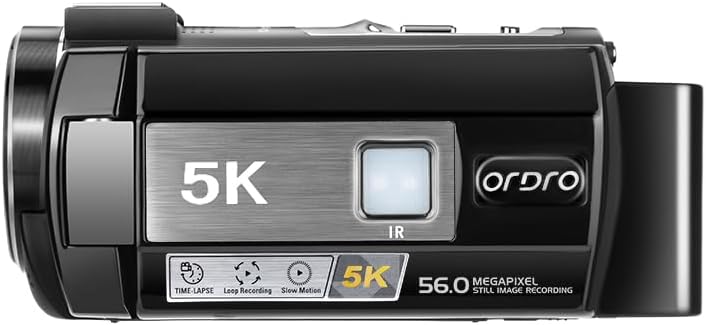
Figure 2.2: Front and top views of the ORDRO AE20 camcorder, showcasing its compact design and lens.
3. Setup
3.1 Charging the Battery
Before first use, fully charge the included Lithium Polymer battery. Connect the USB cable to the camera and a power adapter (not included) or a computer USB port. The charging indicator light will show the charging status.
3.2 Inserting the SD Card
Locate the SD card slot on the side of the camcorder. Insert the 32GB SD card (included) with the metal contacts facing down until it clicks into place. Ensure the card is properly seated to avoid data loss.
Figure 3.1: The included 32GB SD card, essential for storing recordings.
3.3 Attaching Accessories
The ORDRO AE20 comes with an external microphone and a handheld stabilizer for enhanced audio and stable footage.
- Microphone: Attach the external microphone to the hot shoe mount on top of the camera. Connect the microphone's 3.5mm jack to the corresponding port on the camcorder.
- Handheld Stabilizer: Secure the camcorder to the handheld stabilizer using the standard tripod screw mount at the bottom. This accessory improves grip and reduces shake during handheld recording.
- Lens Hood: Attach the lens hood to the front of the lens by screwing it on. This helps reduce glare and protect the lens.


Figure 3.2: The external microphone, handheld stabilizer, and lens hood, which enhance the camera's functionality and protection.
4. Operating Instructions
4.1 Powering On/Off
Open the LCD screen to automatically power on the camcorder. To power off, close the LCD screen or press and hold the power button.
4.2 Basic Recording (Video/Photo)
Navigate through the touch screen interface to select between video recording mode and photo capture mode. Press the record button to start/stop video recording or the shutter button to take a photo.

Figure 4.1: The ORDRO AE20 camcorder with its 3.0-inch IPS touch screen open, ready for operation.
4.3 Digital Zoom
Utilize the zoom controls on the camcorder body or the touch screen to adjust the 18x digital zoom. This allows for closer shots of distant subjects.

Figure 4.2: Visual representation of the 18x digital zoom capability.
4.4 IR Night Vision
Activate the IR Night Vision mode for recording in low-light or dark environments. This feature captures clear black and white images and videos.

Figure 4.3: A comparison showing the effectiveness of IR Night Vision in dark conditions.
4.5 Wi-Fi APP Connection
Download the "LERCENKER" app on your smartphone. Connect your camcorder to your phone via Wi-Fi to remotely control the camera, preview footage, and transfer files for easy sharing on social media platforms like Facebook and YouTube.

Figure 4.4: Steps for connecting the camcorder to a smartphone via Wi-Fi for remote control and file transfer.
4.6 Webcam Functionality
Connect the camcorder to your computer via USB. Select "Webcam Mode" on the camera's screen to use it as a high-quality webcam for video calls or live streaming.
4.7 Advanced Recording Modes
- Slow Motion: Capture high-speed events in slow motion for detailed playback.
- Pause Function: Pause and resume recording within the same video file, useful for continuous shooting without creating multiple clips.
- Time-lapse: Record events over a long period and condense them into a short video.
4.8 Using the Remote Control
The included remote control allows for convenient operation from a distance, enabling you to start/stop recording, take photos, and adjust settings without touching the camera.
5. Maintenance
5.1 Cleaning
- Lens: Use a soft, lint-free cloth specifically designed for camera lenses. For stubborn smudges, use a small amount of lens cleaning solution.
- Screen: Wipe the touch screen gently with a microfiber cloth. Avoid abrasive materials or harsh chemicals.
- Body: Use a dry, soft cloth to clean the camera body. Do not use water or cleaning agents directly on the camera.
5.2 Battery Care
- Store batteries in a cool, dry place when not in use.
- Avoid fully discharging the battery frequently to prolong its lifespan.
- If storing for extended periods, charge the battery to about 50% capacity.
5.3 Storage
When not in use, store the camcorder in a protective bag or case to prevent dust and scratches. Keep it away from extreme temperatures, high humidity, and direct sunlight.
6. Troubleshooting
| Problem | Possible Cause | Solution |
|---|---|---|
| Camera does not power on. | Battery is dead or not inserted correctly. | Ensure battery is fully charged and correctly inserted. Try using the backup battery. |
| Cannot record video/take photos. | SD card is full, locked, or not inserted. | Check SD card capacity, unlock it if necessary, or reinsert it. Format the SD card if issues persist (this will erase all data). |
| Poor image/video quality. | Lens is dirty, insufficient lighting, or incorrect settings. | Clean the lens. Ensure adequate lighting or use IR Night Vision. Adjust resolution settings. |
| Wi-Fi connection issues. | Incorrect Wi-Fi password, app not updated, or interference. | Verify Wi-Fi password. Update the "LERCENKER" app. Ensure no strong interference sources nearby. |
| Remote control not working. | Battery in remote is dead or line of sight is blocked. | Replace remote control battery. Ensure direct line of sight to the camera's IR receiver. |
7. Specifications
| Feature | Detail |
|---|---|
| Brand Name | ORDRO |
| Item Model Number | AE20 |
| Video Capture Resolution | 5K (5120*2160@25fps), 4K (3840*2160@30fps), 2.7K (2688*1512@30fps), 1080P (1920*1080@60/30fps), 720P (1280*720@60/30fps) |
| Photo Sensor Technology | CMOS (8 MP high sensitivity) |
| Maximum Aperture | F/2.0 |
| Maximum Focal Length | 2.9mm |
| Screen Size | 3.0 Inches (IPS Touch Screen, 16:9) |
| Connectivity Technology | Wi-Fi |
| Flash Memory Type | SD Card (up to 128GB, 32GB included) |
| Video Capture Format | MP4 |
| Supported Audio Format | AAC |
| Special Features | IR Night Vision, Webcam, Anti-Shake, Digital Zoom, Slow Motion, Pause Function, Time-lapse |
| Batteries | 1 Lithium Polymer battery required (included) |
| Item Weight | 3.3 pounds |
| Package Dimensions | 8.27 x 5.9 x 5.5 inches |
8. Warranty Information
ORDRO products are covered by a manufacturer's warranty against defects in materials and workmanship. Please refer to the warranty card included in your package for specific terms and conditions, or visit the official ORDRO website for detailed warranty policy information.
For additional protection, extended protection plans may be available for purchase separately. Please check with your retailer for details.
9. Support
For technical assistance, product inquiries, or customer service, please contact ORDRO support through the following channels:
- Online Support: Visit the official ORDRO website for FAQs, driver downloads, and support resources.
- Email Support: Refer to your product packaging or warranty card for the customer service email address.
- Brand Store: You can also find more information and products from the ORDRO Store on Amazon.
Please have your product model number (AE20) and purchase information ready when contacting support.
Related documentsAE20


Ask a question about this manual
Ask about setup, troubleshooting, compatibility, parts, safety, or missing instructions. Manuals+ will review the question and use this page’s manual context to help answer it.