
1. Introduction
Thank you for choosing the Dosilkc 2K Light Bulb Security Camera. This device is designed to provide reliable indoor surveillance with easy installation and advanced features such as 2K resolution, dual-band Wi-Fi connectivity, human motion detection, and color night vision. This manual provides essential information for setting up, operating, and maintaining your camera.
2. Safety Information
- Indoor Use Only: This camera is designed for indoor environments. Do not expose it to outdoor weather conditions, moisture, or extreme temperatures.
- Power Off Before Installation: Always ensure the power to the light socket is turned off before installing or removing the camera to prevent electrical shock.
- Power Requirements: The camera operates on a standard E27 light socket (110V~240V). Ensure your socket meets these specifications.
- Secure Installation: Ensure the camera is securely screwed into the light socket or adapter to prevent it from falling.
- Avoid Obstructions: Do not place objects that may obstruct the camera's view or ventilation.
- Data Privacy: Protect your Wi-Fi network with a strong password and regularly update your camera's firmware to enhance security.
3. Package Contents
Verify that all items are present in your package:
- Dosilkc 2K Light Bulb Security Camera
- E27 Screw Base (pre-attached)
- USB Power Adapter (if included)
- Mounting Screws (if included for adapter)
- User Manual (this document)
4. Setup Guide
4.1 Physical Installation
- Turn Off Power: Locate the light switch or circuit breaker controlling the E27 light socket where you intend to install the camera. Turn off the power completely.
- Screw in Camera: Carefully screw the Dosilkc Light Bulb Security Camera into the E27 light socket. Ensure it is tightened securely but do not overtighten.
- Alternative Installation (if applicable): If using the included USB power adapter, connect the camera to the adapter and plug it into a standard wall outlet.
- Restore Power: Turn the power back on at the light switch or circuit breaker. The camera will power on and initiate its startup sequence.
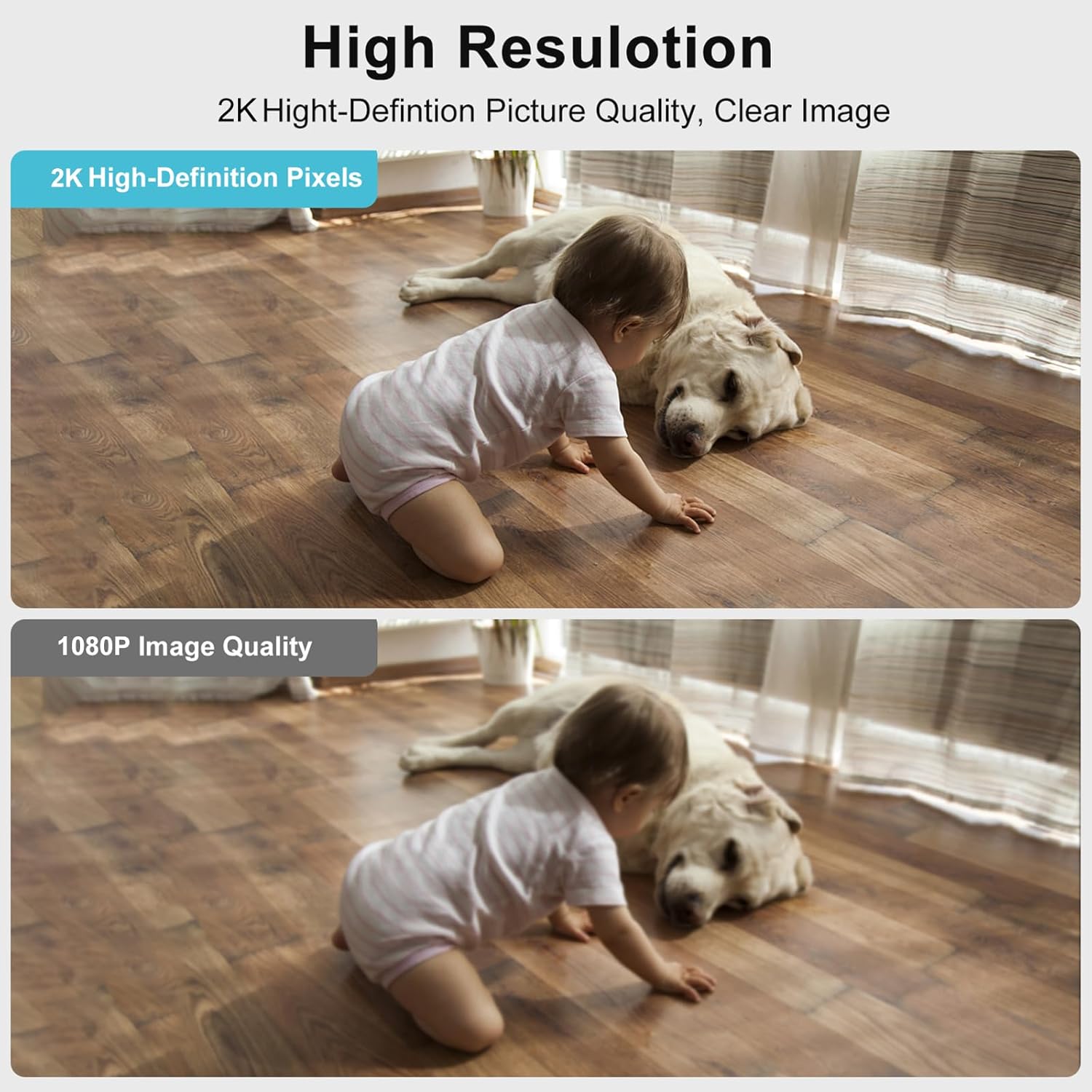
Image: The Dosilkc Light Bulb Security Camera is designed for easy installation into a standard E27 light socket, similar to replacing a light bulb.
4.2 App Download and Account Creation
- Download App: Search for the recommended app (e.g., "O-KAM" or as specified in the packaging) on the Apple App Store (for iOS) or Google Play Store (for Android).
- Install App: Download and install the app on your smartphone or tablet.
- Create Account: Open the app and follow the on-screen instructions to register a new account. This typically involves providing an email address and creating a password.
4.3 Wi-Fi Connection
- Add Device: In the app, tap the "+" icon or "Add Device" option to begin pairing.
- Select Device Type: Choose the appropriate device type, usually a "Smart Camera" or "Light Bulb Camera."
- Power On Confirmation: Confirm that the camera is powered on and its indicator light is blinking (refer to app for specific light patterns).
- Connect to Wi-Fi: Enter your Wi-Fi network name (SSID) and password. The camera supports both 2.4GHz and 5GHz Wi-Fi bands. For 5GHz, ensure the camera is within 3-5 meters of the router due to its shorter range and weaker penetration.
- Scan QR Code (if applicable): The app may generate a QR code. Hold your phone's screen in front of the camera lens until you hear a confirmation sound.
- Pairing Completion: Wait for the camera to connect to your Wi-Fi network. Once connected, you will hear a confirmation and the indicator light will change (e.g., solid blue).
- Name Camera: Assign a name to your camera (e.g., "Living Room Camera," "Pet Camera") for easy identification.
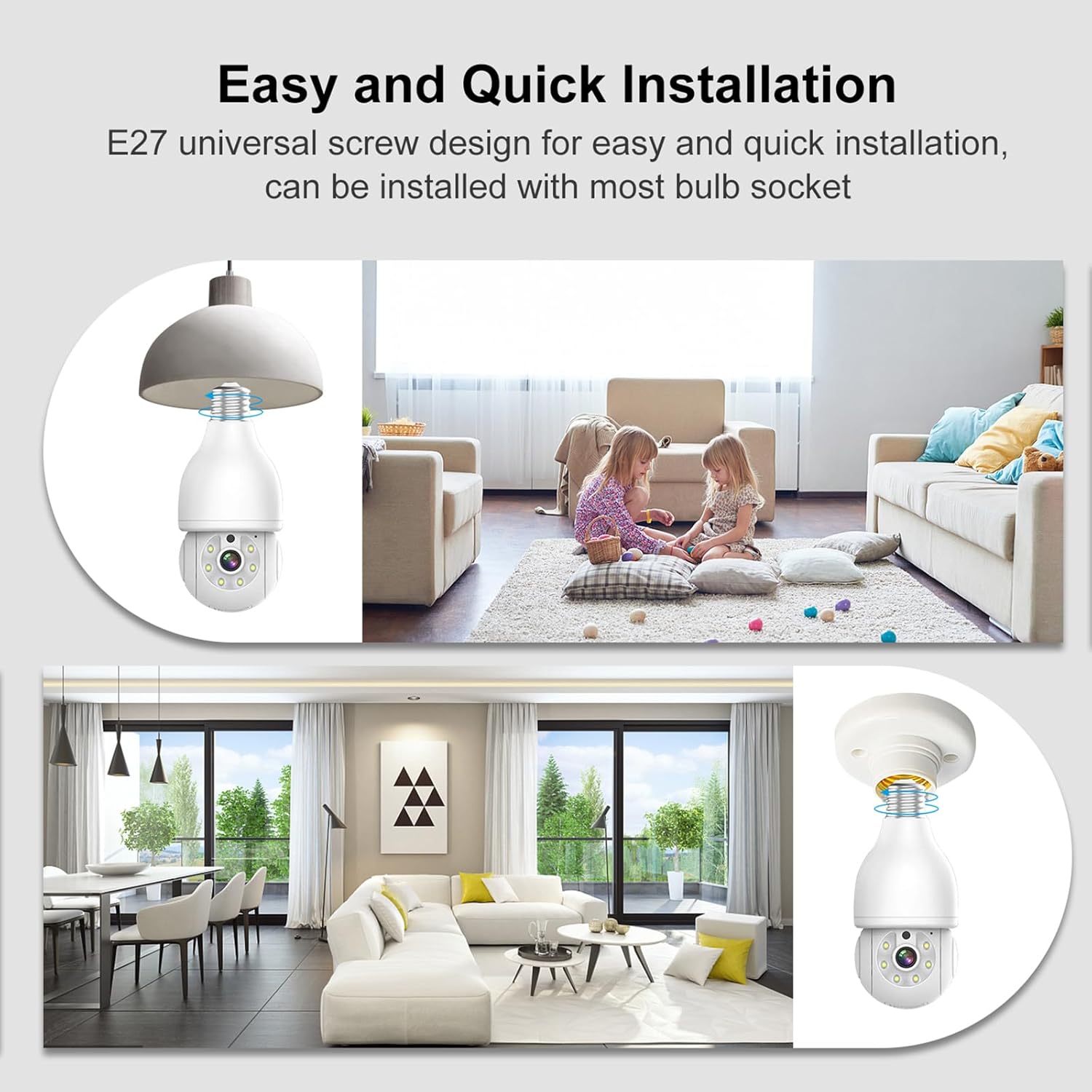
Image: The camera connects to your home Wi-Fi network and is controlled via a dedicated smartphone application, allowing remote access and management.
5. Operating Instructions
5.1 Live View
Open the app and select your camera to view the live feed. The live view displays real-time video from the camera, allowing you to monitor your space.
5.2 Pan, Tilt, and Zoom (PTZ)
The camera features pan (355° horizontal) and tilt (90° vertical) capabilities, along with 4x digital zoom. Use the directional controls within the app to adjust the camera's viewing angle and zoom in on specific areas.

Image: The camera offers a wide range of motion with 355° horizontal pan and 90° vertical tilt, enabling comprehensive area coverage.
5.3 Two-Way Audio
Utilize the built-in microphone and speaker for two-way communication. Tap the microphone icon in the app to speak through the camera, and listen to audio from the camera's environment.

Image: The two-way audio feature allows for direct communication through the camera, enabling interaction with individuals in the monitored area.
5.4 Night Vision
The camera supports both infrared (black and white) and full-color night vision. In low-light conditions, the camera automatically switches to night vision mode. You can often toggle between modes within the app settings.

Image: The camera provides both clear infrared night vision and enhanced full-color night vision for visibility in various low-light conditions.
5.5 Motion Detection and AI Person Tracking
The camera is equipped with human motion detection and AI person tracking. When motion or a human figure is detected, the camera can automatically track the movement and send real-time alerts to your smartphone. Customize detection zones and sensitivity settings in the app to reduce false alarms.

Image: The camera's AI human detection filters out irrelevant motion and focuses on human activity, sending timely alerts to your mobile device.
5.6 Recording and Storage
Recordings can be stored locally on a Micro SD card (up to 256GB, not included) or via cloud storage services (subscription may be required). Access recorded footage through the app's playback feature.

Image: The camera supports local storage via a Micro SD card (up to 256GB) and offers cloud storage options for secure video backup.
5.7 Smart Home Integration
The camera is compatible with certain smart home platforms, such as Amazon Alexa. Follow the instructions in your smart home app to link your Dosilkc camera for voice control and integration.

Image: The camera integrates with Amazon Alexa, allowing for convenient voice control and smart home automation.
5.8 ONVIF Compatibility
This camera is ONVIF compliant, allowing it to work with ONVIF-conformant Network Video Recorders (NVRs) for 24/7 continuous recording and integration into existing surveillance systems.

Image: The camera's ONVIF compatibility enables seamless integration with Network Video Recorders (NVRs) for continuous recording and advanced surveillance setups.
6. Maintenance
- Cleaning: Use a soft, dry cloth to clean the camera lens and body. Do not use liquid cleaners or abrasive materials.
- Firmware Updates: Regularly check the app for available firmware updates. Keeping your camera's firmware up-to-date ensures optimal performance, security, and access to new features.
- SD Card Management: If using a Micro SD card, periodically review and back up important footage. Reformatting the SD card within the app can help maintain its performance.
7. Troubleshooting
| Problem | Possible Cause | Solution |
|---|---|---|
| Camera not powering on | No power to socket; loose connection | Ensure light switch/circuit breaker is on. Tighten camera in socket. Test socket with a regular bulb. |
| Unable to connect to Wi-Fi | Incorrect Wi-Fi password; camera too far from router; 5GHz signal issues | Verify Wi-Fi password. Move camera closer to router. For 5GHz, ensure proximity (3-5m). Try 2.4GHz if available. Reset camera and try pairing again. |
| Frequent disconnections | Weak Wi-Fi signal; network interference | Improve Wi-Fi signal strength (e.g., Wi-Fi extender). Reduce interference from other devices. |
| False motion alerts | High sensitivity; environmental factors (e.g., moving curtains, shadows) | Adjust motion detection sensitivity in the app. Define specific detection zones to exclude irrelevant areas. |
| No recording to SD card | SD card full; faulty SD card; incorrect settings | Check SD card status in app. Reformat SD card. Replace SD card if necessary. Ensure recording settings are enabled. |
| Camera resets after power loss | System design; network configuration loss | Some cameras may require re-pairing or re-configuration after a power outage, especially if network settings are lost. Ensure stable power supply. If persistent, contact support. |
8. Specifications
| Feature | Detail |
|---|---|
| Model Number | DS-LBQ02 |
| Video Capture Resolution | 2K (2304*1296) |
| Maximum Webcam Image Resolution | 3 MP |
| Connectivity | 2.4GHz/5GHz Dual-Band Wi-Fi |
| Pan/Tilt Range | 355° Horizontal, 90° Vertical |
| Digital Zoom | 4x |
| Night Vision | Infrared, Full-Color |
| Human Motion Detection | Yes, with AI Person Tracking |
| Two-Way Audio | Yes |
| Storage Options | Micro SD Card (up to 256GB), Cloud Storage |
| Smart Home Compatibility | Amazon Alexa Compatible |
| ONVIF Support | Yes |
| Power Supply | E27 Light Socket (110V~240V) |
| Item Weight | 10.5 ounces |
| Dimensions | 7.05 x 4.13 x 3.9 inches (Package) |
9. Warranty and Support
For warranty information and technical support, please refer to the documentation included with your purchase or visit the official Dosilkc website. Keep your purchase receipt as proof of purchase for warranty claims.
If you encounter any issues not covered in this manual, please contact Dosilkc customer support for assistance.


