
1. Introduction
Thank you for purchasing the LANGTU 85-Key Mechanical Keyboard. This manual provides essential information for setting up, operating, and maintaining your keyboard. Please read these instructions carefully before use to ensure proper functionality and to maximize your user experience.

Image 1.1: Overview of the LANGTU 85-Key Mechanical Keyboard, showcasing its compact design and various color options. The keyboard supports 2.4G, Bluetooth, and USB connectivity.
2. Product Features
- Compact 85-Key English Layout: Designed for efficiency and portability, offering a full typing experience in a smaller form factor.
- Multi-Mode Connectivity: Supports Bluetooth 5.0, 2.4G wireless (via USB adapter), and wired USB Type-C connections for versatile use across various devices.
- Hot-Swappable Mechanical Switches: Allows for easy replacement of individual key switches without soldering, enabling customization of key feel and extending keyboard lifespan.
- Integrated LED Backlighting: Features customizable LED backlight modes and effects to enhance the visual experience.
- Ergonomic Design: Keycap curvature is designed to reduce hand fatigue during prolonged use.
- Durable Construction: Made with high-quality ABS material and robust metal switch components for extended longevity, rated for 50-100 million keystrokes.
- Wide Compatibility: Compatible with iOS, Android, Mac, and Windows operating systems.
3. Package Contents
Please verify that all items are present in the package:
- LANGTU 85-Key Mechanical Keyboard
- USB Type-C Cable
- 2.4G USB Receiver (typically stored in the keyboard's dedicated slot)
- User Manual (this document)
4. Setup
4.1 Charging the Keyboard
Before initial use, fully charge the keyboard. Connect the provided USB Type-C cable to the keyboard's charging port and the other end to a USB power source (e.g., computer USB port, USB wall adapter). The LED indicator will show charging status.

Image 4.1: The keyboard features a built-in large-capacity rechargeable battery, ensuring extended usage between charges.
4.2 Connecting the Keyboard
The keyboard supports three connection modes: Bluetooth, 2.4G Wireless, and USB Wired.
4.2.1 USB Wired Connection
- Connect the USB Type-C cable to the keyboard's port.
- Connect the other end of the USB cable to an available USB port on your computer.
- The keyboard will be automatically recognized and ready for use.
4.2.2 2.4G Wireless Connection
- Locate the 2.4G USB receiver, usually stored in a compartment on the keyboard.
- Plug the 2.4G USB receiver into an available USB port on your computer.
- Turn on the keyboard's power switch (if applicable). The keyboard should automatically connect to the receiver.
4.2.3 Bluetooth Connection
- Ensure the keyboard is charged and powered on.
- Activate Bluetooth pairing mode on the keyboard (refer to specific key combinations in the Operating section if available).
- On your device (PC, smartphone, tablet), go to Bluetooth settings and search for new devices.
- Select "LANGTU Keyboard" (or similar name) from the list of available devices to pair.
- Follow any on-screen prompts to complete the pairing process.
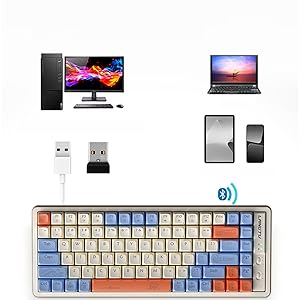
Image 4.2: The keyboard offers versatile connectivity options, allowing it to be used with a wide range of devices.
5. Operating Instructions
5.1 Basic Keyboard Functions
The keyboard operates as a standard QWERTY layout keyboard. Refer to your device's operating system for specific key functions and shortcuts.
5.2 Switching Connection Modes
Use the designated key combination or switch on the keyboard to toggle between USB Wired, 2.4G Wireless, and Bluetooth modes. Consult the keyboard's physical markings or a quick start guide for exact instructions.
5.3 LED Backlight Customization
The keyboard features customizable LED backlighting. Use the function keys (Fn + specific keys) to adjust backlight brightness, change lighting modes, or toggle effects. Refer to the keyboard's keycap legends for specific backlight control keys.

Image 5.1: The keyboard's LED backlighting provides various illumination options, enhancing visibility and aesthetics.
6. Hot-Swappable Switches
The LANGTU 85-Key Mechanical Keyboard is equipped with hot-swappable switches, allowing users to change key switches without soldering. This feature is useful for customizing the typing feel or replacing a faulty switch.
6.1 Replacing Key Switches
- Power off the keyboard and disconnect it from any devices.
- Using a keycap puller, gently remove the keycap from the desired switch.
- Using a switch puller, carefully grip the switch and pull it straight up to remove it from the PCB.
- Align the pins of the new switch with the holes on the PCB. Gently push the new switch into place until it clicks. Ensure the pins are not bent.
- Reattach the keycap.

Image 6.1: The keyboard's hot-swappable design allows for easy removal and replacement of individual key switches.

Image 6.2: A detailed view of a mechanical key switch, highlighting its robust construction.
7. Maintenance
7.1 Cleaning the Keyboard
To maintain optimal performance and appearance, regularly clean your keyboard:
- Disconnect the keyboard from your device.
- Use a soft brush or compressed air to remove dust and debris from between the keycaps.
- For stubborn dirt, gently wipe the keycaps and keyboard surface with a slightly damp, lint-free cloth. Avoid excessive moisture.
- Do not use harsh chemicals or abrasive cleaners.
7.2 Battery Care
To prolong battery life:
- Avoid fully discharging the battery frequently.
- Store the keyboard in a cool, dry place when not in use for extended periods.
- Charge the keyboard regularly, even if not in constant use.
8. Troubleshooting
| Problem | Possible Cause | Solution |
|---|---|---|
| Keyboard not responding (Wired) | Loose cable connection, faulty USB port, driver issue. | Ensure USB-C cable is securely connected. Try a different USB port or cable. Restart your computer. |
| Keyboard not responding (2.4G/Bluetooth) | Low battery, incorrect mode, receiver not plugged in (2.4G), not paired (Bluetooth), interference. | Charge the keyboard. Ensure correct mode is selected. For 2.4G, check receiver connection. For Bluetooth, re-pair the device. Move closer to the receiver/device. |
| Keys not registering or double-typing | Dust/debris under keycap, faulty switch, software issue. | Clean under the keycap. If hot-swappable, try replacing the switch. Test on another device. |
| Backlight not working | Backlight turned off, brightness set to minimum, software glitch. | Press Fn + backlight control keys to adjust brightness or change mode. Restart keyboard. |
| Keyboard layout incorrect | Operating system language/layout settings. | Adjust keyboard layout settings in your device's operating system. |
9. Specifications
| Feature | Detail |
|---|---|
| Brand | LANGTU |
| Model | 85Key |
| Connectivity | Bluetooth 5.0, 2.4G Wireless, USB Type-C Wired |
| Keyboard Type | Mechanical, Hot-Swappable |
| Number of Keys | 85 |
| Layout | QWERTY (English Layout) |
| Backlight | LED (Single Color Supported) |
| Material | ABS |
| Dimensions (L x W x H) | 34 cm x 12.6 cm x 4 cm |
| Power Source | Rechargeable Battery |
| Compatible OS | Windows, Android, iOS, Mac |
| Included Components | USB Cable |
10. Warranty and Support
This product comes with a 1-year manufacturer's warranty from the date of purchase. The warranty covers defects in materials and workmanship under normal use.
For technical support, warranty claims, or any inquiries regarding your LANGTU 85-Key Mechanical Keyboard, please contact our customer support team. Refer to the contact information provided with your purchase or on the official LANGTU website.


