
StarTech.com 14LT6-PRIVACY-SCREEN
StarTech 14-inch Laptop Privacy Filter (16:10) - Model 14LT6-PRIVACY-SCREEN
Product Overview
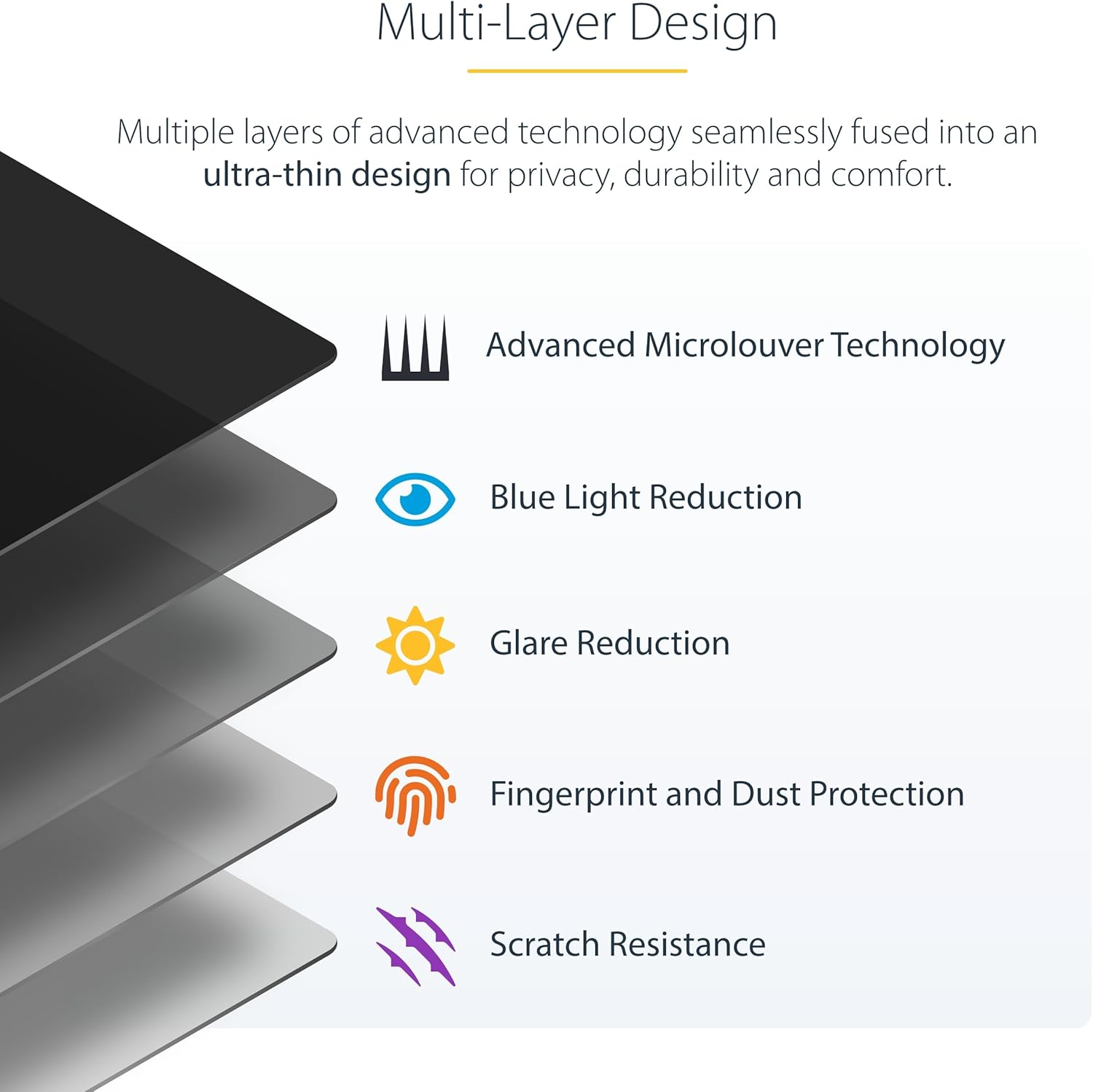
The StarTech 14-inch Laptop Privacy Filter (Model 14LT6-PRIVACY-SCREEN) is designed to protect sensitive information on your 16:10 aspect ratio laptop display. It utilizes microlouver technology to restrict viewing angles, ensuring privacy in public or shared environments. This filter also features blue light reduction and maintains touch screen functionality.
- Enhanced Privacy: Micro-louver technology limits viewing angle to approximately 60 degrees (30 degrees left/right) from the center, protecting your data from side glances.
- Blue Light Reduction: Cuts blue light by up to 51%, reducing digital eye strain and promoting comfortable viewing during extended use.
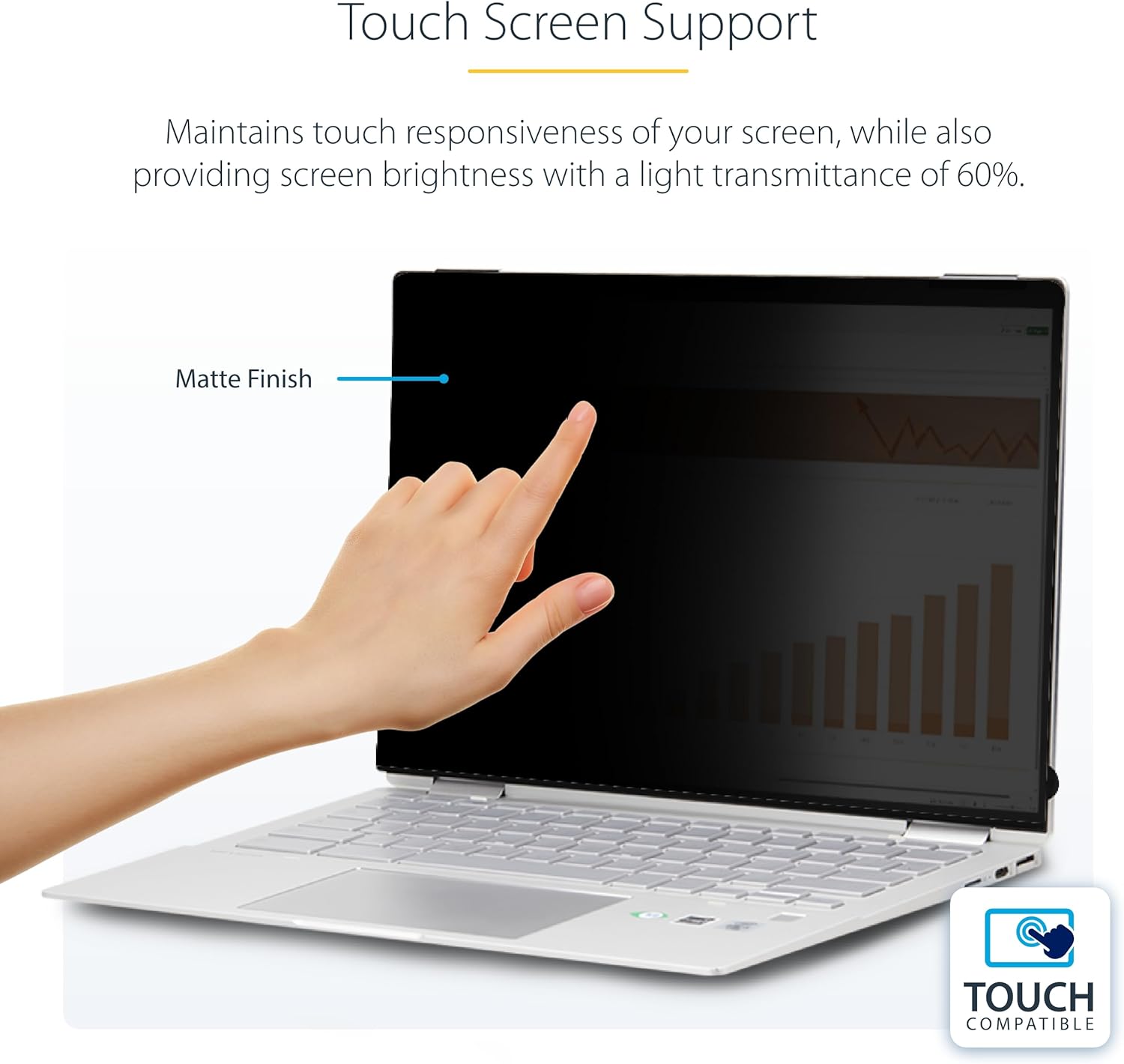
- Touch Screen Compatible: Ultra-thin and durable design maintains smooth touch responsiveness of your monitor.
- Flip-Type Design: Easily flip the filter up and behind the monitor when you need to share your screen, without removing it.
- Easy Installation: Offers two installation methods: adhesive strips for permanent attachment or flip tabs for bezel-less/slim bezel displays.
Setup and Installation
Before installation, ensure your laptop screen is clean and free of dust or smudges using the provided cleaning cloth. This privacy filter offers two installation methods to suit your laptop's display type.
Method 1: Flip-Over Tabs (for Bezel-less or Slim Bezel Displays)
- Identify the flip-over tabs included in the package.
- Attach the tabs to the top edge of your laptop screen bezel, ensuring they are evenly spaced and secure.
- Slide the privacy filter into the tabs. The filter should rest securely against the screen.
- When you need to share your screen, simply lift the filter and flip it over the top of your laptop, resting it behind the screen.
Method 2: Adhesive Strips (for Permanent Installation)
- Locate the adhesive strips. These are typically thin, clear strips.
- Carefully peel off one side of the protective backing from the adhesive strips.
- Apply the strips along the edges of your laptop screen, ensuring they are flat and smooth. You may apply them directly to the screen or the bezel, depending on your preference and screen design.
- Align the privacy filter with your screen and gently press it onto the adhesive strips, starting from one edge and working your way across to avoid air bubbles.
- Smooth out any air bubbles by gently pressing them towards the edges.

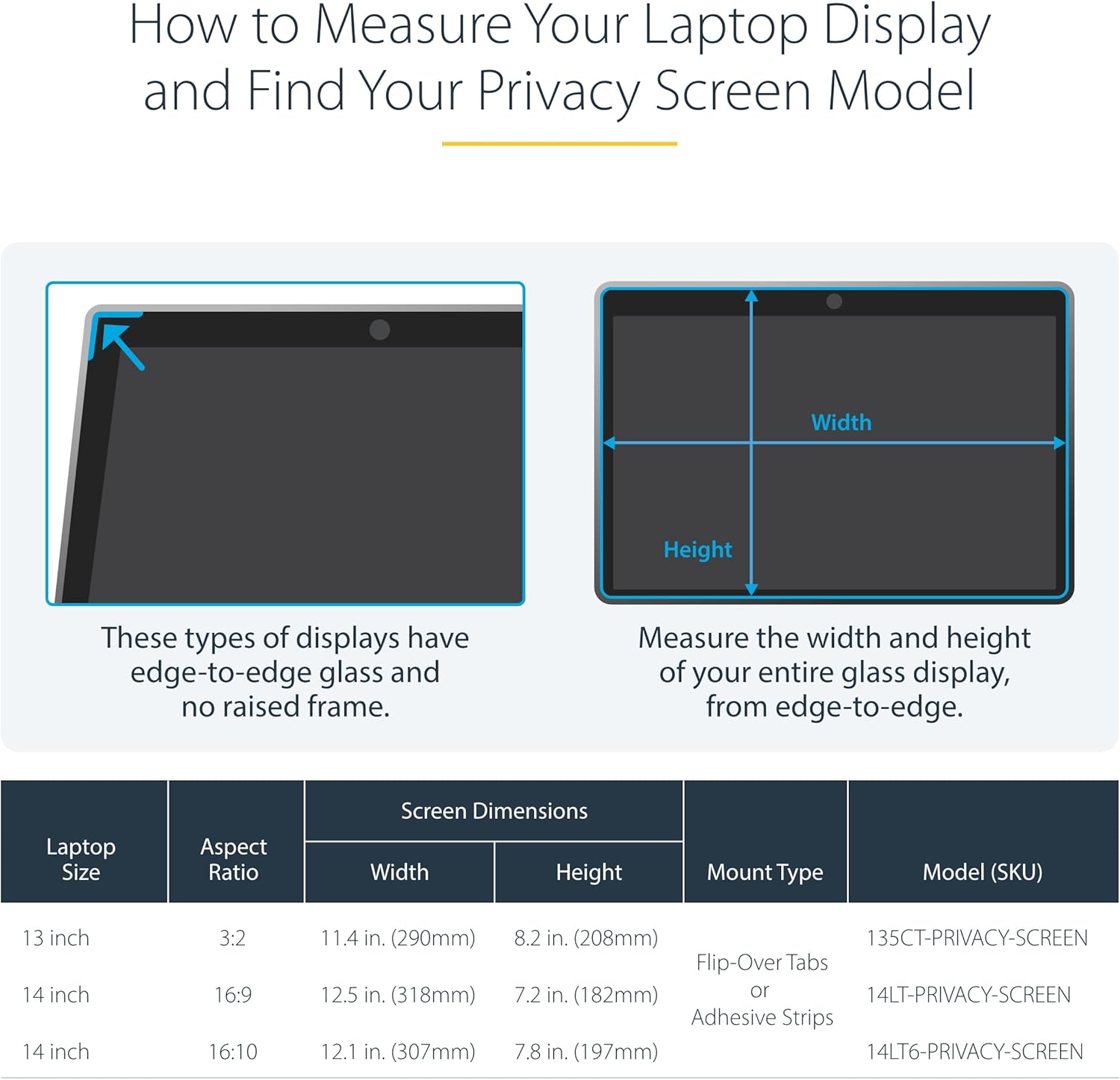
Important Note: Before purchasing, verify your monitor's size and aspect ratio to ensure compatibility. The filter dimensions are 307mm x 197mm (12.1 inches x 7.8 inches) for 14-inch displays with a 16:10 aspect ratio.
Operating Instructions
Once installed, the privacy filter functions automatically.
- Privacy Protection: The screen will appear dark or black to anyone viewing from an angle greater than approximately 30 degrees from the center of your display. This ensures that only the user directly in front of the screen can clearly see the content.
- Blue Light Filtering: The filter continuously reduces harmful blue light emissions from your screen, contributing to reduced eye strain.
- Touch Screen Functionality: The ultra-thin design allows for continued use of touch screen features without significant loss of responsiveness.
- Screen Sharing: If using the flip-over tab installation, simply lift and flip the filter behind your screen to allow others to view your display.


Care and Maintenance
To ensure optimal performance and longevity of your privacy filter, follow these care instructions:
- Cleaning: Use the provided cleaning cloth or a soft, lint-free microfiber cloth to gently wipe the surface of the privacy filter. For stubborn smudges, lightly dampen the cloth with water or a screen-safe cleaning solution. Avoid harsh chemicals, abrasive materials, or paper towels, as these can scratch the filter.
- Storage: When not in use, especially if using the flip-over method, ensure the filter is protected from scratches. The included protective sleeve can be used for storage if the filter is removed.
- Handling: Handle the filter by its edges to avoid leaving fingerprints on the viewing area.

Troubleshooting
| Problem | Possible Cause | Solution |
|---|---|---|
| Screen appears too dark or blurry. | Incorrect viewing angle; screen brightness too low; filter not properly aligned. | Ensure you are viewing the screen directly from the front. Adjust your laptop's screen brightness. Re-align the filter if necessary. |
| Touch screen responsiveness is reduced. | Filter not properly seated; dust or debris between filter and screen. | Ensure the filter is flush against the screen. Remove and clean both the screen and filter surfaces thoroughly before re-applying. |
| Privacy effect is not strong enough. | Viewing angle is too wide; ambient light conditions. | The filter is designed for a 60-degree viewing angle. Ensure viewers are outside this range. Adjust ambient lighting to reduce reflections. |
| Adhesive strips are missing or not effective. | Packaging error; strips lost; improper application. | Check all packaging materials carefully. If missing, contact StarTech.com support. Ensure surfaces are clean and dry before applying strips. |
Product Specifications
| Feature | Detail |
|---|---|
| Model Number | 14LT6-PRIVACY-SCREEN |
| Screen Size Compatibility | 14 inches |
| Aspect Ratio | 16:10 |
| Product Dimensions (W x H) | 307mm x 197mm (12.1 inches x 7.8 inches) |
| Product Thickness | 0.03 cm |
| Product Weight | 36.3 g |
| Privacy Viewing Angle | Approx. 60 degrees (30 degrees left/right) |
| Blue Light Reduction | Up to 51% |
| Light Transmittance | Approx. 60% |
| Installation Methods | Flip-over tabs, Adhesive strips |
| Color | Black |
Warranty Information
This StarTech.com product is backed by a comprehensive warranty. For specific warranty terms and conditions, please refer to the official StarTech.com website or the documentation included with your purchase. Proof of purchase may be required for warranty claims.
Customer Support
If you encounter any issues or have questions regarding your StarTech.com privacy filter, please visit the official StarTech.com support page for FAQs, drivers, and contact information.
Online Support: www.startech.com/support
Related documents14LT6-PRIVACY-SCREEN


Ask a question about this manual
Ask about setup, troubleshooting, compatibility, parts, safety, or missing instructions. Manuals+ will review the question and use this page’s manual context to help answer it.