1. Product Overview
The VIMIN VM-S250501M is a 2.5G Web Managed Ethernet Switch designed for high-performance network environments. It features five 2.5 Gigabit RJ45 ports and one 10 Gigabit SFP+ port, providing flexible connectivity options for various devices. This switch supports multiple speeds (100Mbps, 1Gbps, 2.5Gbps) with intelligent auto-negotiation, making it suitable for 2.5G NAS, gaming PCs, WiFi 6 routers, and 4K video streaming. It incorporates essential Layer 2 management features such as Link Aggregation, IGMP Snooping, Quality of Service (QoS), and VLAN support, all accessible through a user-friendly web-based graphical interface.
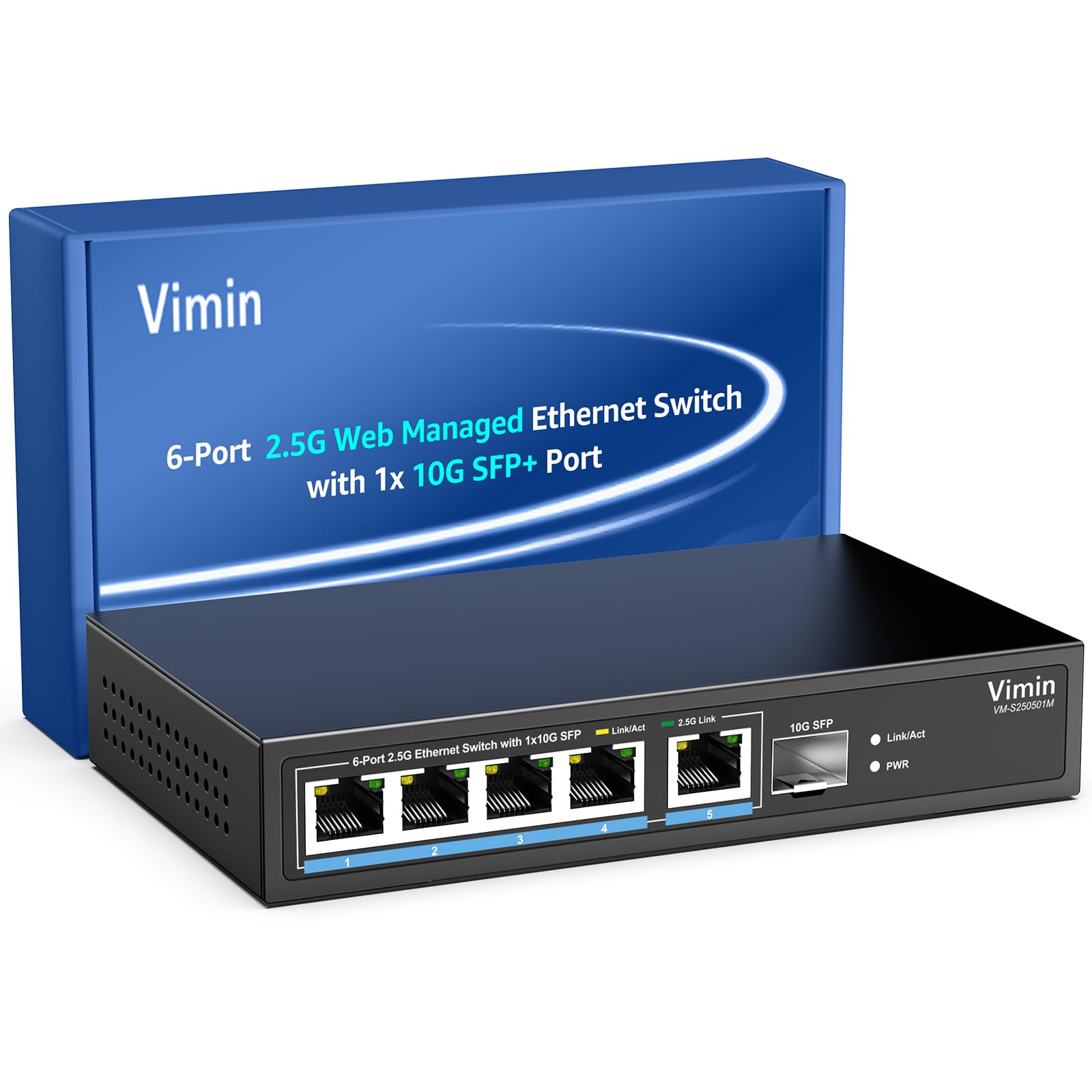
Figure 1: Front view of the VIMIN VM-S250501M switch, showing the 2.5G RJ45 ports, 10G SFP+ port, and LED indicators.

Figure 2: Illustration highlighting the durability, high compatibility, and versatility of the switch.
2. Setup Instructions
2.1 Package Contents
Verify the following items are included in your package:
- 1 x VIMIN VM-S250501M 2.5G Web Managed Ethernet Switch
- 1 x Power Adapter
- 1 x User Manual

Figure 3: The switch, power cable, and user manual are included in the package.
2.2 Physical Installation
The switch can be placed on a desktop or mounted on a wall. Ensure proper ventilation around the device.
- Desktop Placement: Place the switch on a flat, stable surface.
- Wall Mounting: The switch features two mounting holes at the base for wall installation. Use appropriate screws (not included) to secure the device to a wall.
2.3 Connecting Power
- Connect the power adapter to the DC 12V/1A power port on the rear panel of the switch.
- Plug the other end of the power adapter into a standard electrical outlet.
- The Power LED indicator on the front panel will illuminate when the switch is powered on.
2.4 Connecting Network Devices
Connect your network devices (e.g., computers, NAS, routers, access points) to the switch using appropriate Ethernet cables.
- RJ45 Ports (1-5): Use Category 5e (Cat5e) or Category 6 (Cat6) UTP cables for optimal performance with 1G/2.5G connections. For 100Mbps, Cat5 cables are sufficient.
- SFP+ Port (6): Insert a compatible 1G/2.5G/10G SFP+ optical fiber module (not included) into the SFP+ slot, then connect a fiber optic cable.

Figure 4: Illustrates connecting devices to the switch and recommended cable types for different speeds.
3. Operating the Switch
3.1 LED Indicators
The front panel LEDs provide real-time status information:
- 5*2.5G Ports (RJ45):
- Yellow: Indicates a 10/100/1000Mbps link or activity.
- Green: Indicates a 2.5Gbps link.
- 1*10G SFP (SFP+ Port):
- Green: Indicates a 1G/2.5G/10G link.
- Flashing: Indicates data transmission.
- PWR (Power):
- On: The device is powered on.
- Off: The device is powered off.

Figure 5: Detailed explanation of the LED indicators on the switch.
3.2 Accessing the Web Management Interface
The switch can be configured and managed via a web-based graphical user interface (GUI).
- Ensure your computer is connected to one of the switch's RJ45 ports.
- Open a web browser (e.g., Chrome, Firefox, Edge).
- In the address bar, enter the default IP address: 192.168.1.199.
- Press Enter. A login page will appear.
- Enter the default username and password:
- Username: admin
- Password: admin
- Click "Log In" to access the management interface.
It is recommended to change the default password after the initial login for security purposes.

Figure 6: Screenshot of the web management interface login page.
3.3 Basic Management Features
The web interface provides access to various Layer 2 management functions:
- Link Aggregation: Combine multiple physical links into a single logical link for increased bandwidth and redundancy. Supports static link aggregation.
- Jumbo Frame: Support for larger Ethernet frames (up to 12KB) to improve network efficiency for large data transfers.
- VLAN (Virtual Local Area Network): Segment your network into smaller, isolated broadcast domains. Supports up to 32 VLANs (on 4K VLAN IDs), MTU/Port/802.1Q VLAN.
- Quality of Service (QoS): Prioritize network traffic to ensure critical applications receive sufficient bandwidth. Supports port-based, 802.1p, and DSCP priority, with 4 priority queues, rate limiting, and storm control.
- IGMP Snooping: Optimize multicast traffic delivery, preventing unnecessary flooding of multicast packets to all ports.
- Port Mirroring: Copy traffic from one or more source ports to a destination port for network monitoring and analysis.
- Cable Test: A diagnostic tool to check the status and length of connected Ethernet cables.

Figure 7: Overview of the basic management features available through the web interface.
4. Maintenance
4.1 General Care
- Keep the switch in a cool, dry environment, away from direct sunlight, heat sources, and moisture.
- Ensure adequate airflow around the device to prevent overheating.
- Clean the exterior of the switch with a soft, dry cloth. Do not use liquid cleaners or aerosols.
4.2 Firmware Updates
Periodically check the VIMIN official website for firmware updates. Firmware updates can provide new features, performance improvements, and security enhancements. Follow the instructions provided with the firmware update package carefully.
4.3 Resetting the Device
If the switch is not functioning correctly or you forget the login credentials, you can reset it to factory default settings. Locate the "Reset" button on the rear panel of the switch. With the switch powered on, use a paperclip or a similar pointed object to press and hold the Reset button for approximately 5-10 seconds until the LEDs flash, then release. The switch will restart with factory default settings.
5. Troubleshooting
5.1 No Power
- Ensure the power adapter is securely connected to both the switch and a working electrical outlet.
- Verify the power outlet is functional by plugging in another device.
- Check the power adapter for any visible damage.
5.2 No Link/Connectivity
- Check the Ethernet cables connected to the switch and your devices. Ensure they are securely plugged in and not damaged.
- Verify the Link/Act LEDs on the switch for the connected ports. If they are off, there might be a cable issue or the connected device is not powered on/configured correctly.
- Try using a different Ethernet cable or port.
- Ensure the connected device's network adapter is enabled and configured correctly.
5.3 Slow Network Speed
- Ensure you are using Cat5e or Cat6 cables for 1G/2.5G connections. Lower category cables may limit speed.
- Check the Link/Act LED color for the connected port. A yellow LED on a 2.5G port indicates a 1G or lower connection.
- Verify that your connected devices (e.g., network card, NAS) support 2.5G or 10G speeds.
- Check for network congestion or high traffic on your network.
- Consider updating the switch firmware.
5.4 Cannot Access Web Interface
- Ensure your computer is on the same network segment as the switch. The default IP is 192.168.1.199, so your computer's IP should be in the 192.168.1.x range (e.g., 192.168.1.100) with a subnet mask of 255.255.255.0.
- Verify that the Ethernet cable is properly connected and the Link/Act LED is on.
- Clear your browser's cache or try a different browser.
- If you have changed the switch's IP address and forgotten it, or forgotten the login password, perform a factory reset (refer to Section 4.3).
6. Specifications
| Model | VM-S250501M |
| Standards | IEEE 802.3/802.3u/802.3ab/802.3bz/802.3x/802.3cb |
| Ports | 5 x 10/100/1000/2500 Mbps RJ45, 1 x 10G SFP+ slot |
| Switching Capacity | 45 Gbps |
| MAC Address Table | 4K |
| Packet Forwarding Rate | 33.48 Mpps |
| Jumbo Frame | 12 KB |
| Packet Buffer | 8 Mbit |
| Power Supply | 12V/1A DC |
| Network Cable (Max 100m) |
|
| Mounting Method | Desktop and Wall Mount |
| Operating Temperature | 0℃ ~ 45℃ (32℉ ~ 113℉) |
| Storage Temperature | -40℃ ~ 70℃ (-40℉ ~ 158℉) |
| Operating Humidity | 10% ~ 90% non-condensing |
| Storage Humidity | 5% ~ 95% non-condensing |
| Weight | 380 g |
| Dimensions (L x W x H) | 160 x 95 x 30 mm (6.3 x 3.7 x 1.2 inches) |
| Housing Material | Metal |
| Color | Black |
7. Warranty and Support
7.1 Product Warranty
The VIMIN VM-S250501M 2.5G Web Managed Ethernet Switch comes with a one-year warranty from the date of purchase. This warranty covers manufacturing defects and ensures the product meets its specified performance standards under normal use. Please retain your proof of purchase for warranty claims.
7.2 Technical Support
VIMIN provides lifetime technical support for this product. If you encounter any issues or have questions regarding the setup, operation, or troubleshooting of your switch, please contact our support team.
Contact Information:
- Email: support@vimintech.com
Figure 8: VIMIN support information, including email contact.