
Eaglerich 9210S
Eaglerich 9210S Car Stereo User Manual
Model: 9210S
Introduction
This manual provides detailed instructions for the installation, operation, and maintenance of your Eaglerich 9210S Car Radio Car Stereo. Please read this manual thoroughly before using the product to ensure proper operation and to prevent damage.
Safety Information
- Ensure proper wiring and connections to avoid short circuits or electrical hazards.
- Do not operate the device in extreme temperatures or humid conditions.
- Avoid distractions while driving. Adjust settings only when it is safe to do so.
- Consult a professional for installation if you are unsure about any steps.
- Keep the device away from direct sunlight and heat sources.
Package Contents
Verify that all items listed below are included in your package:
- 1 x Eaglerich 9210S Host Unit
- 1 x GPS Antenna
- 1 x 16P Power Cable
- 1 x RCA Cable
- 1 x Reverse Video Input Cable
- 2 x USB Cables
- 1 x Installation Bracket
- Screws
- 1 x Instruction Manual
- Optional: Camera (if purchased with camera option)

Image: The Eaglerich 9210S car stereo unit displayed with all its included accessories, such as the GPS antenna, various cables (power, RCA, USB), mounting brackets, and the instruction manual.
Product Overview
The Eaglerich 9210S features a 7-inch capacitive touchscreen and runs on Android 11, offering a comprehensive multimedia and navigation experience for your vehicle.

Image: Detailed view of the Eaglerich 9210S car stereo, showing its physical dimensions (178mm width, 104mm height, 30mm depth) and the location of side controls including microphone hole, RESET button, POWER ON/OFF, Home, Return, VOL+, and VOL- buttons.
Front Panel Controls:
- Touchscreen Display: 7-inch capacitive screen with 1024x600 resolution for interactive control and media display.
- Microphone: Built-in for hands-free calling and voice commands.
- Reset Button: Small pinhole button to reset the unit.
- Power Button: Turns the unit on/off and controls screen standby.
- Home Button: Returns to the main Android home screen.
- Return Button: Navigates back in menus or applications.
- Volume Up/Down: Adjusts the audio output volume.
Rear Panel Connections:

Image: Rear view of the Eaglerich 9210S car stereo, highlighting various connection ports: 16-pin power cable, 20-pin RCA line, 4-pin USB cable, 6-pin USB cable, 10-pin reversing input, Radio ANT, and GPS ANT ports.
- 16-pin Power Cable Port: For main power and speaker connections.
- 20-pin RCA Line Port: For audio/video input/output connections.
- USB Ports (4-pin & 6-pin): For connecting USB devices, such as flash drives or external accessories.
- 10-pin Reversing Input: For connecting a backup camera.
- Radio ANT: Antenna input for FM radio reception.
- GPS ANT: Antenna input for GPS signal reception.
Setup
Installation Instructions:
- Preparation: Disconnect the vehicle's negative battery terminal before starting installation to prevent electrical damage.
- Mounting: Use the provided installation brackets and screws to secure the car stereo unit into your vehicle's dashboard opening. Ensure it is firmly in place.
- Wiring Connections:
- Connect the 16-pin power cable to the corresponding port on the unit and then to your vehicle's power harness (ACC, B+, GND, speaker wires).
- Connect the GPS antenna to the GPS ANT port and position it in a location with clear sky view (e.g., dashboard).
- Connect the Radio antenna to the Radio ANT port.
- If using a backup camera, connect its video output to the 10-pin reversing input port.
- Connect any RCA cables for external amplifiers or video outputs/inputs as needed.
- Route the USB cables to a convenient location for connecting USB devices.
- Test: Reconnect the vehicle's negative battery terminal. Turn on the vehicle's ignition and power on the car stereo to test basic functions (power, audio, display).
- Final Assembly: Once all functions are verified, carefully reassemble the dashboard components.
Operating Instructions
Basic Operation:
- Power On/Off: Press the power button on the front panel to turn the unit on or off. A short press may put the screen into standby mode.
- Volume Control: Use the VOL+ and VOL- buttons on the side panel or the touchscreen interface to adjust the audio volume.
- Navigation: Use the touchscreen to navigate through menus and applications. The Home button returns to the main screen, and the Return button goes back one step.
Wireless Carplay & Android Auto:
The unit supports wireless Carplay for iPhones and Android Auto for Android smartphones, allowing seamless integration of your phone's features.
- Ensure Bluetooth and Wi-Fi are enabled on your smartphone.
- On the car stereo, open the "Carplay" or "Android Auto" application.
- Follow the on-screen prompts to pair your phone via Bluetooth. Once paired, the system will automatically establish a Wi-Fi connection for Carplay/Android Auto.
- You can now access navigation, music, calls, and messages directly from the car stereo's touchscreen.

Image: Displays the user interfaces for both Apple Carplay and Android Auto on the Eaglerich 9210S 7-inch touchscreen, showing how built-in Carplay connects with iPhones and Android Auto with Android mobile phones.
GPS Navigation & WLAN:
The unit has built-in GPS for navigation and supports Wi-Fi for internet connectivity.
- GPS: The pre-installed navigation software allows for offline map usage. Ensure the GPS antenna is properly installed for optimal signal reception.
- WLAN: Connect to a Wi-Fi hotspot (e.g., from your smartphone) via the settings menu to access online features, download apps from the App Store, or browse the internet.

Image: The Eaglerich 9210S car stereo displaying a GPS navigation map, illustrating its built-in GPS/AGPS/GLONASS/Beidou capabilities for precise positioning.
Bluetooth Connectivity:
Connect your smartphone via Bluetooth for hands-free calling and audio streaming.
- Go to the Bluetooth settings on the car stereo.
- Enable Bluetooth on your smartphone and search for available devices.
- Select "Eaglerich 9210S" (or similar name) from the list on your phone and confirm the pairing code.
- Once connected, you can make/receive calls and play music through the car stereo.
FM Radio:
Access local radio stations with the built-in FM tuner.
- Open the "FM Radio" application.
- Use the scan function to automatically search and save available stations, or manually tune to a specific frequency.
- The unit supports FM 87.5 - 108 MHz and can switch radio frequencies for various regions (Europe, North America, etc.).

Image: The Eaglerich 9210S car stereo displaying its FM radio interface, showing the frequency tuner and preset station buttons, indicating real-time traffic conditions and news.
Mirror Link:
Mirror your smartphone's screen directly onto the car stereo display.
- Open the "Mirror Link" application on the car stereo.
- Follow the instructions for connecting your Android or iOS device. Android devices typically support two-way control, while iOS devices support one-way mirroring.
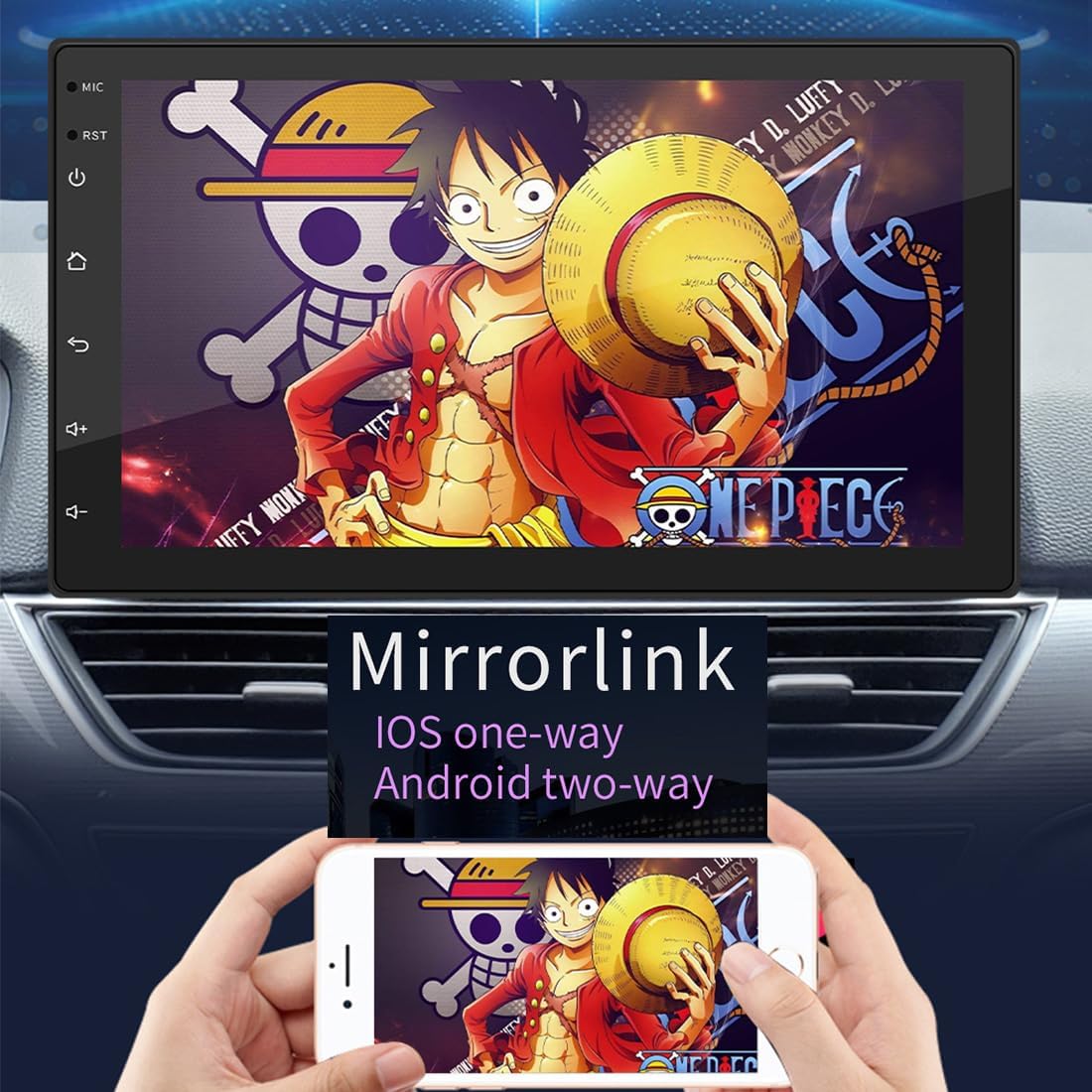
Image: The Eaglerich 9210S car stereo screen mirroring a smartphone display, illustrating the Mirrorlink function which supports one-way mirroring for iOS and two-way for Android devices.
Steering Wheel Control:
If your vehicle supports steering wheel controls, you can configure them to operate the car stereo.
- Access the "Steering Wheel Control" settings in the unit's system menu.
- Follow the on-screen instructions to map your vehicle's steering wheel buttons to functions like volume up/down, track skip, answer/end call, etc.

Image: A car interior showing the Eaglerich 9210S car stereo installed, with an overlay demonstrating how steering wheel controls can be used to quickly switch songs and adjust volume.
Maintenance
- Cleaning: Use a soft, dry cloth to clean the touchscreen and unit. For stubborn smudges, slightly dampen the cloth with water. Do not use harsh chemicals or abrasive cleaners.
- Software Updates: Periodically check for software updates via the system settings (requires Wi-Fi connection) to ensure optimal performance and access to new features.
- Temperature: Avoid exposing the unit to extreme temperatures. If the car has been parked in direct sunlight, allow the interior to cool before operating the stereo.
Troubleshooting
| Problem | Possible Cause | Solution |
|---|---|---|
| Unit does not power on. | Incorrect wiring; Blown fuse; Vehicle battery low. | Check power cable connections. Inspect vehicle fuses. Check car battery voltage. |
| No sound. | Volume too low; Mute enabled; Speaker wires disconnected; Incorrect audio settings. | Increase volume. Disable mute. Check speaker wire connections. Verify audio output settings. |
| Touchscreen unresponsive. | System frozen; Software glitch. | Press the RESET button with a thin object. Restart the unit. |
| GPS signal weak/lost. | GPS antenna improperly placed or disconnected. | Ensure GPS antenna has a clear view of the sky and is securely connected. |
| Bluetooth not connecting. | Bluetooth not enabled; Device not discoverable; Pairing issue. | Ensure Bluetooth is on for both devices. Make the phone discoverable. Delete previous pairings and re-pair. |
Specifications
| Feature | Detail |
|---|---|
| Operating System | Android 11 |
| Screen Size | 7-inch Capacitive Touch Screen |
| Screen Resolution | 1024x600 |
| Processor | A7 1.3GHz x 4 |
| Memory (RAM+ROM) | 1GB RAM + 16GB ROM |
| Radio Band | FM (87.5 - 108 MHz) |
| Wireless Connectivity | Wireless Carplay, Android Auto, Wi-Fi, Bluetooth |
| Navigation | Built-in GPS |
| Mirror Link | Android/iOS support |
| Output Power | 60W x 4 |
| Operating Voltage | 12 V |
| Audio Formats | MP3/WMA/WAV/APE/FLAC/AAC/OGG/RM |
| Video Formats | MPEG/AVI/RM/FLV/ASF/WMV/MP4/MKV/OGM/TS/DivX/RMVB/VOB |
| Menu Languages | English, German, French, Italian, Spanish, Portuguese, Russian, Turkish, Polish, etc. |
| Item Weight | 1.7 pounds |
| Package Dimensions | 8.07 x 6.69 x 4.37 inches |

Image: Close-up of the Eaglerich 9210S's 7-inch large screen, emphasizing its 1024x600 HD resolution for clear visual display.
Warranty and Support
For warranty information and technical support, please refer to the contact details provided on the product packaging or the official Eaglerich website. Keep your purchase receipt as proof of purchase for warranty claims.
For further assistance, you may also contact the seller directly through the platform where the product was purchased.
Related Documents - 9210S
 |
Podofo Android Car Stereo GPS Navigation System - User Manual and Installation Guide Comprehensive user manual and installation guide for the Podofo Android car stereo system. Learn about features, Bluetooth, GPS navigation, camera installation, system settings, and troubleshooting. |
 |
USB Flash Drive User Manual - Product Information, Safety, and Usage Guide This manual provides essential information for USB flash drives, including product details, manufacturer information, compliance, safety warnings, and instructions for use. |
 |
SanDisk SD Card OEM Product Manual - Technical Specifications and Features Comprehensive OEM product manual for SanDisk SD Cards, detailing technical specifications, interface descriptions, protocol details, power requirements, physical dimensions, and ordering information. |
 |
MXQ PRO Android TV Box: Amlogic S905 Quad-Core 4K Media Player Discover the MXQ PRO, a powerful Android 5.1.1 Smart TV Box featuring the Amlogic S905 Quad-Core CPU, Mali-450 GPU, 4K Ultra HD playback, H.265 HEVC decoding, and extensive connectivity for enhanced home entertainment. |
 |
TF Card User Guide: Connect, Copy, and Transfer Files A concise guide on how to use a TF card, including connecting it via a card reader, opening it on a device, copying files, and waiting for the transfer to complete. |
 |
Android Car Multimedia System Operating Manual and Interface Guide Comprehensive operating manual for Android car multimedia systems, covering installation, safety precautions, features, specifications, and troubleshooting for common issues like power, sound, and connectivity. Includes details on mirror link, GPS navigation, Bluetooth, and camera wiring. |
Ask a question about this manual
Ask about setup, troubleshooting, compatibility, parts, safety, or missing instructions. Manuals+ will review the question and use this page’s manual context to help answer it.