
1. Overview
This manual provides detailed instructions for the installation, operation, and maintenance of your Eaglerich Car Radio Android 11 System, model 9210S. This device integrates advanced features such as a 7-inch touchscreen, Android 11 operating system, wireless Carplay and Android Auto, GPS navigation, Wi-Fi, Bluetooth, and Mirror Link functionality.
Key features include:
- Android 11 System: Provides a modern and customizable user experience.
- 7-inch Capacitive Touch Screen: High-resolution display for clear visuals and responsive interaction.
- Wireless Carplay & Android Auto: Seamless integration with your smartphone for navigation, communication, and entertainment.
- Built-in GPS: Supports online and offline navigation.
- Wi-Fi Connectivity: Allows access to online applications and updates.
- Bluetooth Hands-free & Audio Streaming: For safe calling and wireless music playback.
- Mirror Link: Display your smartphone screen directly on the car radio.
- Rear View Camera Input: Supports automatic display when reversing (camera optional).
2. Safety Information
Please read all safety instructions carefully before installing and operating the device. Failure to follow these instructions may result in injury or damage to the device or vehicle.
- Professional Installation Recommended: Due to the complexity of car electrical systems, professional installation is highly recommended to prevent damage to the vehicle or the unit.
- Power Supply: Connect the unit only to a 12V DC power supply with a negative ground.
- Wiring: Ensure all wiring is correctly connected according to the provided diagram. Incorrect wiring can cause malfunction or damage.
- Driving Safety: Do not operate the unit in a way that distracts you from driving. Always prioritize road safety.
- Temperature: Avoid exposing the unit to extreme temperatures or direct sunlight for prolonged periods.
- Moisture: Keep the unit dry. Exposure to moisture can cause electric shock or damage.
3. Package Contents
Verify that all items are present in the package before installation.
- Main Host Unit
- GPS Antenna
- 16P Power Cable
- RCA Cable
- Reverse Video Input Cable
- USB Cable (x2)
- Installation Bracket
- Screws
- Camera (optional, if included in your specific package)
- Microphone (optional, if included in your specific package)
- Instruction Manual

Image Description: This image displays the main car radio unit along with its various accessories and connection cables. It shows the rear panel of the unit with labeled ports for power, RCA, USB, reversing input, radio antenna, and GPS antenna. Below the unit, individual components are laid out, including metal frames and screws, a GPS antenna, a camera input cable, a power cable, RCA input/output cables, two USB cables, and the instruction manual.
4. Setup
4.1 Installation
Installation of the Eaglerich 9210S Car Radio requires knowledge of car audio systems and electrical wiring. If you are unsure about any steps, it is strongly recommended to seek professional installation services.
- Disconnect Battery: Before starting, disconnect the negative terminal of your vehicle's battery to prevent electrical shorts.
- Remove Old Unit: Carefully remove your existing car radio from the dashboard.
- Connect Wiring: Refer to the wiring diagram (shown in the Package Contents image) and connect the 16P power cable, RCA cables, GPS antenna, and any other necessary cables (e.g., reverse camera, USB) to the corresponding ports on the new unit. Ensure secure connections.
- Mount Unit: Use the provided installation brackets and screws to secure the Eaglerich 9210S unit into the dashboard opening.
- Reconnect Battery: Once all connections are secure and the unit is mounted, reconnect the vehicle's battery.
4.2 Initial Power On
After installation, turn on your vehicle's ignition. The unit should power on automatically. Follow any on-screen prompts for initial setup, such as language selection and time zone.
5. Operating Instructions
5.1 User Interface Overview

Image Description: This image shows the 7-inch touchscreen display of the Eaglerich 9210S Car Radio. The screen displays a grid of application icons, including Phone, Music, Maps, Messages, Now Playing, Car, Calendar, and Settings, typical of an Android interface. A finger is shown interacting with the screen, highlighting its touch functionality. The unit also features physical buttons on the left side for common functions like power, reset, back, and volume.
The main screen provides access to various applications and settings. Navigate by touching the icons directly on the screen. Swipe left or right to access additional app pages.
5.2 Wireless Carplay & Android Auto
Connect your iPhone or Android smartphone wirelessly to access features like navigation, calls, messages, and music directly on the car radio display.

Image Description: This image illustrates the Carplay and Android Auto functionalities of the Eaglerich 9210S Car Radio. The top part shows the unit displaying the Apple Carplay interface with familiar app icons like Phone, Music, Maps, and Messages, indicating compatibility with iPhones. The bottom part shows the unit displaying the Android Auto interface with Google Maps, YouTube Music, Spotify, and Phone icons, indicating compatibility with Android phones. Both sections emphasize the built-in nature of these features.
- Ensure Bluetooth and Wi-Fi are enabled on your smartphone and the car radio.
- On the car radio, select the Carplay or Android Auto application.
- Follow the on-screen instructions to pair your smartphone.
- Once connected, your phone's compatible apps will appear on the car radio screen.
5.3 GPS Navigation
The unit features built-in GPS for precise positioning and navigation.

Image Description: This image shows the Eaglerich 9210S Car Radio installed in a car dashboard, displaying a detailed GPS navigation map. The map shows roads, buildings, and points of interest, with a highlighted route. The top of the image features a stylized representation of a car on a global map, emphasizing the GPS/AGPS/GLONASS/Beidou satellite positioning capabilities.
- Tap the 'Maps' or 'Navigation' icon on the main screen.
- You can use pre-installed maps or download additional navigation apps via Wi-Fi.
- Enter your destination and follow the voice and visual prompts.
5.4 Mirror Link
Mirror Link allows you to display your smartphone's screen directly onto the car radio. iOS supports one-way mirroring, while Android supports two-way control.
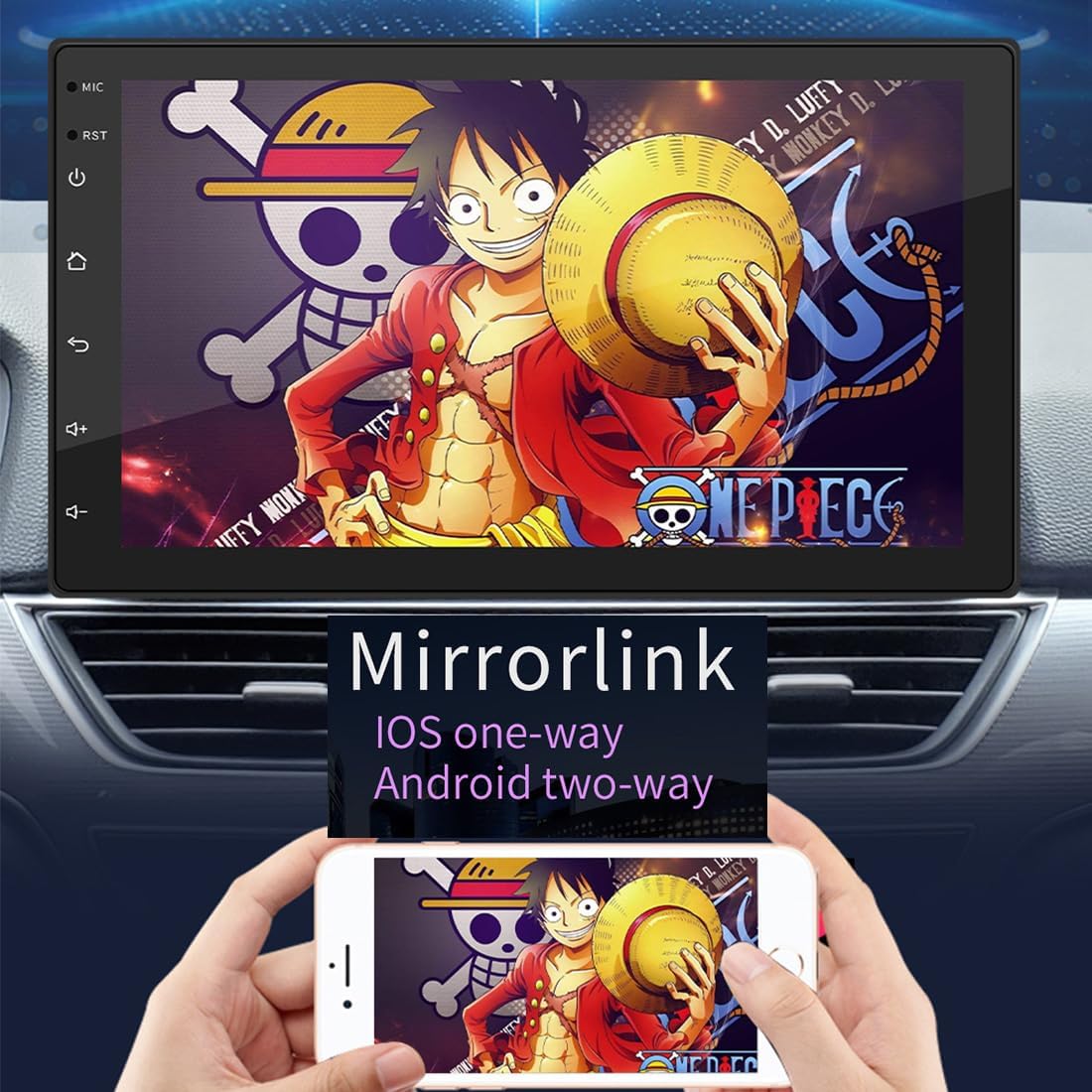
Image Description: This image illustrates the Mirrorlink feature of the Eaglerich 9210S Car Radio. The car radio screen displays the content of a smartphone, which is held by two hands below the unit. The smartphone screen shows the same image as the car radio, demonstrating the mirroring capability. Text overlays indicate "Mirrorlink iOS one-way Android two-way," clarifying the control differences between operating systems.
- Connect your smartphone to the car radio via USB cable or Wi-Fi (depending on your phone model and Mirror Link app).
- Open the 'Mirror Link' application on the car radio.
- Follow the on-screen instructions to establish the connection.
5.5 Bluetooth Hands-free & Audio Streaming
Pair your phone via Bluetooth for hands-free calling and wireless audio playback.
- Go to the 'Bluetooth' application on the car radio.
- Enable Bluetooth on your smartphone and make it discoverable.
- Search for available devices on the car radio and select your phone.
- Confirm the pairing code on both devices.
- Once paired, you can make/receive calls and stream music.
5.6 FM Radio
Access local radio stations with the built-in FM tuner.
- Tap the 'Radio' icon.
- Use the scan function to find available stations.
- Save your favorite stations to presets for quick access.
5.7 Media Playback (USB)
Play audio and video files from a USB drive.
- Insert a USB drive into one of the USB ports.
- Tap the 'Music' or 'Video' application.
- Browse and select your desired files for playback.
5.8 Rear View Camera
If a compatible rear view camera is connected, the display will automatically switch to the camera feed when the vehicle is put into reverse gear.

Image Description: This image demonstrates the reversing assist feature of the Eaglerich 9210S Car Radio. The car radio screen displays a view from a rear camera, showing parking guidelines (green, yellow, red lines) over a parking lot scene. An illustration of a car and a camera icon are shown below the screen, indicating the optional nature of the camera and its function in providing a visual aid for reversing.
5.9 Sound Settings (EQ)
Adjust audio output to your preference using the Equalizer (EQ) settings.
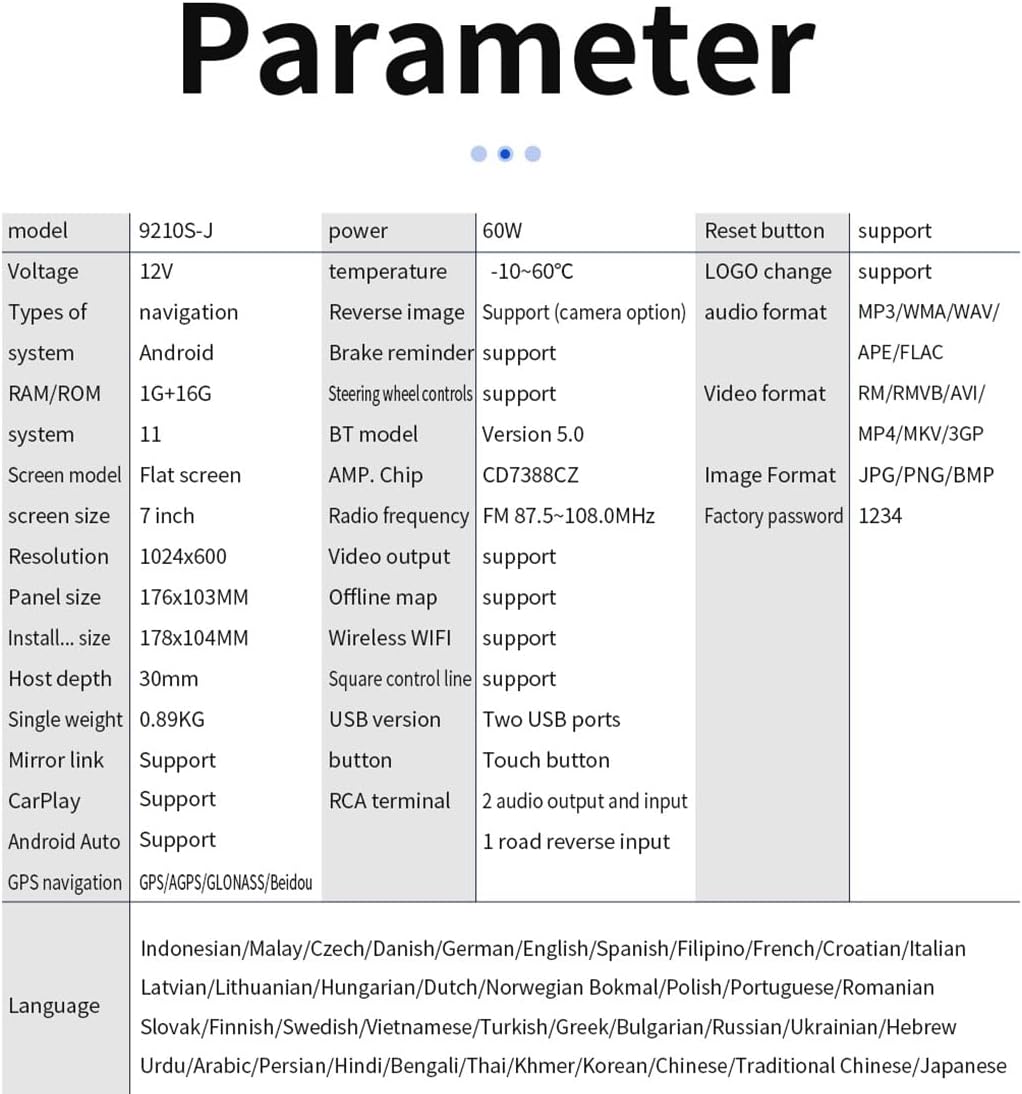
Image Description: This image shows the EQ sound settings interface on the Eaglerich 9210S Car Radio. The screen displays various audio adjustment options, including a graphic equalizer with sliders for different frequency bands. The background features a music player interface with album art and playback controls, and two car speakers are depicted, emphasizing the audio customization capabilities.
- Access the 'Settings' menu and look for 'Sound' or 'EQ'.
- Adjust bass, treble, balance, fader, and other equalizer settings to optimize your listening experience.
5.10 Wi-Fi Connectivity
Connect to a Wi-Fi network to download apps, browse the internet, and receive updates.
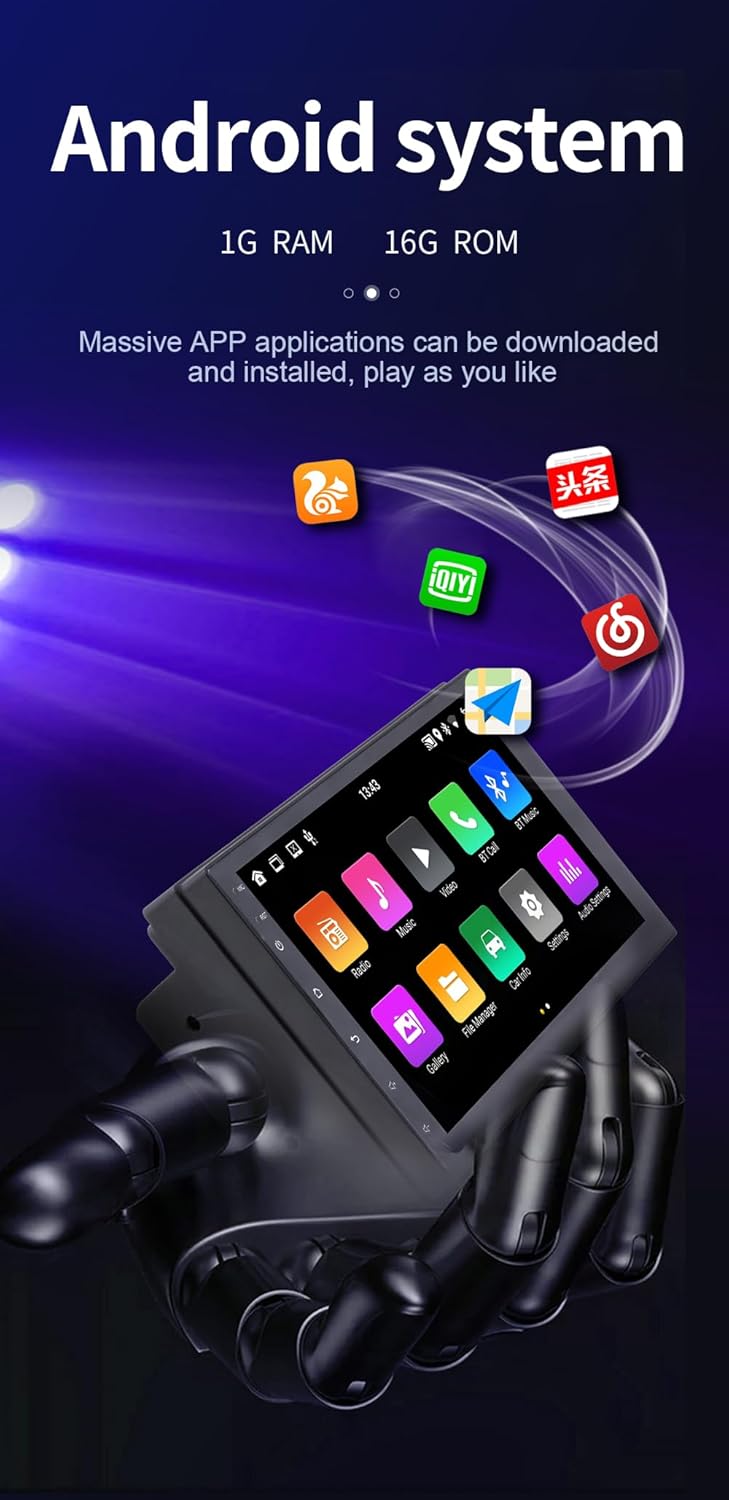
Image Description: This image highlights the Android system of the Eaglerich 9210S Car Radio. The screen displays a variety of application icons, including popular streaming and social media apps, demonstrating the ability to download and install numerous applications. The text emphasizes the 1GB RAM and 16GB ROM, indicating the system's capacity for running multiple apps.
- Go to 'Settings' and select 'Wi-Fi'.
- Turn on Wi-Fi and select your desired network from the list.
- Enter the password if prompted.
6. Maintenance
6.1 Cleaning the Screen
Use a soft, lint-free cloth to gently wipe the touchscreen. For stubborn smudges, slightly dampen the cloth with water or a screen-safe cleaner. Avoid abrasive materials or harsh chemicals.
6.2 Software Updates
Periodically check for software updates through the system settings (if available) to ensure optimal performance and access to new features. Ensure a stable internet connection during updates.
7. Troubleshooting
If you encounter issues with your Eaglerich Car Radio, refer to the following common problems and solutions.
- No Power:
- Check the power cable connections.
- Verify the vehicle's fuse for the radio is intact.
- Ensure the car battery is properly connected and charged.
- No Sound:
- Check speaker wire connections.
- Ensure the volume is not muted or set too low.
- Verify audio settings (balance, fader, EQ).
- GPS Not Working / Inaccurate:
- Ensure the GPS antenna is properly connected and has a clear view of the sky.
- Check GPS settings in the system.
- Update map data if necessary.
- Bluetooth Connection Issues:
- Ensure Bluetooth is enabled on both the radio and your phone.
- Delete previous pairings and try re-pairing.
- Restart both the radio and your phone.
- Touchscreen Unresponsive:
- Perform a soft reset using the RST button (if available) or by briefly disconnecting the power.
- Ensure the screen is clean and free of debris.
If the problem persists, consult a qualified technician or contact customer support.
8. Specifications
Detailed technical specifications for the Eaglerich Car Radio Android 11 System 9210S.

Image Description: This image presents a detailed parameter table for the Eaglerich 9210S Car Radio. It lists various specifications such as model (9210S-J), voltage (12V), system type (Android 11), RAM/ROM (1G+16G), screen size (7 inch), resolution (1024x600), power output (60W), operating temperature, supported audio/video formats, Bluetooth version (5.0), and supported languages, among others.
| Feature | Specification |
|---|---|
| Model | 9210S |
| Operating System | Android 11 |
| Screen | 7-inch Capacitive Touch Screen |
| Screen Resolution | 1024x600 |
| Processor | A7 1.3GHz x 4 |
| Memory (RAM + ROM) | 1 GB + 16 GB |
| Radio Band | FM (87.5 - 108 MHz) |
| Wireless Connectivity | Carplay & Android Auto |
| Mirror Link | Android/iOS (iOS one-way, Android two-way) |
| Navigation | Built-in GPS/AGPS/GLONASS/Beidou |
| Wi-Fi | Supported |
| Bluetooth | Version 5.0 |
| Output Power | 60W x 4 |
| Operating Voltage | 12 V |
| Audio Formats | MP3/WMA/WAV/APE/FLAC/AAC/OGG/RM |
| Video Formats | MPEG/AVI/RM/FLV/ASF/WMV/MP4/MKV/OGM/TS/DivX/RMVB/VOB |
| Menu Languages | English, German, French, Italian, Spanish, Portuguese, Russian, Turkish, Polish, etc. |
| Item Weight | 2.5 pounds |
| Package Dimensions | 8 x 6.7 x 4.5 inches |
9. Warranty and Support
For warranty information, please refer to the documentation provided at the time of purchase or contact your retailer. Eaglerich products typically come with a manufacturer's warranty covering defects in materials and workmanship.
For technical support or further assistance, please contact the seller or manufacturer directly. Have your product model number (9210S) and purchase details ready when contacting support.