
SABLUTE B0CT2R9TN9
SABLUTE Large Print Keyboard User Manual
Model: B0CT2R9TN9
Brand: SABLUTE
1. Introduction
The SABLUTE Large Print Keyboard is designed to enhance typing comfort and visibility. Featuring large, easy-to-read characters and an ergonomic design with an integrated wrist rest, this wired keyboard is suitable for various users, including the elderly, students, and office professionals. It also includes a convenient phone/tablet holder for improved multitasking.
2. Setup
The SABLUTE Large Print Keyboard offers a straightforward plug-and-play setup, requiring no additional drivers or software installation.
- Unpack the Keyboard: Carefully remove the keyboard from its packaging.
- Connect to Computer: Locate an available USB-A port on your computer (desktop, laptop, etc.). Insert the USB-A cable from the keyboard firmly into the USB-A port.
- System Recognition: Your operating system (Windows, macOS, Chrome OS, Vista) should automatically detect and configure the keyboard. A notification may appear indicating that the device is ready for use.
- Begin Typing: The keyboard is now ready for immediate use.

Figure 2.1: The keyboard features a USB-A connection for plug-and-play compatibility with various operating systems.
3. Operating Instructions
3.1 Basic Typing and Ergonomics
The keyboard features large, high-contrast yellow keycaps with black characters for enhanced visibility. The ergonomic design includes a built-in wrist rest and bottom support to reduce wrist fatigue during extended use.

Figure 3.1: The ergonomic design with an integrated wrist rest promotes comfortable typing posture.
3.2 Integrated Phone/Tablet Holder
A dedicated slot is integrated into the keyboard's design to securely hold your smartphone or tablet, allowing for convenient viewing during computer use. This holder does not provide charging functionality.

Figure 3.2: The integrated slot provides a stable resting place for mobile devices.
3.3 Multimedia and Shortcut Keys
The keyboard includes several one-touch multimedia and shortcut keys located above the function row for quick access to common functions. These include navigation (forward, backward), refresh, search, stop loading, and calculator. Note that multimedia keys may have limited compatibility with macOS systems.
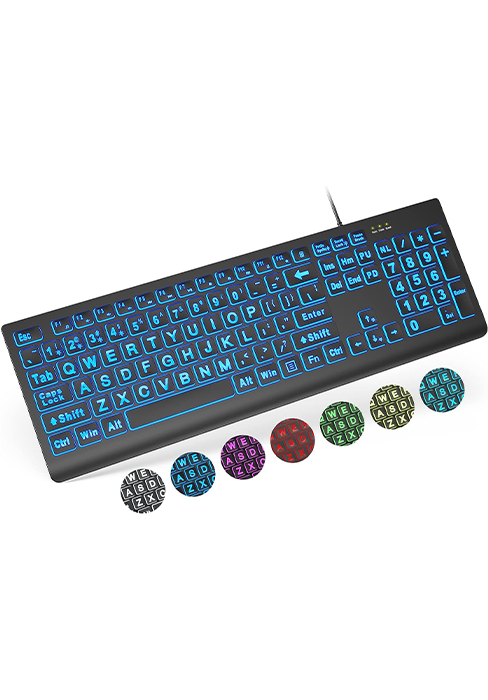
Figure 3.3: Overview of the dedicated shortcut keys for enhanced productivity.
4. Maintenance
To ensure the longevity and cleanliness of your SABLUTE Large Print Keyboard, regular maintenance is recommended.
- Cleaning the Keys: Use a soft, lint-free cloth slightly dampened with water or a mild, non-abrasive cleaning solution to wipe down the keycaps. Avoid excessive moisture.
- Cleaning the Wrist Rest: The hard plastic wrist rest can be easily cleaned with a damp cloth. Avoid harsh chemicals that may damage the surface.
- Dust Removal: Periodically use compressed air to remove dust and debris from between the keys.
5. Troubleshooting
If you encounter issues with your SABLUTE Large Print Keyboard, consider the following troubleshooting steps:
- Keyboard Not Responding:
- Ensure the USB-A cable is securely connected to both the keyboard and the computer's USB port.
- Try connecting the keyboard to a different USB port on your computer.
- Restart your computer to refresh the USB connections.
- Keys Not Registering:
- Check for any physical obstructions or debris under the affected keys.
- Gently press the key multiple times to dislodge any stuck particles.
- Multimedia Keys Not Working (macOS):
- Some multimedia keys may have limited or no functionality on macOS systems due to operating system design. This is expected behavior and not a defect.
6. Specifications
| Feature | Detail |
|---|---|
| Brand | SABLUTE |
| Model | B0CT2R9TN9 |
| Connectivity Technology | USB-A (Wired) |
| Compatible Devices | Laptop, PC (Windows, macOS, Chrome OS, Vista) |
| Keyboard Description | Flexible |
| Special Features | Ergonomic, Large Print, Phone Holder, Wired, Wrist Rest |
| Color | Yellow |
| Number of Keys | 111 |
| Product Dimensions | 17.32"L x 9.49"W x 1.81"H (43.99 x 24.10 x 4.60 cm) |
| Item Weight | 1.98 pounds (0.90 kg) |
7. Warranty and Support
SABLUTE is committed to customer satisfaction. For any inquiries or support needs, please refer to the following information:
- Manufacturer Warranty: The product is covered by a 360-day manufacturer warranty.
- Replacement Policy: A 90-day replacement policy is available for eligible issues.
- Customer Service: Expect a reply to your inquiries within 24 hours.
- Contact Number (US): 1-213-296-1273 (Mon-Fri 9am-1pm, 2pm-6pm PST)
- Brand Care: SABLUTE provides dedicated brand care for its products.

Figure 7.1: SABLUTE customer support details.
Ask a question about this manual
Ask about setup, troubleshooting, compatibility, parts, safety, or missing instructions. Manuals+ will review the question and use this page’s manual context to help answer it.