
AZDOME AZDOME M300S 4K Dash Cam
AZDOME M300S Dash Cam User Manual
Front and Rear 4K, 5.8G WiFi, GPS, Voice Control Dash Camera
1. Introduction
Welcome to the AZDOME M300S Dash Cam user manual. This guide provides detailed instructions for setting up, operating, maintaining, and troubleshooting your new dash camera. Please read this manual thoroughly before use to ensure optimal performance and longevity of your device.
1.1 Product Overview
The AZDOME M300S is a high-performance dual dash camera system designed to record both front and rear views of your vehicle in stunning 4K and 1080P resolution respectively. It features built-in 5.8G WiFi for seamless app connectivity, GPS for accurate route tracking, voice control for hands-free operation, G-Sensor for emergency recording, and 24-hour parking monitoring capabilities.

Figure 1.1: AZDOME M300S Dash Cam with phone showing app interface and included 64GB SD card.
2. What's in the Box
Verify that all items listed below are present in your package:
- 4K Dash Cam (Front Unit)
- Rear Camera
- Type-C USB Power Cable (3.5m/12ft)
- Car Charger
- 64GB SD Card (pre-installed)
- Crowbar (Pry Tool)
- Cable Clips (5 pieces)
- Electrostatic Stickers (2 pieces)
- Double-sided Tape
- User Manual

Figure 2.1: Diagram showing all components included in the AZDOME M300S Dash Cam package.
3. Setup Guide
3.1 Preparing for Installation
- Clean Windshield: Ensure the installation area on your windshield is clean and dry. Use the provided electrostatic stickers for optimal adhesion and easy removal.
- Insert SD Card: The 64GB Micro SD card is pre-installed. If replacing, ensure it's a Class 10 or higher U3 speed card, up to 256GB.

Figure 3.1: Close-up of the AZDOME M300S dash cam unit.
3.2 Front Camera Installation
- Attach the adhesive mount to the front dash cam.
- Apply an electrostatic sticker to the desired location on your windshield, ideally behind the rearview mirror for minimal obstruction.
- Firmly press the dash cam with its adhesive mount onto the electrostatic sticker.
3.3 Rear Camera Installation
- Connect the rear camera cable to the main front unit's AV port.
- Mount the rear camera on your rear windshield using its adhesive mount. Ensure the lens has a clear view.
- Route the rear camera cable neatly along the vehicle's headliner and A-pillars using the provided cable clips and pry tool.

Figure 3.2: Recommended cable routing for the AZDOME M300S dash cam.
3.4 Power Connection
- Plug the Type-C USB power cable into the main dash cam unit.
- Insert the car charger into your vehicle's cigarette lighter socket.
- Route the power cable neatly using the provided cable clips and pry tool.
Video 3.1: Official Unboxing and Easy Installation Guide for AZDOME M300S Dash Cam.
4. Operating Instructions
4.1 Initial Power On and Setup
- Once connected to power, the dash cam will automatically power on and begin recording.
- Download the "AZDOME" app from your smartphone's app store (available on iOS and Android).
- Connect your smartphone to the dash cam's built-in 5.8G WiFi network (SSID and password usually found on the device or manual).
- Use the app to format the Micro SD card before first use.
- Adjust settings such as video resolution (4K front + 1080P rear recommended), loop recording duration, G-Sensor sensitivity, and parking monitor mode via the app.

Figure 4.1: AZDOME M300S Dash Cam connected to smartphone via 5G WiFi.
4.2 Voice Control Commands
The AZDOME M300S supports smart voice control for hands-free operation:
- "Take picture" - Captures a still image.
- "Lock the video" - Locks the current recording to prevent overwriting.
- "Turn on WiFi" - Activates the WiFi hotspot.
- "Turn off WiFi" - Deactivates the WiFi hotspot.
- "Turn off recording" - Stops current recording.
- "Open Recording" - Starts recording.

Figure 4.2: Driver interacting with the AZDOME M300S dash cam using voice commands.
4.3 GPS Functionality
The built-in GPS module accurately records your driving route and speed. This data can be viewed and analyzed using the AZDOME GPS Player software on your computer or within the AZDOME app.

Figure 4.3: AZDOME M300S dash cam's GPS tracking feature.
5. Key Features
5.1 4K Front + 1080P Rear Recording
Capture crystal-clear footage of both the road ahead and behind your vehicle. The front camera records in 4K (3840x2160P) and the rear in Full HD 1080P.

Figure 5.1: Visual comparison of 4K front and 1080P rear video quality.
5.2 Super Night Vision
Equipped with an F1.8 aperture lens and WDR (Wide Dynamic Range) technology, the dash cam provides enhanced clarity and detail in low-light conditions, ensuring clear recordings even at night.
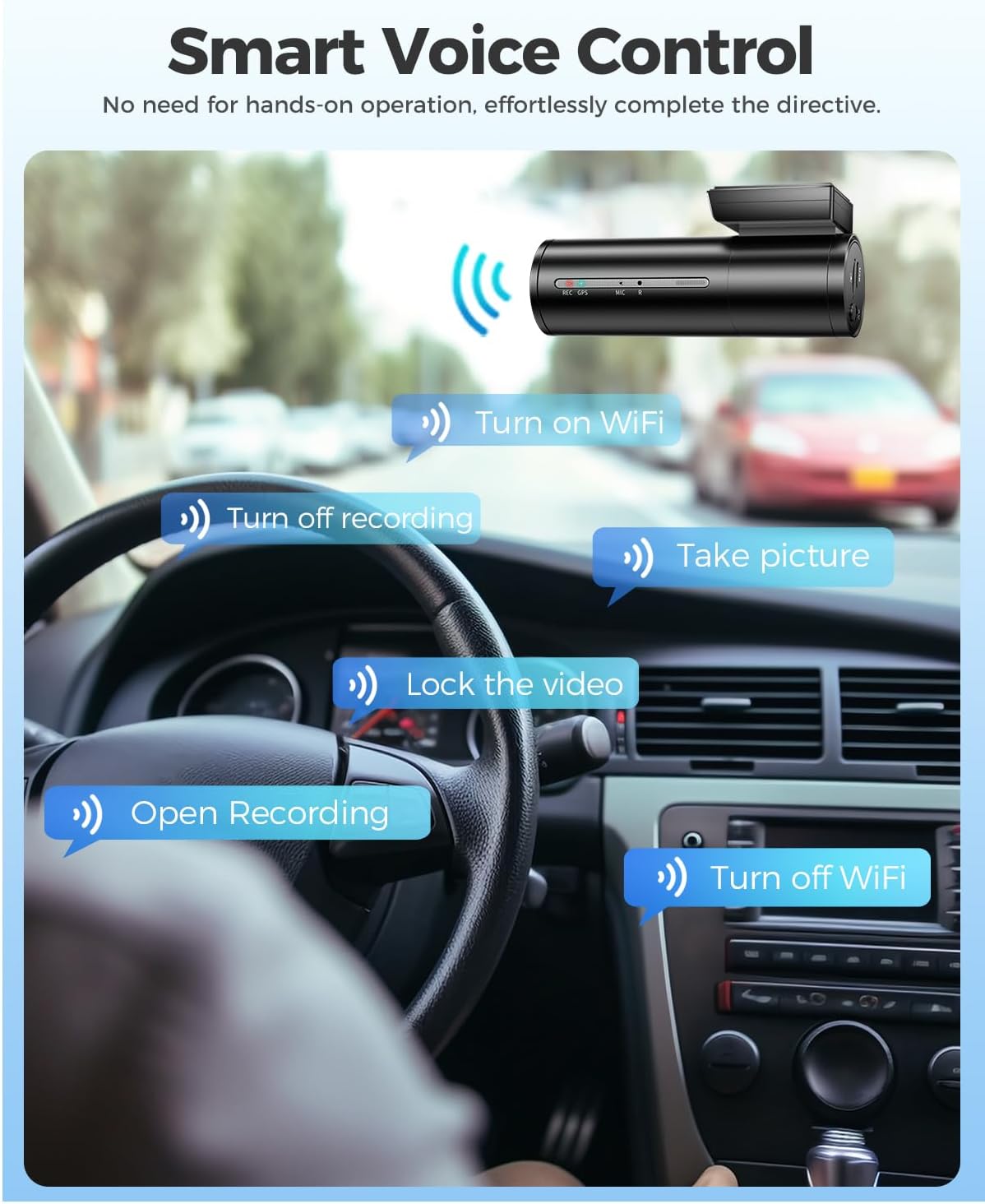
Figure 5.2: Comparison of night vision clarity with and without WDR technology.
5.3 24-Hour Parking Monitor
The dash cam offers two parking monitoring modes:
- Collision Detection Parking Mode: The G-Sensor detects impacts and automatically records a 1-minute emergency video.
- Time-Lapse Parking Mode: Requires a 3-lead hardwire kit (sold separately, search ASIN: B0BGHQN5RP). Records continuously at 1fps, compressing 24 hours of footage into a short video.
Figure 5.3: 24-Hour Parking Monitor features.
5.4 G-Sensor & Loop Recording
The built-in G-Sensor detects sudden movements or impacts and automatically locks the current video segment to prevent it from being overwritten. Loop recording ensures continuous recording by overwriting the oldest unlocked footage when the SD card is full.

Figure 5.4: G-Sensor activated emergency recording and continuous loop recording.
Video 5.1: Official Product Overview of AZDOME M300S Dash Cam features.
6. Maintenance
6.1 SD Card Care
- Regularly format the Micro SD card (at least once a month) to prevent data corruption and ensure smooth operation.
- Use only high-quality, reputable brand Micro SD cards (Class 10, U3 recommended).
- Avoid removing or inserting the SD card while the device is powered on to prevent damage.
6.2 Cleaning
- Use a soft, dry cloth to clean the camera lens and body.
- Do not use chemical cleaners or solvents, as they may damage the device.
6.3 Firmware Updates
- Check the AZDOME official website or app periodically for firmware updates.
- Follow the provided instructions carefully when performing firmware updates to avoid bricking the device.
7. Troubleshooting
7.1 Common Issues and Solutions
| Problem | Possible Cause | Solution |
|---|---|---|
| Dash cam not powering on. | No power supply; Loose connection. | Check car charger connection; Ensure vehicle's cigarette lighter is working. |
| Recording stops randomly. | SD card full; SD card error; Low-quality SD card. | Format SD card; Replace with a new, high-quality SD card. |
| Video footage is blurry. | Protective film on lens; Dirty lens; Improper focus. | Remove lens film; Clean lens; Ensure camera is securely mounted. |
| WiFi connection issues. | Incorrect password; Interference; App issues. | Verify WiFi password; Try connecting in a different location; Reinstall AZDOME app. |
| GPS not tracking. | Weak GPS signal; GPS module obstructed. | Ensure dash cam has a clear view of the sky; Drive in an open area. |
| Voice control not responding. | Microphone obstructed; Incorrect commands. | Ensure microphone is clear; Speak clearly and use exact commands. |
If you encounter issues not listed here or solutions do not resolve the problem, please contact AZDOME customer support.
8. Specifications
| Feature | Detail |
|---|---|
| Model Name | AZDOME M300S 4K Dash Cam |
| Product Dimensions | 1.4 x 3.8 x 1.7 inches |
| Item Weight | 1.27 pounds |
| Video Capture Resolution | 4K (3840x2160P) Front + 1080P Rear |
| Wide Angle Lens | 170° (Front) |
| Aperture | F1.8 |
| Connectivity Technology | 5.8G WiFi, USB |
| Special Features | Built-In WiFi, G-Sensor, 24H Parking Monitor, Built-In GPS, Smart Voice Control, Super Night Vision, Loop Recording |
| Max SD Card Support | 256GB (64GB included) |
| Power Source | Car Charger (12V/24V) |
9. Warranty and Support
AZDOME M300S comes with a 12-month assurance and 24/7 technical support. For any problems or inquiries regarding after-sales service, please contact us via email. Our R&D team aims to respond within 24 working hours.
For further assistance, visit the official AZDOME Store: AZDOME Store
Related documentsAZDOME M300S 4K Dash Cam


Ask a question about this manual
Ask about setup, troubleshooting, compatibility, parts, safety, or missing instructions. Manuals+ will review the question and use this page’s manual context to help answer it.