
eudic eudic-T4Q
Contents
User Manual for 2K WiFi Surveillance Security Camera Outdoor
Brand: eudic | Model: eudic-T4Q
Product Overview
The eudic 2K WiFi Surveillance Security Camera Outdoor provides comprehensive outdoor monitoring with advanced features. It supports both 5G and 2.4G WiFi for flexible connectivity and offers a wide 360° pan-tilt view to cover large areas. Equipped with multiple night vision modes, AI-powered motion detection, and two-way audio, this camera ensures reliable security and communication.

Image: Front view of the eudic 2K WiFi Surveillance Security Camera, highlighting its dual antennas and lens with LED lights.
Key Features
- 2K 4MP Resolution: Delivers clear and detailed video footage.
- 3 Night Vision Modes: Choose between Infrared, Full-color, and Alarmed modes for optimal night monitoring up to 20m.
- Pan-Tilt 360° View: Rotates 355° horizontally and 90° vertically with 4x digital zoom for extensive coverage.
- AI Motion Detection & Auto Track: Automatically senses and tracks movement, sending real-time alerts.
- 2-Way Audio: Built-in speaker and microphone allow for remote communication.
- Dual Band WiFi: Compatible with both 2.4GHz and 5GHz WiFi networks.
- SD/Cloud Storage: Supports local storage (SD card not included) and cloud storage for video saving.
- Custom Area Detection: Allows setting specific detection zones to reduce false alarms.

Image: Side view of the eudic security camera with icons illustrating its key features: 4MP resolution, color night vision, AI motion detection, cloud storage, two-way audio, SD card storage, notifications, and 2.4G/5G WiFi compatibility.
Setup Guide
1. Powering On
Ensure the camera is plugged into a standard 110-240V receptacle. Wait patiently for the device indicator light to flash or for an audible prompt, indicating it has started up and is ready for pairing.
2. App Installation and Device Addition
- Download the compatible mobile application (available for iOS and Android devices).
- Open the app and click the "Add Device" or "+" button.
- Scan the QR code located on the camera's fuselage using the app's scanner.
- Select your home WiFi network (compatible with 2.4GHz and 5GHz).
- Enter the correct WiFi password. An incorrect password will cause the addition to fail.
- Point your phone's screen displaying the QR code towards the camera lens. Ensure the distance is between 10-30cm.
- Wait until you hear a beep from the camera, then click "Next" in the app.
- The app will begin configuring the network. This process may take 2-3 minutes. Keep the router and the device as close as possible during this step.
- Once successfully added, set a name for your device within the app.
Video: A step-by-step guide demonstrating how to add the eudic 2K security camera to the mobile application, including scanning the QR code and connecting to WiFi.
3. Mounting the Camera
The camera is designed for wall mounting. Choose a suitable outdoor location with a clear view of the area you wish to monitor and within range of your WiFi network. Secure the camera firmly using appropriate screws and anchors (not specified if included, but standard for wall mounts).

Image: A close-up of the eudic camera showing its 5G Dual-Band capability and two antennas, indicating strong wireless connectivity for outdoor installation.
Operating Instructions
1. Pan-Tilt-Zoom Control
From the live view in the mobile app, use the on-screen controls to rotate the camera 355° horizontally (Pan) and 90° vertically (Tilt). You can also use the 4x digital zoom to focus on specific details.
Video: Demonstrates the 360° coverage and remote control capabilities of the eudic security camera, showing pan (355° left and right) and tilt (90° up and down) functions via the mobile app.
2. Night Vision Modes
The camera offers three night vision modes for different lighting conditions:
- Infrared Mode: Standard black and white night vision for clear visibility in complete darkness.
- Full-Color Mode: Utilizes built-in lights to provide color night vision up to 20 meters, capturing more details.
- Alarmed Mode: Activates lights upon motion detection to deter intruders and enhance recording clarity.

Image: A close-up view of the eudic camera's lens surrounded by 10 ultra-bright LED lights, illustrating its dual light source for infrared and color night vision.
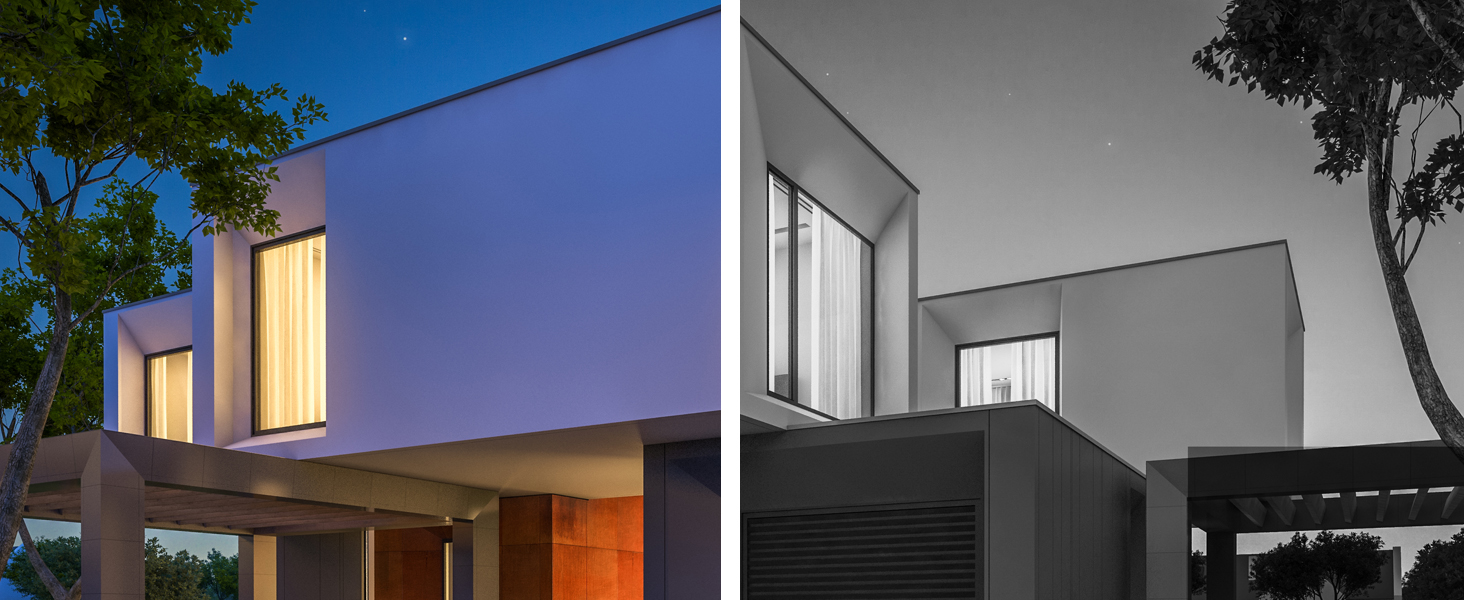
Image: A split image comparing clear color night vision (left, "Light Up") with infrared night vision (right, "Douse The Glim"), demonstrating the camera's ability to capture detailed color footage in low light conditions.
3. Motion Detection and Auto Tracking
The camera features AI-powered motion detection that can identify human and pet movement. When motion is detected, the camera can automatically track the subject across its 360° field of view. You will receive real-time alerts on your mobile device.

Image: A golden retriever running in a grassy area with a blue tracking box around it, illustrating the camera's auto-track feature to quickly identify events.
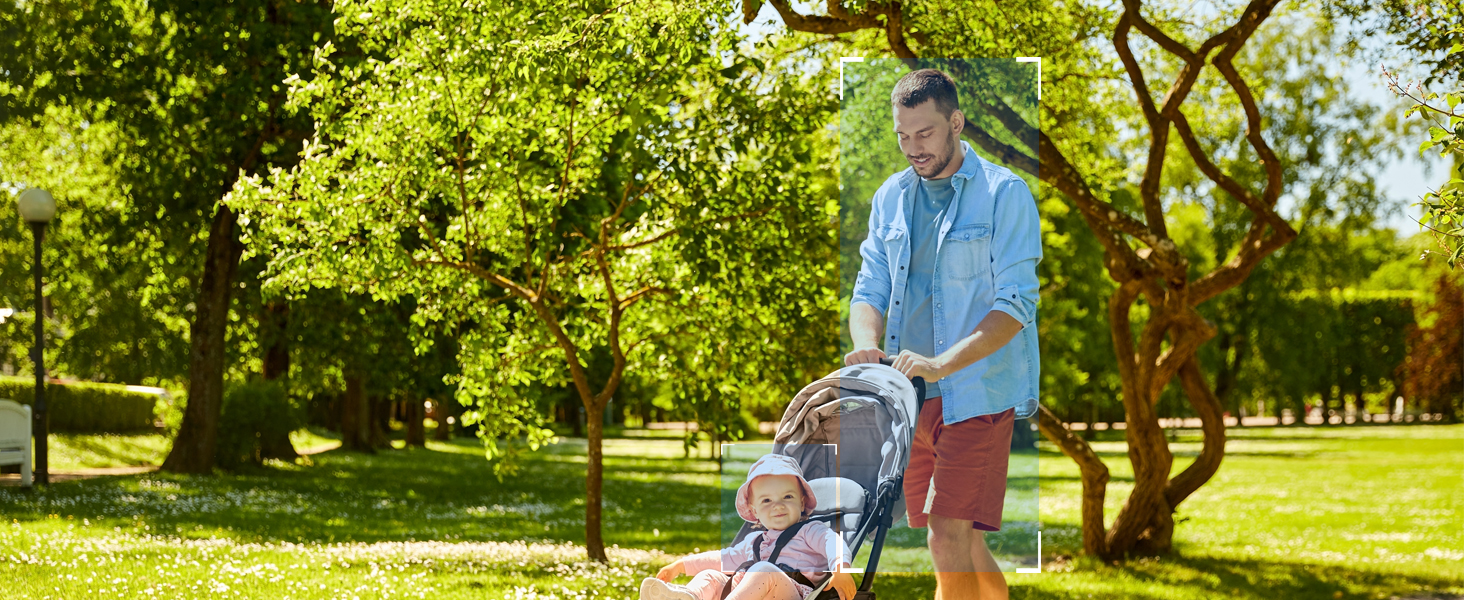
Image: A man pushing a baby stroller in a park, with white target circles around their heads, demonstrating the smart motion detection capability of the camera.
4. Two-Way Audio
Use the built-in microphone and speaker to communicate with visitors or deter unwanted guests directly through the app, anytime and anywhere.
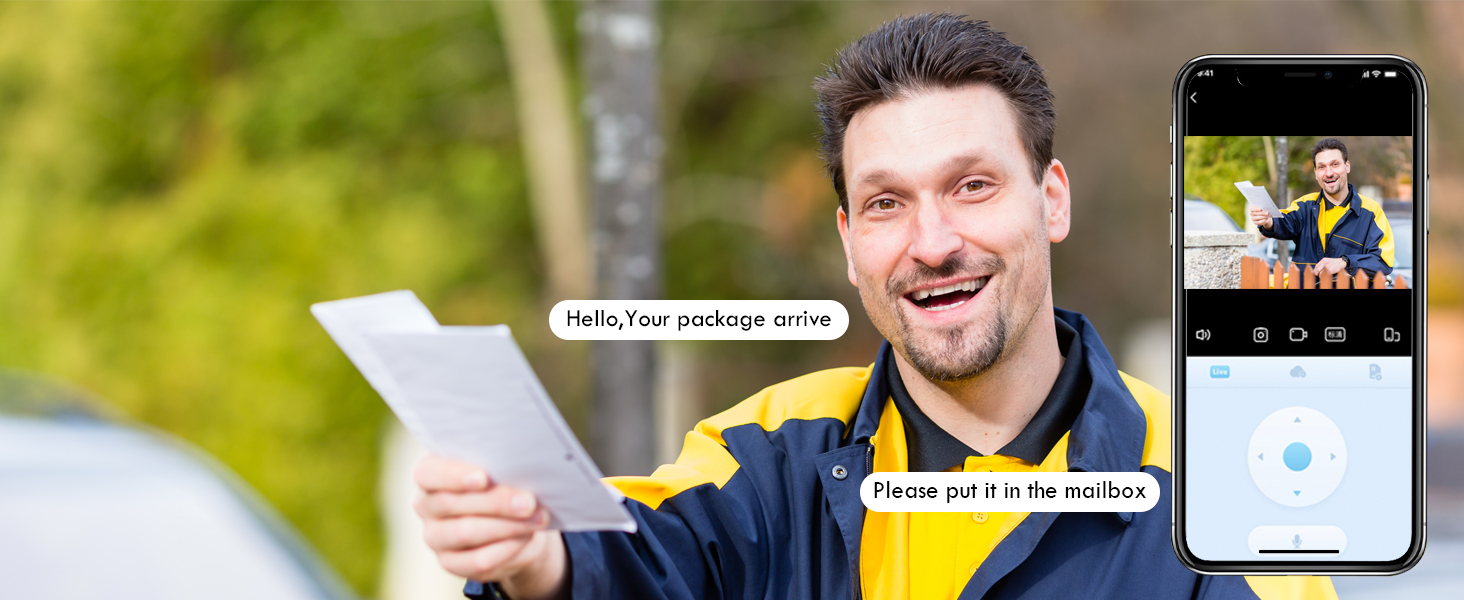
Image: A delivery person smiling with a package, overlaid with a speech bubble saying "Hello, Your package arrive" and a phone screen showing the camera's live view and a microphone icon, demonstrating the two-way audio feature.
5. Custom Area Detection
Define specific areas within the camera's view where you want motion detection to be active. This helps to minimize unnecessary alerts from high-traffic zones.

Image: A house with a driveway, where a shaded blue area labeled "Detection Area" is highlighted, illustrating the custom area detection feature for improved accuracy.
6. Storage Options
The camera supports both local storage via a Micro SD card (up to 128GB, not included) and cloud storage. Video files stored in the cloud are accessible even if the camera is stolen.

Image: A close-up view of the camera's side, showing the slot for an SD card, indicating local storage capability.
7. Sharing with Family
You can share access to your camera's live feed and recordings with family members through the mobile application, ensuring everyone stays informed about home security.

Image: A couple looking at a tablet, with thought bubbles showing images of a child and an older couple, illustrating the feature to share camera access with family members.
Maintenance
- Cleaning: Regularly wipe the camera lens and body with a soft, damp cloth to remove dust and dirt. Do not use harsh chemicals.
- Firmware Updates: Check the mobile app periodically for firmware updates. Keeping the firmware updated ensures optimal performance and security.
- Storage Management: If using an SD card, regularly back up important footage and format the card to maintain performance. For cloud storage, monitor your subscription and storage limits.
- Power Connection: Ensure the power connection remains secure and free from damage.
Troubleshooting
| Problem | Possible Cause | Solution |
|---|---|---|
| Camera not connecting to WiFi | Incorrect WiFi password, weak signal, wrong WiFi band selected. | Double-check password. Move camera closer to router. Ensure you are connecting to a 2.4GHz or 5GHz network as supported. Restart router and camera. |
| Motion detection not working or too sensitive | Incorrect sensitivity settings, detection area not configured. | Adjust motion detection sensitivity in the app. Configure custom detection areas to exclude irrelevant zones. |
| Poor night vision quality | Obstructions, dirty lens, incorrect night vision mode. | Clean the camera lens. Ensure no objects are blocking the view. Try switching between Infrared and Full-Color night vision modes. |
| Two-way audio issues | Microphone/speaker blocked, app permissions, network latency. | Check for obstructions around microphone/speaker. Grant necessary audio permissions to the app. Ensure stable internet connection. |
Specifications
| Feature | Detail |
|---|---|
| Brand | eudic |
| Model Name | eudic-T4Q |
| Indoor/Outdoor Usage | Outdoor |
| Video Capture Resolution | 4 MP (2K) |
| Connectivity Protocol | Wi-Fi (2.4GHz & 5GHz) |
| Power Source | Corded Electric (110-240V) |
| Controller Type | IOS, Android App |
| Mounting Type | Wall Mount |
| Pan/Tilt View | 355° Horizontal, 90° Vertical |
| Digital Zoom | 4x |
| Night Vision | Infrared, Full-Color, Alarmed (20m color night vision) |
| Motion Detection | AI Motion Detection, Auto Track, Custom Area Detection |
| Audio | 2-Way Talk (Built-in speaker & microphone) |
| Storage | Micro SD (up to 128GB), Cloud Storage |
| Water Resistance Level | Waterproof (IP65) |
| Dimensions (L x W x H) | 5 x 4 x 4 inches |
| Item Weight | 1.08 pounds |
| Included Components | Camera, Manual |

Image: A comparison showing the difference in clarity between 2K/4MP resolution (top) and 1080P resolution (bottom), highlighting the superior detail captured by the eudic camera.

Image: A visual representation showing the camera's operational temperature range from -20°C to 50°C, indicating its durability for various outdoor climates.
Warranty and Support
For any product inquiries, technical support, or warranty claims, please contact eudic customer service. Refer to the contact information provided in your product packaging or visit the official eudic website for assistance.

Image: The eudic brand logo, representing the manufacturer of the security camera.
Documents and downloads
Ask a question about this manual
Ask about setup, troubleshooting, compatibility, parts, safety, or missing instructions. Manuals+ will review the question and use this page’s manual context to help answer it.