
1. Introduction
This manual provides detailed instructions for the installation, setup, operation, and maintenance of your eudic 2K Outdoor Security Camera, Model eudic-T4Q. Please read this manual thoroughly before using the product to ensure correct usage and optimal performance. Keep this manual for future reference.
2. Product Overview
The eudic 2K Outdoor Security Camera is a wired surveillance device designed for outdoor use, offering advanced features for comprehensive property monitoring. Key features include:
- 2K/4MP Resolution: Provides clear and detailed video footage.
- Dual Band WiFi: Supports both 2.4GHz and 5GHz wireless networks for flexible connectivity.
- Pan-Tilt 360° View: Allows remote control of horizontal (355°) and vertical (90°) camera movement.
- Night Vision Modes: Offers Infrared, Full-Color, and Alarmed night vision options for visibility in low-light conditions.
- AI Motion Detection & Auto Track: Automatically detects motion and tracks subjects within the camera's field of view.
- Two-Way Audio: Enables communication through the camera's built-in speaker and microphone.
- Local & Cloud Storage: Supports local storage via an SD card (not included) and optional cloud storage.
- Wired Power: Operates via a standard 110-240V electrical receptacle.
- Waterproof Design: Suitable for various outdoor weather conditions.

Image 2.1: The eudic 2K Outdoor Security Camera highlighting its main features including 2K/4MP resolution, color night vision, AI motion detection, auto track, cloud storage, two-way audio, SD card storage, notifications, siren, alarm, and 2.4GHz/5GHz WiFi.

Image 2.2: A visual comparison demonstrating the enhanced detail provided by 2K/4MP resolution compared to 1080p resolution.
3. Package Contents
Please check the package for the following items:
- eudic 2K Outdoor Security Camera
- Instruction Manual
- Power Adapter (Wired)
- Mounting Screws and Anchors
4. Setup
4.1 Physical Installation
- Choose a Location: Select an outdoor location with a clear view of the area you wish to monitor. Ensure the location is within range of your WiFi network and has access to a 110-240V power outlet.
- Mount the Camera: Use the provided mounting screws and anchors to securely attach the camera to a wall or suitable surface. The camera is designed for wall-mounted installation.
- Connect Power: Plug the camera's power adapter into a compatible electrical receptacle.
4.2 App Installation and WiFi Connection
- Download the App: Search for the official eudic security camera application on your smartphone's app store (iOS or Android).
- Create an Account: Follow the in-app instructions to create a new user account.
- Add Device: Power on the camera. In the app, select the option to add a new device.
- Connect to WiFi: Follow the app's prompts to connect the camera to your home WiFi network. The camera supports both 2.4GHz and 5GHz bands. Ensure your router is within effective range.

Image 4.1: Illustration of the camera's ability to connect to both 2.4GHz and 5GHz dual-band WiFi networks, indicating improved range and stability.
5. Operating Instructions
5.1 Live View and Pan-Tilt Control
Once connected, open the app to access the live video feed. Use the on-screen controls to pan (rotate horizontally up to 355°) and tilt (rotate vertically up to 90°) the camera lens to adjust the viewing angle. Digital zoom is also available.
5.2 Motion Detection and Auto Tracking
The camera features AI-powered motion detection and auto-tracking capabilities.
- Enable Motion Detection: Navigate to the camera settings in the app and enable motion detection. You can adjust sensitivity levels to minimize false alerts.
- Custom Area Detection: Define specific areas within the camera's view for motion detection to focus on, ignoring irrelevant zones.
- Auto Track: When enabled, the camera will automatically follow detected movement within its range.
- Real-time Alerts: Receive instant notifications on your smartphone when motion is detected.
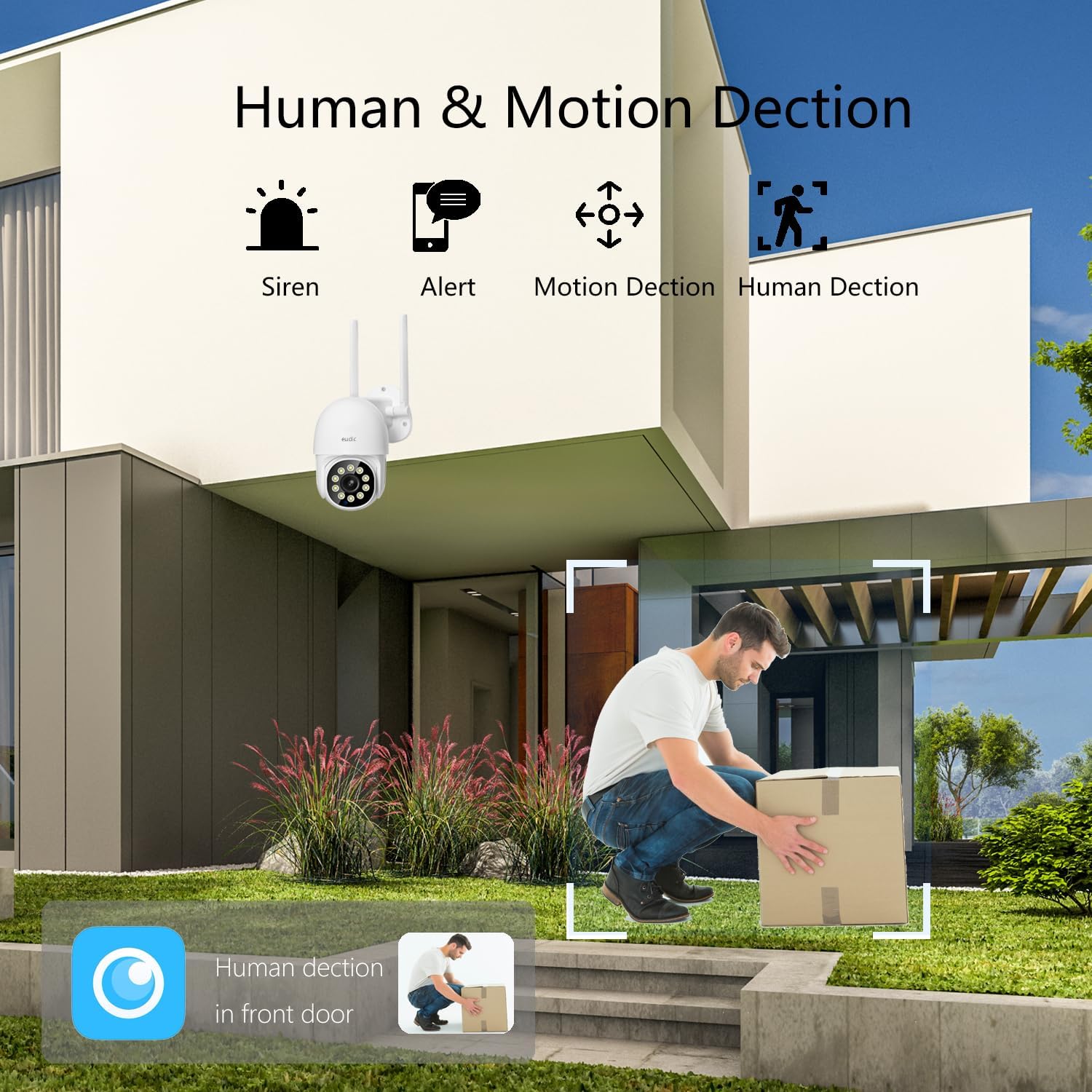
Image 5.1: Visual representation of the camera's human and motion detection capabilities, including siren and alert functions.

Image 5.2: An example of the auto-tracking feature, showing the camera identifying and following a moving subject.
5.3 Night Vision Modes
The camera offers three night vision modes:
- Infrared Mode: Provides black and white video in complete darkness.
- Full-Color Mode: Utilizes built-in lights to provide color video at night.
- Alarmed Mode: Activates lights and/or a siren upon detection of motion at night.
You can switch between these modes in the camera settings within the app.

Image 5.3: A comparison showing the difference between 2K Color Night Vision and 2K Infrared Vision, demonstrating the clarity and detail in various night settings.
5.4 Two-Way Audio
Use the microphone and speaker icons in the app to engage in two-way communication. This allows you to speak to visitors or deter intruders remotely.
5.5 Recording and Storage
The camera supports two storage options:
- SD Card Storage: Insert a microSD card (up to a specified maximum capacity, typically 128GB, not included) into the designated slot on the camera for local recording.
- Cloud Storage: Subscribe to the optional cloud storage service through the app for secure, remote storage of your video footage.
Recorded footage can be accessed and played back through the app.

Image 5.4: The camera's SD card slot for local storage and an icon representing cloud storage support.
5.6 Sharing with Family
The app allows you to share access to your camera's live feed and recordings with trusted family members. Follow the in-app instructions to invite and manage shared users.
6. Maintenance
- Cleaning: Regularly wipe the camera lens and exterior with a soft, damp cloth to remove dust and dirt. Do not use harsh chemicals or abrasive materials.
- Firmware Updates: Check the app periodically for available firmware updates. Keeping your camera's firmware updated ensures optimal performance and security.
- Storage Management: If using an SD card, regularly review and manage stored footage to prevent the card from becoming full. For cloud storage, monitor your subscription and storage limits.
7. Troubleshooting
- Camera Not Connecting to WiFi:
- Ensure the camera is within range of your router.
- Verify that you have entered the correct WiFi password.
- Confirm your router supports 2.4GHz or 5GHz, and the camera is attempting to connect to a compatible band.
- Try restarting both the camera and your router.
- Poor Picture Quality:
- Clean the camera lens to remove any smudges or dirt.
- Ensure a stable WiFi connection; a weak signal can affect video streaming quality.
- Check app settings to ensure video resolution is set to 2K/4MP.
- False Motion Alerts:
- Adjust the motion detection sensitivity in the app.
- Utilize the custom area detection feature to exclude areas with frequent irrelevant movement (e.g., trees swaying).
- Ensure human detection is enabled if you only wish to detect people.
- Camera Not Responding/Dead:
- Check the power connection to ensure the camera is receiving power.
- Attempt a hard reset by unplugging the camera for a few minutes and then plugging it back in.
- If the issue persists, contact customer support.
- Temperature Sensitivity:
- The camera is designed for outdoor use but extreme temperatures (very high heat or freezing cold) can affect performance. Ensure the camera is installed within its specified operating temperature range.
8. Specifications
| Video Capture Resolution | 4 MP (2K) |
| Dimensions (L x W x H) | 12.7 x 10.16 x 10.16 cm |
| Item Weight | 930 g |
| Wireless Communication | Wi-Fi (2.4G/5G Dual Band) |
| Power Source | Corded Electric (110-240V) |
| Water Resistance Level | Waterproof |
| Form Factor | Dome |
| Installation Type | Wall-Mounted |
| Night Vision Type | Infrared |
| Compatible Devices | Smartphone |
| Model Name | eudic-T4Q |
9. Warranty Information
For detailed warranty information regarding your eudic 2K Outdoor Security Camera, please refer to the product packaging or visit the official eudic website. Warranty terms and conditions may vary by region and purchase date.
10. Support
If you encounter any issues or have questions not covered in this manual, please refer to the contact information provided in your product packaging or visit the official eudic website for technical support and customer service.