
Introduction
Welcome to the eppfun CS300 Pro user manual. This guide provides comprehensive instructions for setting up and operating your wireless HDMI transmitter and receiver with an integrated USB-C hub. This device allows for high-quality wireless transmission of video and audio from compatible source devices to displays, along with expanded connectivity options through its USB-C hub.
Package Contents
- eppfun CS300 Pro Wireless HDMI Transmitter (TX)
- eppfun CS300 Pro Wireless HDMI Receiver (RX)
- USB-C to USB-C Cable
- User Manual
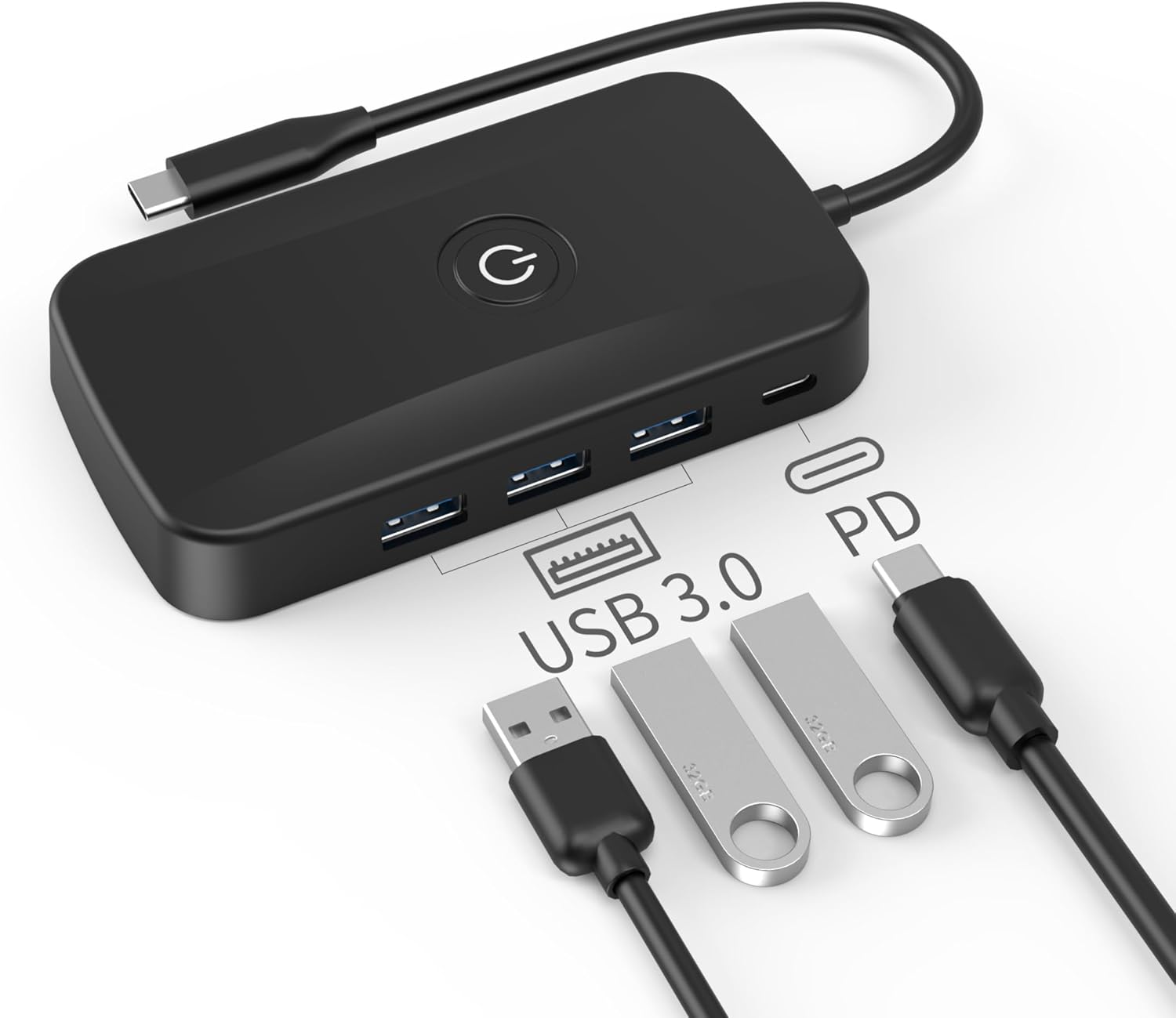
Image: The eppfun CS300 Pro Transmitter unit shown with its accompanying USB-C cable.
Product Overview
Transmitter (TX) Unit
- USB-C Input: Connects to your source device (laptop, PC, smartphone) for video/audio transmission and power.
- USB-A Data Ports (x3): For connecting peripherals like USB drives, keyboards, or mice.
- USB-C Power Delivery (PD) Port: For connecting an external power adapter to charge your source device (up to 100W).
- Power Button: To turn the device on/off or manage display output.
Receiver (RX) Unit
- HDMI Output: Connects to your display device (TV, projector, monitor).
- USB Power Input: Provides power to the receiver unit.

Image: The distinct Transmitter (TX) and Receiver (RX) units of the eppfun CS300 Pro.

Image: A detailed view of the Transmitter unit, highlighting its USB 3.0 data ports and USB-C Power Delivery port.
Key Features
- High-Quality Wireless Transmission: Utilizes advanced wireless technology for stable and efficient transmission, offering up to 50 meters (164 feet) range with approximately 29ms latency.
- Full HD Video Support: Supports video resolutions up to 1920x1080@60Hz, preserving full RGB color gamut without compression or artifacts for clear, low-latency video.
- Plug and Play Operation: Requires no driver installation. Simply connect the transmitter to your source device and the receiver to your display for immediate use.
- Wide Compatibility: Compatible with most HDMI output devices including laptops, PCs, Blu-ray players, cameras, and set-top boxes. Supports screen sharing from Windows, macOS, iOS, and Android devices.
- Integrated USB-C Hub: The transmitter unit features a USB-C Power Delivery input for charging your host device (up to 100W) and three USB-A data ports for connecting various peripherals.
Setup Instructions
Connecting the Receiver (RX)
- Connect the HDMI end of the Receiver (RX) to an available HDMI input port on your TV, projector, or monitor.
- Connect the USB power cable from the Receiver (RX) to a USB port on your display device or a USB power adapter (not included) for power. Ensure the receiver powers on.
Connecting the Transmitter (TX)
- Connect the USB-C male end of the Transmitter (TX) to a compatible USB-C port on your laptop, PC, or other source device. Ensure your device's USB-C port supports video output (DisplayPort Alternate Mode).
- The transmitter will automatically establish a wireless connection with the receiver. Your screen should appear on the connected display.
- Optional: If your source device requires charging, connect a USB-C power adapter to the USB-C PD input port on the Transmitter (TX).

Image: The eppfun CS300 Pro kit, illustrating the main components for setup.
Operating Modes
Mirror Mode
In Mirror Mode, the content displayed on your source device's screen is duplicated onto the connected external display. This is ideal for presentations or sharing content directly.
Extend Mode
Extend Mode allows you to expand your desktop across both your source device's screen and the external display, providing more screen real estate for multitasking. This mode is typically managed through your operating system's display settings.

Image: Visual representation of Mirror Mode, where the laptop screen is duplicated, and Extend Mode, where the display acts as an extension.
USB-C Hub Functionality
The eppfun CS300 Pro Transmitter unit doubles as a versatile USB-C hub. It provides:
- Power Delivery (PD) 100W: The dedicated USB-C PD port allows you to connect a power adapter to charge your laptop or other compatible USB-C device while using the wireless HDMI function.
- 3x USB 3.0 Data Ports: These ports enable you to connect various USB peripherals such as external hard drives, USB flash drives, keyboards, mice, or other accessories to your host device.

Image: The eppfun CS300 Pro connected to a laptop, showcasing its PD100W fast charging feature.

Image: The eppfun CS300 Pro acting as a Type-C hub, expanding connectivity for a laptop.
Compatibility
The eppfun CS300 Pro is designed for wide compatibility with various devices and operating systems. The transmitter unit requires a USB-C port on your source device that supports DisplayPort Alternate Mode (DP Alt Mode) for video output.
Supported Operating Systems:
- Windows
- macOS
- iOS
- Android
- Linux
- ChromeOS
Compatible Source Devices:
Laptops, PCs, tablets, and smartphones with a USB-C port supporting DP Alt Mode. Examples include various models from Huawei, Dell, Microsoft Surface, Lenovo, Apple MacBook/iPad, Samsung, Oppo, Nokia, and Chromebooks.
Note: For gaming consoles like PS5 or Xbox, it is recommended to use a direct HDMI cable connection for optimal performance due to the specific requirements of gaming.

Image: A detailed chart outlining specific compatible models across various operating systems.
Troubleshooting
No Signal / Black Screen
- Ensure both the Transmitter (TX) and Receiver (RX) units are properly powered on.
- Verify that the HDMI cable from the Receiver (RX) is securely connected to the display's HDMI input.
- Confirm that the USB-C cable from the Transmitter (TX) is fully inserted into a compatible USB-C port on your source device that supports video output.
- Check your display's input source to ensure it is set to the correct HDMI port.
- Restart both your source device and the eppfun CS300 Pro units.
Lag or Disconnection
- Reduce the distance between the Transmitter (TX) and Receiver (RX) units.
- Ensure there are no significant obstructions (e.g., thick walls, metal objects) between the units that could interfere with the wireless signal.
- Minimize other 5G wireless interference in the vicinity.
- Ensure both units have stable power supply.
USB-C Hub Not Functioning
- Ensure the Transmitter (TX) is properly connected to your source device's USB-C port.
- Verify that your source device's USB-C port supports the necessary functions for the hub (e.g., Power Delivery, data transfer).
- Try connecting peripherals one by one to identify if a specific device is causing an issue.
Specifications
| Feature | Specification |
|---|---|
| Product Dimensions | 9 x 4 x 1 inches |
| Item Weight | 5.3 ounces |
| Item Model Number | 4KR-1 |
| Hardware Interface | HDMI, USB |
| Total USB Ports | 5 (1x USB-C input, 1x USB-C PD, 3x USB-A) |
| Material | Copper |
| Wireless Transmission Range | Up to 50 meters (164 feet) |
| Latency | Approximately 29ms |
| Video Resolution Support | Up to 1920x1080@60Hz |
Warranty and Support
eppfun products are designed for reliability and performance. This product comes with a standard manufacturer's warranty. For specific warranty details, please refer to the documentation included with your purchase or visit the official eppfun website.
If you encounter any issues or have questions regarding your eppfun CS300 Pro, please contact eppfun customer support through their official channels. Support contact information can typically be found on the product packaging or the eppfun website.