
1. Introduction
This manual provides detailed instructions for the installation, operation, and maintenance of your EZoneTronics RM-26VW93-2G32 9-inch Android 11 Car Stereo. This universal car radio is designed for various VW models including Passat, Golf MK5, Golf MK6, Jetta, T5, EOS, POLO, Touran, Seat, and Sharan. It features an Android 11 operating system, integrated CarPlay and Android Auto, Bluetooth 5.0, FM/RDS radio, and GPS navigation. Please read this manual thoroughly before using the product to ensure proper function and safety.
2. Safety Information
- Always operate the device responsibly and in accordance with local traffic laws. Distracted driving can lead to accidents.
- Do not attempt to install or repair the unit yourself if you are not qualified. Improper installation can cause damage to the vehicle's electrical system or the unit itself.
- Ensure all wiring is correctly connected and insulated to prevent short circuits.
- Keep the unit away from water and excessive moisture.
- Avoid exposing the unit to extreme temperatures.
3. Package Contents
Verify that all items listed below are included in your package:
- 1 x EZoneTronics Android Car Stereo Unit
- 1 x GPS Antenna
- 1 x VW Wiring Harness
- 1 x CANBUS Box
- 1 x Radio Antenna Adapter
- 1 x USB Adapter
- 1 x User Manual (this document)
4. Product Overview
The EZoneTronics RM-26VW93-2G32 is a 9-inch universal car stereo designed to enhance your driving experience with advanced features and seamless integration. Key features include:
- Android 11 System: Provides a fast, stable, and user-friendly operating environment.
- 9-inch TFT Capacitive Touchscreen: High-definition display with 1280 x 720 pixels for clear visuals.
- Integrated CarPlay & Android Auto: Connect your smartphone via USB for navigation, music, calls, and messages.
- Bluetooth 5.0: For hands-free calling, phonebook access, and audio streaming (A2DP).
- GPS Navigation: Built-in receiver compatible with various navigation apps like Waze, Navfree, and Google Maps.
- FM/RDS Radio: Automatic memory and preset scanning for your favorite stations.
- Steering Wheel Control Support: Retains original vehicle steering wheel control functionality via CANBUS.
- Multimedia Player: Supports various audio and video formats.
- Rear Camera Input: Supports CVBS/AHD cameras for parking assistance.
- 32GB Flash Memory: Ample storage for music, map data, and videos.
- 4 x 45W Output Power: Delivers clear and powerful audio.
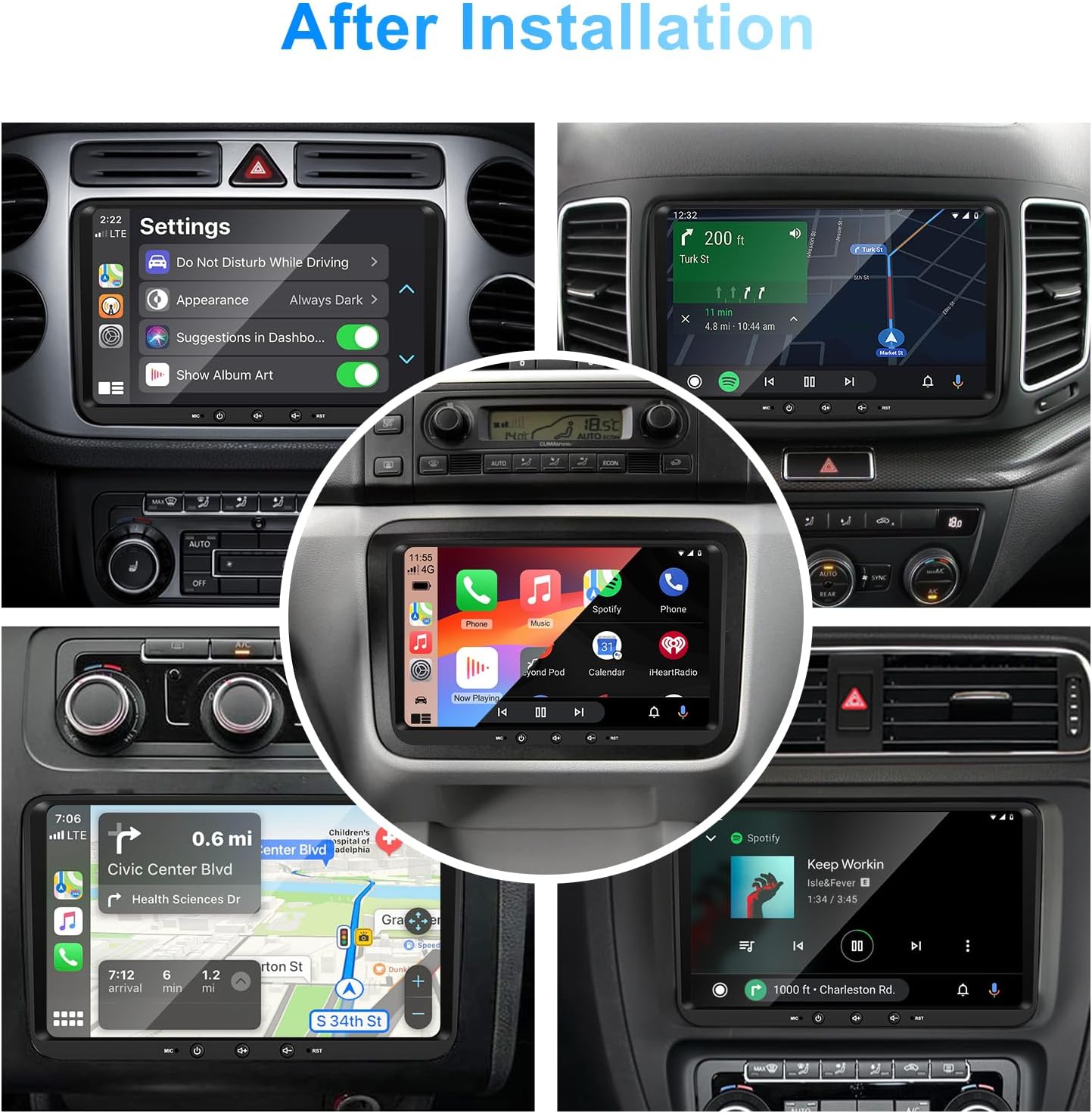
Image 1: Front view of the EZoneTronics 9-inch Android 11 Car Stereo unit, showcasing its large touchscreen display and sleek design.
5. Setup & Installation
Professional installation is recommended. Ensure the vehicle's power is disconnected before beginning installation.
5.1 Wiring Diagram
Refer to the following diagram for proper wiring connections. Each connector is labeled for clarity.

Image 2: Detailed wiring diagram illustrating connections for the power harness, CANBUS box, USB extension, backup camera video input, radio antenna adapter, and GPS antenna.
5.2 Installation Steps (General)
- Remove Original Unit: Carefully remove your vehicle's existing car stereo unit and trim panels.
- Connect Power Harness: Connect the provided VW wiring harness to the vehicle's wiring and then to the car stereo unit. Ensure all connections are secure.
- Connect CANBUS Box: Integrate the CANBUS box as shown in the wiring diagram. This enables steering wheel controls and other vehicle data integration.
- Connect GPS Antenna: Mount the GPS antenna in a location with a clear view of the sky (e.g., dashboard or windshield corner) and connect it to the unit.
- Connect Radio Antenna: Use the provided radio antenna adapter to connect the vehicle's radio antenna to the unit.
- Connect USB Adapters: Connect the USB extension harnesses for external USB devices.
- Optional Connections: Connect any optional accessories such as a backup camera (CVBS/AHD), external amplifier (RCA output), or additional video inputs/outputs.
- Test Functionality: Before fully reassembling the dashboard, temporarily connect the unit and test all functions (power, audio, radio, GPS, Bluetooth, steering wheel controls, camera).
- Secure Unit: Once all functions are verified, secure the car stereo unit in the dashboard and reassemble all trim panels.
6. Operating Instructions
This section details the primary functions and operations of your EZoneTronics car stereo.
6.1 Basic Operation
- Power On/Off: Press and hold the power button (usually on the front panel) to turn the unit on or off. A short press typically mutes/unmutes audio.
- Volume Control: Use the physical volume knob or the on-screen controls to adjust the audio level.
- Touchscreen Interface: Navigate through menus and applications by tapping, swiping, and pinching on the 9-inch capacitive touchscreen.
6.2 Android 11 System
The unit runs on Android 11, providing a familiar smartphone-like experience. You can download and install various applications from the Google Play Store.

Image 3: Screenshot of the Android 11 system interface, showing various applications and media options available on the car stereo.
6.3 CarPlay & Android Auto
Connect your iPhone or Android smartphone via USB to access CarPlay or Android Auto. This allows for safe and convenient use of phone features while driving.
- Connection: Connect your smartphone to one of the unit's USB ports using a certified USB cable.
- Activation: The unit should automatically detect and prompt you to launch CarPlay or Android Auto. Follow on-screen instructions.
- Features: Access navigation, make calls, send/receive messages, and play music using voice commands (Siri or Google Assistant) or the touchscreen.

Image 4: Display showing the CarPlay interface with Siri voice commands and the Android Auto interface with Google Assistant commands, demonstrating smartphone integration.
6.4 GPS Navigation
The unit includes a built-in GPS receiver and supports various navigation applications.
- Pre-installed Maps: Sygic Maps are typically pre-installed. For offline use, download regional map data as needed.
- Online Navigation: Connect to Wi-Fi or use a mobile hotspot to access real-time traffic information and online map services like Google Maps.
- External GPS Antenna: Ensure the external GPS antenna is properly connected and positioned for optimal signal reception.

Image 5: The car stereo displaying an online navigation map, showing a route and real-time traffic conditions within a vehicle dashboard.
6.5 Bluetooth 5.0
Connect your smartphone via Bluetooth for hands-free communication and audio streaming.
- Pairing: Enable Bluetooth on your smartphone and search for the car stereo (e.g., "EZoneTronics"). Select the device and confirm the pairing code.
- Hands-Free Calling: Make and receive calls directly from the car stereo. Access your phonebook and recent call history.
- Audio Streaming (A2DP): Play music from your smartphone through the car stereo's speakers.

Image 6: The car stereo displaying music playback via Bluetooth 5.0, with a smartphone shown next to it also playing music, illustrating the wireless audio connection.
6.6 FM/RDS Radio
Access local radio stations with the built-in FM/RDS tuner.
- Tuning: Use the on-screen controls to manually tune to frequencies or perform an automatic scan for available stations.
- Presets: Save your favorite stations to preset buttons for quick access.
- RDS (Radio Data System): Displays station information such as song title, artist, or program type where available.
6.7 Steering Wheel Control
The unit supports your vehicle's original steering wheel controls through the CANBUS box, allowing you to manage audio and other functions without taking your hands off the wheel.
- Functionality: Control volume, change tracks, answer calls, and switch modes directly from your steering wheel.
- Configuration: In some cases, steering wheel controls may require initial configuration in the unit's settings menu.

Image 7: Illustration showing a steering wheel with control buttons and corresponding icons on the car stereo display, indicating seamless integration of steering wheel controls.
6.8 Audio Settings (32-Band EQ)
Customize your audio experience with the built-in 32-band equalizer and other sound controls.
- Equalizer: Adjust frequency bands to fine-tune the sound output to your preference.
- Preset EQ Modes: Select from various preset equalizer modes (e.g., Pop, Rock, Jazz, Classic).
- Fader/Balance: Adjust the audio distribution between front/rear and left/right speakers.
- Loudness: Enhance bass and treble at low volume levels.

Image 8: Screenshot of the car stereo's 32-band equalizer interface, showing adjustable frequency sliders and preset sound modes, along with a visual representation of sound distribution in a car cabin.
6.9 After Installation Overview
Once installed, the unit provides a comprehensive interface for various functions, including system settings, navigation, media playback, and vehicle information.
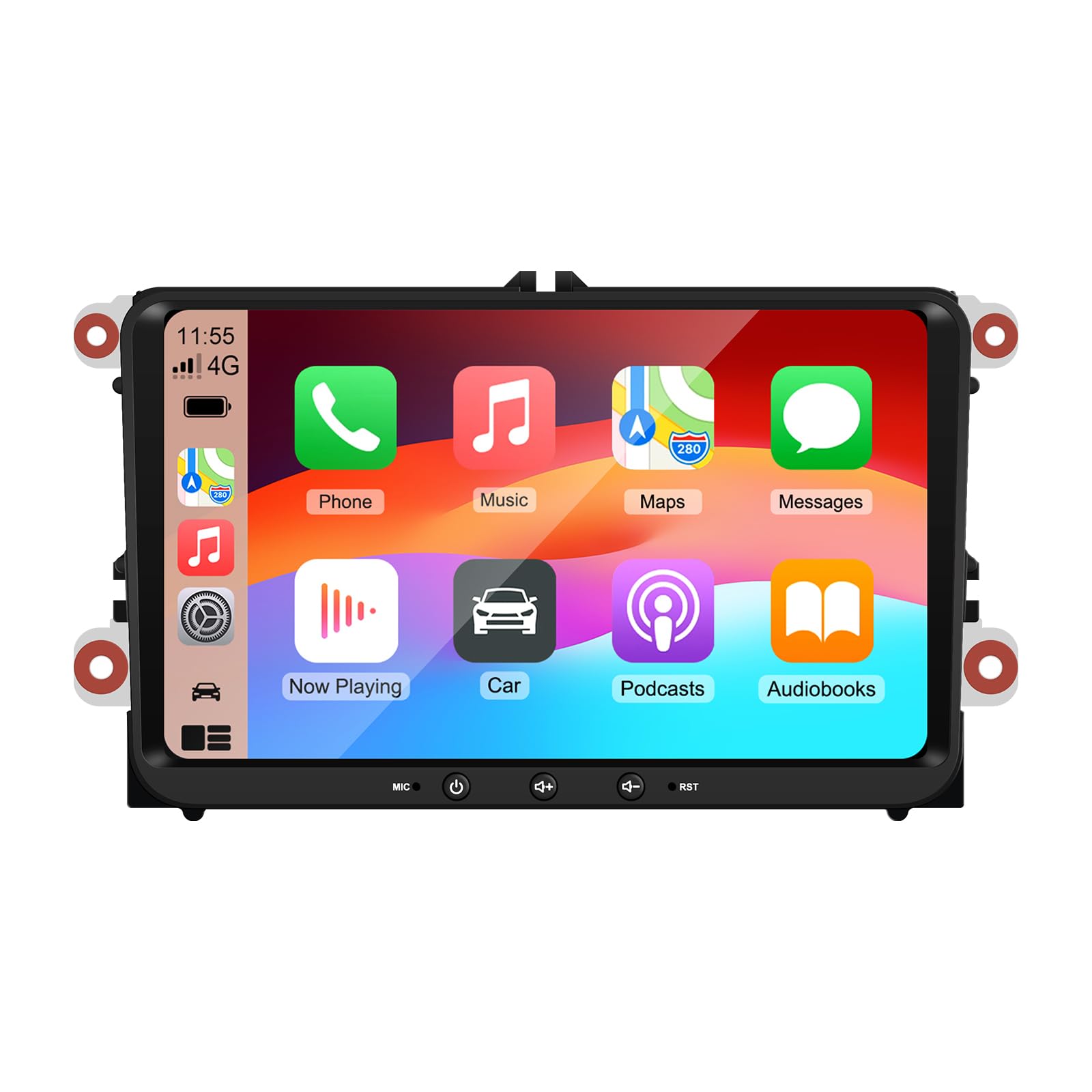
Image 9: A collage of various screen displays from the car stereo after installation, showing settings, navigation, CarPlay, Spotify, and vehicle information screens.
7. Maintenance
- Cleaning the Screen: Use a soft, lint-free cloth to gently wipe the touchscreen. For stubborn smudges, slightly dampen the cloth with water or a screen-safe cleaner. Avoid harsh chemicals.
- Software Updates: Periodically check for software updates through the unit's settings menu or the manufacturer's website to ensure optimal performance and access to new features.
- System Reset: If the unit experiences persistent issues, a factory reset option is available in the settings. Note that this will erase all user data and settings.
8. Troubleshooting
If you encounter problems with your EZoneTronics car stereo, refer to the following common issues and solutions:
| Problem | Possible Cause | Solution |
|---|---|---|
| Unit does not power on. | Incorrect wiring; Blown fuse; Vehicle power issue. | Check power connections and fuses. Consult a professional installer. |
| No sound. | Volume muted; Speaker wiring incorrect; Amplifier issue. | Check volume and mute settings. Verify speaker connections. |
| GPS signal lost or inaccurate. | GPS antenna improperly placed or disconnected. | Ensure GPS antenna has a clear view of the sky and is securely connected. |
| Bluetooth pairing fails. | Bluetooth not enabled on phone/unit; Incorrect pairing process. | Ensure Bluetooth is active on both devices. Restart pairing process. |
| Steering wheel controls not working. | CANBUS box not connected; Incorrect configuration. | Verify CANBUS box connection. Check steering wheel control settings in the unit. |
9. Specifications
Technical specifications for the EZoneTronics RM-26VW93-2G32 car stereo:
| Feature | Specification |
|---|---|
| Model Number | RM-26VW93-2G32 |
| Operating System | Android 11 |
| Screen Size | 9 inches |
| Display Resolution | 1280 x 720 pixels |
| Processor | Quad Core 1.5G |
| RAM | 2G DDR4 |
| Internal Storage | 32GB Flash Memory |
| Bluetooth Version | 5.0 |
| Output Power | 4 x 45W (180 Watts total) |
| Number of Channels | 2 |
| GPS Receiver | Built-in, with external antenna |
| Wi-Fi | Built-in |
| USB Input | 2 x Rear USB |
| Camera Input | CVBS/AHD compatible |
| Manufacturer | Rhythm Electronics Limited |
10. Warranty & Support
10.1 Warranty Information
The EZoneTronics RM-26VW93-2G32 car stereo comes with a 1-year warranty from the date of purchase. This warranty covers manufacturing defects and malfunctions under normal use. It does not cover damage caused by improper installation, misuse, accidents, or unauthorized modifications.
10.2 Customer Support
For technical assistance, warranty claims, or any questions regarding your product, please contact our customer support team:
- Email: support@ezonetronics.com
When contacting support, please provide your product model number (RM-26VW93-2G32) and a detailed description of the issue.


