1. Introduction
This manual provides detailed instructions for the safe and effective use of your CHAKEYAKE Kids Digital Camera Waterproof, Model S70. Please read this manual thoroughly before operating the camera and retain it for future reference. This camera is designed for children aged 3-12, offering features for photo and video capture in various environments, including underwater.

Image 1.1: The CHAKEYAKE Kids Digital Camera is suitable for various occasions.
2. Package Contents
Verify that all items listed below are included in your package:
- CHAKEYAKE Kids Digital Camera (Model S70)
- Waterproof Housing
- Helmet Mount
- Helmet Strap
- Bike Mount
- Lanyard
- USB Charging Cable (Type-C)
- User Manual

Image 2.1: Main product components including the camera, waterproof case, and memory card.

Image 2.2: The camera comes with multiple accessories for diverse activities.
3. Product Overview
The CHAKEYAKE Kids Digital Camera S70 is a versatile and durable camera designed for young users. Key features include:
- Display: 2.0-inch IPS screen for clear viewing.
- Photo Resolution: Up to 20 Megapixels.
- Video Resolution: 1080P HD video recording.
- Lens: 180° flip lens for easy selfies and dual-camera functionality.
- Durability: Shockproof design, enhanced with a waterproof housing.
- Waterproof Depth: Submersible up to 100 feet (30 meters) with the waterproof case.
- Creative Features: 28 photo frames and 6 filters for personalized photos.
- Additional Functions: Time-lapse photography, date setting, playback, and 4 built-in puzzle games.
- Storage: Supports external memory cards up to 32GB (card included).
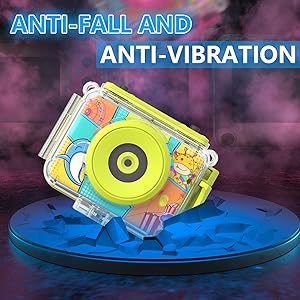
Image 3.1: The camera can be used with or without its protective waterproof case.

Image 3.2: The waterproof case allows for underwater photography up to 100 feet.
4. Setup
4.1 Charging the Camera
- Ensure the camera is powered off.
- Locate the Type-C USB port on the camera.
- Connect the provided USB charging cable to the camera and a compatible USB power source (e.g., computer, wall adapter).
- The charging indicator light will illuminate. Charging typically takes approximately 2-3 hours.
- Once fully charged, the indicator light will change or turn off. Disconnect the cable.
4.2 Inserting a Memory Card
The camera supports a Micro SD card up to 32GB. A 32GB card is included.
- Locate the memory card slot on the side of the camera.
- Gently insert the Micro SD card with the gold contacts facing the front of the camera until it clicks into place.
- To remove, gently push the card in until it clicks, then release, and it will eject.
4.3 Using the Waterproof Case
The waterproof case protects the camera during underwater activities. Proper sealing is essential to prevent water damage.
- Open the latch on the waterproof case.
- Carefully place the camera inside the case, ensuring it fits snugly.
- Close the case firmly and secure the latch. Ensure there are no gaps or obstructions around the seal.
- Before first use in water, perform a test: place a tissue inside the empty case, seal it, and submerge it in water for 30 minutes. Check the tissue for any moisture. If wet, re-examine the seal or contact support.
5. Operating Instructions
5.1 Power On/Off
- Power On: Press and hold the Power button (usually marked with a power icon) for a few seconds until the screen illuminates.
- Power Off: Press and hold the Power button again until the screen turns off.
5.2 Photo Mode
- Ensure the camera is in Photo mode (indicated by an icon on the screen). If not, use the Mode button to switch.
- Frame your shot using the screen.
- Press the Shutter button (usually a prominent button on top or front) to take a picture.
5.3 Video Mode
- Switch to Video mode using the Mode button.
- Press the Shutter button once to start recording. A recording indicator (e.g., red dot, timer) will appear.
- Press the Shutter button again to stop recording.
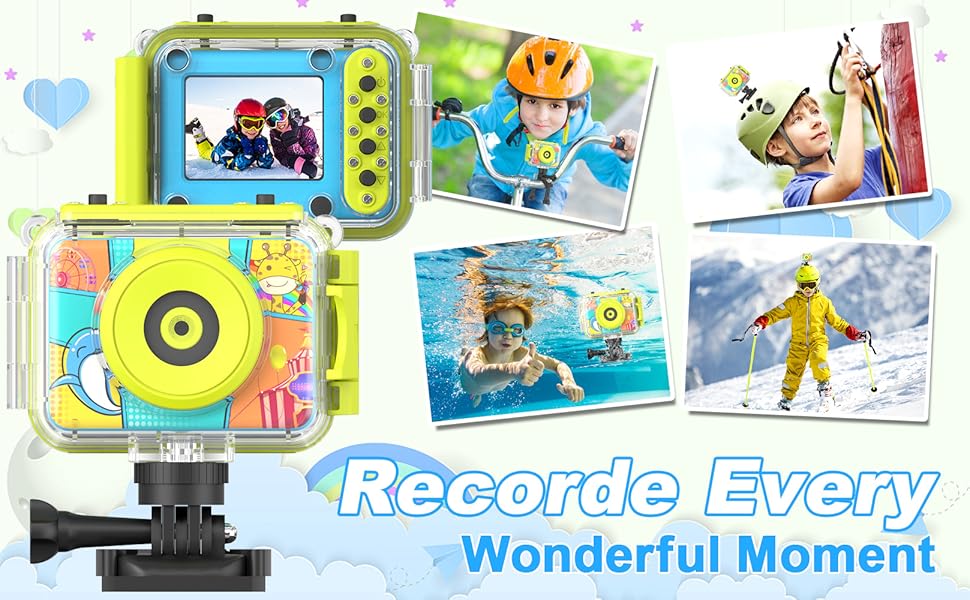
Image 5.1: The camera supports 1080P video recording and time-lapse functions.
5.4 Selfie Mode (180° Flip Lens)
The camera features a 180° rotatable lens for easy selfies.
- Rotate the lens 180 degrees to face the front of the camera.
- The screen will automatically adjust for selfie framing.
- Proceed to take photos or videos as usual.

Image 5.2: The rotatable lens simplifies taking selfies.
5.5 Playback
- Enter Playback mode using the Mode button.
- Use the navigation buttons (Up/Down or Left/Right) to browse through your photos and videos.
- Press the OK button to view a selected item.
5.6 Settings, Filters, and Frames
Access the camera's menu to adjust settings, apply filters, or add photo frames.
- Menu Access: Press the Menu button (often marked with a gear icon or 'M').
- Navigation: Use the Up/Down buttons to scroll through options.
- Selection: Press the OK button to select an option.
- Exit: Press the Menu button again to exit the menu.

Image 5.3: Customize photos with frames, filters, and special effects.
5.7 Built-in Games
The camera includes 4 puzzle games for entertainment.
- Navigate to the Games section via the Mode or Menu button.
- Select a game using the navigation buttons and press OK to start.

Image 5.4: The camera features four engaging puzzle games.
5.8 Mounting the Camera
Use the provided helmet and bike mounts to attach the camera for action shots.
- Attach the camera (with or without the waterproof case, depending on activity) to the desired mount.
- Securely fasten the mount to a helmet, bike handlebars, or other compatible surfaces using the straps or clamps.
- Ensure the camera is stable and pointed in the desired direction before starting activity.

Image 5.5: The camera is suitable for capturing moments during various outdoor sports.

Image 5.6: Mount the camera on helmets or bikes to record adventures.
6. Maintenance
6.1 Cleaning
- Camera Body: Use a soft, dry cloth to wipe the camera body. Avoid abrasive cleaners.
- Lens: Use a specialized lens cleaning cloth. Do not touch the lens with fingers.
- Waterproof Case: After use in water, rinse the case with fresh water and allow it to air dry completely before storing. Ensure no sand or debris is trapped in the seals.
6.2 Storage
- Store the camera and accessories in a cool, dry place away from direct sunlight and extreme temperatures.
- If storing for an extended period, ensure the camera battery is partially charged (around 50%) to prolong battery life.
6.3 Battery Care
- Avoid fully discharging the battery frequently.
- Charge the camera regularly, even if not in frequent use, to maintain battery health.
- Use only the provided charging cable or a certified compatible cable.
7. Troubleshooting
If you encounter issues with your camera, please refer to the following common problems and solutions:
| Problem | Possible Cause | Solution |
|---|---|---|
| Camera does not power on. | Low battery; faulty battery; camera malfunction. | Charge the camera fully. If issue persists, contact support. |
| Camera does not record or take photos. | Memory card full; memory card error; incorrect mode. | Check memory card storage and format if necessary (this will erase data). Ensure camera is in the correct mode. |
| Water inside the waterproof case. | Improperly sealed case; damaged seal. | Immediately remove camera and dry thoroughly. Perform a waterproof test with an empty case. Ensure seals are clean and properly aligned. If damaged, replace the case. |
| Cannot transfer photos/videos to computer. | Incorrect cable; driver issue; camera not recognized. | Ensure the camera is powered on and connected directly to the computer via the USB cable. Try a different USB port or computer. The camera should appear as a removable disk. |
| Video appears shaky. | Excessive movement during recording. | Ensure the camera is held steadily or securely mounted during video recording. |
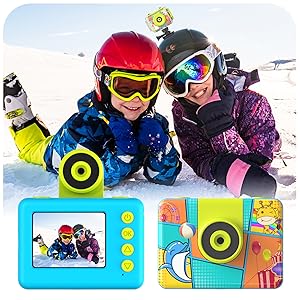
Image 7.1: Connect the camera to a computer using the USB cable to transfer files.
8. Specifications
| Feature | Detail |
|---|---|
| Model Number | S70 |
| Photo Sensor Resolution | 20 MP |
| Video Resolution | 1080p |
| Screen Size | 2.0 inches (IPS Display) |
| Lens Type | 180° Flip Lens, Wide Angle |
| Optical Zoom | 1x |
| Maximum Aperture | 2.8 f |
| Image Stabilization | Digital |
| Water Resistance Level | Waterproof (with case) |
| Max Underwater Depth | 30 meters (100 feet) |
| Memory Storage Capacity | Supports up to 32 GB Micro SD (external) |
| Battery Type | Lithium Ion |
| Connectivity Technology | USB (Type-C) |
| Item Weight | 53 Grams |
| Item Dimensions (D x W x H) | 1.04"D x 2.78"W x 2.05"H |
9. Warranty and Support
9.1 Return Policy
This product is eligible for a return or replacement within 30 days of purchase, subject to the retailer's return policy.
9.2 Customer Support
For any questions, concerns, or assistance with your CHAKEYAKE Kids Digital Camera, please do not hesitate to contact our customer service team. We are committed to providing support for our products.
Contact information can typically be found on the product packaging or the retailer's website where the product was purchased.