
1. Introduction
Thank you for choosing the OSCAL PowerMax 3600 Portable Power Station and PM200 Solar Panel. This manual provides essential information for the safe and efficient operation, setup, and maintenance of your device. Please read this manual thoroughly before use and retain it for future reference.
Safety Precautions
- Do not disassemble, repair, or modify the unit.
- Keep the unit away from fire, water, and extreme temperatures.
- Ensure proper ventilation during use and charging.
- Avoid dropping or subjecting the unit to strong impacts.
- Keep out of reach of children and pets.
2. Product Overview
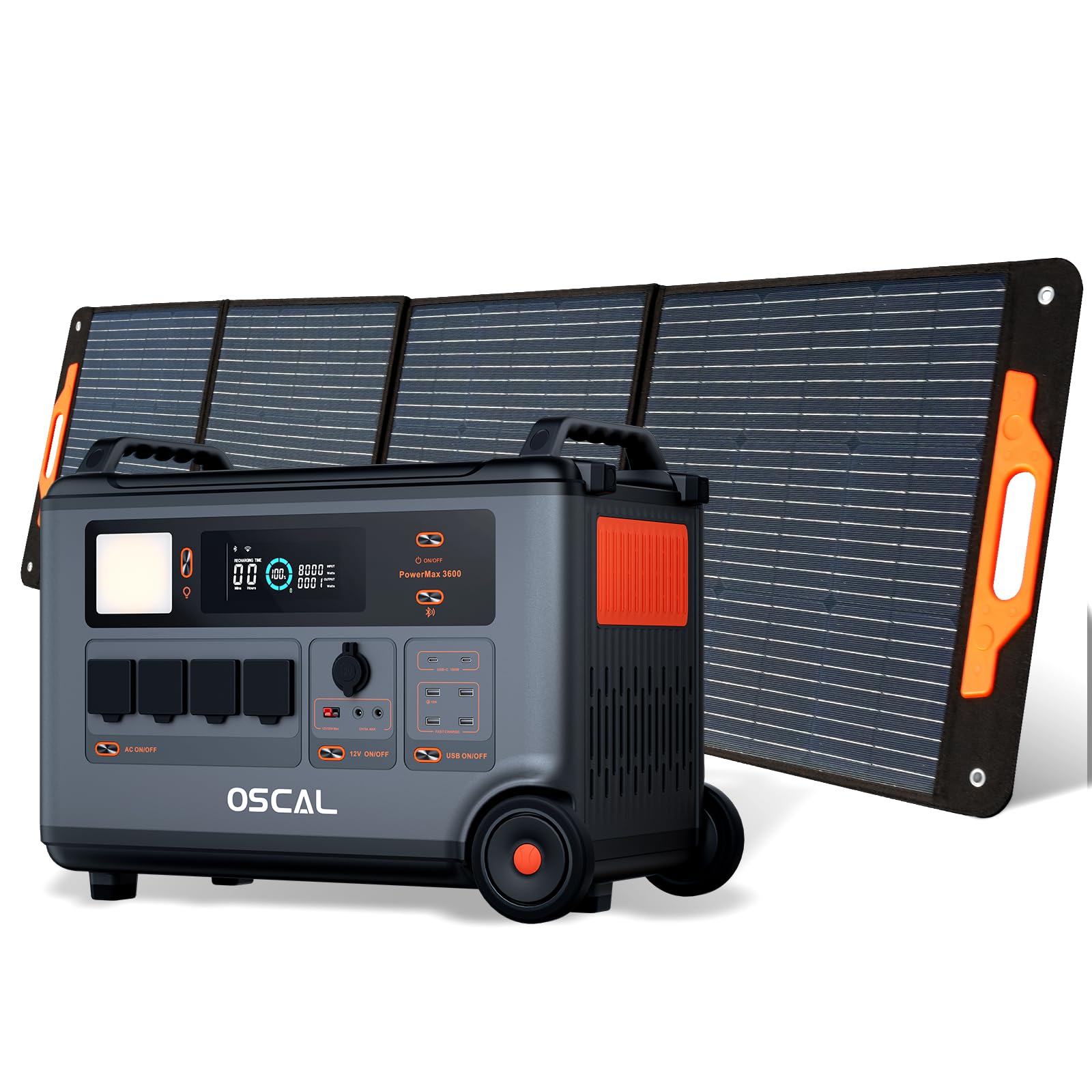
The OSCAL PowerMax 3600 is a high-capacity portable power station designed for various applications, from outdoor adventures to emergency home backup. It features a robust LiFePO4 battery and multiple output ports.
Key Features:
- High Capacity: 3600 Wh base capacity, expandable up to 57,600 Wh with additional batteries.
- Powerful Output: 6000 W peak output, capable of powering most household appliances.
- LiFePO4 Battery: Safe, stable, and durable with over 3500 charge cycles (to 80% capacity).
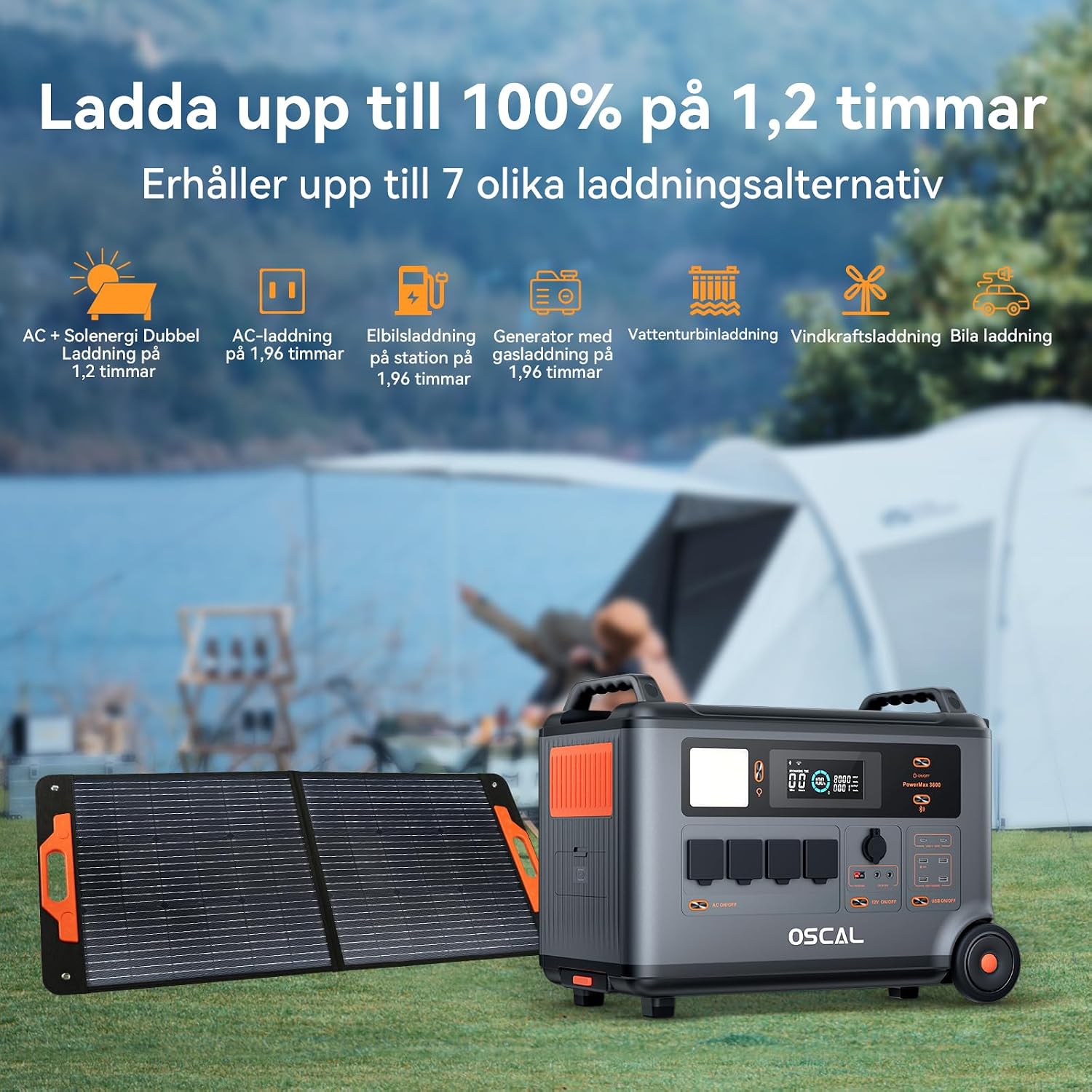
- Fast Charging: Fully charged in 1.2 hours with dual AC and solar input.
- Uninterruptible Power Supply (UPS): Automatic switchover in 5-8 ms during power outages.
- Smart Control: Monitor and control via the OSCAL smartphone application (Wi-Fi/Bluetooth).
- Durable Design: Splash-proof, dust-proof, 0.8M vertical drop protection, UV-resistant, and UL94V-0 fire rating.

3. Setup
3.1 Unpacking and Initial Inspection
Carefully remove all components from the packaging. Verify that all items listed in the 'What you will get' section are present and undamaged. If any items are missing or damaged, contact customer support immediately.
3.2 Initial Charging
Before first use, fully charge the PowerMax 3600. Connect the AC charging cable to the unit's AC input port and then to a standard wall outlet. The display will indicate the charging status. A full charge typically takes 1.2 hours with combined AC and solar input, or 1.96 hours with AC only.
3.3 Connecting the PM200 Solar Panel
To charge using solar power, unfold the PM200 solar panel and position it in direct sunlight. Connect the MC4 to Anderson cable (or other compatible cable) from the solar panel to the PowerMax 3600's solar input port. The unit will automatically detect the solar input and begin charging.

4. Operating Instructions
4.1 Powering On/Off
Press and hold the main power button for a few seconds to turn the unit on or off. The display will illuminate upon activation.
4.2 Using AC Outputs
Press the AC power button to activate the AC outlets. Plug your devices into the available AC ports. The PowerMax 3600 provides a pure sine wave output, suitable for sensitive electronics. The unit has 4 AC outlets.
4.3 Using DC Outputs (USB-A, USB-C, 12V)
Press the DC power button to activate the DC outputs. Connect your USB-powered devices to the 4 USB-A ports or 2 USB-C ports (100W each). The 12V car port and other DC outputs are also available for compatible devices.

4.4 Understanding the Display
The integrated display shows real-time information including battery level, input/output wattage, remaining run time, and active ports. Refer to the on-screen icons for specific indicators.
4.5 Uninterruptible Power Supply (UPS) Function
When connected to an AC wall outlet and powering devices, the PowerMax 3600 acts as a UPS. In the event of a power outage, it automatically switches to battery power within 5 to 8 milliseconds, ensuring continuous operation for connected devices like computers or medical equipment (e.g., CPAP machines).

4.6 Smart Remote Control (OSCAL App)
Download the OSCAL application from your smartphone's app store. Pair the PowerMax 3600 via Wi-Fi or Bluetooth to monitor battery status, control outputs, and perform firmware updates remotely.

5. Charging Methods
The PowerMax 3600 supports multiple charging methods to ensure you always have power.
- AC Wall Outlet: Connect the included AC charging cable to a standard wall outlet.
- Solar Charging: Use the PM200 solar panel or other compatible solar panels via the MC4 input.
- Car Charging: Charge from your vehicle's 12V cigarette lighter port using the included car charging cable.
- EV Charging Station: The unit can be charged at an electric vehicle charging station (up to 2200W input).
- Generator: Connect to a gasoline generator for charging (up to 2200W input).
- Lead-Acid Battery: Supports charging from lead-acid batteries for emergency situations.


6. Maintenance
6.1 Battery Care
The PowerMax 3600 uses LiFePO4 batteries, known for their longevity. To maximize battery lifespan:
- Avoid fully discharging the battery frequently.
- Store the unit with a charge level between 50% and 80% if not used for extended periods.
- Recharge the unit every 3-6 months during storage to prevent deep discharge.

6.2 Cleaning
Use a dry, soft cloth to clean the exterior of the unit. Do not use abrasive cleaners or solvents. Ensure all ports are free from dust and debris.
6.3 Storage
Store the PowerMax 3600 in a cool, dry place, away from direct sunlight and extreme temperatures. Ensure the unit is turned off during storage.
7. Troubleshooting
If you encounter issues with your PowerMax 3600, refer to the following common problems and solutions:
| Problem | Possible Cause | Solution |
|---|---|---|
| Unit does not turn on | Battery is completely discharged; Power button not pressed long enough. | Charge the unit using AC power; Press and hold the power button for 3-5 seconds. |
| No output from AC/DC ports | AC/DC output not activated; Device draws too much power; Overload protection triggered. | Press the respective AC/DC button; Check device wattage; Restart the unit and reduce load. |
| Solar charging not working | Insufficient sunlight; Incorrect panel connection; Damaged solar panel/cable. | Ensure direct sunlight; Verify cable connections; Test with another solar panel/cable if possible. |
| App connection issues | Bluetooth/Wi-Fi off; Unit too far from phone; App not updated. | Ensure Bluetooth/Wi-Fi is on; Move phone closer to unit; Update the OSCAL app. |
If the problem persists, please contact OSCAL customer support.
8. Specifications
| Feature | Detail |
|---|---|
| Brand | OSCAL |
| Model Number | BP3600-PM3600 (PowerMax 3600) |
| Battery Type | LiFePO4 |
| Capacity | 3600 Wh (expandable up to 57,600 Wh) |
| AC Output Power | 3600 W (Rated), 6000 W (Peak) |
| Total AC Outlets | 4 |
| USB-A Outputs | 4 |
| USB-C Outputs | 2 (100 W each) |
| Input Voltage | 12 Volts (DC input for car/solar) |
| Frequency | 60 Hz |
| Charging Time (AC + Solar) | 1.2 hours (to 100%) |
| Charging Time (AC only) | 1.96 hours (to 100%) |
| UPS Switching Time | 5-8 ms |
| Lifespan | 3500+ cycles (to 80% capacity) |
| Dimensions (L x W x H) | 48 cm x 44 cm x 35 cm |
| Weight | 44.45 Kilograms |
| Material | ABS |
| Special Features | Extra-long battery life, Energy efficient, BMS protection (over-voltage, under-voltage, over-current, over-charge, low/high temperature, short-circuit) |
9. Warranty and Support
9.1 Warranty Information
The OSCAL PowerMax 3600 comes with a 5-year manufacturer's warranty. This warranty covers defects in materials and workmanship under normal use. Please retain your proof of purchase for warranty claims.
9.2 Included Components
The package includes:
- PowerMax 3600 Portable Charging Station
- PM200 Portable Solar Panel
- AC Charging Cable
- Car Charging Cable
- Solar Charging Cable (MC4 to Anderson, MC4 to 7909, 6530, XT60, 5521)
- User Manual
- Warranty Card
9.3 Customer Support
For technical assistance, warranty claims, or any questions regarding your OSCAL PowerMax 3600, please refer to the contact information provided on your warranty card or visit the official OSCAL website. 24-hour after-sales support is available.


