
1. Introduction
The FortiGate-120G is a robust network security appliance designed for comprehensive threat protection in diverse enterprise environments. This device integrates advanced security features with reliable support services to ensure network integrity and performance.
Key features include:
- Comprehensive Hardware and Service Package: Includes the FortiGate-120G appliance with 3 years of FortiCare Premium and FortiGuard Unified Threat Protection (UTP).
- Unified Threat Protection (UTP) Bundle: Provides defense against web and DNS-based threats through advanced filtering and security features such as ATP, DNS filtering, URL filtering, video filtering, and anti-botnet services.
- Enhanced Web Security: Offers high-level web security suitable for various enterprise environments requiring strong protective measures against online threats.
- Extended Support and Service: FortiCare Premium ensures dependable technical support for seamless operation and efficient issue resolution.
- Optimal for Diverse Deployment: Suitable for organizations with complex network environments seeking comprehensive security solutions.
2. Device Overview
The FortiGate-120G appliance features multiple connectivity options and indicators for status monitoring.

Figure 2.1: Front and back view of the FortiGate-120G appliance, highlighting multiple GE RJ45, GE SFP, and 10 GE SFP+ slots, along with Universal ZTNA, Unparalleled Performance, Secure SD-WAN, and Dynamic Segmentation capabilities.

Figure 2.2: Detailed view of the FortiGate-120G, illustrating the interfaces including RJ45 Console Port, HA and Management Ports, GE RJ45 Ports, 10GE SFP+ FortiLink Slots, and SFP Ports. Hardware features such as SP5, 1U form factor, AC Dual power, and 480GB storage are also depicted.
Interfaces:
- 1x RJ45 Console Port
- 2x RJ45 HA and Management Ports
- 16x GE RJ45 Ports
- 4x 10GE SFP+ FortiLink Slots
- 8x SFP Ports
3. Setup Instructions
Follow these steps to set up your FortiGate-120G Network Security Appliance.
3.1. Device Registration
Register your device at fortinet.com/register to access cloud management, FortiGuard updates, firmware upgrades, technical support, and warranty coverage.
3.2. Initial Configuration Options
You can configure your FortiGate-120G using one of the following methods:
A. Local Setup
- Connect port 1 on the FortiGate to your computer.
- Ensure DHCP is enabled on your computer, or manually set your IP address to 192.168.1.1 with a subnet mask of 255.255.255.0.
- Open a web browser and navigate to 192.168.1.99.
B. Cloud Setup
- Visit forticloud.com in a web browser and log in using your FortiNetOne credentials.
- Click 'Add FortiGate' and enter the FortiCloud Key. The FortiCloud Key is typically found on a sticker on the device.
C. iOS Setup
- Download and launch the FortiExplorer iOS App from the App Store.
- Connect the USB port of your iOS device to the FortiGate's USB port.
- Tap the device when it appears in FortiExplorer.
Note: For detailed video instructions, refer to fortinet.net/fg-setup.

Figure 3.1: Rear view of the FortiGate-120G, showing the dual AC power inputs (100-240V AC, 50-60Hz, 1.5A Max) for redundant power supply.
4. Operating the Appliance
Once configured, the FortiGate-120G provides continuous network security and management. The included FortiGuard Unified Threat Protection (UTP) and FortiCare Premium services enhance its operational capabilities.
4.1. Unified Threat Protection (UTP)
The UTP bundle actively protects your network by:
- Advanced Threat Protection (ATP): Identifies and mitigates sophisticated threats.
- DNS Filtering: Blocks access to malicious domains.
- URL Filtering: Controls access to websites based on categories and reputation.
- Video Filtering: Manages access to streaming video content.
- Anti-Botnet Services: Detects and prevents communication with botnet command and control servers.
4.2. Status Indicators
Monitor the LED indicators on the front panel for device status:
- PWR: Indicates power status.
- STATUS: General device operational status.
- HA: High Availability status.
- LINK/ACT: Link and activity status for each port.
- SPEED: Connection speed for each port.
5. Maintenance
Regular maintenance ensures optimal performance and security of your FortiGate-120G appliance.
5.1. Firmware Updates
Periodically check for and apply the latest firmware updates from the Fortinet support portal. Firmware updates often include security patches and new features.
5.2. Monitoring and Logging
Utilize the device's management interface to monitor network traffic, security events, and system logs. This helps in identifying potential issues and ensuring compliance.
5.3. Physical Care
- Ensure the device is placed in a well-ventilated area to prevent overheating.
- Keep the device free from dust and debris.
- Verify all cable connections are secure.
6. Troubleshooting
This section provides basic troubleshooting steps for common issues. For advanced problems, refer to FortiCare Premium support.
6.1. No Power
- Verify the power cables are securely connected to both the appliance and a working power outlet.
- Check the power LED indicator on the front panel. If it is off, try a different power outlet or power cable.
6.2. Network Connectivity Issues
- Check the LINK/ACT LEDs for the connected ports. A solid green or amber light indicates a link, and a blinking light indicates activity.
- Ensure Ethernet cables are properly connected and not damaged.
- Verify network configuration settings (IP addresses, subnet masks, gateways) in the device's management interface.
6.3. Slow Performance
- Monitor CPU and memory usage through the management interface. High utilization may indicate heavy traffic or a configuration issue.
- Check for any active security policies that might be impacting performance.
- Ensure the device firmware is up to date.
7. Specifications
Detailed technical specifications for the FortiGate-120G Network Security Appliance.
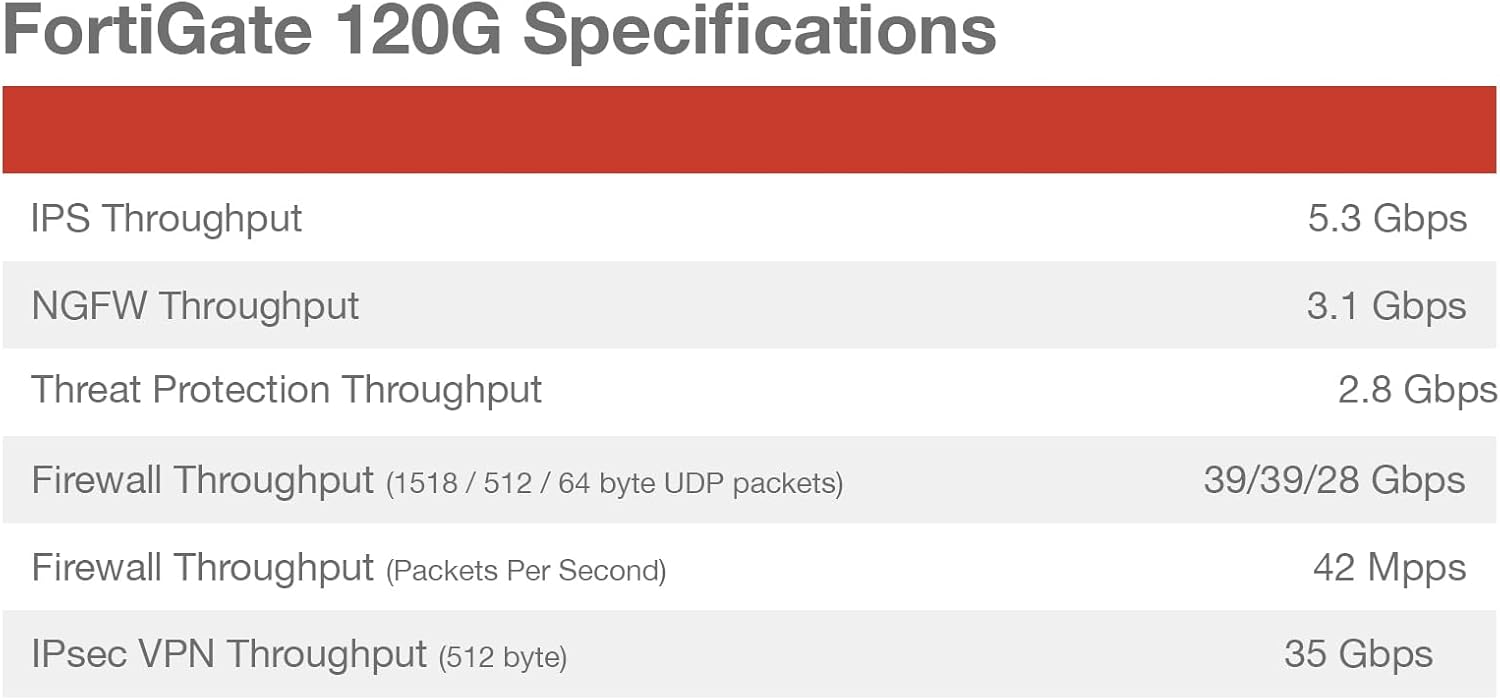
Figure 7.1: Performance specifications for the FortiGate 120G, including IPS Throughput, NGFW Throughput, Threat Protection Throughput, Firewall Throughput (1518 / 512 / 64 byte UDP packets), Firewall Throughput (Packets Per Second), and IPsec VPN Throughput (512 byte).
| Feature | Value |
|---|---|
| Product Dimensions | 21.5 x 16.75 x 6 inches |
| Item Weight | 12.5 pounds |
| Item Model Number | FG-120G-BDL-950-36 |
| Manufacturer | Fortinet |
| Frequency Band Class | Single-Band |
| Connectivity Technology | Ethernet |
| Antenna Type | Internal |
| Included Components | CD |

Figure 7.2: Side view of the FortiGate-120G, indicating its physical dimensions: Height x Width x Length: 1.73 x 17 x 10 inches, and Weight: 12.17 pounds.
8. Warranty and Support
Your FortiGate-120G appliance includes comprehensive support and protection services.
8.1. FortiGuard Unified Threat Protection (UTP)
The purchase includes 3 years of FortiGuard UTP, providing continuous updates for threat intelligence, web filtering, and other security services to keep your network protected against evolving threats.
8.2. FortiCare Premium
The package also includes 3 years of FortiCare Premium, offering enhanced technical support. This service provides:
- 24x7 technical support from Fortinet experts.
- Advanced hardware replacement options.
- Access to firmware updates and patches.
- Online support resources and documentation.
For detailed information on your warranty and support services, please visit the official Fortinet support website or contact your Fortinet reseller.

Figure 8.1: Table outlining various FortiGuard Security Services, SD-WAN and SASE Services, NOC and SOC Services, and Hardware and Software Support options, indicating which are included in Enterprise Protection, Unified Threat Protection, and Advanced Threat Protection bundles.


