
FORTINET FortiGate-120G
FortiGate-120G Firewall User Manual
Model: FG-120G | Brand: FORTINET
1. Introduction
This manual provides detailed instructions for the installation, operation, maintenance, and troubleshooting of the FortiGate-120G Firewall appliance. The FortiGate-120G is a high-performance network security appliance designed to provide robust protection and efficient network management for enterprise environments.
It features advanced capabilities such as SP5 hardware acceleration, multiple Gigabit Ethernet and SFP+ ports, and dual AC power supplies for reliable operation.
2. Product Overview
The FortiGate-120G is a powerful security appliance offering comprehensive threat protection and network management. Key features include:
- Robust Port Configuration: 18 GE RJ45 ports (1 management, 1 HA, 16 switch), 8 GE SFP slots, and 4 10GE SFP+ slots.
- Cutting-edge Performance: SP5 hardware acceleration for rapid application identification and efficient operations.
- Dual AC Power Supplies: Non-hot swappable for uninterrupted service and operational reliability.
- Superior Security Features: Integrated with Fortinet’s Security Fabric, offering advanced threat protection, SSL inspection, and AI-powered FortiGuard services.
- Streamlined Network Management: FortiLink protocol for seamless integration and centralized control.
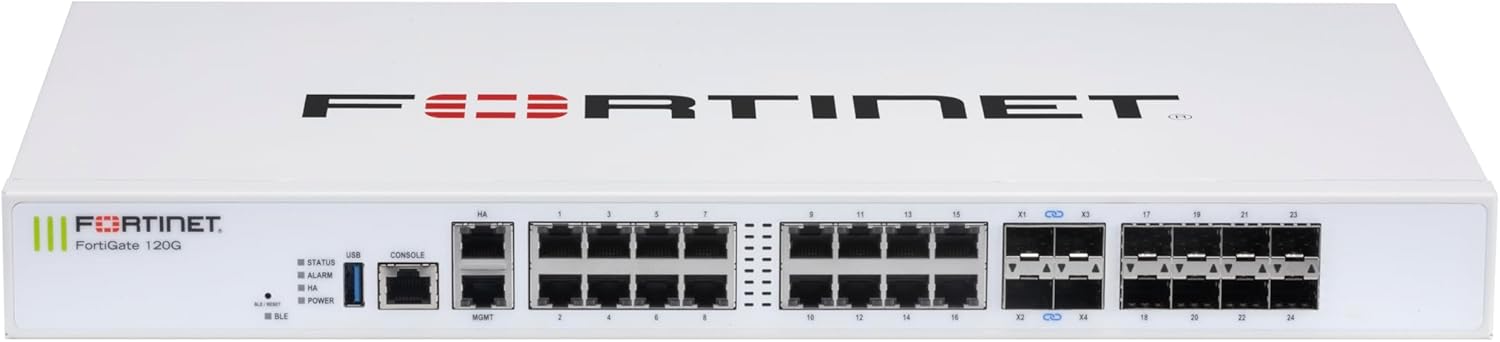
Figure 2.1: Front view of the FortiGate-120G appliance, showing the various RJ45 and SFP/SFP+ ports, status indicators, and console/USB ports.

Figure 2.2: Front and rear view of the FortiGate-120G, highlighting the multiple GE RJ45, GE SFP, and 10 GE SFP+ slots, along with the dual AC power inputs at the rear.
3. Setup and Installation
3.1. Package Contents
Verify that all components are present in the package:
- FortiGate-120G Appliance
- Power Cords (x2)
- Rack-mount Kit (if applicable)
- Quick Start Guide
3.2. Physical Installation
The FortiGate-120G can be installed in a standard 19-inch rack or placed on a desktop.
Rack Installation:
- Attach the provided rack-mount ears to the sides of the appliance using the screws.
- Secure the appliance into the rack using appropriate rack screws. Ensure adequate ventilation around the unit.
Desktop Installation:
- Place the appliance on a flat, stable surface.
- Ensure there is sufficient space for airflow around the unit, especially at the front and rear vents.

Figure 3.1: Physical dimensions of the FortiGate-120G, indicating a height of 1.73 inches, width of 17 inches, and length of 10 inches, with a weight of 12.17 pounds. This information is crucial for proper rack or desktop placement.
3.3. Power Connection
Connect the two provided AC power cords to the power inlets at the rear of the FortiGate-120G and then to separate, grounded power outlets. The dual power supplies ensure redundancy.

Figure 3.2: Rear view of the FortiGate-120G, showing the dual AC power inlets (100-240V AC, 50-60Hz, 1.5A Max) and ventilation.
3.4. Initial Network Connection
For initial configuration, connect a management workstation to the FortiGate-120G using one of the following methods:
- Console Port: Connect a serial cable from your workstation to the RJ45 console port on the FortiGate-120G. Use a terminal emulator (e.g., PuTTY) with settings: 9600 baud, 8 data bits, no parity, 1 stop bit, no flow control.
- Management Port: Connect an Ethernet cable from your workstation to the dedicated management port (MGMT) on the FortiGate-120G. The default IP address for the management interface is typically 192.168.1.99.
4. Operating Instructions
4.1. Powering On and Off
To power on the FortiGate-120G, ensure both power cords are securely connected to active power outlets. The device will automatically power on. To power off, disconnect both power cords from the power outlets.
4.2. Status Indicators
Monitor the front panel LEDs for operational status:
- STATUS: Indicates system status (e.g., green for normal operation, blinking for activity).
- ALARM: Indicates a system alarm or error.
- HA: Indicates High Availability status.
- POWER: Indicates power supply status.
- USB: Indicates USB port activity.
- BLE: Indicates Bluetooth Low Energy status.
4.3. Initial Configuration
After connecting to the device via console or management port, access the FortiGate CLI or web-based manager for initial configuration. Refer to the FortiGate Administration Guide for detailed configuration steps, including setting up interfaces, security policies, and user authentication.
For web-based management, open a web browser and navigate to the IP address of the management interface (e.g., https://192.168.1.99). Use the default username "admin" and no password for the first login.
5. Maintenance
5.1. Firmware Updates
Regularly check for and apply firmware updates to ensure optimal performance, security, and access to new features. Firmware can be downloaded from the Fortinet Support website.
5.2. System Backups
Periodically back up your FortiGate configuration to prevent data loss. This can be done via the web-based manager or CLI.
5.3. Environmental Considerations
Ensure the operating environment meets the following conditions:
- Temperature: 0°C to 40°C (32°F to 104°F)
- Humidity: 10% to 90% non-condensing
- Maintain clear airflow around the appliance to prevent overheating.
6. Troubleshooting
6.1. Common Issues and Solutions
| Issue | Possible Cause | Solution |
|---|---|---|
| Device not powering on | Power cords not connected, faulty power outlet, power supply failure. | Verify power cord connections. Test power outlets. Check POWER LED status. |
| Cannot access web-based manager | Incorrect IP address, network connectivity issue, firewall policy blocking access. | Verify IP address and network settings. Check cable connections. Try accessing via console. |
| Slow network performance | High network traffic, misconfigured security policies, hardware limitations. | Monitor network usage. Review firewall policies. Consult performance specifications. |
6.2. Resetting to Factory Defaults
If severe configuration issues arise, you may need to reset the FortiGate-120G to its factory default settings. This can typically be done via the console port using specific CLI commands. Warning: This will erase all configurations and data on the device.
7. Specifications
The following table outlines the key technical specifications for the FortiGate-120G:
| Feature | Detail |
|---|---|
| Model Number | FortiGate-120G (FG-120G) |
| Ports | 18 x GE RJ45 (1 MGMT, 1 HA, 16 Switch), 8 x GE SFP, 4 x 10GE SFP+ |
| Acceleration | SP5 Hardware Acceleration |
| Power Supply | Dual AC (Non-hot swappable) |
| Dimensions (H x W x L) | 1.73 x 17 x 10 inches |
| Weight | 13 pounds |
| Manufacturer | Fortinet |
| UPC | 195875219500 |
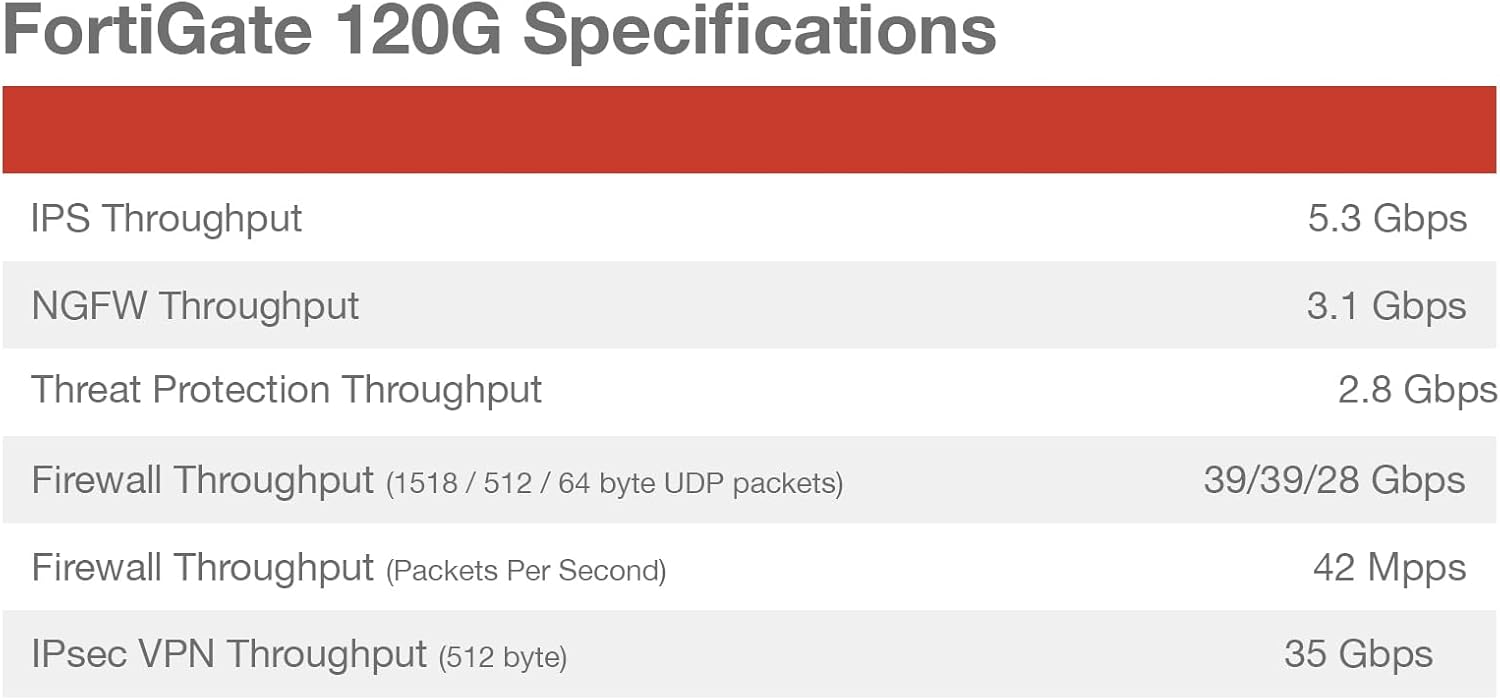
Figure 7.1: Detailed performance specifications for the FortiGate-120G, including IPS Throughput (5.3 Gbps), NGFW Throughput (3.1 Gbps), Threat Protection Throughput (2.8 Gbps), Firewall Throughput (39/39/28 Gbps for 1518/512/64 byte UDP packets), Firewall Throughput (42 Mpps), and IPsec VPN Throughput (35 Gbps).

Figure 7.2: Diagram illustrating the interfaces of the FortiGate-120G, including 1x RJ45 Console Port, 2x RJ45 HA and Management Ports, 16x GE RJ45 Ports, 4x 10GE SFP+ FortiLink Slots, and 8x SFP Ports. Also shown are hardware features like SP5 acceleration, 1U rack size, dual AC power, and 480GB storage.
8. Warranty and Support
8.1. Product Warranty
The FortiGate-120G appliance comes with a standard hardware warranty provided by Fortinet. For specific warranty terms and conditions, please refer to the warranty documentation included with your product or visit the official Fortinet website.
8.2. Technical Support
For technical assistance, product documentation, and software downloads, please visit the Fortinet Support website:
Fortinet offers various support plans and services, including FortiCare subscriptions, which provide access to technical support, firmware updates, and advanced services. Information on available subscriptions can be found on the Fortinet website.

Figure 8.1: Overview of Fortinet subscription services, including FortiGuard Security Services (IPS, Anti-Malware, URL Filtering, Anti-Spam, Data Loss Prevention, OT Security), SD-WAN and SASE Services, NOC and SOC Services, Hardware and Software Support (FortiCare Essentials, Premium, Elite), and Base Services (Internet Service DB Updates, GeoIP DB Updates, Device/OS Signatures, Trusted Certificate DB Updates, DDNS). These services enhance the functionality and security of the FortiGate-120G.
Related Documents - FortiGate-120G
 |
FortiGate 120G Series QuickStart Guide QuickStart Guide for Fortinet FortiGate 120G and FG-121G series network security appliances. Covers setup, installation, front and rear panel details, and regulatory information. |
 |
Fortinet NGFW/Perimeter Firewalls Ordering Guide This ordering guide details Fortinet's Next-Generation Firewalls (NGFW) and Perimeter Firewalls, highlighting their advanced AI/ML capabilities, FortiGuard services, and the integrated Fortinet Security Fabric for comprehensive enterprise threat protection and policy control. |
 |
FortiGate 120G Series QuickStart Guide Quick start guide for Fortinet FortiGate 120G and 121G network security appliances, covering initial setup, installation, front and rear panel descriptions, and essential regulatory information. |
 |
Fortinet Secure SD-WAN Ordering Guide: Models, Bundles, and Specifications This guide provides comprehensive ordering information for Fortinet's Secure SD-WAN solutions, detailing appliance models, performance specifications, bundle options, cloud integration, and management platforms for enterprise networks. |
 |
Fortinet Secure SD-WAN Ordering Guide: Product Specifications and Bundles This guide provides detailed specifications, ordering information, and bundle options for Fortinet's Secure SD-WAN solutions, including FortiGate appliances, FortiManager, and related services. |
 |
FortiOS 7.6 AWS Administration Guide for Fortinet FortiGate-VM Comprehensive guide to deploying and managing Fortinet FortiGate-VM instances on Amazon Web Services (AWS) with FortiOS 7.6, covering single deployments, HA, auto-scaling, and AWS service integration. |
Ask a question about this manual
Ask about setup, troubleshooting, compatibility, parts, safety, or missing instructions. Manuals+ will review the question and use this page’s manual context to help answer it.