
surmen 68 Miami
SURMEN 65% Mechanical Gaming Keyboard User Manual
Model: 68 Miami
Product Overview
The SURMEN 65% Mechanical Gaming Keyboard (Model: 68 Miami) is a compact, high-performance keyboard designed for gaming and typing. It features a 68-key layout, linear red switches for smooth keystrokes, and vibrant LED backlighting with shine-through PBT keycaps. Its anti-ghosting capabilities ensure precise input during intense gaming sessions, and adjustable tilt legs provide ergonomic comfort.
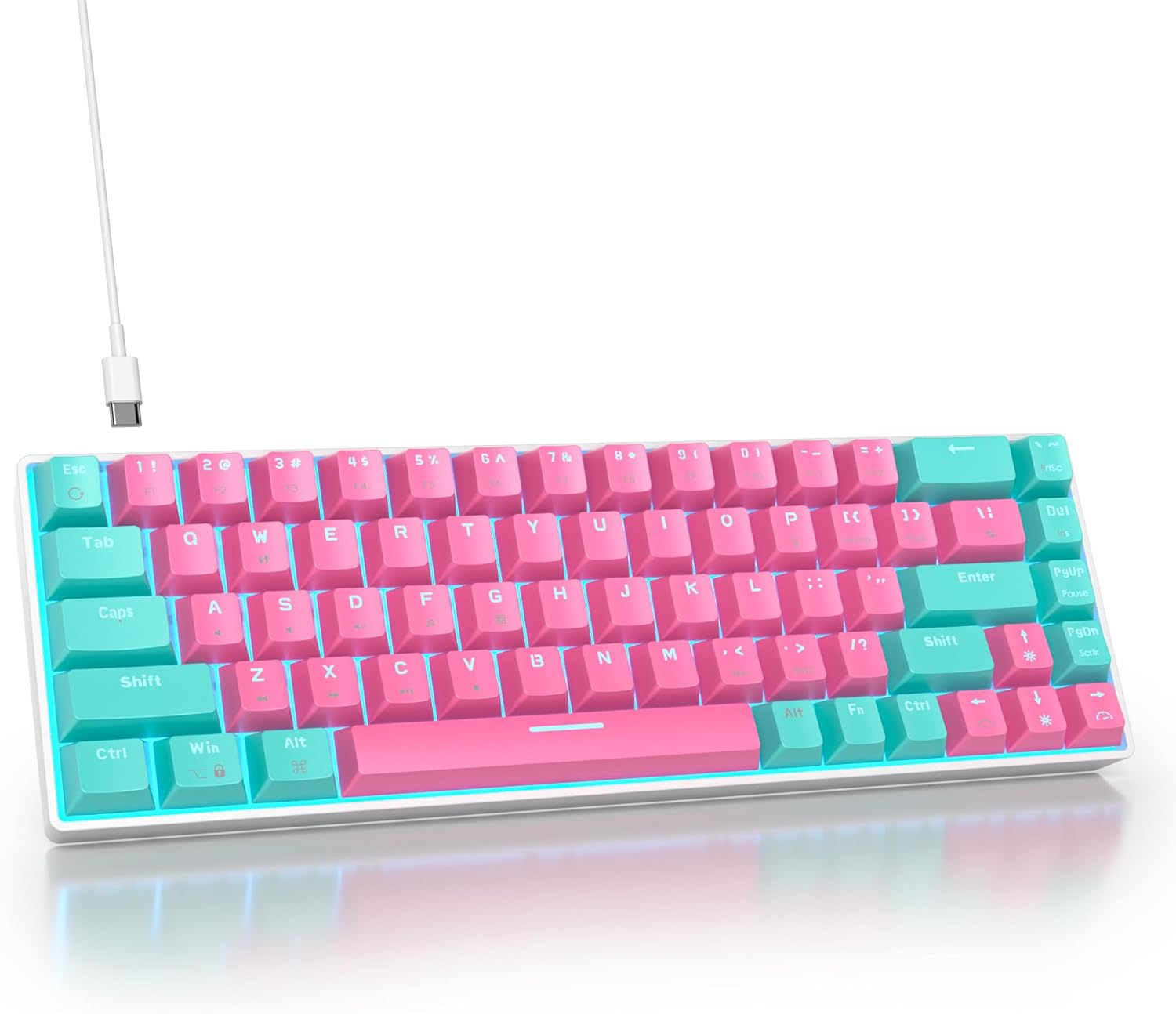
Figure 1: SURMEN 65% Mechanical Gaming Keyboard (68 Miami)
Package Contents
- SURMEN 65% Mechanical Gaming Keyboard (68 Miami)
- USB Cable
- Keycap Puller
- User Manual (this document)
Setup Instructions
Connecting the Keyboard
- Locate the USB-C port on the back of the keyboard.
- Connect the provided USB cable to the keyboard's USB-C port.
- Plug the other end of the USB cable (USB-A) into an available USB port on your computer (Laptop or PC).
- The keyboard will be automatically recognized by your operating system (Windows 2000/Vista/Win7/Win8/Win10/MAC/Linux) and ready for use.

Figure 2: Connecting the USB-C Cable
Adjusting Tilt Legs
For improved ergonomics and typing comfort, the keyboard features two-stage adjustable tilt legs located on the underside. Gently pull out the desired stage of the legs to elevate the keyboard to your preferred angle.

Figure 3: Adjustable Tilt Legs
Operating Instructions
Keyboard Layout and Features
This 65% mechanical gaming keyboard features a compact 68-key layout, optimizing desk space while retaining essential keys. It is equipped with linear red switches, known for their smooth, quiet, and responsive keystrokes, making them ideal for both fast-paced gaming and comfortable typing.

Figure 4: 65% Keyboard Layout (68 Keys)
Linear Red Switches
The keyboard utilizes linear red mechanical switches. These switches provide a consistent, smooth keystroke without a tactile bump or audible click, allowing for rapid and quiet key presses. This makes them a popular choice for gamers and typists who prefer a light and fluid feel.

Figure 5: Linear Red Switch Detail
Video 1: Demonstration of the quiet linear red switches during typing.
Backlit PBT Keycaps
The keyboard features durable PBT keycaps with a shine-through design, allowing the LED backlighting to illuminate the characters clearly. PBT material is known for its resistance to wear and shine, ensuring the keycaps maintain their appearance over time.

Figure 6: PBT Keycaps with Shine-through
Video 2: Demonstration of the shine-through letters on the keycaps, highlighting the LED backlighting.
LED Lighting Control
The keyboard features single LED backlighting with various effects. To cycle through different lighting modes, press the Fn key combined with the designated lighting control key (refer to your keyboard's specific key legends, often indicated by an icon or secondary function). You can also turn the backlight off if desired.
Video 3: Guide on how to switch between different LED light modes on the keyboard.
Anti-Ghosting
All 68 keys on this keyboard feature full anti-ghosting, meaning multiple keys can be pressed simultaneously without conflict. This ensures that every keystroke is registered accurately, which is crucial for fast-paced gaming and efficient typing.
Video 4: Overview of the charming Miami theme color scheme with cyan and pink keycaps.
Maintenance
Cleaning the Keyboard
- Disconnect the keyboard from your computer before cleaning.
- Use a can of compressed air to blow away dust and debris from between the keycaps.
- For stubborn dirt, use the provided keycap puller to carefully remove keycaps. Clean the switches and keycaps with a soft brush or a slightly damp cloth. Ensure all parts are completely dry before reattaching keycaps and reconnecting the keyboard.
- Wipe the surface of the keyboard with a soft, lint-free cloth. Avoid using harsh chemicals or abrasive materials.
Troubleshooting
Keyboard Not Responding
- Ensure the USB cable is securely connected to both the keyboard and the computer.
- Try plugging the keyboard into a different USB port on your computer.
- Restart your computer.
- Test the keyboard on another computer to determine if the issue is with the keyboard or your system.
Backlighting Not Working
- Ensure the keyboard is properly connected and powered.
- Press the Fn key combined with the lighting control key to cycle through modes or turn the backlight on.
- Check if any software drivers or settings are interfering with the lighting (though this keyboard is plug-and-play).
Keys Not Registering or Double-Typing
- Clean the affected key switch as described in the Maintenance section. Debris under the keycap can cause issues.
- Ensure the keycap is properly seated on the switch.
- If the issue persists, it may indicate a faulty switch.
Specifications
| Feature | Detail |
|---|---|
| Brand | surmen |
| Model | 68 Miami |
| Layout | 65% (68 Keys) |
| Switch Type | Linear Red Switch |
| Keycap Material | PBT |
| Backlighting | Single LED Light (Backlit) |
| Connectivity | USB-C Wired |
| Anti-Ghosting | All 68 Keys |
| Compatibility | Windows 2000/Vista/Win7/Win8/Win10/MAC/Linux |
| Adjustable Tilt | Two-stage Adjustable Tilt Legs |
| Item Weight | 1.79 pounds |
| Package Dimensions | 14.06 x 6.26 x 1.85 inches |
| Manufacturer | GTSP |
| Country of Origin | China |
Warranty and Support
For warranty information and technical support, please refer to the contact details provided on the product packaging or visit the official SURMEN website. Keep your purchase receipt for warranty claims.
Manufacturer: GTSP
Brand Store: SURMEN Amazon Store
Ask a question about this manual
Ask about setup, troubleshooting, compatibility, parts, safety, or missing instructions. Manuals+ will review the question and use this page’s manual context to help answer it.