
Introduction
The Worlde Orca Pad-16 is a versatile performance controller designed for music production and live performance. It features high-quality, velocity and pressure-sensitive pads with RGB backlighting, assignable rotary knobs, and function buttons, providing comprehensive control over your digital audio workstation (DAW) and other music software.
This manual provides detailed instructions on setting up, operating, maintaining, and troubleshooting your Orca Pad-16 to ensure optimal performance and longevity.
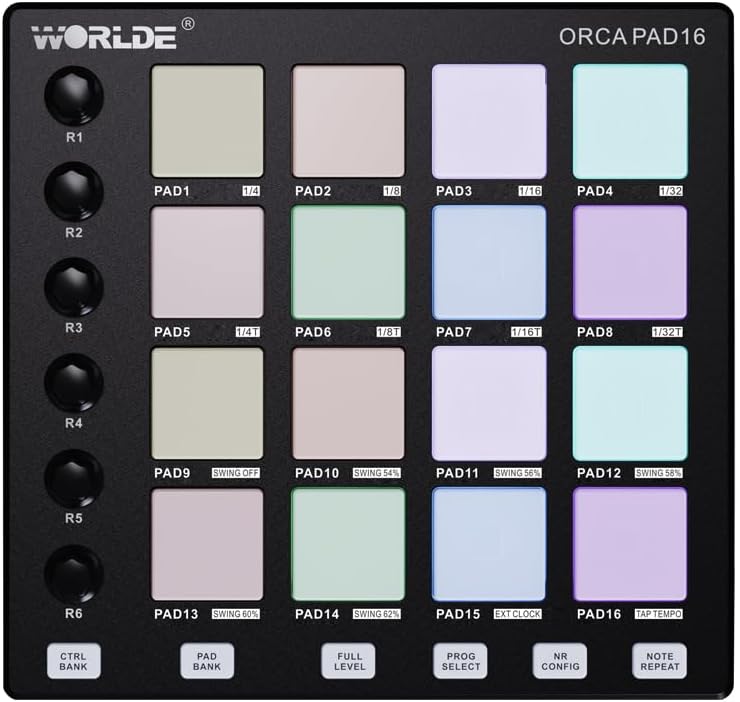
Figure 1: Top-down view of the Orca Pad-16, highlighting the 16 performance pads and rotary controls.
Setup Guide
Package Contents
- Worlde Orca Pad-16 Performance Controller
- USB Cable
- Software Editor (available for download from Worlde website)
System Requirements
- Operating System: Windows XP/7/8/10/11/Vista or Mac OSX (or higher)
- Available USB 2.0 Port
- Compatible Digital Audio Workstation (DAW) software (e.g., Ableton Live, Apple Logic Pro X, Propellerhead's Reason)
- For iOS compatibility: Apple iPad Camera Connection Kit (sold separately)
Connecting the Device
- Ensure your computer or iOS device meets the minimum system requirements.
- Connect one end of the provided USB cable to the USB port on the Orca Pad-16.
- Connect the other end of the USB cable to an available USB 2.0 port on your computer. For iOS devices, use the Apple iPad Camera Connection Kit.
- The Orca Pad-16 is USB powered and driver-free. Your operating system should automatically recognize the device.
- Launch your preferred DAW or music software. The Orca Pad-16 should appear as a MIDI input device in your software's preferences or settings.

Figure 2: Side view of the Orca Pad-16, illustrating the USB connection port.
Operating Instructions
Performance Pads
The Orca Pad-16 features 16 high-quality, velocity and pressure-sensitive pads with RGB backlighting. These pads can be used for triggering samples, playing drums, or launching clips in your DAW.
- Velocity Sensitivity: The harder you strike a pad, the louder the sound or the higher the velocity value transmitted.
- Pressure Sensitivity (Aftertouch): After striking a pad, applying continuous pressure can control parameters like vibrato, filter cutoff, or volume, depending on your software's mapping.
- RGB Backlighting: The pads illuminate with various colors, often indicating their status (e.g., armed, playing, stopped) or assigned MIDI notes/channels.
Assignable Rotary Knobs
There are 18 assignable rotary knobs (three rows of six) that can be used to control various parameters in your software, such as volume, pan, filter cutoff, or effect sends. Each knob can be user-modified via the software editor.
- Rotate the knobs clockwise to increase a parameter's value and counter-clockwise to decrease it.
- Refer to your DAW's MIDI mapping instructions to assign these knobs to specific functions.
Function Buttons
The 6 function buttons allow for quick access to common features:
- Program Select: Used to cycle through different program presets.
- Note Repeat: Automatically repeats a triggered note at a specified rate.
- Full Level: Ensures all triggered notes play at maximum velocity, regardless of how hard the pad is struck.
- Note Repeat Configuration: Adjusts parameters for the Note Repeat function.
- CTRL BANK: Switches between control banks for the rotary knobs.
- PAD BANK: Switches between pad banks, allowing access to more than 16 pad assignments (up to 48 total).
Software Editor
A dedicated software editor for Mac and PC is available on the Worlde website. This editor allows for advanced customization of the Orca Pad-16, including:
- Assigning MIDI notes and CC messages to pads and knobs.
- Adjusting velocity curves and pressure sensitivity.
- Configuring RGB lighting behavior.
- Saving and loading custom presets (16 presets available).
It is recommended to download and install the software editor for full control over your device's capabilities.
Maintenance
Proper care and maintenance will extend the life of your Worlde Orca Pad-16.
- Cleaning: Use a soft, dry, lint-free cloth to clean the surface of the device. For stubborn dirt, slightly dampen the cloth with water. Avoid using abrasive cleaners, solvents, or alcohol, as these can damage the finish and components.
- Storage: When not in use, store the device in a cool, dry place away from direct sunlight, extreme temperatures, and high humidity.
- Handling: Avoid dropping the device or subjecting it to strong impacts. Do not place heavy objects on top of it.
- Connectivity: Always grasp the USB connector, not the cable, when plugging or unplugging the device.
Troubleshooting
| Problem | Possible Cause | Solution |
|---|---|---|
| Device not recognized by computer/DAW. |
|
|
| Pads/knobs not responding. |
|
|
| RGB backlighting not working. |
|
|
Specifications
| Model Name | Orca Pad-16 |
| Model Number | ORCA-PAD16 |
| Pads | 16 velocity and pressure-sensitive pads with RGB backlighting |
| Rotary Knobs | 18 assignable rotary knobs (3 rows of 6) |
| Function Buttons | 6 assignable function buttons (Program Select, Note Repeat, Full Level, Note Repeat Config, CTRL BANK, PAD BANK) |
| Connectivity | USB 2.0 |
| Power | USB Bus-powered |
| Compatibility | Windows XP/7/8/10/11/Vista, Mac OSX (or higher), iOS (with Apple iPad Camera Connection Kit) |
| Dimensions (L x W x H) | 23 x 20 x 5 cm (approx. 9.06 x 7.87 x 1.97 inches) |
| Weight | 705 g (approx. 1.55 lbs) |
| Material | Plastic |
| Included Components | Software Editor (downloadable) |
Warranty and Support
Warranty Information
Please refer to the retailer's return policy and any warranty information provided at the time of purchase. Standard warranty terms typically cover manufacturing defects for a specified period from the date of purchase.
Keep your proof of purchase for any warranty claims.
Customer Support
For technical support, software editor downloads, or further inquiries, please visit the official Worlde website or contact their customer service department.
Note: Information regarding spare parts availability is not provided.


