
ProtoArc KM100-A
ProtoArc KM100-A Backlit Bluetooth Keyboard and Mouse User Manual
Model: KM100-A
Introduction
This manual provides detailed instructions for the setup, operation, maintenance, and troubleshooting of your ProtoArc KM100-A Backlit Bluetooth Keyboard and Mouse. Please read this manual thoroughly before using the product to ensure optimal performance and longevity.
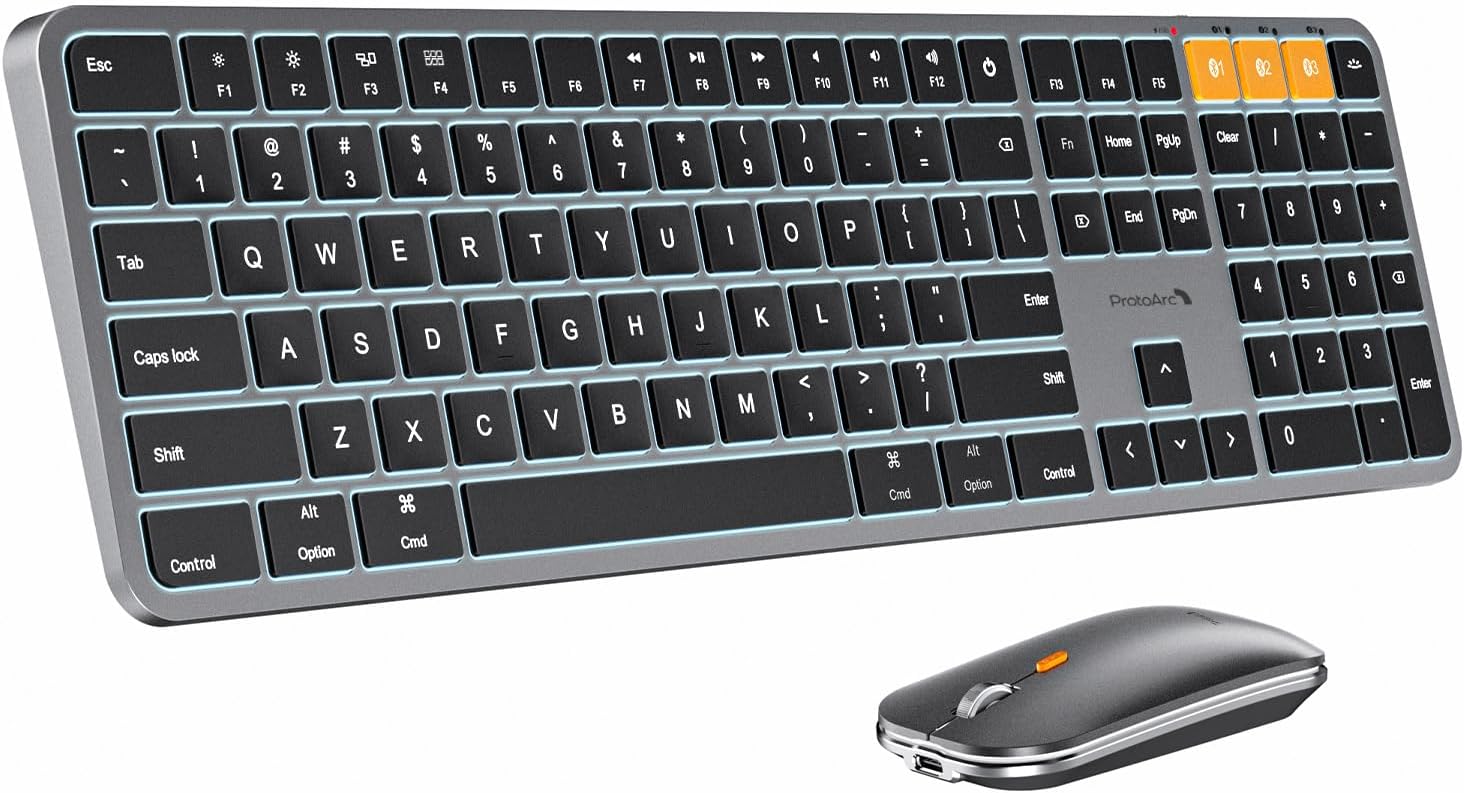
Image: The ProtoArc KM100-A keyboard and mouse combo, showcasing the full-size keyboard with numeric keypad and the slim mouse.
Package Contents
Upon opening the package, verify that all items are present:
- ProtoArc KM100-A Backlit Bluetooth Keyboard
- ProtoArc Bluetooth Mouse
- USB-C Charging Cable
- User Manual (this document)

Image: The ProtoArc KM100-A keyboard and mouse laid out with its packaging and charging cable.
Setup Guide
1. Charging the Devices
Both the keyboard and mouse feature built-in rechargeable batteries. Before first use, it is recommended to fully charge both devices.
- Connect the provided USB-C charging cable to the charging port on the keyboard (located on the top edge) and the mouse (located on the front edge).
- Connect the other end of the cable to a USB power source (e.g., computer USB port, USB wall adapter).
- The charging indicator light will illuminate during charging and turn off when fully charged. A full charge typically takes 2-3 hours.

Image: Close-up of the keyboard and mouse showing the USB-C charging ports and cables connected, indicating their rechargeable nature.
2. Powering On
- Keyboard: Locate the power switch on the top edge of the keyboard and slide it to the "ON" position.
- Mouse: Locate the power switch on the bottom of the mouse and slide it to the "ON" position.
3. Bluetooth Pairing
The KM100-A supports connection to up to three devices simultaneously via Bluetooth. You can switch between connected devices using the dedicated channel buttons.
- Keyboard Pairing:
- Press and hold one of the Bluetooth channel buttons (BT1, BT2, or BT3) for 3-5 seconds until the corresponding indicator light flashes rapidly. This indicates the keyboard is in pairing mode.
- On your Mac device, go to System Settings (or System Preferences) > Bluetooth.
- Look for "ProtoArc KM100-A Keyboard" in the list of available devices and click "Connect".
- Follow any on-screen prompts to complete the pairing process. The indicator light will stop flashing and remain solid when connected.
- Mouse Pairing:
- Press the channel switch button on the bottom of the mouse to select a channel (BT1, BT2, or BT3). The corresponding indicator light will flash.
- Press and hold the channel switch button for 3-5 seconds until the indicator light flashes rapidly. This indicates the mouse is in pairing mode.
- On your Mac device, go to System Settings (or System Preferences) > Bluetooth.
- Look for "ProtoArc KM100-A Mouse" in the list of available devices and click "Connect".
- The indicator light will stop flashing and remain solid when connected.
Note: The keyboard and mouse connect solely via Bluetooth and do not include a USB dongle. Ensure your device supports Bluetooth 5.1 or above and runs Mac OS 10.12 or later for full compatibility.

Image: A setup showing the keyboard and mouse connected via Bluetooth to a MacBook, an iPhone, and an external monitor, illustrating multi-device connectivity.

Image: Diagram showing the keyboard and mouse connecting to multiple devices (laptop, monitor, phone) via Bluetooth, with a note that no USB dongle is included.
Operating Instructions
Keyboard Functions
The KM100-A keyboard is designed with a full-size layout, including a numeric keypad, and optimized for macOS.
- Multi-Device Switching: Press the BT1, BT2, or BT3 buttons to instantly switch between paired devices.
- Backlight Control:
- Press F1 to decrease backlight brightness.
- Press F2 to increase backlight brightness.
- There are three adjustable brightness levels (low-mid-high).
- Media and Function Keys: The top row of keys provides quick access to various macOS functions:
- F3: Display window
- F4: Open Launchpad
- F7: Previous track
- F8: Play/Pause
- F9: Next track
- F10: Mute
- F11: Volume down
- F12: Volume up
- Power Button: Long press to pop-up window to select shutdown (For Mac); Short press for screen lock (For iOS).
- Typing Experience: The keyboard features responsive scissor-switch keys and a low-profile design for quiet and comfortable typing.
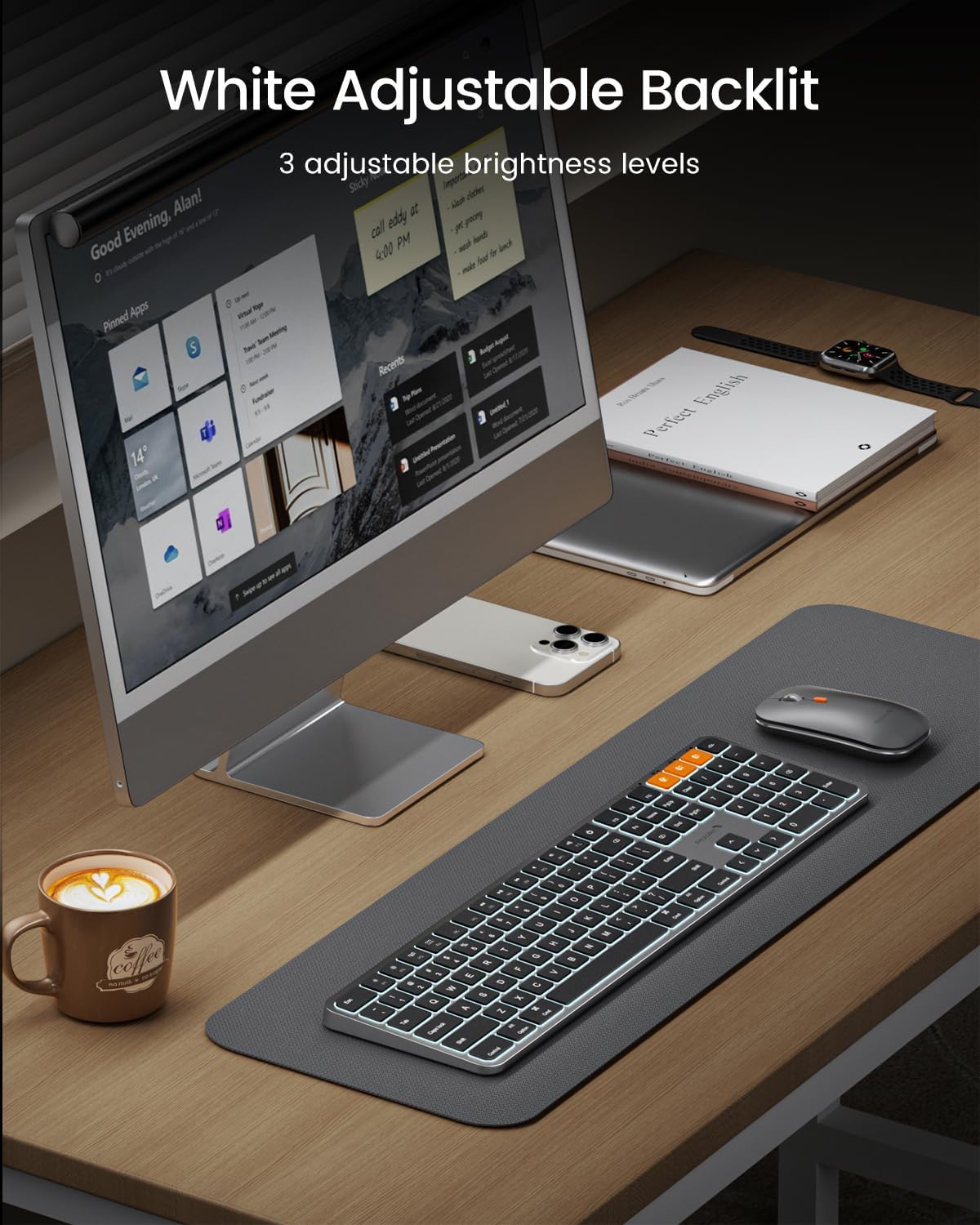
Image: The keyboard with its white LED backlighting illuminated, demonstrating the adjustable brightness feature.

Image: A detailed diagram of the keyboard layout, highlighting the function keys and their corresponding macOS actions, along with the multi-device switching buttons.
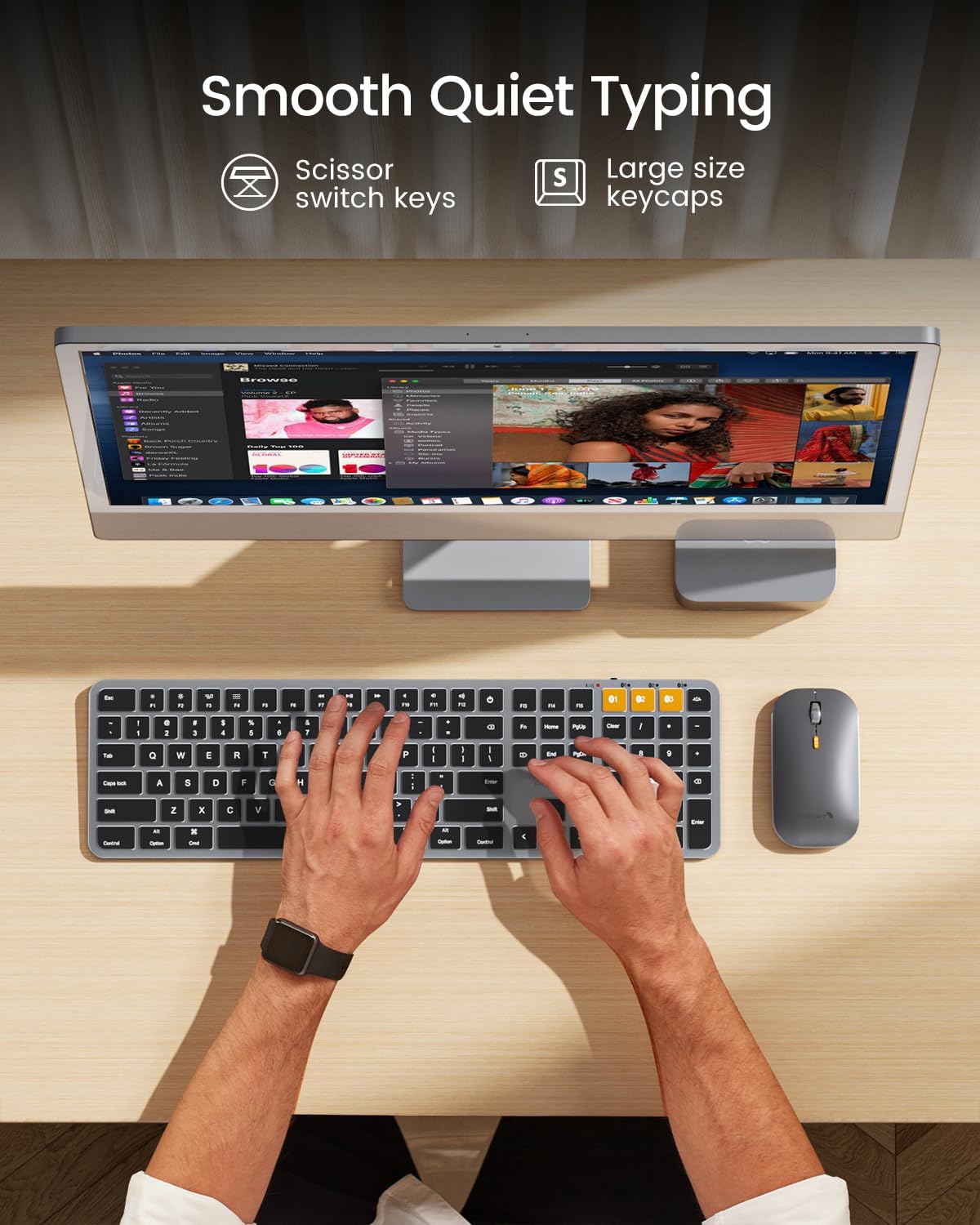
Image: An overhead shot of hands typing on the keyboard, emphasizing the smooth and quiet typing experience provided by the scissor-switch keys.
Mouse Functions
- DPI Adjustment: The mouse features three adjustable DPI levels (1000/1600/2400). Press the DPI button (located near the scroll wheel) to cycle through the sensitivity settings.
- Silent Click: The mouse is designed for quiet operation, reducing click noise.
- Multi-Device Switching: Use the channel switch button on the bottom of the mouse to switch between paired devices (BT1, BT2, BT3).

Image: A close-up of the mouse highlighting the DPI button and indicating the three adjustable DPI levels (1000, 1600, 2400) and silent click feature.

Image: Detailed diagrams of the top and bottom of the mouse, labeling its various buttons and indicators, including the DPI button, charging port, and Bluetooth channel indicators.
Maintenance
- Cleaning: Use a soft, dry, lint-free cloth to clean the keyboard and mouse. For stubborn dirt, slightly dampen the cloth with water or a mild, non-abrasive cleaner. Avoid excessive moisture.
- Storage: When not in use for extended periods, turn off both devices to conserve battery life. Store them in a cool, dry place away from direct sunlight and extreme temperatures.
- Battery Care: To prolong battery lifespan, avoid fully discharging the devices frequently. Recharge them when the low power indicator appears.
- Power Saving Mode: If the keyboard is not used for 60 minutes, it will enter sleep mode. Press any key to wake it up. The backlighting will need to be turned on again manually after waking from sleep.

Image: A composite image showing various features of the keyboard, including low-profile key stroke, silent click mouse, extended layout, and a visual representation of a waterproof cover, suggesting ease of cleaning.
Troubleshooting
| Problem | Possible Cause | Solution |
|---|---|---|
| Device not connecting via Bluetooth. | Low battery; Device not in pairing mode; Bluetooth disabled on host device; Interference. | Charge the device. Ensure the device is in pairing mode (indicator flashing rapidly). Enable Bluetooth on your computer/device. Move closer to the host device or away from other wireless devices. |
| Keyboard/Mouse frequently disconnects. | Low battery; Too far from host device; Interference. | Recharge the device. Ensure the device is within the effective Bluetooth range (up to 10 meters). Reduce interference from other wireless devices. |
| Keys not responding or mouse cursor erratic. | Low battery; Software issue; Dirty sensor (mouse). | Charge the device. Restart your computer/device. Clean the mouse sensor with a soft cloth. |
| Backlight not working. | Backlight turned off or at lowest setting; Low battery. | Press F2 to increase brightness. Ensure the keyboard is charged. Note: Backlight needs to be turned on again after waking from sleep mode. |
| Function keys (F1-F12) not working correctly on Windows. | Keyboard designed primarily for macOS. | The KM100-A keyboard is optimized for macOS. Media keys and function keys may not be fully compatible or work as expected on Windows operating systems. |
Specifications
| Feature | Detail |
|---|---|
| Model Number | KM100-A |
| Brand | ProtoArc |
| Connectivity Technology | Bluetooth 5.1 (or above) |
| Compatible Devices | MacBook Air, iPad, MacBook Pro, Mac (Mac OS 10.12 or later) |
| Keyboard Layout | Full Size with Numeric Keypad |
| Keyboard Backlight | White LED, 3 adjustable brightness levels |
| Keyboard Battery | 1200mAh rechargeable Lithium Ion |
| Mouse DPI Levels | 1000/1600/2400 adjustable |
| Mouse Battery | 300mAh rechargeable Lithium Ion |
| Charging Port | USB-C |
| Product Dimensions (Keyboard) | Approx. 16.5 x 4.7 x 0.55 inches (42 x 12 x 1.4 cm) |
| Product Dimensions (Mouse) | Approx. 3.9 x 2.3 x 0.79 inches (10 x 5.9 x 2.01 cm) |
| Item Weight | 13.8 ounces (Keyboard and Mouse combined) |
| Country of Origin | China |

Image: A diagram illustrating the precise dimensions of both the ProtoArc KM100-A keyboard and mouse.
Warranty and Support
ProtoArc products are designed for reliability and performance. For specific warranty details, please refer to the warranty card included with your product or visit the official ProtoArc website.
For technical support, troubleshooting assistance, or inquiries about your ProtoArc KM100-A Keyboard and Mouse, please contact ProtoArc customer service through their official channels. You may also find additional resources and FAQs on the ProtoArc support page.
A digital version of the user manual is available for download: Download User Manual (PDF)
Related documentsKM100-A


Ask a question about this manual
Ask about setup, troubleshooting, compatibility, parts, safety, or missing instructions. Manuals+ will review the question and use this page’s manual context to help answer it.