
1. Introduction
Welcome to the Easyfone Star Kids Safety Phone user manual. This guide provides essential information for setting up, operating, and maintaining your device. The Easyfone Star is designed to provide a secure communication solution for children, featuring parental controls, GPS tracking, and emergency functions.
What's in the Box
- Handset
- Dock Charger
- Adapter
- Battery
- User Manual (this document)
2. Safety Information
Read all safety instructions before using the device to ensure proper and safe operation.
General Safety
- Keep the device away from water and moisture.
- Avoid exposing the device to extreme temperatures.
- Do not attempt to disassemble or repair the device yourself. Contact authorized service personnel.
- Use only Easyfone approved accessories.
Battery Safety
- Use only the provided battery and charger.
- Do not short-circuit the battery terminals.
- Dispose of batteries properly according to local regulations.
- Avoid puncturing or damaging the battery.
3. Device Setup
Inserting the SIM Card and Battery
- Carefully remove the back cover of the Easyfone Star handset.
- Insert the 2G SIM card into the designated slot. Ensure it is correctly oriented. (Note: This device does not support JIO SIM cards.)
- Insert the provided Lithium-Ion battery into its compartment.
- Replace the back cover securely.
Charging the Device
The Easyfone Star comes with a convenient dock charger for effortless and safe charging.
- Connect the adapter to the dock charger.
- Plug the adapter into a power outlet.
- Place the Easyfone Star handset into the dock charger. Ensure it is seated correctly and the charging indicator appears on the screen.

Image: Easyfone Star handset in its charging dock, connected to an adapter. This illustrates the effortless and safe charging method.
Powering On/Off
- To power on: Press and hold the Power button until the screen lights up.
- To power off: Press and hold the Power button, then select 'Power Off' from the options.
4. CareTouch App and Parental Control
The Easyfone Star's settings are tamper-proof and can only be configured by parents or guardians through the dedicated CareTouch App (available for Android) or the Easyfone website. This ensures that children cannot alter critical safety settings.

Image: Screenshot of the CareTouch App interface, demonstrating the range of parental control settings available for the Easyfone Star.
Key Parental Control Features via CareTouch:
- Restricted Calls: Configure up to 20 pre-set numbers for outgoing calls. Restrict incoming calls to only these pre-defined numbers to prevent contact from strangers.
- "Do Not Disturb" Time Zones: Set specific periods during which the phone operates in silent mode, ensuring no disturbance during sleep or study time.
- Tamper-Proof Settings: All configurations are managed remotely via the app or website, preventing unauthorized changes on the device itself.
5. Key Features and Operation
Photo Dial
The Easyfone Star features large photo buttons for quick dialing of important contacts. Parents can assign photos to up to four contacts, allowing children to call them with a single press.
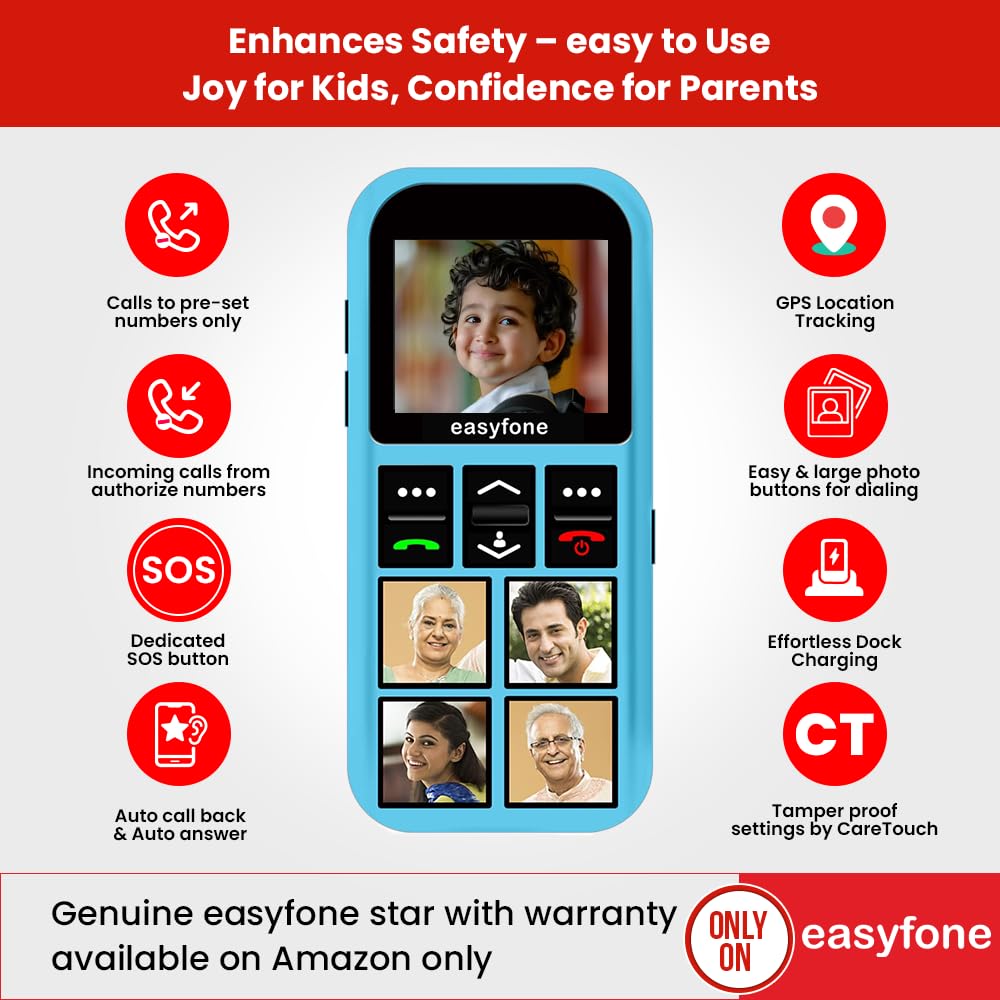
Image: The Easyfone Star phone with four photo contacts displayed on its keypad, enabling easy dialing for children.
Dedicated SOS Button
In emergencies, the dedicated SOS button provides immediate assistance. When triggered, the device automatically sends help messages with the GPS location and calls up to 5 emergency contacts repeatedly (up to 3 times) until someone answers.

Image: The Easyfone Star phone, highlighting the red SOS button located on the back of the device for quick access during emergencies.
GPS Location Tracking
Parents can track their child's location at any time using the built-in GPS. This feature allows for monitoring during activities or when the child triggers the emergency help button, providing peace of mind.

Image: The Easyfone Star phone with a visual representation of GPS location tracking on a map, indicating the child's whereabouts.
Discreet Listening and Auto Call Back
- Discreet Listening: This feature allows parents to remotely listen to the child's surroundings, useful for ensuring their well-being when not directly supervised.
- Auto Call Back: If a child doesn't answer, parents can send a command from an authorized phone, and the Easyfone Star will automatically call back with the loudspeaker activated.
Official Product Video: Features Demonstration
Video: A demonstration of the Easyfone Star's key features, including photo dial, SOS functionality, GPS tracking, and discreet listening capabilities. This video provides a visual guide to using the phone's safety features.
6. Operating Instructions
Making Calls
- To call a photo contact: Press the corresponding photo button.
- To call other pre-set contacts: Navigate through the address book using the navigation buttons and press the green call button.
Receiving Calls
- When an authorized call comes in, press the green call button to answer.
- To reject a call, press the red end call button.
Using the SOS Function
In an emergency, press and hold the red SOS button on the back of the device. The phone will automatically initiate the emergency protocol: sending location messages and calling pre-set emergency contacts.
7. Maintenance
- Cleaning: Use a soft, dry cloth to clean the device. Avoid using harsh chemicals or abrasive materials.
- Storage: Store the device in a cool, dry place away from direct sunlight when not in use for extended periods.
- Battery Care: To prolong battery life, avoid fully discharging the battery frequently. Charge the device regularly.
8. Troubleshooting
| Problem | Possible Cause | Solution |
|---|---|---|
| Device does not power on. | Low battery or battery not inserted correctly. | Charge the device using the provided charger. Ensure the battery is properly seated. |
| Cannot make or receive calls. | No SIM card, incorrect SIM, or out of network coverage. | Check SIM card insertion. Ensure it's a 2G SIM (not JIO). Verify network coverage. Check parental control settings via CareTouch App. |
| GPS tracking is inaccurate or not working. | Poor satellite signal, device indoors, or GPS feature disabled. | Move to an open area. Ensure GPS is enabled via the CareTouch App. |
| Battery drains quickly. | Frequent use of features like GPS, or old battery. | Reduce usage of power-intensive features. Consider replacing the battery if it's old. |
9. Specifications
| Feature | Detail |
|---|---|
| Brand | Easyfone |
| Model Name | Samfe 3 |
| Product Dimensions | 10 x 4 x 1.5 cm |
| Item Weight | 90 g |
| RAM Size | 32 MB |
| Flash Memory Installed Size | 32 MB |
| Processor Type | Cortex A7 |
| Resolution | 720p |
| Special Features | Parental Control, Built-In GPS, Safety Features |
| Battery Description | Lithium-Ion |
| Battery Capacity | 800 Milliamp Hours |
| Battery Average Life | 10 Days (standby) |
| Connector Type | 2G (Does not support JIO SIM) |
| Device Interface | Buttons, Dial, Keypad |
| Country of Origin | China |
10. Warranty and Support
For warranty information, please refer to the documentation included with your purchase or visit the official Easyfone website. For technical support or customer service, please use the contact details below:
- Customer Care: 8800688007 (Mon-Fri, 10AM to 5PM)
- Email: support@easyfone.in
- Manufacturer/Importer: Enovus Enterprises Private Limited
Additional support and resources, including the CareTouch App, can be found on the Easyfone website.