Introduction
The Core Innovations Wireless Mini Portable Thermal Printer is a compact and versatile device designed for on-the-go printing. Utilizing thermal printing technology, it produces high-quality, monochrome prints without the need for ink or toner. This manual provides comprehensive instructions for setting up, operating, and maintaining your thermal printer.
What's in the Box
- Core Innovations Wireless Mini Portable Thermal Printer
- USB-C Charging Cable
- Thermal Paper Rolls (Labels)
- User Manual

Image: The printer bundle, including the printer, a smartphone displaying the companion app, and several rolls of thermal paper.
Product Overview
Familiarize yourself with the key components of your thermal printer.

Image: A detailed diagram highlighting the printer's power button, indicator light, release tabs, output tray, status light, and USB-C charging port. It also explains the meaning of the indicator and status light colors (blinking green for pairing, solid green for connected, solid red for out of paper/overheated/output tray open, and off for fully charged).
Indicator Light Status:
- Blinking Green Light: Device is in pairing mode.
- Solid Green Light: Device is connected.
- Solid Red Light: Out of paper, overheated, or output tray is open.
- Status Light Off: Fully charged.
Setup
1. Charging the Printer
Before first use, fully charge the printer. Connect the provided USB-C charging cable to the printer's USB-C port and the other end to a compatible USB power adapter (not included). The status light will be solid red while charging and turn off when fully charged. A full charge provides approximately 1.5 hours of continuous use.
2. Loading Thermal Paper
- Press the release tabs on both sides of the printer and open the lid.
- Insert a roll of thermal paper into the compartment, ensuring the paper feeds from the top and is aligned correctly.
- Pull a small amount of paper out past the cutting edge.
- Close the lid firmly until it clicks into place.
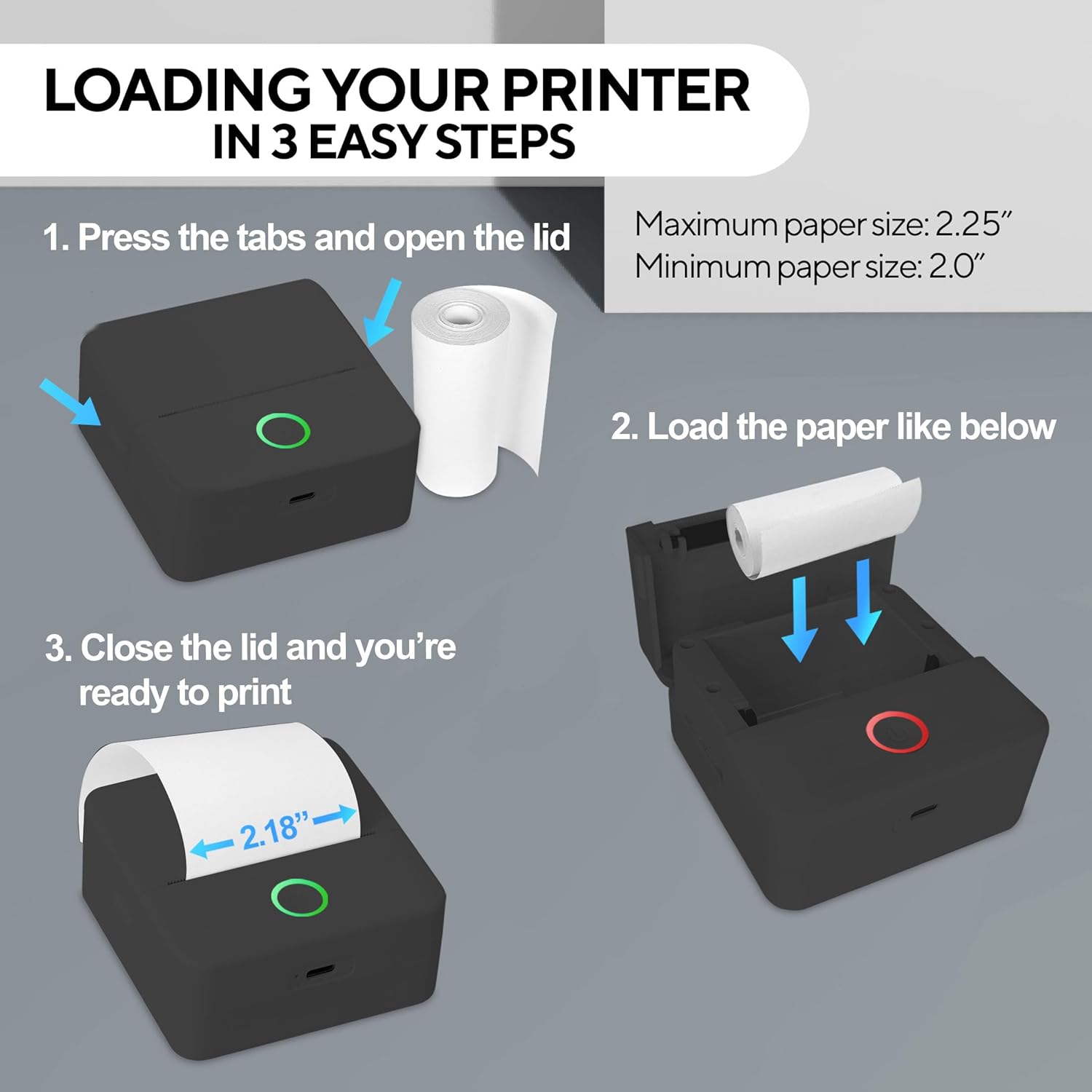
Image: A visual guide demonstrating the three steps to load thermal paper: pressing the tabs to open the lid, placing the paper roll inside, and closing the lid.
Maximum paper size: 2.25 inches. Minimum paper size: 2.0 inches.
3. App Installation
Download the free "InstaPrint" app from the Apple App Store (for iOS devices) or Google Play Store (for Android devices). The app is required to operate the printer.

Image: A smartphone displaying the InstaPrint app interface next to the thermal printer, illustrating the wireless connection for printing.
4. Bluetooth Pairing
- Ensure the printer is charged and powered on. The indicator light will blink green, indicating it's in pairing mode.
- Enable Bluetooth on your smartphone or tablet.
- Open the "InstaPrint" app. The app will guide you through the pairing process. Select your printer from the list of available devices.
- Once successfully paired, the indicator light on the printer will turn solid green.
Operating Instructions
Printing from the App
- Open the InstaPrint app on your connected device.
- Select the type of content you wish to print (e.g., photo, text, label, custom design).
- Import or create your content within the app.
- Adjust print settings such as darkness, size, and orientation as needed.
- Preview your print to ensure it appears as desired.
- Tap the "Print" button to send the job to your thermal printer.

Image: The thermal printer actively printing a creative design onto a roll of paper, demonstrating its output capability.
Customizing Prints
The InstaPrint app offers various customization options:
- Text: Add text, choose fonts, sizes, and styles.
- Images: Import photos from your gallery, crop, rotate, and adjust contrast/brightness.
- Templates: Utilize pre-designed templates for labels, notes, and more.
- Drawing: Create freehand drawings directly in the app.
Video: This video demonstrates the Core Innovations Mini Thermal Printer in action, showcasing its ease of use and the quality of its prints for various applications.
Maintenance
Cleaning the Print Head
To ensure optimal print quality, regularly clean the print head. Use a cotton swab lightly dampened with isopropyl alcohol. Gently wipe the print head surface. Allow it to dry completely before closing the lid and using the printer.
Paper Storage
Store thermal paper in a cool, dry place away from direct sunlight and heat to prevent discoloration and degradation of print quality.
Troubleshooting
| Problem | Possible Cause | Solution |
|---|---|---|
| Printer not turning on. | Low battery. | Charge the printer using the provided USB-C cable. |
| Cannot pair via Bluetooth. | Bluetooth is off on device; printer not in pairing mode; interference. | Ensure Bluetooth is enabled. Power cycle the printer to enter pairing mode (blinking green light). Move closer to the printer and away from other wireless devices. |
| Poor print quality (faint/blurry). | Print head dirty; incorrect paper loading; low battery. | Clean the print head. Re-load paper correctly. Charge the printer. Adjust print darkness settings in the app. |
| Printer not printing. | Out of paper; lid not closed; app not connected; print head overheated. | Check and replace paper roll. Ensure lid is securely closed. Verify app connection. Allow printer to cool down if the indicator light is solid red. |
Specifications
| Feature | Detail |
|---|---|
| Model Number | CTP500BL |
| Printing Technology | Thermal |
| Connectivity | Bluetooth, USB |
| Print Resolution | 200 x 200 DPI |
| Printer Output | Monochrome |
| Max Print Speed (Monochrome) | 12 ppm |
| Compatible Devices | Android 4.4 or above, iOS 8.0 or above |
| Battery Life | Up to 1.5 hours continuous use |
| Dimensions (L x W x H) | 3.31" x 3.31" x 1.46" |
| Item Weight | 11.6 ounces |
| UPC | 810111502597 |

Image: The thermal printer shown with its compact dimensions: 3.3 inches (depth), 3.4 inches (width), and 1.6 inches (height).
Warranty and Support
This Core Innovations product comes with a limited warranty. For detailed warranty information, technical support, or service inquiries, please refer to the contact information provided on the product packaging or visit the official Core Innovations website.
Always ensure you are using official Core Innovations accessories and thermal paper for optimal performance and to maintain warranty validity.


