
HUAWEI B535-235a
Huawei B535-235a LTE Mobile Wi-Fi Router User Manual
Model: B535-235a
1. Product Overview
The Huawei B535-235a is a high-performance LTE Mobile Wi-Fi Router designed to provide fast and stable internet connectivity. It supports 4G LTE networks, offering download speeds of up to 300Mbps and upload speeds of up to 100Mbps. This router is ideal for home, office, and mobile use, allowing up to 64 devices to connect simultaneously.

Figure 1: Front view of the Huawei B535-235a router, showing indicator lights and the Huawei logo.
Key Features:
- 4G LTE CAT7 support for high-speed internet.
- Supports up to 64 Wi-Fi enabled devices simultaneously.
- Equipped with 4x Gigabit RJ45 ports (including 1 LAN/WAN port).
- Includes 1x RJ11 port for voice calls via SIM card or VoIP.
- Nano SIM card slot for easy setup.
- Dual-band Wi-Fi (802.11a/b/g/n/ac) for flexible connectivity.
- Two SMA connectors for optional external 4G antennas (not included).
- Portable and suitable for various environments.
2. Package Contents
Verify that all items are present in your package:
- 1x Huawei B535-235a LTE Mobile Wi-Fi Router (White)
- 1x Power Supply Adapter (UK Plug)
- 1x Ethernet Cable
- 1x Phone Cable
- 1x Quick Start Guide
3. Setup
3.1 Inserting the SIM Card
- Ensure the router is powered off.
- Locate the Nano SIM card slot, typically on the underside or side of the device.
- Insert your Nano SIM card into the slot with the gold contacts facing down and the notched corner aligned correctly. Push until it clicks into place.

Figure 2: Illustration of SIM card insertion and the high-speed benefits of the 4G LTE network.
3.2 Connecting Power and Initial Boot-up
- Connect the power supply adapter to the router's power port and then plug it into a power outlet.
- Press the power button to turn on the router. The indicator lights on the front panel will illuminate as the device starts up.
- Wait for the network indicator light to turn solid, indicating a successful connection to the 4G network. This may take a few minutes.
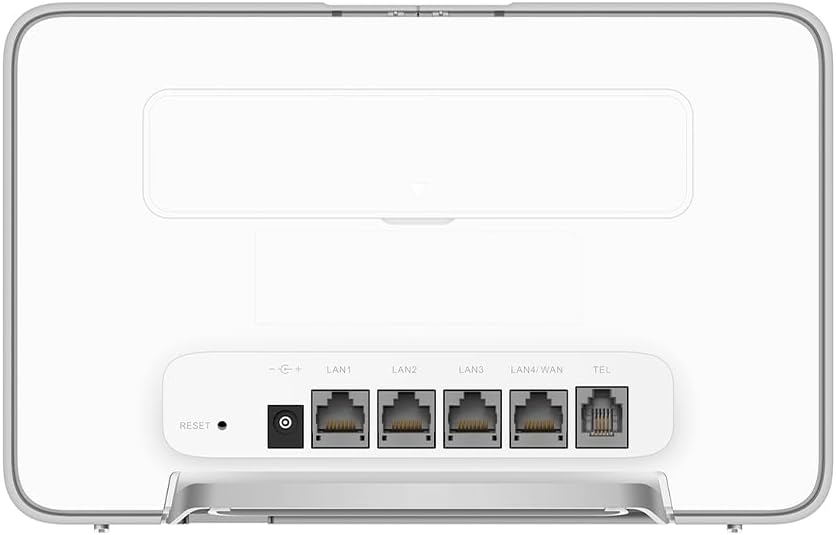
Figure 3: Rear panel of the router, detailing the power input, four Gigabit Ethernet ports (LAN1-LAN3, LAN4/WAN), and the RJ11 phone port.
4. Operating Instructions
4.1 Connecting Devices via Wi-Fi
- On your Wi-Fi enabled device (smartphone, laptop, tablet), search for available Wi-Fi networks.
- Select the Wi-Fi network name (SSID) displayed on the label at the bottom of your router.
- Enter the Wi-Fi password (Key) found on the same label.
- Your device should now be connected to the internet.

Figure 4: The Huawei B535-235a supports dual-band Wi-Fi and can connect up to 64 devices simultaneously, making it suitable for multiple users.
4.2 Connecting Devices via Ethernet
The router features four Gigabit Ethernet ports for wired connections:
- Connect one end of an Ethernet cable to a LAN port (LAN1, LAN2, or LAN3) on the back of the router.
- Connect the other end of the Ethernet cable to the Ethernet port on your computer or other network device.
- The LAN4/WAN port can be used as either a LAN port or a WAN port for connecting to an existing broadband network.

Figure 5: The router features four Gigabit Ethernet ports, providing high-speed wired connectivity for various devices.
4.3 Accessing the Web Management Interface
To configure advanced settings, manage connected devices, or change Wi-Fi settings:
- Ensure your device is connected to the router via Wi-Fi or Ethernet.
- Open a web browser (e.g., Chrome, Firefox, Edge).
- In the address bar, type the default IP address (usually 192.168.8.1 or 192.168.1.1) and press Enter. The exact IP address can be found on the router's label.
- Enter the default username and password (also found on the router's label). It is highly recommended to change these default credentials for security purposes after your first login.

Figure 6: The router offers plug-and-play functionality, with the LAN/WAN port providing flexible connection options.
5. Maintenance
5.1 General Care
- Keep the router in a well-ventilated area to prevent overheating.
- Avoid exposing the router to direct sunlight, high temperatures, or excessive humidity.
- Clean the router with a soft, dry cloth. Do not use liquid cleaners or aerosols.
5.2 Firmware Updates
Periodically check for firmware updates through the web management interface. Firmware updates can improve performance, add new features, and enhance security.
5.3 Resetting the Router
If you experience persistent issues or forget your login credentials, you can perform a factory reset. Locate the 'RESET' button on the back of the router (often a small pinhole). Use a paperclip or similar pointed object to press and hold the button for approximately 5-10 seconds until the indicator lights flash. This will restore the router to its factory default settings.
6. Troubleshooting
| Problem | Possible Cause | Solution |
|---|---|---|
| No internet connection | SIM card not inserted correctly, no 4G signal, or data plan issues. | Ensure SIM is properly inserted. Check network indicator light. Contact your mobile network provider to verify signal and data plan. Try restarting the router. |
| Slow Wi-Fi speed | Interference, too many connected devices, or router placement. | Move router to a central location. Reduce number of connected devices. Check for firmware updates. Consider external antennas if signal is weak. |
| Cannot access web management interface | Incorrect IP address, device not connected to router, or incorrect login credentials. | Verify router's IP address and ensure your device is connected to its Wi-Fi or via Ethernet. Use default login credentials from the label or perform a factory reset if forgotten. |
| Router frequently disconnects | Network instability, overheating, or firmware issue. | Ensure proper ventilation. Check for network outages with your provider. Update firmware. If issues persist, perform a factory reset. |
7. Specifications
| Feature | Detail |
|---|---|
| Model Name | B535-235a |
| Brand | HUAWEI |
| Connectivity Technology | LTE (4G) |
| Wireless Communication Standard | 802.11a/b/g/n/ac |
| Wi-Fi Frequency | 2.4 GHz / 5 GHz (Dual-band) |
| Max. Download Speed | 300 Mbps |
| Max. Upload Speed | 100 Mbps |
| Ethernet Ports | 4x Gigabit RJ45 (3x LAN, 1x LAN/WAN) |
| Phone Port | 1x RJ11 |
| SIM Card Type | Nano SIM |
| External Antenna Connectors | 2x SMA (Antennas not included) |
| Max. Connected Devices | 64 |
| Power Supply | 12 Volts (DC) |
| Dimensions | 24 x 22.7 x 5.7 cm (approx.) |
| Weight | 330 g (approx.) |
8. Warranty and Support
8.1 Warranty Information
This Huawei product is covered by a limited warranty. The warranty period and terms may vary depending on your region and local regulations. Please refer to the warranty card included in your package or visit the official Huawei website for detailed warranty information.
8.2 Customer Support
For technical assistance, troubleshooting, or product inquiries, please contact Huawei customer support. You can find contact information on the official Huawei website or through the support channels listed in your product documentation.
Official Huawei Support Website: https://consumer.huawei.com/en/support/
Related documentsB535-235a


Ask a question about this manual
Ask about setup, troubleshooting, compatibility, parts, safety, or missing instructions. Manuals+ will review the question and use this page’s manual context to help answer it.