
Lenovo WL300
Lenovo WL300 Bluetooth Silent Mouse User Manual
Model: WL300 (Part Number: 4Y51N41591)
Introduction
The Lenovo WL300 Bluetooth Silent Mouse is designed for professionals seeking a quiet and efficient input device. This mouse features a sculpted grip for comfort, silent left and right clicks, and adjustable DPI settings. It connects wirelessly via Bluetooth 5.0 and supports Microsoft Swift Pair technology for easy device switching.

Image: Top view of the Lenovo WL300 Bluetooth Silent Mouse in white.
Setup
1. Battery Installation
- Locate the battery compartment on the underside of the mouse.
- Open the battery compartment cover.
- Insert one AA battery, ensuring correct polarity (+/-).
- Close the battery compartment cover.
- Turn the mouse ON using the On/Off switch located on the bottom. The indicator light will flash red.
2. Bluetooth Pairing
- Ensure the mouse is powered on.
- Press and hold the Bluetooth pairing button on the underside of the mouse for 3-5 seconds until the indicator light flashes rapidly. This indicates the mouse is in pairing mode.
- On your computer or device, open the Bluetooth settings.
- Search for available devices. The mouse will appear as "Lenovo WL300".
- Select "Lenovo WL300" to connect. If your device supports Microsoft Swift Pair, the pairing process may be streamlined.
- Once connected, the indicator light on the mouse will stop flashing.

Image: Step-by-step guide for connecting the Lenovo WL300 mouse via Bluetooth, showing battery installation, pairing button, and device selection.
Operating Instructions
Mouse Functions
- Left Click: Primary selection and activation.
- Right Click: Accesses contextual menus.
- Scroll Wheel: Scrolls content vertically. Pressing the scroll wheel acts as a middle click.
- Forward Button: Navigates forward in web browsers or file explorers.
- Backward Button: Navigates backward in web browsers or file explorers.
- DPI Button: Adjusts cursor sensitivity (DPI).

Image: Detailed view of the Lenovo WL300 mouse, labeling the Left Click, Right Click, Scroll Wheel, Scroll Click, Forward, Backward buttons, On/Off Switch, AA Battery Compartment, and Bluetooth Pairing Button.
DPI Adjustment
The WL300 mouse features a dedicated DPI button to adjust cursor sensitivity on the fly. Press the DPI button to cycle through three sensitivity levels:
- 800 DPI
- 1200 DPI
- 1600 DPI

Image: The Lenovo WL300 mouse highlighting its 3 DPI modes: 800, 1200, and 1600.
Multi-Surface Compatibility
The optical sensor of the WL300 mouse is designed to work effectively on various surfaces, including:
- Wood
- Leather
- Fabric
- Paper
- Resin
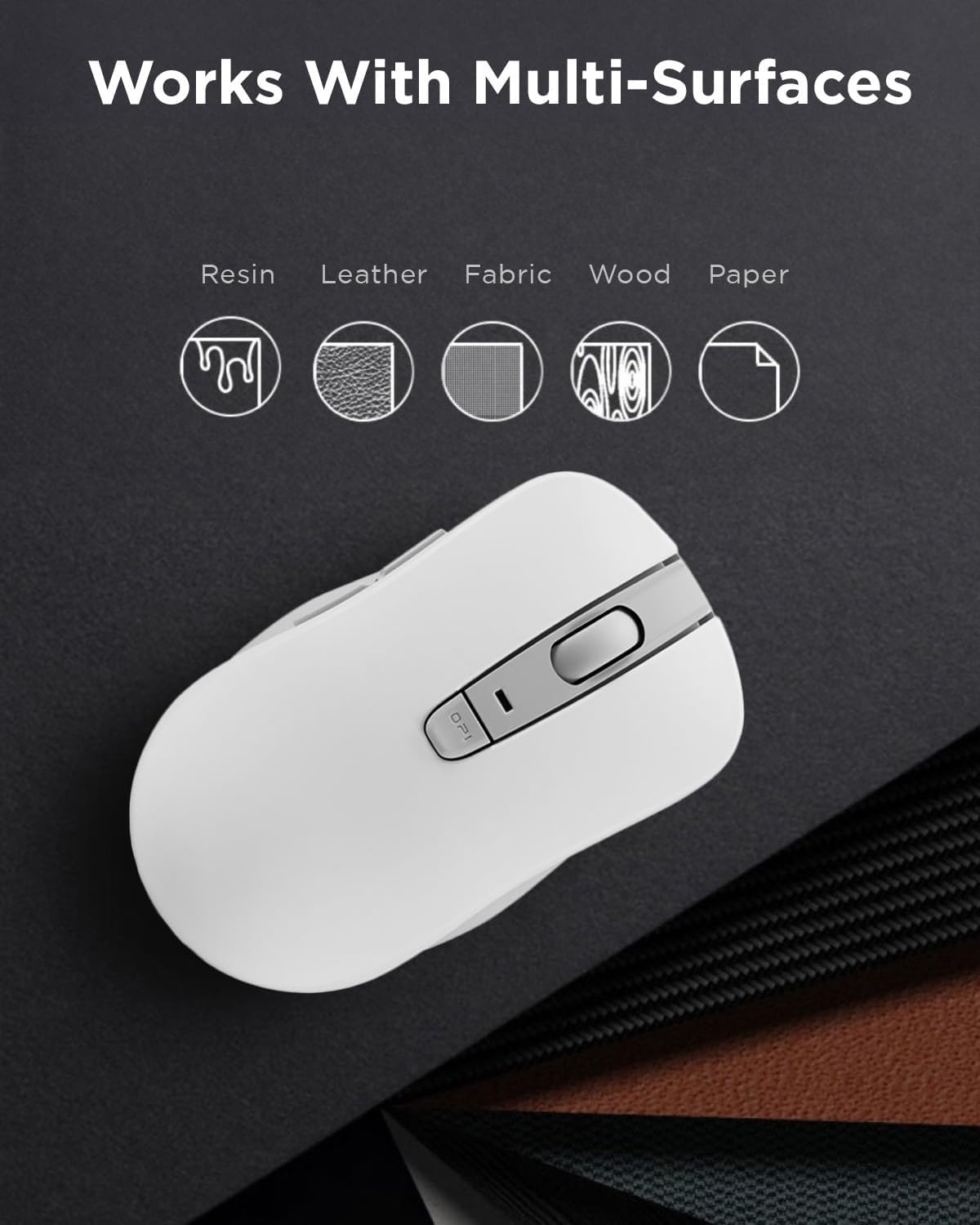
Image: The Lenovo WL300 mouse demonstrating its compatibility with multiple surfaces such as resin, leather, fabric, wood, and paper.
Maintenance
Battery Replacement
The Lenovo WL300 mouse is powered by one AA battery. When the mouse performance degrades or the indicator light signals low battery, replace the AA battery following the installation steps in the Setup section. To conserve battery life, always turn off the mouse using the On/Off switch when not in use.
Cleaning
To clean your mouse, gently wipe the exterior with a soft, damp cloth. Avoid using harsh chemicals or abrasive materials, as these can damage the surface. Ensure no liquid enters the mouse's internal components.
Troubleshooting
- Mouse not connecting:
- Ensure the mouse is powered on and the battery is correctly installed and charged.
- Verify Bluetooth is enabled on your device.
- Put the mouse into pairing mode by pressing and holding the Bluetooth pairing button.
- Remove "Lenovo WL300" from your device's Bluetooth list and attempt to pair again.
- Try connecting to a different device to rule out an issue with your primary device's Bluetooth.
- Cursor movement is erratic or unresponsive:
- Check the battery level and replace if necessary.
- Ensure the optical sensor on the bottom of the mouse is clean and free from obstructions.
- Try using the mouse on a different surface to ensure optimal tracking.
- Ensure there are no strong wireless interference sources nearby.
- Buttons are not responding:
- Check the battery level.
- Restart your computer or device.
- Re-pair the mouse with your device.
Specifications
| Brand | Lenovo |
| Model Number | WL300 (4Y51N41591) |
| Connectivity Technology | Bluetooth 5.0 |
| Movement Detection Technology | Optical |
| DPI Settings | 800, 1200, 1600 DPI (Adjustable) |
| Number of Buttons | 5 (Left, Right, Scroll Click, Forward, Backward) |
| Special Features | Silent Left & Right Click, Sculpted Grip, Microsoft Swift Pair, Lightweight, Portable |
| Power Source | 1 x AA Battery |
| Average Battery Life | Up to 6 months |
| Item Weight | 3.2 ounces |
| Product Dimensions (LxWxH) | 4.21 x 2.48 x 0.1 inches |
| Operating System Compatibility | Windows, macOS |

Image: Dimensions of the Lenovo WL300 mouse, showing length (4.21") and width (2.48").
Warranty and Support
For warranty information and technical support, please refer to the documentation included with your purchase or visit the official Lenovo support website. Keep your proof of purchase for warranty claims.
Lenovo Support Website: support.lenovo.com
Related Documents - WL300
 |
Lenovo Thinkplus WL300 Bluetooth Silent Mouse User Manual User manual for the Lenovo Thinkplus WL300 Bluetooth Silent Mouse, covering safety information, product composition, features, and compliance statements. |
 |
Lenovo Bluetooth Silent Mouse User Guide This guide provides instructions and specifications for the Lenovo Bluetooth Silent Mouse, including setup, LED indicator meanings, and operating system requirements. |
 |
Lenovo WL310 Bluetooth Silent Mouse: User Guide, Safety, and Compliance Official user guide and safety information for the Lenovo WL310 Bluetooth Silent Mouse (MS-358BT). Includes operating instructions, battery warnings, and regulatory compliance details. |
 |
Lenovo WL80 Wireless Mouse User Guide: Setup, Features, and Maintenance Comprehensive guide to using the Lenovo WL80 wireless mouse, covering initial setup, Bluetooth connection, button functions, DPI settings, intelligent features, and maintenance tips for optimal performance. |
 |
Lenovo Go USB-C Wireless Mouse: User Guide, Features, and Safety Explore the features and usage of the Lenovo Go USB-C Wireless Mouse (MB601W/RG96). Learn about its dual modes, DPI settings, unified pairing, and essential safety guidelines. |
 |
Lenovo ThinkPad USB-C Wireless Compact Mouse - Setup Guide and Compliance Get started with your Lenovo ThinkPad USB-C Wireless Compact Mouse. This guide covers setup, DPI adjustment, receiver pairing, safety precautions, and regulatory compliance information. |