
1. Introduction
This manual provides detailed instructions for the setup, operation, and maintenance of your TELLUR Shade Wireless Mouse (Model 491261). This mouse features multi-device connectivity, silent click buttons, RGB lighting, and adjustable DPI settings for enhanced productivity and comfort across various operating systems.
2. Package Contents
Verify that all items are present in your package:
- 1 x TELLUR Shade Wireless Mouse
- 1 x Nano receiver (USB-A)
- 1 x Type-C charging cable
- 1 x User manual (this document)

Image: The TELLUR Shade Wireless Mouse, accompanied by its USB Nano receiver and Type-C charging cable, illustrating the complete package contents.
3. Product Overview
Familiarize yourself with the components of your TELLUR Shade Wireless Mouse:

Image: Top-down view of the TELLUR Shade Wireless Mouse, highlighting the left and right silent click buttons, the main scroll wheel, DPI adjustment button, and the multi-device switch button.
- Left Click Button: Silent operation.
- Right Click Button: Silent operation.
- Scroll Wheel (Main): For vertical scrolling.
- DPI Adjustment Button: Cycles through DPI settings (800/1200/1600/2400/3200).
- Multi-Device Switch Button: Toggles between connected devices (1, 2, 3, 4).
- Forward Button: Navigates forward in web browsers or file explorers.
- Backward Button: Navigates backward in web browsers or file explorers.
- Horizontal Scroll Wheel: For horizontal scrolling.
- Windows Home Button: Minimizes all windows to show the desktop; pressing again restores them.
- USB-C Charging Port: Located on the front for recharging the internal battery.
- Power Switch: On/Off switch on the bottom of the mouse.
- Nano Receiver Storage: Compartment on the bottom for storing the USB receiver.
4. Setup
4.1. Charging the Mouse
Before initial use, ensure the mouse is fully charged. Connect the provided Type-C charging cable to the USB-C port on the front of the mouse and the other end to a USB power source (e.g., computer USB port, USB wall adapter).

Image: Side view of the TELLUR Shade Wireless Mouse, clearly showing the USB-C charging port located at the front for convenient recharging.
The RGB lighting may indicate charging status. A full charge typically provides approximately 20 days of average use.
4.2. Connecting to a Device
The TELLUR Shade Wireless Mouse supports up to 4 devices simultaneously via Bluetooth and a 2.4GHz USB Nano receiver. Turn on the mouse using the power switch on the bottom.
4.2.1. 2.4GHz Wireless Connection (USB Nano Receiver)
- Locate the USB Nano receiver stored in the compartment on the bottom of the mouse.
- Plug the Nano receiver into an available USB-A port on your computer.
- Press the Multi-Device Switch Button on the mouse to select one of the 2.4GHz channels (usually indicated by a specific LED color or number).
- The mouse should automatically connect. If not, ensure the mouse is powered on and try replugging the receiver.
4.2.2. Bluetooth Connection (BT1, BT2, BT3)
- Press the Multi-Device Switch Button to select one of the Bluetooth channels (BT1, BT2, or BT3). The corresponding indicator light will flash.
- Press and hold the Multi-Device Switch Button for 3-5 seconds until the indicator light flashes rapidly. This puts the mouse into pairing mode.
- On your device (computer, tablet, smartphone), go to Bluetooth settings and search for new devices.
- Select "TELLUR Shade Mouse" or a similar name from the list of available devices.
- Once paired, the indicator light on the mouse will stop flashing and remain solid for a few seconds before turning off.
Repeat these steps for additional Bluetooth devices on BT2 and BT3 channels.
5. Operating Instructions
5.1. Switching Between Devices
To switch between connected devices, simply press the Multi-Device Switch Button. The mouse will cycle through the 2.4GHz channel and the three Bluetooth channels (BT1, BT2, BT3).
5.2. Adjusting DPI Sensitivity
Press the DPI Adjustment Button to cycle through the available DPI settings: 800, 1200, 1600, 2400, and 3200 DPI. Each press will change the cursor speed, allowing you to find your preferred sensitivity.
5.3. RGB Lighting Control
The mouse features customizable RGB lighting. To change the RGB lighting mode or turn it off, simultaneously press the Forward and Backward buttons located on the side of the mouse. Continue pressing to cycle through different lighting effects or to disable the lighting.

Image: Close-up view of the TELLUR Shade Wireless Mouse, highlighting the side buttons (Forward and Backward) and the integrated RGB lighting strip.
5.4. Using the Windows Home Button
The dedicated Windows Home Button (often located near the thumb rest) allows for quick desktop access. Pressing this button will minimize all open windows, revealing your desktop. Pressing it again will restore the previously open windows.
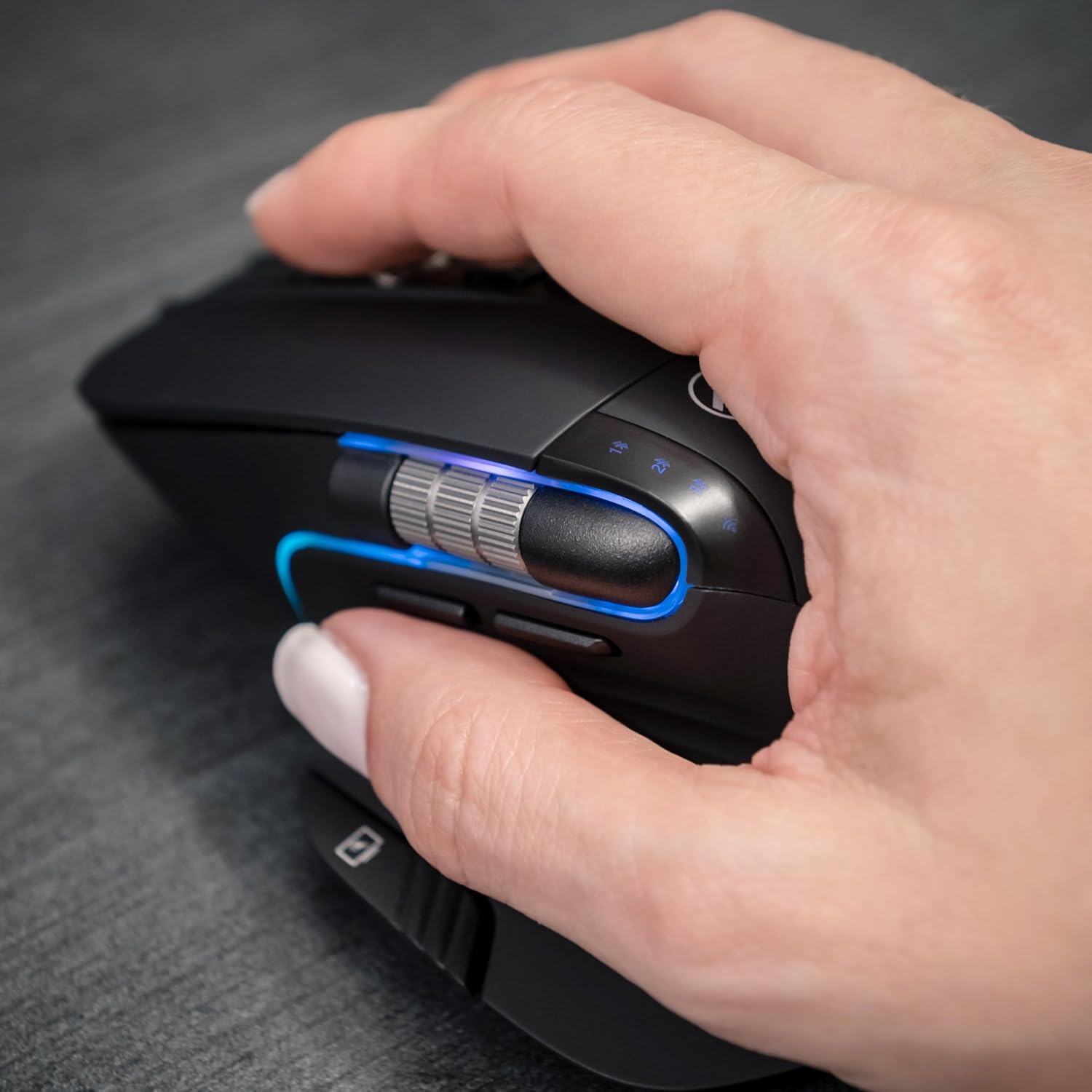
Image: A hand operating the TELLUR Shade Wireless Mouse, demonstrating the ergonomic grip and the placement of the Windows Home button accessible by the thumb.
6. Maintenance
- Cleaning: Use a soft, dry cloth to clean the mouse. For stubborn dirt, a slightly damp cloth can be used, but ensure no moisture enters the device.
- Storage: When not in use for extended periods, turn off the mouse to conserve battery life. Store it in a cool, dry place.
- Battery Care: Avoid fully discharging the battery frequently. Recharge when the battery indicator is low.
- Avoid Extreme Conditions: Do not expose the mouse to extreme temperatures, direct sunlight, or high humidity.
7. Troubleshooting
7.1. Mouse Not Responding
- Ensure the mouse is powered on.
- Check the battery level and charge the mouse if necessary.
- Verify that the correct connection channel (2.4GHz, BT1, BT2, or BT3) is selected using the Multi-Device Switch Button.
- For 2.4GHz connection, ensure the Nano receiver is securely plugged into a working USB port. Try a different USB port.
- For Bluetooth connection, ensure Bluetooth is enabled on your device and try re-pairing the mouse.
- Restart your computer or device.
7.2. Intermittent Connection
- Ensure the mouse is within the effective range (up to 10 meters).
- Minimize interference from other wireless devices (e.g., Wi-Fi routers, other Bluetooth devices).
- Avoid using the mouse on metallic surfaces, which can interfere with wireless signals.
7.3. Cursor Movement Issues
- Clean the optical sensor on the bottom of the mouse.
- Use the mouse on a clean, non-reflective surface or a mouse pad.
- Adjust the DPI setting using the DPI Adjustment Button.
7.4. RGB Lighting Not Working
- Ensure the mouse is powered on.
- Press the Forward and Backward buttons simultaneously to cycle through lighting modes or to turn it on if it was previously off.
- Check battery level; low battery might disable RGB lighting to conserve power.
8. Specifications
| Brand | TELLUR |
| Model Name | TLL491261 |
| Model Number | 491261 |
| Connectivity Technology | Bluetooth, 2.4GHz Wireless (via Nano receiver) |
| Movement Detection | Optical |
| DPI Sensitivity | 800/1200/1600/2400/3200 DPI |
| Number of Buttons | 8 (including silent click, DPI, multi-device switch, forward/backward, horizontal scroll, Windows Home) |
| Hand Orientation | Ambidextrous |
| Special Features | Silent Click, RGB Light, Multi-device (4 devices), Lightweight, Portable |
| Compatible Devices | Personal Computer, Laptop, Smartphones, Tablets |
| Operating System Support | Windows, Mac, iOS, Android, Linux |
| Wireless Range | Up to 10 meters |
| Power Source | Battery Powered (Rechargeable via USB-C) |
| Battery Average Life | Approximately 20 days |
| Material | Plastic |
| Item Weight | 0.29 Kilograms |
9. Warranty and Support
For warranty information and technical support, please refer to the warranty card included with your product or visit the official TELLUR website. Keep your purchase receipt as proof of purchase for any warranty claims.
Contact information for support can typically be found on the manufacturer's website or on the product packaging.
