
TAFFIO TJ-S80D-L
TAFFIO 10" Touchscreen Android GPS Navigation Carplay User Manual
Model: TJ-S80D-L
Introduction
This manual provides comprehensive instructions for the installation, operation, and maintenance of your TAFFIO 10" Touchscreen Android GPS Navigation Carplay system, model TJ-S80D-L. Please read this manual thoroughly before installation and use to ensure proper functionality and to prevent damage.
This device is compatible with Volvo S80, V70, and XC70 models from 2004 to 2011 that include AUX-IN. It supports existing steering wheel controls, vehicle settings, vehicle displays, and the original rearview camera.
Product Overview
The TAFFIO multimedia system integrates navigation, entertainment, and communication functionalities into a single unit. Key features include:
- Intuitive user interface with multi-language support.
- Full HD resolution capacitive multitouch screen.
- Integrated FM/AM tuner with RDS.
- USB/iPod connectivity for media playback.
- Bluetooth hands-free calling and A2DP music streaming.
- 2-Zone and Back-Zone functions for simultaneous navigation and media playback.
- Integrated CarPlay & Android Auto.
- Built-in Wi-Fi and 4G LTE SIM card slot for internet connectivity.
- Rear camera connection with automatic switching.
- Android 10 operating system with Octa-Core 1.8Ghz CPU, 4 GB RAM, and 64 GB Flash storage.

Figure 1: Front view of the TAFFIO 10" Touchscreen Android GPS Navigation Carplay unit, showing the main menu with icons for Navigation, Music, Radio, Bluetooth, and Settings.
What's in the Box
Verify that all components are present before beginning installation:
- 1x Android multimedia system
- 1x Power Cable
- 1x CAN-BUS Decoder
- 2x USB cable
- 1x RCA Plugs & Sim Card Slot cable
- 1x Rear camera input cable
- 1x GPS Antenna
- 1x 4G Antenna
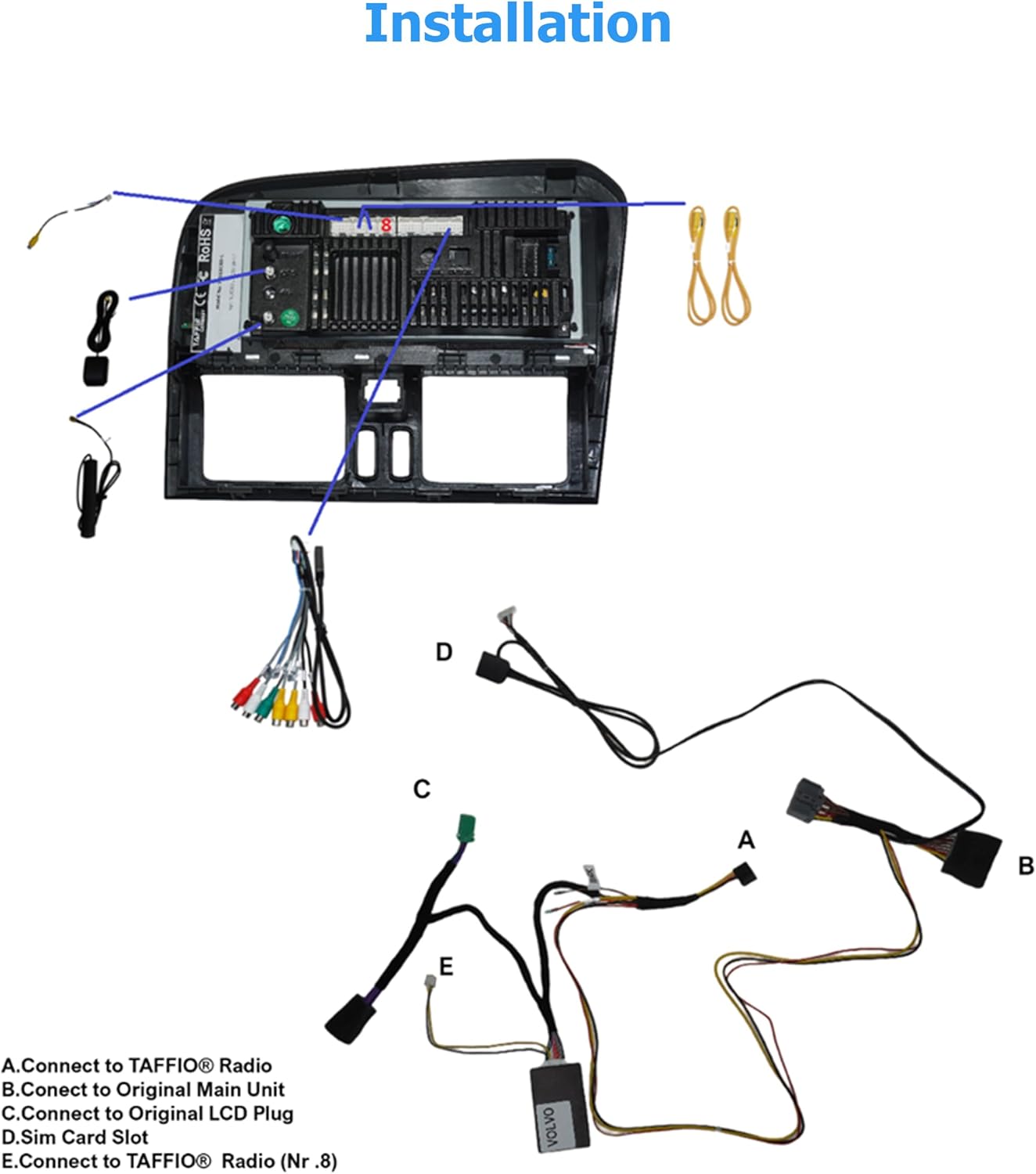
Figure 2: All components included in the package, laid out for inspection. This includes the main Android multimedia system, various cables (power, CAN-BUS, USB, RCA, rear camera), and antennas (GPS, 4G).
Setup and Installation
The TAFFIO multimedia system is designed for Plug & Play installation. Professional installation is recommended.
Pre-Installation Check
- Ensure the vehicle's ignition is off and the battery is disconnected before starting.
- Confirm compatibility with your Volvo S80, V70, or XC70 (2004-2011) and that it has AUX-IN.
- Familiarize yourself with the vehicle's existing dashboard layout.
Installation Steps
- Carefully remove the original head unit and dashboard trim. Refer to your vehicle's service manual for specific instructions.
- Connect the main power cable (A) to the TAFFIO® Radio.
- Connect the CAN-BUS decoder cable (B) to the original main unit's connector.
- Connect the original LCD plug (C) to the corresponding input on the new unit.
- Insert your 4G SIM card into the SIM card slot (D).
- Connect the TAFFIO® Radio (Nr.8) cable (E) as indicated in the diagram.
- Connect the GPS antenna and 4G antenna to their respective ports on the multimedia system. Position the antennas in a location with clear signal reception, away from metal obstructions.
- Connect the USB cables, RCA plugs, and rear camera input cable as needed for your desired accessories.
- Carefully mount the new TAFFIO multimedia system into the dashboard opening. Ensure all cables are neatly tucked away and not pinched.
- Reinstall the dashboard trim and reconnect the vehicle battery.

Figure 3: Detailed wiring diagram showing connections for the TAFFIO multimedia system. Labels A, B, C, D, E indicate specific connection points for the main unit, CAN-BUS, LCD, SIM card, and other radio connections.

Figure 4: Comparison showing the vehicle's dashboard before and after the installation of the TAFFIO 10" touchscreen unit, demonstrating the integrated appearance.
Operating Instructions
Initial Power On
After installation, turn on the vehicle's ignition. The system should boot automatically. The initial boot may take longer than subsequent starts.
Main Interface Navigation
The main screen provides access to core functions:
- Navigation (Navi): Access the pre-installed GPS navigation software. The system comes with current map material and free lifetime updates.
- Music: Play audio files from USB, internal storage, or streaming services.
- Radio: Tune into FM/AM radio stations. RDS (Radio Data System) displays station information.
- Bluetooth: Connect your mobile phone for hands-free calling and A2DP music streaming.
- Settings: Configure system preferences, display, audio, network, and vehicle-specific settings.
Figure 5: The main user interface of the TAFFIO system, displaying icons for core functions like Navigation, Music, Radio, Bluetooth, and Settings.
CarPlay & Android Auto
The system features integrated Apple CarPlay and Android Auto for seamless smartphone integration.
- Connect your iPhone via USB for CarPlay or Android phone for Android Auto.
- Follow on-screen prompts to enable the connection.
- Access compatible apps, navigation, messages, and music directly from the touchscreen.

Figure 6: Screenshot of the Wireless CarPlay interface displayed on the TAFFIO unit, showing a navigation map.

Figure 7: Screenshot of the Android Auto interface on the TAFFIO unit, displaying various Android applications.
Network Connectivity (Wi-Fi & 4G LTE)
- Wi-Fi: Go to Settings > Network & Internet > Wi-Fi to connect to available Wi-Fi hotspots or your smartphone's hotspot.
- 4G LTE: If a SIM card is inserted, the system will automatically attempt to connect to the mobile network for internet access.
Vehicle Personalization
Access vehicle-specific settings through the 'Settings' menu. This may include:
- Tire Information
- Oil Mileage
- Car Control Settings
- Reverse Settings (for rearview camera)

Figure 8: The 'Vehicle personalization' screen within the settings menu, showing options such as Tire Information, Oil mileage, Car in the control settings, and Reverse setting.
Maintenance
Cleaning the Screen
Use a soft, lint-free cloth to clean the touchscreen. For stubborn smudges, slightly dampen the cloth with water or a screen-safe cleaner. Do not use abrasive cleaners or solvents.
Software Updates
Periodically check for software updates to ensure optimal performance and access to new features. Updates can typically be found in the system settings under "About device" or "System updates".
General Care
- Avoid exposing the unit to extreme temperatures or direct sunlight for prolonged periods.
- Do not spill liquids on the unit.
- Ensure proper ventilation around the unit to prevent overheating.
Troubleshooting
| Problem | Possible Cause | Solution |
|---|---|---|
| Unit does not power on. | Loose power connection, blown fuse, vehicle battery disconnected. | Check all power connections. Inspect vehicle fuses. Ensure battery is connected. |
| No sound. | Volume too low, mute enabled, incorrect audio source selected, speaker wiring issue. | Increase volume. Disable mute. Select correct audio source (e.g., AUX-IN). Check speaker connections. |
| GPS signal lost or inaccurate. | GPS antenna obstructed or improperly placed, software issue. | Ensure GPS antenna has a clear view of the sky. Check antenna connection. Restart the navigation application. |
| Bluetooth not connecting. | Bluetooth off on unit or phone, device not in pairing mode, interference. | Ensure Bluetooth is enabled on both devices. Put unit/phone in pairing mode. Delete previous pairings and try again. |
| CarPlay/Android Auto not launching. | Incorrect USB cable, phone not compatible, software glitch. | Use a high-quality data USB cable. Ensure your phone's OS is up to date. Restart both the unit and the phone. |
If problems persist after attempting these solutions, please contact customer support.
Specifications
| Feature | Detail |
|---|---|
| Model Number | TJ-S80D-L |
| Display Size | 10 Inches |
| Operating System | Android 10 |
| CPU | Octa-Core 1.8Ghz |
| RAM | 4 GB |
| Flash Storage | 64 GB |
| Connectivity | Bluetooth, USB, Wi-Fi, 4G LTE (SIM slot) |
| Special Features | Touchscreen, Integrated CarPlay & Android Auto, GPS Navigation |
| Audio Output Mode | AUX |
| Mounting Type | Dashboard Mount |
| Compatible Vehicles | Volvo S80, V70, XC70 (2004-2011) with AUX-IN |
Warranty Information
This TAFFIO product comes with a 2-year manufacturer's warranty. Please retain your invoice as proof of purchase. The warranty covers defects in materials and workmanship under normal use. It does not cover damage caused by improper installation, misuse, accidents, or unauthorized modifications.
For warranty claims, please contact the seller or manufacturer directly with your purchase details.
Customer Support
For technical assistance, troubleshooting beyond this manual, or warranty inquiries, please contact your point of purchase or the manufacturer, Real Media GmbH & Co. KG - Germany.
When contacting support, please have your product model number (TJ-S80D-L) and purchase date available.
Ask a question about this manual
Ask about setup, troubleshooting, compatibility, parts, safety, or missing instructions. Manuals+ will review the question and use this page’s manual context to help answer it.