
YiBiChin ERF2R36H
YiBiChin ERF2R36H Replacement Remote Control User Manual
For Hisense Smart UHD 4K TVs
1. Introduction
This manual provides instructions for the YiBiChin ERF2R36H Replacement Remote Control. This remote is designed to be a direct replacement for your original Hisense Smart UHD 4K TV remote, offering immediate functionality without the need for complex programming. It is compatible with a wide range of Hisense Smart UHD 4K TV models, including those that originally used the ERF3A80 remote.
Please note that this remote control operates using infrared technology and does not support voice control functions.
2. Setup
2.1 Battery Installation
The ERF2R36H remote control requires two AAA batteries (not included) for operation. Follow these steps to install the batteries:
- Locate the battery compartment cover on the back of the remote control.
- Press down on the tab and slide the cover downwards to open the compartment.
- Insert two AAA batteries, ensuring that the positive (+) and negative (-) terminals align correctly with the markings inside the compartment.
- Slide the battery compartment cover back into place until it clicks securely.

Image: Back of the remote control with the battery compartment open, illustrating the correct insertion of two AAA batteries.
2.2 Initial Use (No Programming Required)
This remote control is pre-programmed for compatible Hisense Smart UHD 4K TVs. Once batteries are installed, it should function immediately with your television. No additional programming or pairing steps are necessary.
3. Operating Instructions
The ERF2R36H remote control features standard television functions and dedicated shortcut keys for popular streaming services.
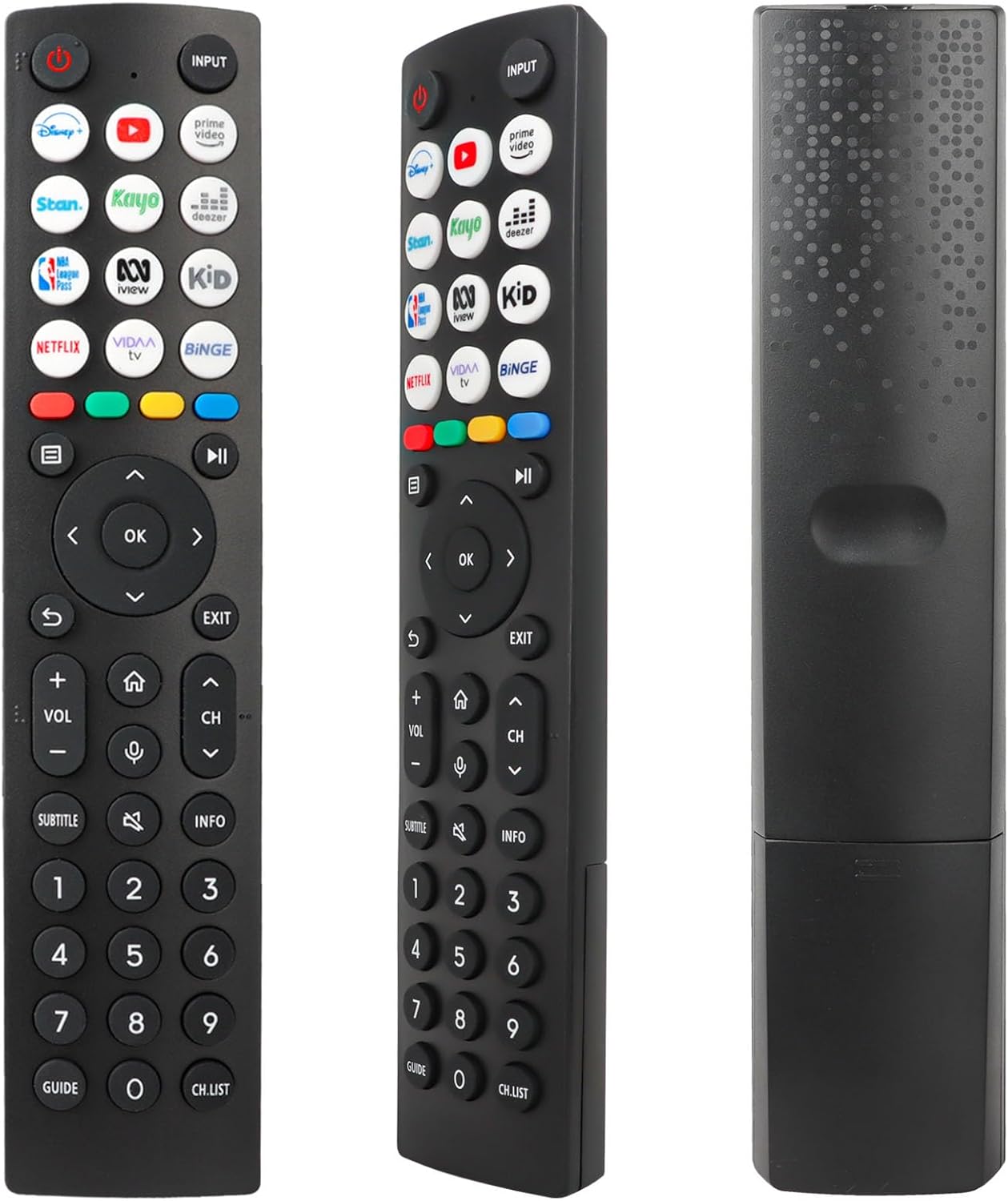
Image: Front view of the remote control, displaying the layout of all buttons.
3.1 Basic Functions
- Power (Red Circle with Line): Turns the TV on or off.
- Input: Selects the input source (e.g., HDMI 1, HDMI 2, AV).
- Volume Up/Down (VOL +/-): Adjusts the sound volume.
- Channel Up/Down (CH +/-): Changes the television channel.
- Mute (Speaker with X): Mutes or unmutes the TV sound.
- Navigation Pad (Up, Down, Left, Right, OK): Used to navigate menus and confirm selections.
- Back (Curved Arrow): Returns to the previous screen or menu.
- Exit: Exits the current menu or application.
- Home (House Icon): Accesses the TV's main home screen or smart hub.
- Info: Displays information about the current program or content.
- Subtitle: Toggles subtitles on or off.
- Guide: Opens the electronic program guide.
- CH.LIST: Displays the channel list.
- Number Buttons (0-9): Directly enter channel numbers.
3.2 Shortcut Keys
The remote control includes 12 dedicated shortcut buttons for quick access to popular streaming applications. To use these buttons, ensure the corresponding applications are installed and configured on your Hisense Smart TV.
- Disney+: Launches the Disney+ streaming service.
- YouTube: Launches the YouTube application.
- Prime Video: Launches Amazon Prime Video.
- Stan: Launches the Stan streaming service.
- Kayo: Launches the Kayo Sports streaming service.
- Deezer: Launches the Deezer music streaming service.
- NBA: Launches the NBA League Pass application.
- iView: Launches the ABC iView application.
- Kid: Likely a shortcut to a Kids' content section or app.
- Netflix: Launches the Netflix streaming service.
- VIDAA TV: Launches the VIDAA Smart TV platform interface.
- Binge: Launches the Binge streaming service.
4. Maintenance
4.1 Battery Replacement
Replace the batteries when the remote control's response becomes sluggish or stops working. Always replace both AAA batteries at the same time with new ones. Do not mix old and new batteries, or different types of batteries.
4.2 Cleaning
To clean the remote control, use a soft, dry cloth. For stubborn dirt, lightly dampen the cloth with water or a mild, non-abrasive cleaner. Avoid using harsh chemicals or abrasive materials, as these can damage the remote's surface or internal components.
4.3 Storage
Store the remote control in a dry place, away from direct sunlight and extreme temperatures. If the remote will not be used for an extended period, it is advisable to remove the batteries to prevent leakage.
5. Troubleshooting
- Remote not responding:
- Check if the batteries are correctly inserted with the correct polarity.
- Replace the batteries with fresh AAA batteries.
- Ensure there is a clear line of sight between the remote control and the TV's infrared receiver. Obstructions can block the signal.
- Make sure the remote is pointed directly at the TV.
- Limited operating range:
- This remote has a maximum range of 10 meters. If you are further away, move closer to the TV.
- Weak batteries can reduce the effective range. Replace them if necessary.
- Shortcut keys not working:
- Ensure the corresponding streaming applications are installed and updated on your Hisense Smart TV.
- Verify your TV has an active internet connection.
- No voice control:
- This remote control operates via infrared and does not support voice control functionality. This is a design characteristic, not a malfunction.
6. Specifications
| Feature | Description |
|---|---|
| Brand | YiBiChin |
| Model Name | ERF2R36H |
| Connectivity Technology | Infrared |
| Compatible Devices | Hisense Smart UHD 4K Televisions |
| Special Feature | No programming required |
| Color | Black |
| Number of Buttons | 12 shortcut buttons plus standard controls |
| Controller Type | Infrared Control |
| Maximum Range | 10 Meters |
| Battery Requirement | 2 x AAA batteries (not included) |
7. Support
If you receive an incorrect or damaged remote control, please contact the seller for assistance. They will respond as soon as possible to provide a satisfactory solution.
Please retain this manual for future reference.
Ask a question about this manual
Ask about setup, troubleshooting, compatibility, parts, safety, or missing instructions. Manuals+ will review the question and use this page’s manual context to help answer it.