1. Introduction
This manual provides detailed instructions for the setup, operation, maintenance, and troubleshooting of your TONGVEO TV-V3W 5.8GHz Wireless PTZ Conference Webcam. Please read this manual thoroughly before use to ensure optimal performance and longevity of your device.
What's in the Box:
- TONGVEO TV-V3W PTZ Camera
- IR remote control
- 9.8ft USB 2.0 cable
- Wall bracket with screws
- DC 12V power adaptor
- 5.8GHz USB receiver
- User manual

Figure 1.1: TONGVEO TV-V3W PTZ Camera, remote control, and wireless receiver.
2. Setup
The TONGVEO TV-V3W camera is designed for quick and easy setup with plug-and-play functionality, requiring no driver installation for automatic computer recognition.
2.1 Physical Installation
- Mounting Options: The camera can be installed on a desk, monitor, wall, tripod, or upside-down on the ceiling using the provided brackets and screws.
- Power Connection: Connect the DC 12V power adaptor to the camera's DC 12V port.
- Wireless Connection:
- Attach the camera's antenna to the rear wireless port.
- Attach the second antenna to the 5.8GHz USB receiver (dongle).
- Plug the dongle into a USB port on your PC or laptop.
- Wired USB Connection (Alternative): Connect the provided USB cable from the camera's USB port to your computer.
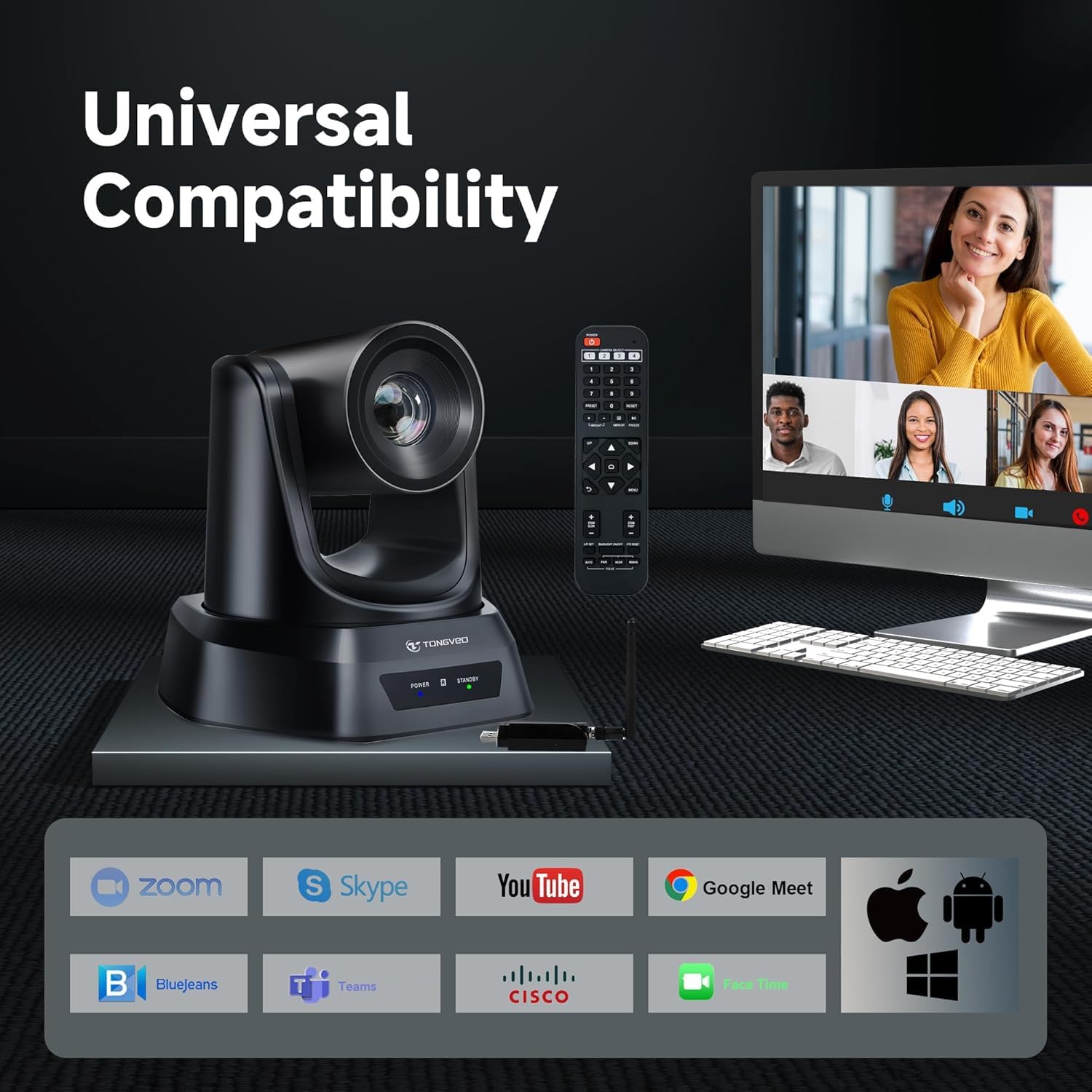
Figure 2.1: Steps for establishing a wireless connection with the TONGVEO TV-V3W camera.
2.2 Software Integration
- Automatic Recognition: Once connected, the camera will be automatically recognized by your computer.
- Launch Conferencing Software: Open your preferred video conferencing software (e.g., Zoom, WebEx, GoToMeeting, BlueJeans, OBS).
- Select Camera: In the software settings, select the TONGVEO TV-V3W camera as your video input device.
- Start Meeting/Stream: You are now ready to begin your video meeting or live stream.
Video 2.2: Official TONGVEO video demonstrating the wireless conference webcam's features and setup.
3. Operating the Camera
The TONGVEO TV-V3W offers flexible control options to manage its pan, tilt, and zoom functions, ensuring optimal framing for any scenario.
3.1 PTZ Control
- Pan: 350° horizontal rotation.
- Tilt: 180° vertical rotation.
- Zoom: 3X optical zoom for clear magnification.
- Quiet Movement: The PTZ mechanism operates silently, preventing distractions during use.
3.2 Remote Control
Use the included IR remote control to manage camera movements and settings.
- Directional Buttons: Control pan and tilt.
- Zoom Buttons: Adjust the 3X optical zoom (slow and fast options available).
- Preset Buttons (1-9): Save and recall up to 9 camera positions for quick scene changes.
- Home Button: Returns the camera to its default home position.
- Menu Button: Accesses on-screen display (OSD) menu for advanced settings.

Figure 3.1: Diagram of the remote control functions for the TONGVEO TV-V3W camera.
3.3 Software and External Control
- UVC1.1 Compatibility: The camera supports UVC1.1 protocol, allowing control through mainstream video conferencing software.
- RS232/RS485 Interface: For advanced users, the camera can be controlled via a standard PTZ camera joystick or control boards using RS232 or RS485 interfaces.
4. Maintenance
Proper maintenance ensures the longevity and optimal performance of your TONGVEO TV-V3W camera.
- Cleaning: Use a soft, dry cloth to clean the camera body. For the lens, use a specialized lens cleaning cloth and solution. Avoid harsh chemicals.
- Storage: When not in use, store the camera in a cool, dry place away from direct sunlight and extreme temperatures.
- Cable Management: Ensure all cables are neatly organized and not under strain to prevent damage.
- Wireless Receiver Heat: It is normal for the wireless connector (dongle) to heat up after long periods of use. If it becomes excessively hot, unplug it and allow it to cool down before resuming use.
5. Troubleshooting
If you encounter issues with your TONGVEO TV-V3W camera, refer to the following common problems and solutions:
- No Video Output:
- Ensure the camera is powered on and the power indicator light is active.
- Verify the USB cable or wireless receiver is securely connected to both the camera and the computer.
- Check if the correct camera is selected in your video conferencing software settings.
- Wireless Connection Issues:
- Ensure both the camera and dongle antennas are securely attached.
- Confirm the wireless receiver is plugged into a functional USB port.
- Note that each receiver is uniquely paired with its camera; disassembling the receiver may prevent wireless connection.
- Reduce the distance between the camera and the computer (maximum 50ft transmission distance).
- Remote Control Not Responding:
- Check the batteries in the remote control and replace if necessary.
- Ensure there are no obstructions between the remote and the camera's IR receiver.
- Image Quality Issues (e.g., blurry, dark):
- Ensure adequate lighting in the room.
- Adjust white balance and exposure settings via the remote control's OSD menu or conferencing software.
6. Specifications
| Feature | Specification |
|---|---|
| Brand | TONGVEO |
| Model Number | TV-V3W |
| Item Weight | 6.03 pounds |
| Package Dimensions | 11.3 x 8.66 x 7.99 inches |
| Color | Black |
| Special Features | PTZ Camera with 3X optical zoom, 1080P 30fps, 350° Pan & 90° Tilt, USB plug and play, Remote Control, RS232/RS485 Support |
| Photo Sensor Technology | CMOS |
| Video Capture Resolution | 1080p |
| Maximum Focal Length | 10.05 Millimeters |
| Maximum Aperture | 12 Millimeters |
| Connectivity Technology | USB |
7. Warranty and Support
For warranty information and technical support, please refer to the documentation included in your product packaging or visit the official TONGVEO website. Protection plans may be available for purchase separately.


