
1. Introduction
The RISOON WiFi PIR Motion Sensor is an intelligent wireless device designed to enhance your home security. It detects movement within its coverage area and sends real-time notifications to your smartphone via the Smart Life or Tuya Smart app. This sensor operates wirelessly, powered by batteries, and integrates with smart home ecosystems like Alexa for automated scene control. This manual provides detailed instructions for setup, operation, maintenance, and troubleshooting to ensure optimal performance of your motion sensor.
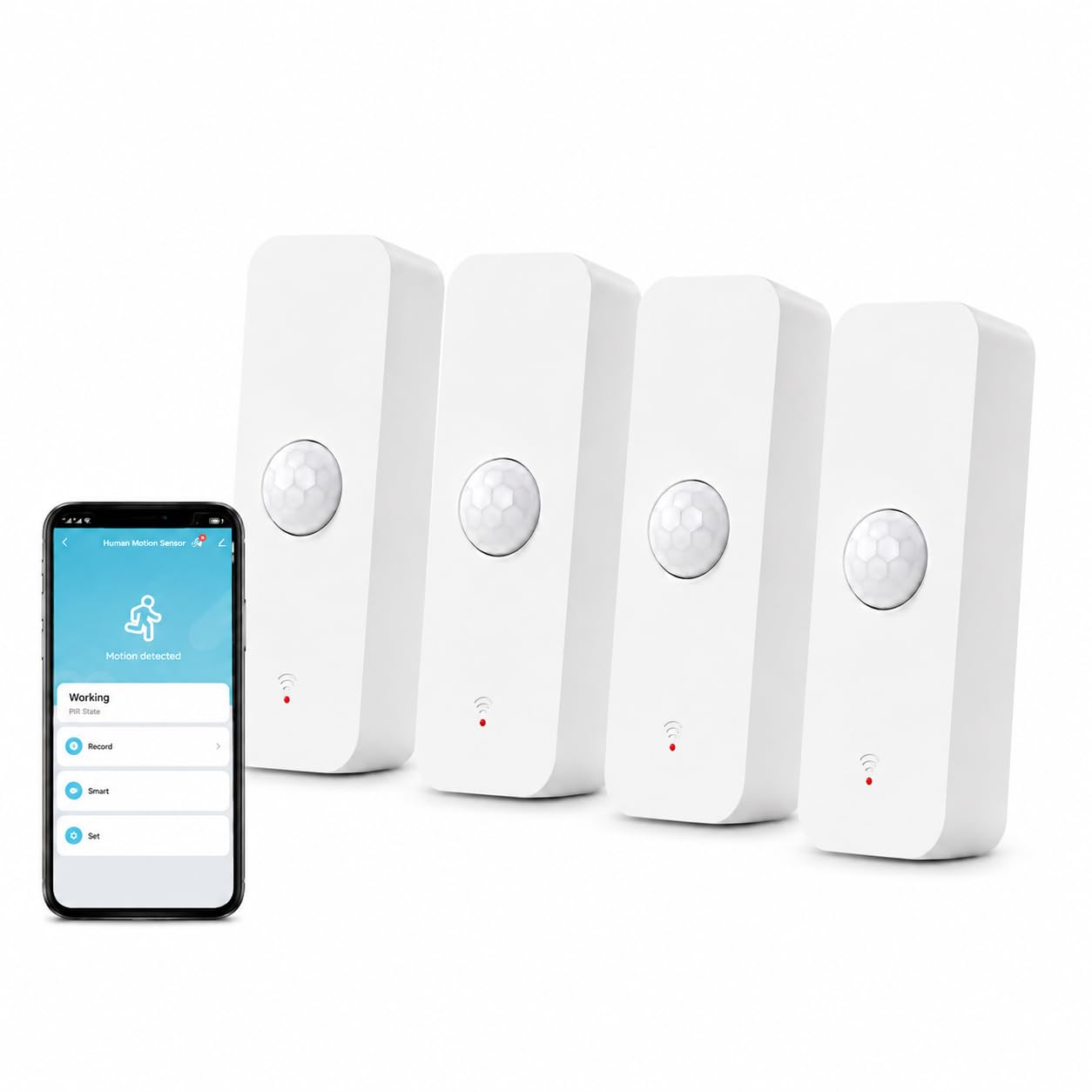
Image 1.1: The RISOON WiFi PIR Motion Sensor. This compact device is designed for discreet placement and effective motion detection.
2. Package Contents
Please verify that all items are present in your package:
- RISOON WiFi PIR Motion Sensor (WIFI PIR)
- 2 x AAA 1.5V Batteries (pre-installed or included)
- User Manual (this document)
- Mounting accessories (e.g., adhesive tape, screws)
3. Specifications
| Product Name | WiFi PIR Motion Sensor |
| Model Number | WIFI PIR |
| Brand | RISOON |
| Power Source | 2 x AAA 1.5V Batteries |
| Battery Life | Approximately 6 months |
| Detection Angle | 128° |
| Detection Range | Up to 6 meters (approx. 20 feet) |
| Wireless Connectivity | 2.4 GHz Wi-Fi (IEEE 802.11 b/g/n) |
| Compatible Apps | Smart Life App, Tuya Smart App |
| Voice Control Compatibility | Alexa |
| Mounting Type | Tabletop or Wall Mount |
| Operating Temperature | 10°C (Note: This may be a minimum value; typical operating ranges are broader.) |
| Dimensions (DxWxH) | 20mm x 30mm x 70mm |
4. Setup Instructions
4.1 Initial Preparation
- Ensure your Wi-Fi network is 2.4 GHz. The sensor does not support 5 GHz Wi-Fi.
- Insert the included AAA batteries into the sensor, observing polarity.
- Place the sensor in the desired location temporarily to test connectivity before final mounting.
4.2 App Download and Device Pairing
The RISOON WiFi PIR Motion Sensor connects directly to your 2.4GHz WiFi network without requiring a separate hub. Follow these steps to set up your device:

Image 4.1: Visual guide for connecting the sensor to your home network and app.
- Download the App: Search for "Smart Life" or "Tuya Smart" in your smartphone's app store (iOS or Android) and download the application.
- Register/Log In: Open the app and register for a new account or log in if you already have one.
- Add Device: Tap the "+" icon (usually in the top right corner) to add a new device. Select "Sensor" or "Security & Video Surveillance" and then choose "PIR Sensor" or "Motion Sensor (Wi-Fi)".
- Connect to Wi-Fi: Follow the in-app instructions to connect the sensor to your 2.4 GHz Wi-Fi network. You may need to put the sensor into pairing mode (often by pressing a reset button for a few seconds until an indicator light flashes).
- Confirmation: Once successfully connected, the app will confirm the device has been added. You can then rename the sensor for easier identification (e.g., "Living Room Motion Sensor").
4.3 Mounting the Sensor
The sensor can be placed on a flat surface or mounted to a wall. Consider the detection angle and range when choosing a location.

Image 4.2: The sensor offers a 128° detection angle and a range of up to 7 meters (approximately 23 feet) for comprehensive coverage.
- Optimal Placement: Position the sensor in areas where motion is expected, such as hallways, entryways, or rooms. Avoid placing it directly facing windows or heat sources that could cause false alarms.
- Height: For best results, mount the sensor at a height of approximately 1.8 to 2.2 meters (6 to 7.2 feet) from the floor.
- Mounting Options: Use the provided adhesive tape for easy, non-permanent installation, or screws for a more secure fixture.
5. Operating Instructions
5.1 Real-time Monitoring and Notifications
Once connected, the sensor will continuously monitor for movement. When motion is detected, you will receive instant notifications on your smartphone.
Image 5.1: Example of an instant phone notification received when motion is detected by the sensor.
- App Alerts: The Smart Life/Tuya Smart app will send push notifications to your phone whenever motion is detected, allowing you to monitor your home's security in real-time, whether you are home or away.
- Activity Log: The app maintains a history of all detected movements, which you can review at any time.
5.2 Smart Scene Linkage with Alexa
Leverage the smart capabilities of your sensor by creating automated scenes with other smart devices and Alexa.

Image 5.2: The sensor can be strategically placed in key areas such as the front door, hallway, or living room for comprehensive home protection.
- Creating Scenes: Within the Smart Life/Tuya Smart app, navigate to the "Smart" or "Scenes" section.
- Trigger Conditions: Set the motion sensor as a trigger. For example, "If [Sensor Name] detects motion...".
- Action Devices: Define the actions to be performed by other smart devices. Examples include:
- Turn on smart lights when motion is detected in a dark room.
- Activate a smart siren if motion is detected during specific hours (e.g., at night).
- Send a custom notification or trigger a routine via Alexa.
- Alexa Integration: Ensure your Smart Life/Tuya Smart account is linked to your Alexa app. You can then use voice commands or Alexa routines to manage your sensor and linked devices.
5.3 Use Cases for Enhanced Safety
The RISOON WiFi PIR Motion Sensor can be used in various scenarios to protect your family and property.

Image 5.3: The sensor provides peace of mind by monitoring activity in sensitive areas like a child's room or for elderly care, sending alerts if unusual movement is detected.
- Child Room Monitoring: Receive alerts if a child leaves their room unexpectedly.
- Elderly Care: Monitor activity for elderly family members, providing alerts if there's a lack of movement or unexpected activity.
- Garage/Storage Security: Detect unauthorized entry into garages, sheds, or other storage areas.
- Office/Commercial Spaces: Secure sensitive areas or receive alerts for after-hours activity.
6. Maintenance
6.1 Battery Replacement
The sensor is powered by 2 AAA 1.5V batteries, which typically last for about 6 months. The app will send a low voltage alert when the batteries need replacement.
- When you receive a low battery notification, prepare two new AAA 1.5V batteries.
- Carefully open the battery compartment on the sensor.
- Remove the old batteries and insert the new ones, ensuring correct polarity (+/-).
- Close the battery compartment securely. The sensor should automatically reconnect to your Wi-Fi network.
6.2 Cleaning
To ensure accurate detection, keep the sensor lens clean.
- Gently wipe the sensor's surface and lens with a soft, dry cloth.
- Do not use liquid cleaners or abrasive materials, as these can damage the sensor.
7. Troubleshooting
If you encounter issues with your RISOON WiFi PIR Motion Sensor, refer to the following common problems and solutions:
| Problem | Solution |
| Sensor not connecting to Wi-Fi |
|
| No motion detection or delayed notifications |
|
| False alarms |
|
| App not responding |
|
8. Warranty and Support
8.1 Product Warranty
RISOON offers a 12-month warranty on the WiFi PIR Motion Sensor from the date of purchase. This warranty covers manufacturing defects and malfunctions under normal use. It does not cover damage caused by misuse, accidents, unauthorized modifications, or improper installation.
8.2 Customer Support
For technical assistance, troubleshooting, or warranty claims, please contact RISOON customer support through the retailer's platform where you purchased the product or refer to the contact information provided in your product packaging. Please have your purchase receipt and product model number (WIFI PIR) ready when contacting support.