
1. Introduction
Thank you for choosing the Arktronic 21.5 Inch FHD Digital Picture Frame. This device allows you to display your cherished photos and videos with exceptional clarity and share them instantly with family and friends from anywhere via Wi-Fi. This manual provides detailed instructions for setup, operation, and maintenance to ensure optimal performance and enjoyment of your digital picture frame.
The frame features a 21.5-inch 1920x1080 Full HD IPS matte screen, offering wide viewing angles and vibrant colors without glare. It includes 32GB of internal storage, capable of holding up to 80,000 photos, and supports external storage via Micro SD card (up to 32GB, not included) and USB flash drives.

Image: Comparison highlighting the Arktronic 21.5-inch large matte screen, FHD IPS display, Bluetooth speaker, and remote operation against other frames.
2. Package Contents
Please verify that all items are present in the package:
- Arktronic 21.5 Inch Digital Picture Frame
- Power Adapter with US Plug (Power cord 70.87 inches)
- Remote Control
- Stand
- Screws & Wall Anchors for mounting
- User Manual & Quick Start Guide

Image: Diagram illustrating the components included in the product packaging.
3. Setup
3.1 Initial Power-On
- Unbox the digital picture frame and its accessories.
- Connect the power adapter to the DC IN port on the back of the frame.
- Plug the power adapter into a wall outlet. The frame will automatically power on and begin the startup process.
- Use the remote control to select your preferred language from the 'Welcome' screen.
3.2 Wi-Fi Connection
To enable photo and video sharing, connect your frame to a Wi-Fi network:
- From the main menu, navigate to 'Settings' using the remote control.
- Select 'Wi-Fi' and choose your desired network from the list.
- Enter the Wi-Fi password using the on-screen keyboard and confirm.
- Ensure the frame displays a 'Connected' status for your Wi-Fi network.
3.3 VPhoto App Setup
The VPhoto app is essential for sharing content to your frame:
- Download the 'VPhoto' app from the Apple App Store or Google Play Store on your smartphone.
- Open the app and create an account.
- On your digital picture frame, navigate to 'Settings' > 'My Frame' to find the connection code (QR code).
- In the VPhoto app, scan the QR code or manually enter the connection code to pair your smartphone with the frame.
- Once paired, you can begin sharing photos and videos from your phone to the frame.
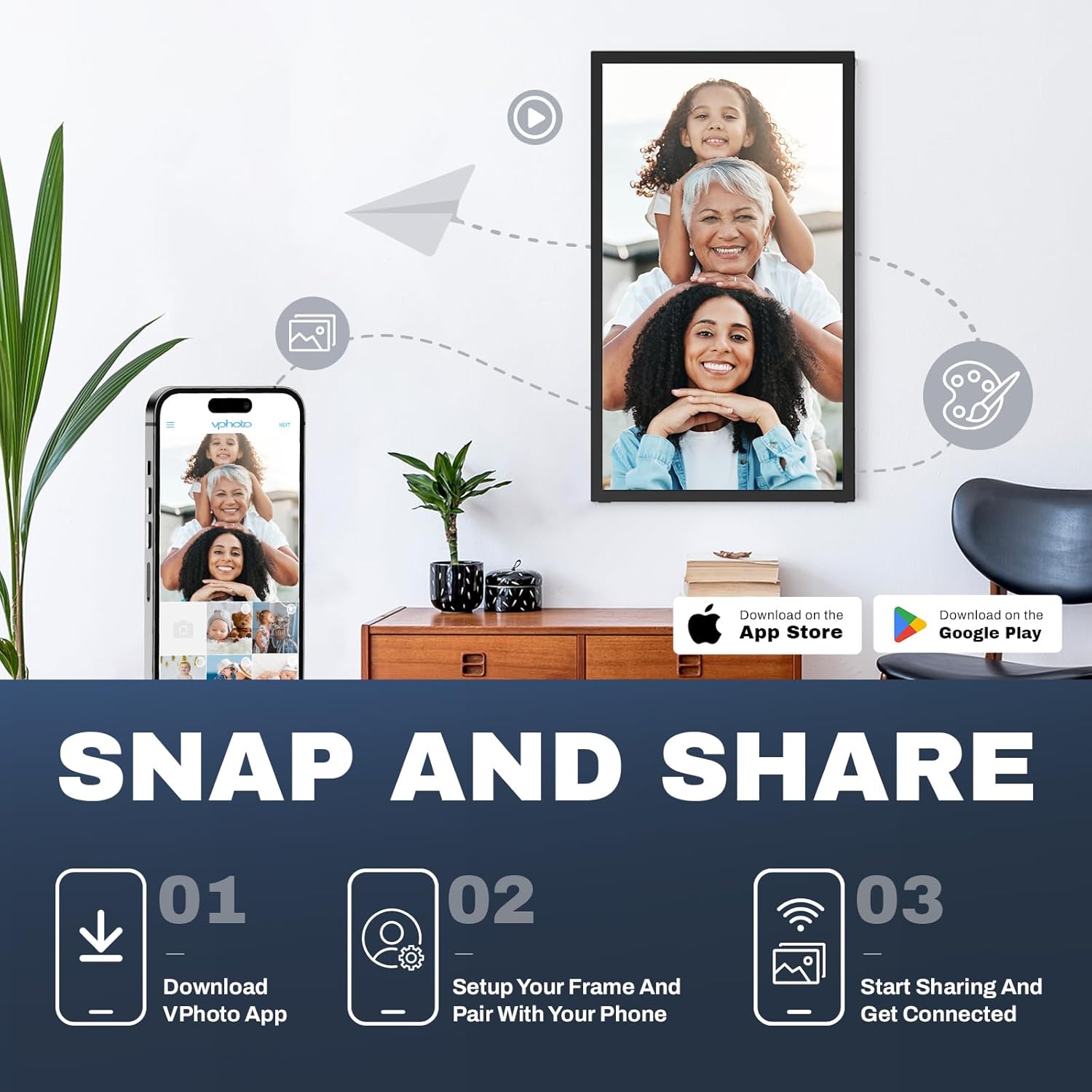
Image: Visual guide for downloading the VPhoto app, setting up the frame, and pairing with a phone for sharing.
3.4 Mounting Options
The frame can be displayed using the included stand or wall-mounted:
- Using the Stand: Attach the stand to the designated slot on the back of the frame for tabletop display.
- Wall Mounting: Use the provided screws and wall anchors to securely mount the frame on a wall. The frame supports both vertical and horizontal orientations and will auto-rotate the display accordingly.

Image: The digital picture frame seamlessly integrated into home decor, showcasing its wall-mountable design.
Video: This video demonstrates the unboxing, initial power-on, Wi-Fi connection, VPhoto app pairing, and the auto-rotation feature of the digital picture frame. It shows how to plug in the power cord, select language, connect to Wi-Fi, and scan a QR code with the VPhoto app to link the frame.
4. Operating Instructions
4.1 Navigating the Interface
Use the included remote control to navigate the frame's interface. The main menu provides access to various functions:
- My Frame: View device information and connection codes.
- Album Settings: Customize slideshows, captions, and other display options.
- Wi-Fi: Manage network connections.
- Factory Data Reset: Reset the frame to its original settings.
- Help/About: Access support information and device details.
4.2 Sharing Photos and Videos
Content can be shared to your frame via the VPhoto app or email:
- VPhoto App: Select photos or videos from your smartphone gallery within the VPhoto app and send them directly to your paired frame.
- Email: The frame has a unique email address. You can send photos and videos as attachments to this address, and they will appear on your frame.

Image: The digital picture frame displaying family photos, emphasizing the ability to stay connected and share memories with loved ones.
4.3 Display Customization
Personalize your viewing experience through the 'Album Settings':
- Brightness: Adjust the screen brightness to suit your environment. The frame also features a light sensor for automatic brightness adjustment.
- Volume: Control the audio volume for videos and background music.
- Slideshow Mode: Choose between sequential or random playback of your content. Set the duration for each photo in the slideshow.
- Captions: Enable or disable captions to display stories or details about your photos.
- Sleep Mode: Schedule the frame to turn off and on automatically to conserve energy.
- Image Zoom: Adjust how images fit the screen.

Image: The frame's light sensor and brightness adjustment feature, allowing for optimal viewing in various lighting conditions.
Video: This video demonstrates the frame's ability to auto-rotate between portrait and landscape orientations, showcasing its versatility for different content and display preferences.
5. Maintenance
To ensure the longevity and optimal performance of your Arktronic Digital Picture Frame, follow these maintenance guidelines:
- Cleaning the Screen: Gently wipe the screen with a soft, lint-free cloth. For stubborn smudges, slightly dampen the cloth with water or a screen-safe cleaning solution. Avoid harsh chemicals or abrasive materials.
- Cleaning the Frame: Use a dry, soft cloth to wipe the frame's exterior.
- Software Updates: Periodically check for software updates through the frame's settings menu to ensure you have the latest features and performance improvements.
- Storage Management: While the frame has ample storage, regularly review and delete unwanted photos or videos to optimize performance. Back up important memories to external storage or cloud services.
- Placement: Avoid placing the frame in direct sunlight or in areas with extreme temperatures or high humidity, as this can affect its performance and lifespan.
6. Troubleshooting
If you encounter any issues with your digital picture frame, please refer to the following common solutions:
| Problem | Possible Cause | Solution |
|---|---|---|
| Frame not powering on | Power adapter not connected or faulty outlet. | Ensure the power adapter is securely plugged into the frame and a working power outlet. Try a different outlet. |
| Cannot connect to Wi-Fi | Incorrect password, weak signal, or network issue. | Double-check the Wi-Fi password. Move the frame closer to the router. Restart your router and the frame. |
| Photos/Videos not appearing | Frame not paired with app, incorrect email, or network issue. | Verify the frame is correctly paired with the VPhoto app. Ensure you are sending to the correct frame email address. Check Wi-Fi connection. |
| Frame freezes or becomes unresponsive | Software glitch or excessive memory usage. | Unplug the power adapter, wait 10 seconds, then plug it back in to restart. If the issue persists, perform a 'Factory Data Reset' (note: this will erase all content). |
| Images appear distorted or low quality | Low-resolution source images or incorrect display settings. | Ensure you are uploading high-resolution images. Adjust 'Image Zoom' settings in 'Album Settings' to prevent stretching. |
If these solutions do not resolve the issue, please contact Arktronic customer support.
7. Specifications
| Feature | Detail |
|---|---|
| Model Number | AK-W215B |
| Screen Size | 21.5 Inches |
| Display Type | IPS FHD Matte Screen |
| Resolution | 1920x1080 (1080p) |
| Internal Storage | 32GB (stores up to 80,000 photos) |
| External Storage Support | Micro SD card (up to 32GB, not included), USB flash drives |
| Connectivity | Wi-Fi |
| Compatible Devices | Smartphone (via VPhoto app) |
| Supported Image Formats | JPG, GIF, BMP, PNG |
| Supported Video Formats | MPEG1, MPEG2, MPEG4, Xvid, AVI, M-JPEG, H.264.MOV, VOB, MKV, DIVX4, DIVX5 |
| Product Dimensions | 11.56 x 8.37 x 0.99 inches |
| Item Weight | 6.89 pounds |
| Color | Black |

Image: The frame's 32GB internal storage capacity, capable of storing a large number of photos and videos.

Image: Diagram of the frame's rear panel, detailing port locations and mounting options.
8. Warranty and Support
Arktronic is committed to providing high-quality products and customer satisfaction. Your Arktronic Digital Picture Frame comes with the following:
- 30-Day Money Back Commitment: If you are not satisfied with your purchase, you may return it within 30 days for a full refund.
- 1-Year Worry-Free Warranty: The product is covered by a 1-year warranty against manufacturing defects.
- Lifetime Professional Service: Arktronic offers lifetime technical support and customer service for your product.
For technical assistance, warranty claims, or any other inquiries, please contact Arktronic customer support through the contact information provided in your Quick Start Guide or on the official Arktronic website.