
Introduction
This manual provides detailed instructions for the setup, operation, and maintenance of your Generic Genuine vSeeBox V3 Pro Bluetooth Voice Remote Control. This remote is designed for seamless compatibility with vSeeBox V1, V2, V3, Elite, and Max models, offering both Bluetooth connectivity and voice control capabilities.
Package Contents
- 1 x Generic Genuine vSeeBox V3 Pro Bluetooth Voice Remote Control
Note: Batteries are not included and must be purchased separately. Two AAA batteries are typically required.
Setup
1. Battery Installation
- Open the battery compartment cover on the back of the remote control.
- Insert two AAA batteries, ensuring correct polarity (+ and -).
- Close the battery compartment cover securely.
2. Bluetooth Pairing with vSeeBox Device
To enable full functionality, including voice control, the remote must be paired with your vSeeBox device via Bluetooth.
- Ensure your vSeeBox device is powered on and connected to a display.
- Navigate to the Bluetooth settings on your vSeeBox device (usually found under Settings > Bluetooth or Connected Devices).
- On the remote, press and hold the OK button and the Volume Down (-) button simultaneously for approximately 3-5 seconds until the LED indicator on the remote begins to flash rapidly. This indicates pairing mode.
- On your vSeeBox device, search for new Bluetooth devices. The remote should appear as "vSeeBox Remote" or similar.
- Select the remote on your vSeeBox device to complete the pairing process. The LED on the remote will stop flashing and turn off once successfully paired.
3. IR Learning Function (for TV Control)
The remote features an IR learning function, allowing you to program the "TV CONTROL" buttons (Power, TV In, Vol-, Vol+) to control your television.

Image: Back of the vSeeBox V3 Pro remote control, showing the battery compartment and printed instructions for the IR learning function.
- Press and hold the STB POWER button for 5 seconds. The LED will go from blinking to solid red, indicating entry into learning mode.
- Press the key on this remote (RCU) that you wish to program. The LED will begin blinking, indicating it is ready to accept programming.
- Point your original TV remote towards the front of this RCU (distance less than 3cm) and press the corresponding key on your TV remote. If the STB RCU successfully programs, the LED will flash 3 times.
- Repeat steps 2-3 for other keys you wish to program.
- Exit learning mode by pressing any other button on this RCU. The LED will turn off.
Operating Instructions
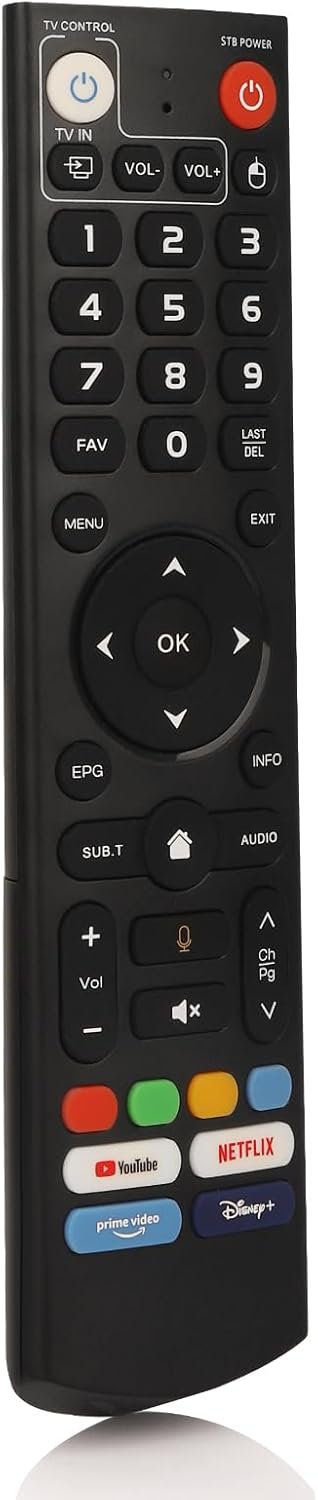
Image: Front view of the vSeeBox V3 Pro remote control, displaying all buttons and their labels.
Button Functions:
| Button | Function |
|---|---|
| TV CONTROL Power | Turns your TV on/off (requires IR learning). |
| TV IN | Switches TV input source (requires IR learning). |
| VOL- / VOL+ (TV) | Adjusts TV volume (requires IR learning). |
| STB POWER | Turns the vSeeBox device on/off. |
| Number Pad (0-9) | Direct channel input or numerical entry. |
| FAV | Accesses favorite channels/content. |
| LAST / DEL | Recalls last channel or deletes input. |
| MENU | Opens the main menu. |
| EXIT | Exits current menu or application. |
| Navigation (Up, Down, Left, Right) | Navigates through menus and content. |
| OK | Confirms selection. |
| EPG | Electronic Program Guide. |
| INFO | Displays information about current content. |
| SUB.T | Subtitle options. |
| Home | Returns to the home screen. |
| AUDIO | Audio track options. |
| VOL- / VOL+ (STB) | Adjusts vSeeBox device volume. |
| Voice Control | Activates voice command input (requires Bluetooth pairing). |
| Mute | Mutes/unmutes audio. |
| CH Pg Up / Down | Changes channels up or down. |
| App Shortcut Buttons | Direct access to YouTube, Netflix, Prime Video, Disney+. |
Using Voice Control:
Once paired via Bluetooth, press the Voice Control button (microphone icon) and speak clearly into the remote. The vSeeBox device will process your command.
Maintenance
- Cleaning: Wipe the remote with a soft, dry cloth. Do not use liquid cleaners or abrasive materials.
- Battery Care: Replace batteries when the remote becomes unresponsive or the LED indicator behaves erratically. Remove batteries if the remote will not be used for an extended period to prevent leakage.
- Storage: Store the remote in a cool, dry place away from direct sunlight and extreme temperatures.
Troubleshooting
| Problem | Solution |
|---|---|
| Remote not responding. | Check battery levels and replace if necessary. Ensure the remote is within range of the vSeeBox device. Re-pair the remote via Bluetooth. |
| Voice control not working. | Ensure the remote is successfully paired via Bluetooth. Check the vSeeBox device's settings for voice input permissions. Re-pair the remote. |
| IR learning for TV control fails. | Ensure the original TV remote is working and has fresh batteries. Point the original remote directly at the vSeeBox remote's IR sensor (top front) at a close distance (less than 3cm). Repeat the learning steps carefully. |
| Buttons are sticky or unresponsive. | Clean the remote surface. If the issue persists, it may indicate internal damage or wear. |
Specifications
- Brand: Generic
- Model: V3 Pro
- Connectivity Technology: Bluetooth
- Controller Type: Voice Control
- Number of Buttons: 2 (referring to specific programmable buttons, total buttons are more)
- Product Dimensions: 1 x 8.5 x 2 inches
- Item Weight: 3.53 ounces
- Compatibility: vSeeBox V1, V2, V3, Elite, Max
Warranty and Support
Specific warranty information for this Generic product is not provided in the available data. Please refer to the retailer or seller for details regarding warranty coverage and customer support options.


