1. Introduction
This manual provides detailed instructions for the INNOCN Portable Monitor 13.3" OLED 1080P (Model E13K1F-C8). Please read this manual thoroughly before using the product to ensure proper operation and to maximize its performance and lifespan. This monitor is designed to provide a high-quality visual experience for various applications, including professional work, creative tasks, and entertainment.
2. Key Features
- Stunning OLED Display: Experience vibrant colors and deep blacks with a 13.3-inch Full HD (1080P) Self-Lit OLED IPS panel. Features include 100% DCI-P3 color gamut, a 100,000:1 contrast ratio, and 400 nits brightness for an immersive viewing experience with low latency (1ms response time).
- Exceptional Color Accuracy: Engineered with full lamination production workmanship and advanced color calibration technology, this monitor delivers precise color contrast, making it an excellent choice for photography, video editing, and graphic design.
- Versatile Connectivity: Equipped with both USB-C and Mini HDMI inputs, ensuring broad compatibility with a wide range of devices.
- Wide Device Compatibility: Seamlessly connect to most 11.6-17.3 inch laptops, tablets, Surface Pro devices, USB-C smartphones, Nintendo Switch, Xbox, PlayStation (PS5/4/3), mini PCs, and digital cameras. Enjoy plug-and-play functionality without the need for additional drivers.
- Enhanced Eye Comfort: Incorporates flicker-free and low blue light technologies to reduce eye strain and provide a comfortable viewing experience during extended use.
- Ultra-Slim and Lightweight Design: With an ultra-slim profile of 0.28 inches and a weight of 1.39 lbs, this monitor is highly portable, making it ideal for multi-tasking on the go.
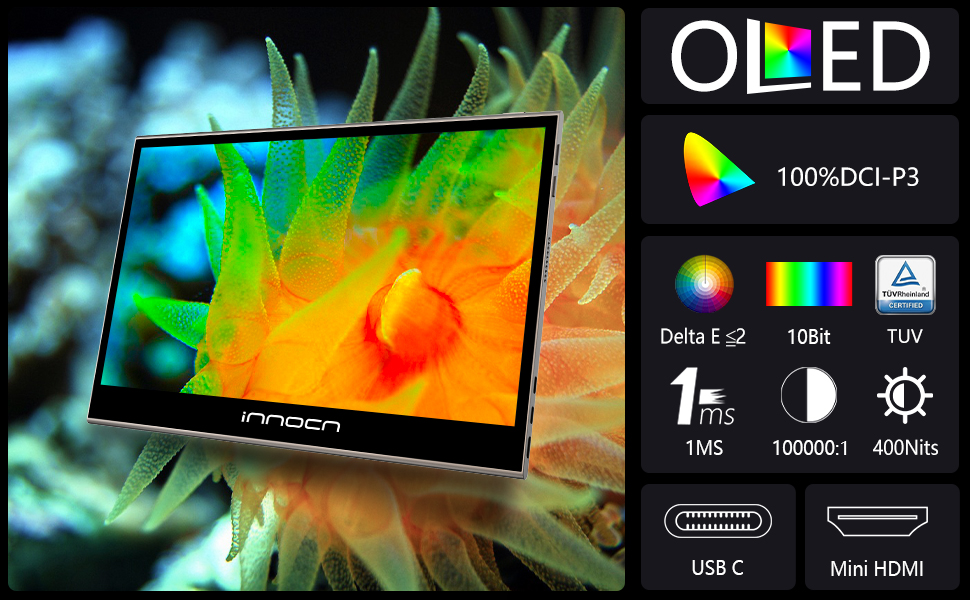
Image: Visual comparison demonstrating the superior color and contrast of the OLED display compared to a standard LCD, featuring vibrant fish imagery. The OLED display achieves 100% DCI-P3 color gamut, 130% sRGB color gamut, 400cd/m² brightness, and a 100,000:1 contrast ratio.
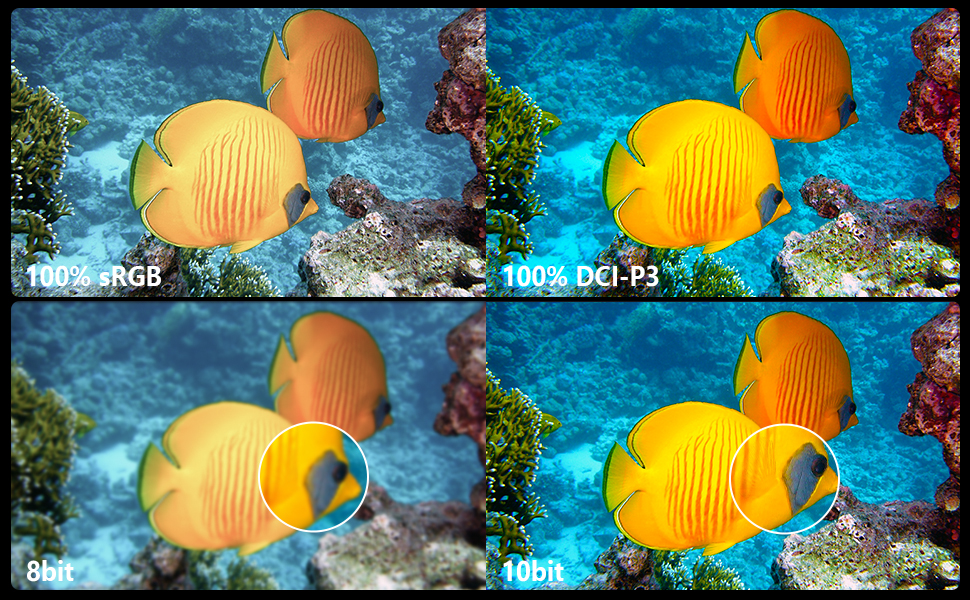
Image: The INNOCN portable monitor showcasing photo editing software, emphasizing its color accuracy and suitability for professional photo and video editing, as well as design work.

Image: A visual representation of the monitor's ultra-slim (0.2 inches) and lightweight (2 lbs) design, highlighting its portability.
3. Setup Guide
3.1 Unpacking and Initial Inspection
- Carefully remove the monitor and all accessories from the packaging.
- Inspect the monitor for any signs of damage during transit. If damage is found, contact customer support immediately.
- Ensure all listed accessories are present.
3.2 Connecting the Monitor
The INNOCN portable monitor supports both USB-C and Mini HDMI connections for video and power. No drivers are typically required for basic functionality.
- USB-C Connection (Single Cable Solution):
If your device (laptop, tablet, smartphone) has a full-featured USB-C port that supports DisplayPort Alternate Mode (DP Alt Mode) and power delivery, you can connect the monitor using a single USB-C to USB-C cable. This cable will transmit video, audio, and power simultaneously.
- Connect one end of the USB-C cable to the USB-C port on the monitor.
- Connect the other end of the USB-C cable to the compatible USB-C port on your device.
- The monitor should automatically detect the signal and power on.
- Mini HDMI + USB-C (Power) Connection:
If your device does not have a full-featured USB-C port, or if you prefer to use HDMI, you will need two cables:
- Connect one end of the Mini HDMI to HDMI cable to the Mini HDMI port on the monitor.
- Connect the other end of the HDMI cable to the HDMI port on your device (laptop, PC, console).
- Connect one end of a USB-C to USB-A (or USB-C to USB-C) cable to the power input USB-C port on the monitor.
- Connect the other end of the USB cable to a power source (e.g., a USB wall adapter, laptop USB port, or power bank) to provide power to the monitor.
- The monitor should detect the HDMI signal and power on.

Image: A close-up view of the monitor's side, highlighting the USB-C and Mini HDMI input ports for connectivity.
3.3 Using the Magnetic Kickstand
The monitor comes with a magnetic kickstand for versatile positioning. Attach the kickstand to the back of the monitor. Adjust the angle to your preferred viewing position. The kickstand can be easily detached for portability.
4. Operating Instructions
4.1 Power On/Off
- To power on the monitor, ensure it is connected to a power source and press the power button.
- To power off the monitor, press and hold the power button for a few seconds until the screen turns off.
4.2 On-Screen Display (OSD) Menu
The OSD menu allows you to adjust various display settings. The power button often doubles as the menu/select button, and other buttons (if present) navigate the menu.
- Press the menu button (often the power button with a short press) to open the OSD menu.
- Use the navigation buttons to scroll through options such as Brightness, Contrast, Color Temperature, Input Source, etc.
- Press the select button (often the menu button again) to enter a sub-menu or confirm a selection.
- Use the navigation buttons to adjust values or select options.
- Exit the OSD menu by selecting the "Exit" option or waiting for it to time out.
4.3 Display Settings on Connected Device
For optimal performance, configure your connected device's display settings:
- Resolution: Set the resolution to 1920x1080 (1080P) for the best visual clarity.
- Refresh Rate: The monitor supports a maximum refresh rate of 60Hz.
- Display Mode: Choose between "Extend" (to use the portable monitor as a second screen) or "Duplicate" (to mirror your primary display).
- Color Profile: For Windows users, if colors appear washed out, adjust the color format in your graphics card settings (e.g., Nvidia Control Panel) to 4:4:4 instead of sRGB. This can significantly improve OLED color representation.

Image: The portable monitor extending a laptop's display, demonstrating its utility for multitasking and increased productivity.

Image: The monitor positioned vertically, connected to a tablet, illustrating its flexibility for different viewing modes and creative applications.
5. Maintenance
5.1 Cleaning the Monitor
- Always power off the monitor and disconnect it from the power source before cleaning.
- Use a soft, lint-free cloth slightly dampened with water or a non-abrasive screen cleaner.
- Gently wipe the screen and exterior surfaces. Avoid excessive pressure.
- Do not use alcohol, ammonia-based cleaners, or abrasive materials, as these can damage the screen or finish.
5.2 Storage
- When not in use, store the monitor in a cool, dry place away from direct sunlight and extreme temperatures.
- For travel, use a protective sleeve or case to prevent scratches and impacts. The monitor's glass finish is durable but can still be damaged by sharp objects or drops.
6. Troubleshooting
| Problem | Possible Cause | Solution |
|---|---|---|
| No display/Power off | No power, incorrect cable connection, or device not outputting signal. |
|
| Washed out colors / Grey blacks (Windows) | Incorrect color format setting on the source device. |
|
| Monitor does not wake with Windows | Power management settings or compatibility issue. |
|
| No audio | Audio output not selected, or volume too low. |
|
7. Specifications
| Feature | Detail |
|---|---|
| Model Number | E13K1F-C8 |
| Screen Size | 13.29 Inches |
| Display Type | OLED |
| Resolution | 1920 x 1080 (FHD 1080p) |
| Aspect Ratio | 16:9 |
| Color Gamut | 100% DCI-P3 |
| Contrast Ratio | 100,000:1 |
| Brightness | 400 candela/square meter (nits) |
| Response Time | 1ms |
| Connectivity | USB-C, Mini HDMI |
| Product Dimensions | 0.25 x 12.12 x 7.87 inches |
| Item Weight | 2.77 pounds |
| Screen Surface | Glossy |
| Manufacturer | Guangxi Century Innovation Display Electronics Co.,Ltd |
8. Warranty and Support
For warranty information and technical support, please refer to the documentation included with your purchase or visit the official INNOCN website. You may also contact the manufacturer, Guangxi Century Innovation Display Electronics Co.,Ltd, for assistance.
For additional support, you can visit the INNOCN Store on Amazon.


