
Introduction
Thank you for purchasing the EONON A100 USB Dash Cam. This device is designed to provide reliable video recording for your vehicle, integrating seamlessly with compatible Android car navigation systems. Please read this manual thoroughly before use to ensure proper installation and operation.
Product Features
- 360° Adjustable Lens: The camera lens offers a full 360-degree rotation, allowing flexible adjustment regardless of your windshield's angle.
- 120° Wide-Angle Camera: Captures a broad field of view, ensuring comprehensive coverage of the road, including adjacent lanes and pedestrians.
- 720P HD Recording: Records high-quality, smooth video at 1280x720 resolution, clearly capturing important details like license plates and road signs.
- Android Navigation Compatibility: Designed to work with Eonon Android navigation systems (e.g., GA2190N, GA2197, GA2198J), allowing live viewing and playback on the navigation screen.
- Loop Recording: Automatically starts recording when the navigation system powers on. When the memory card is full, older files are overwritten to ensure continuous recording.
- File Protection: Important video files can be locked to prevent accidental overwriting. Still images can also be captured by tapping the record button.
- Compact Design: The dash cam features a compact body that minimizes obstruction to your driving view when mounted on the windshield.
Package Contents
Please check that all items are present in the package:
- EONON A100 USB Dash Cam
- USB Charging Cable
- Instruction Manual
Setup and Installation
1. Mounting the Dash Cam
The EONON A100 features a compact design for minimal visual obstruction.
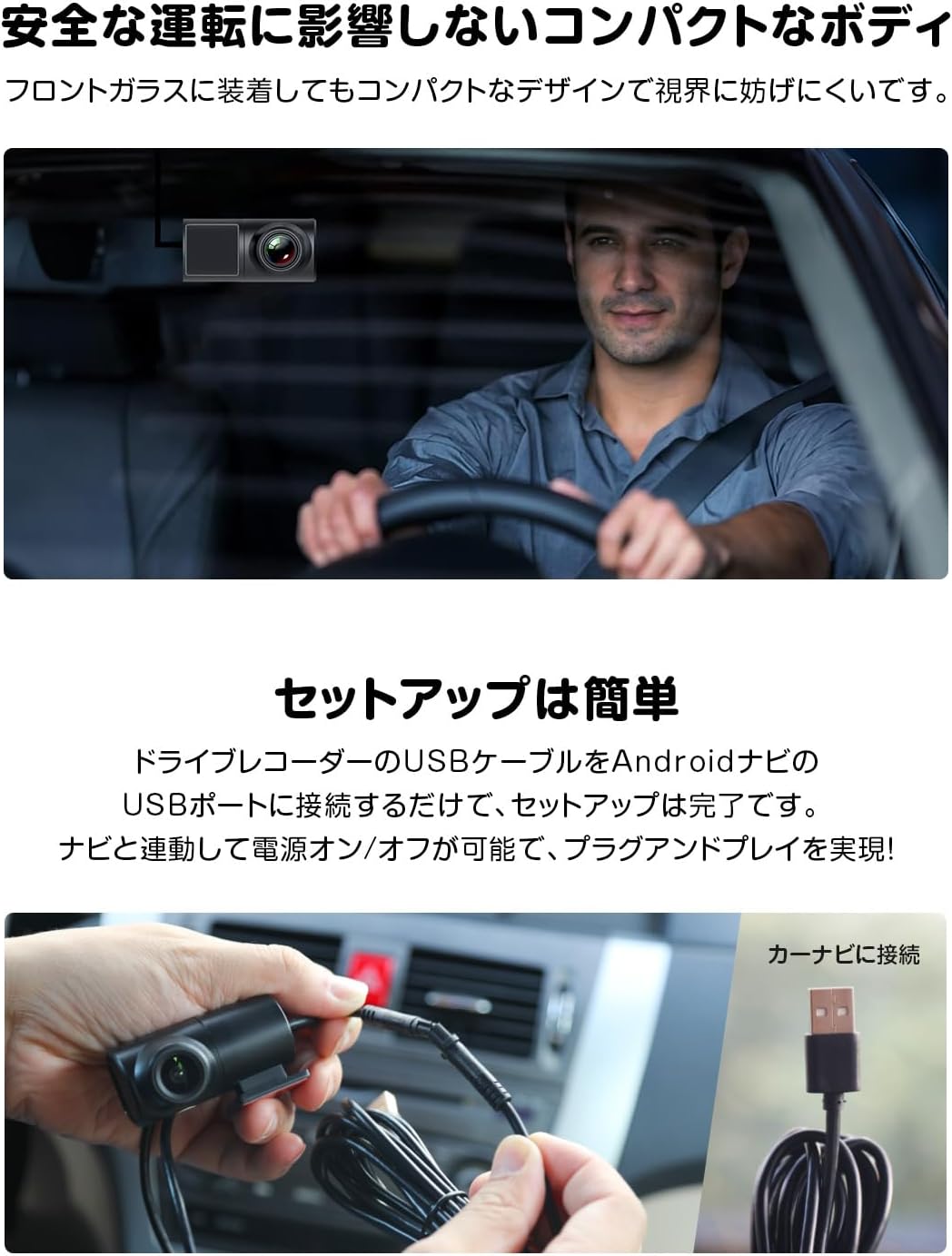
Image: The EONON A100 Dash Cam is shown mounted on a car's windshield, demonstrating its small footprint and how it remains unobtrusive to the driver's line of sight.
Attach the dash cam to your vehicle's windshield using the provided mounting mechanism. Ensure it is positioned to capture the desired view of the road without obstructing your driving visibility.
2. Adjusting the Lens Angle
The lens can be rotated 360 degrees to achieve the optimal recording angle.
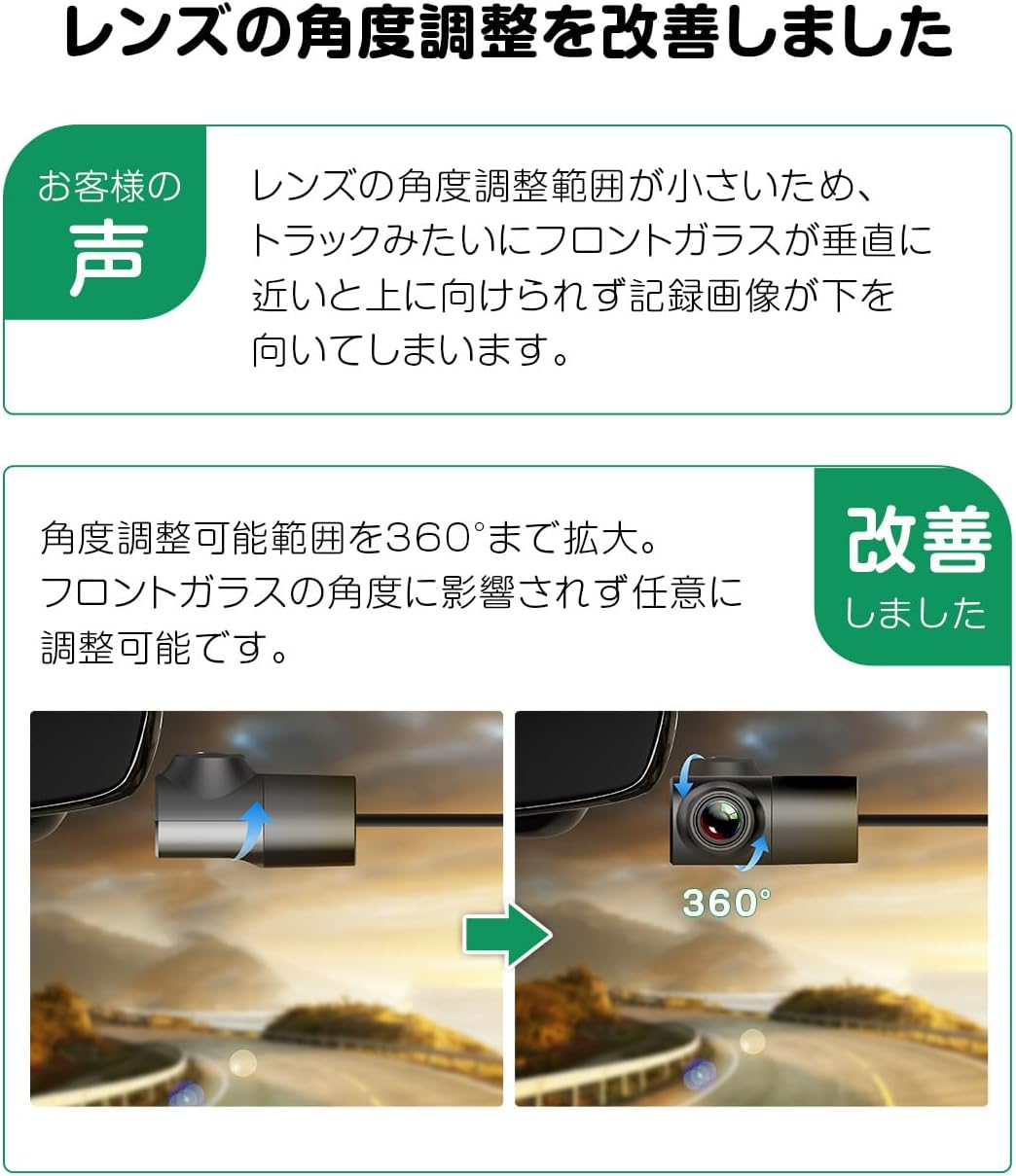
Image: A visual representation illustrating the 360-degree rotational movement of the dash cam's lens, allowing for versatile positioning.
Manually adjust the lens to ensure it captures the road ahead clearly. This flexibility allows for proper alignment even with varying windshield angles, such as in trucks.
3. Connecting to Android Navigation System
The dash cam connects directly to your Android navigation unit via USB.
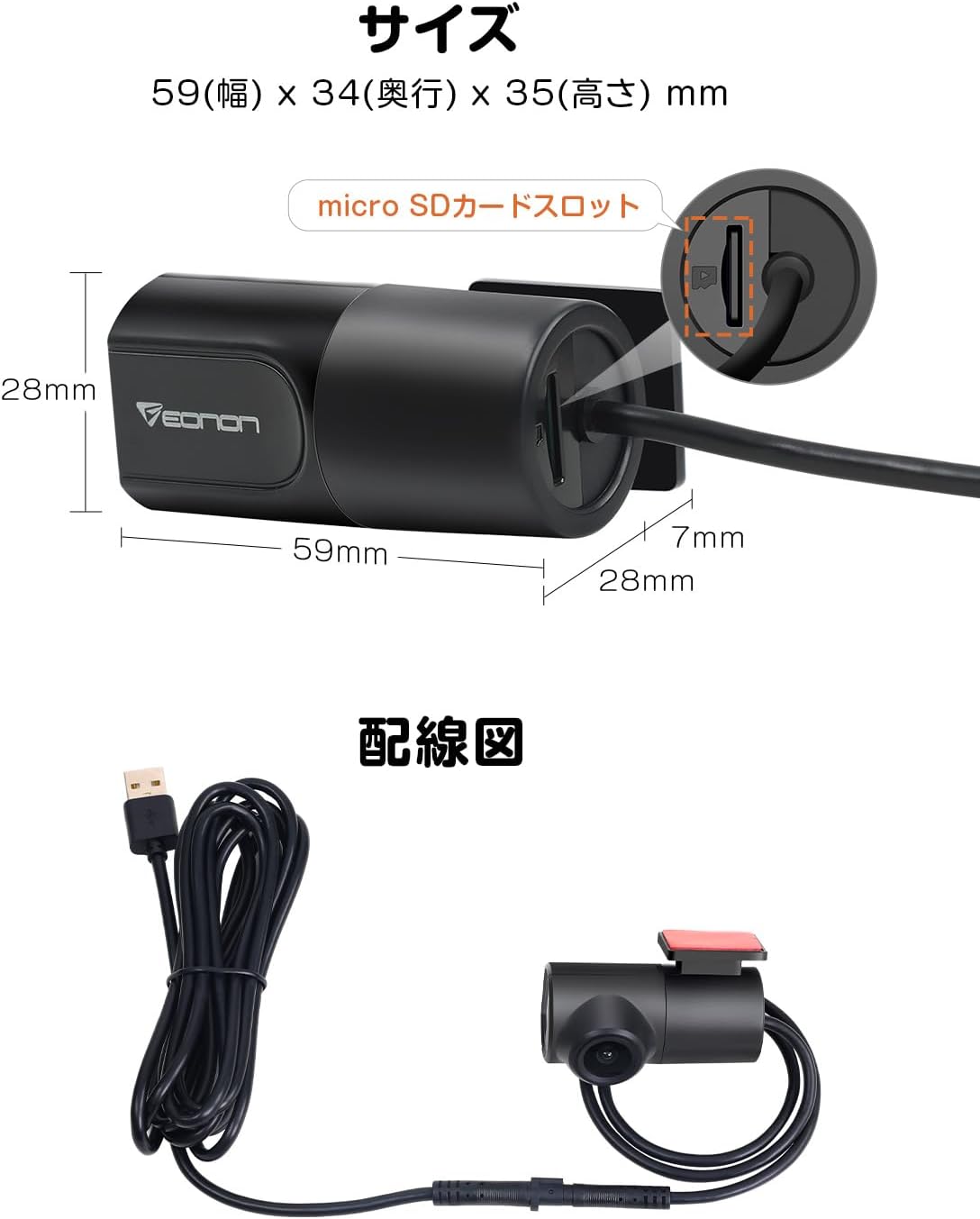
Image: Two hands are shown connecting the USB cable from the dash cam into a USB port, with text indicating 'Connect to Car Navigation'.
Connect the dash cam's USB cable to an available USB port on your Eonon Android navigation system. The system supports plug-and-play functionality, and the dash cam will power on/off in conjunction with the navigation unit.
4. MicroSD Card Installation
The device supports microSD cards from 8GB to 32GB, Class 10 or higher (sold separately).
Image: A technical drawing of the EONON A100 Dash Cam with dimensions and a highlighted detail of the microSD card slot.
Insert a compatible microSD card into the designated slot on the dash cam. Ensure the card is inserted correctly. The card will be used for storing recorded video footage.
Operating Instructions
1. Automatic Recording
Once connected to your Android navigation system and powered on, the dash cam will automatically begin recording. This ensures that recording starts every time you start your vehicle.
2. Viewing Recordings

Image: Inside a car, an EONON Android navigation system's large screen shows a real-time view from the dash cam, displaying traffic on a multi-lane highway.
You can view live footage and recorded videos directly on the large screen of your Eonon Android navigation system using the dedicated application. This allows for convenient monitoring of traffic conditions and review of recorded events.
3. Loop Recording Function
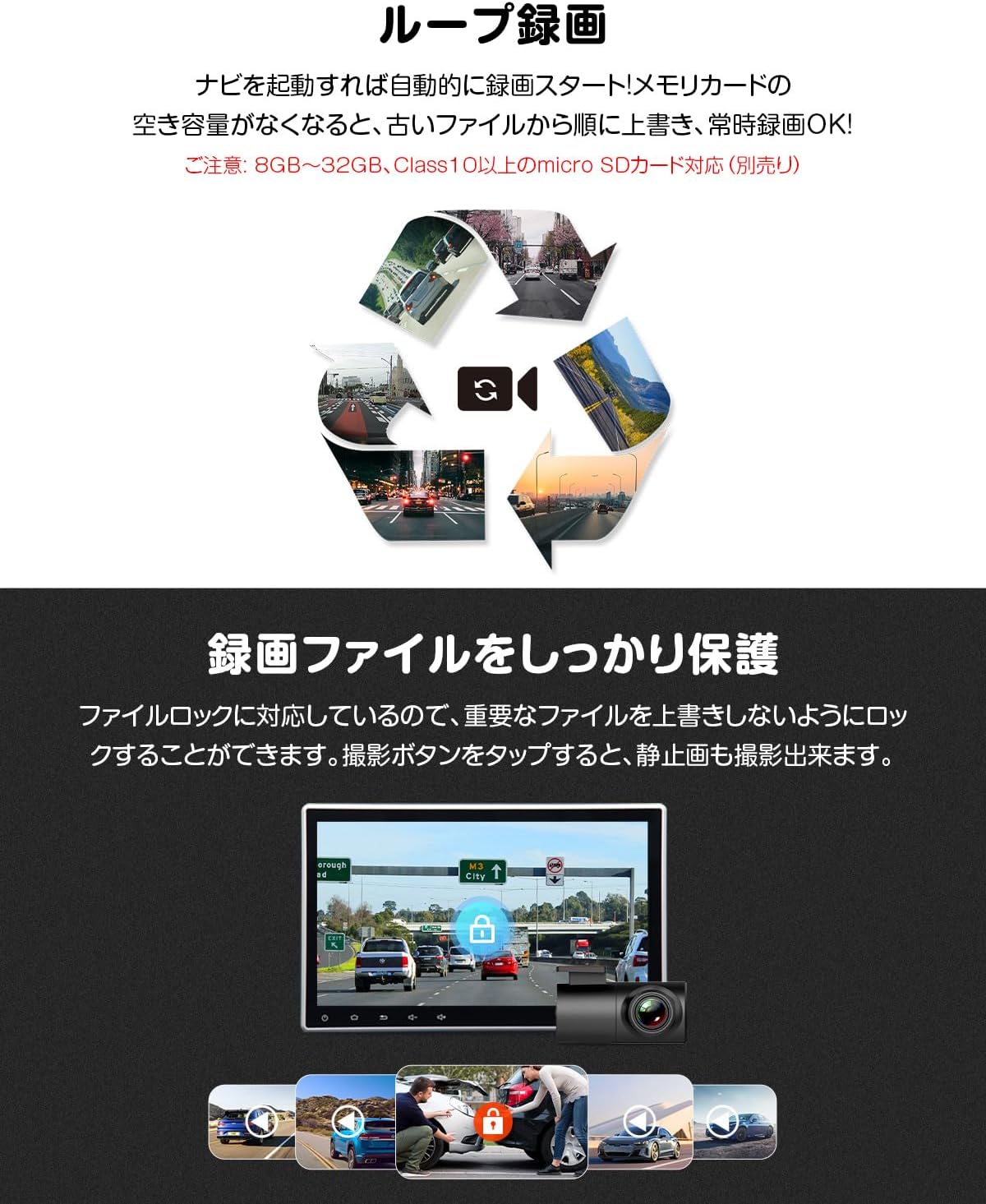
Image: A circular diagram depicts the loop recording process, where new video segments continuously replace the oldest ones on the memory card.
The dash cam continuously records video. When the microSD card's storage capacity is full, the system automatically overwrites the oldest files with new recordings, ensuring uninterrupted operation.
4. File Protection
To protect important recordings from being overwritten, the dash cam supports a file lock feature. You can manually lock specific files through the application. Tapping the record button during video recording will also capture a still image.

Image: A user interface screenshot from the EONON A100 Dash Cam displayed on a car's navigation screen, featuring various recording controls and a prominent lock icon, indicating the file protection function.
Maintenance
- Cleaning: Use a soft, dry cloth to clean the dash cam lens and body. Avoid using abrasive cleaners or solvents.
- MicroSD Card: Periodically format the microSD card (at least once a month) to maintain optimal performance and prevent data corruption. Back up any important files before formatting.
- Firmware Updates: Check the Eonon official website or your Android navigation system's settings for any available firmware updates for the dash cam application. Keeping the software updated can improve performance and add new features.
Troubleshooting
- Q1: I have two A100 units installed for front and rear recording, but only one is recognized by the app. I can view recordings from the second unit by connecting its MicroSD card to a PC.
- A: The EONON A100 dash cam does not support simultaneous installation and app control of two units. The dedicated application installed on your navigation system can only recognize and operate one A100 device at a time. While the second unit may record automatically when powered, its recordings cannot be managed or viewed via the navigation app, and recording times may be inaccurate. We do not recommend installing two dash cams simultaneously for app-controlled functionality.
- Q2: The A100 application appears on the navigation screen every time the engine is turned on, instead of running in the background.
- A: Normally, the A100 application should run in the background without appearing on the navigation screen. Please try the following steps:
- Reinstall the A100 APK file on your navigation system.
- Update your navigation system's software to the latest version.
- Verify if your navigation system can maintain a fast boot state.
Specifications
| Feature | Detail |
|---|---|
| Brand | Eonon |
| Model Number | A100 |
| Compatible Vehicle Type | Truck, Car |
| Lens Adjustment | 360° Adjustable |
| Wide Angle | 120° |
| Video Capture Resolution | 720p (1280x720) |
| Included Components | USB Charging Cable |
| Mounting Type | Windshield Mount |
| Control Method | App |
| Product Dimensions (D x W x H) | 3.5 x 5.9 x 2.8 cm |
| Flash Memory Type | microSD (8GB-32GB, Class 10 or higher) |
| Country of Origin | China |
Warranty Information
The EONON A100 USB Dash Cam comes with a 6-month warranty from the date of purchase. This warranty covers manufacturing defects and malfunctions under normal use. Please retain your proof of purchase for warranty claims. For detailed warranty terms and conditions, please refer to the official Eonon website or contact customer support.
Support
For further assistance, technical support, or inquiries regarding your EONON A100 USB Dash Cam, please visit the official Eonon website or contact their customer service department. Contact information can typically be found on the Eonon website or on your product packaging.
Eonon Official Website: www.eonon.com