
1. Product Overview
The BlackVue DR970X Box-2CH Plus is a dual-channel dash cam system designed for comprehensive vehicle surveillance. It features a separate recording unit for enhanced security and discreet camera placement. The system records in 4K Ultra High Definition for the front camera and Full HD for the rear camera, utilizing STARVIS 2 and STARVIS sensors for superior low-light performance.
Video 1: BlackVue DR970X Box Plus Series Overview. This video provides a general overview of the BlackVue DR970X Box Plus series, highlighting its key features and design.
What's Included
The package includes all necessary components for installation and operation:
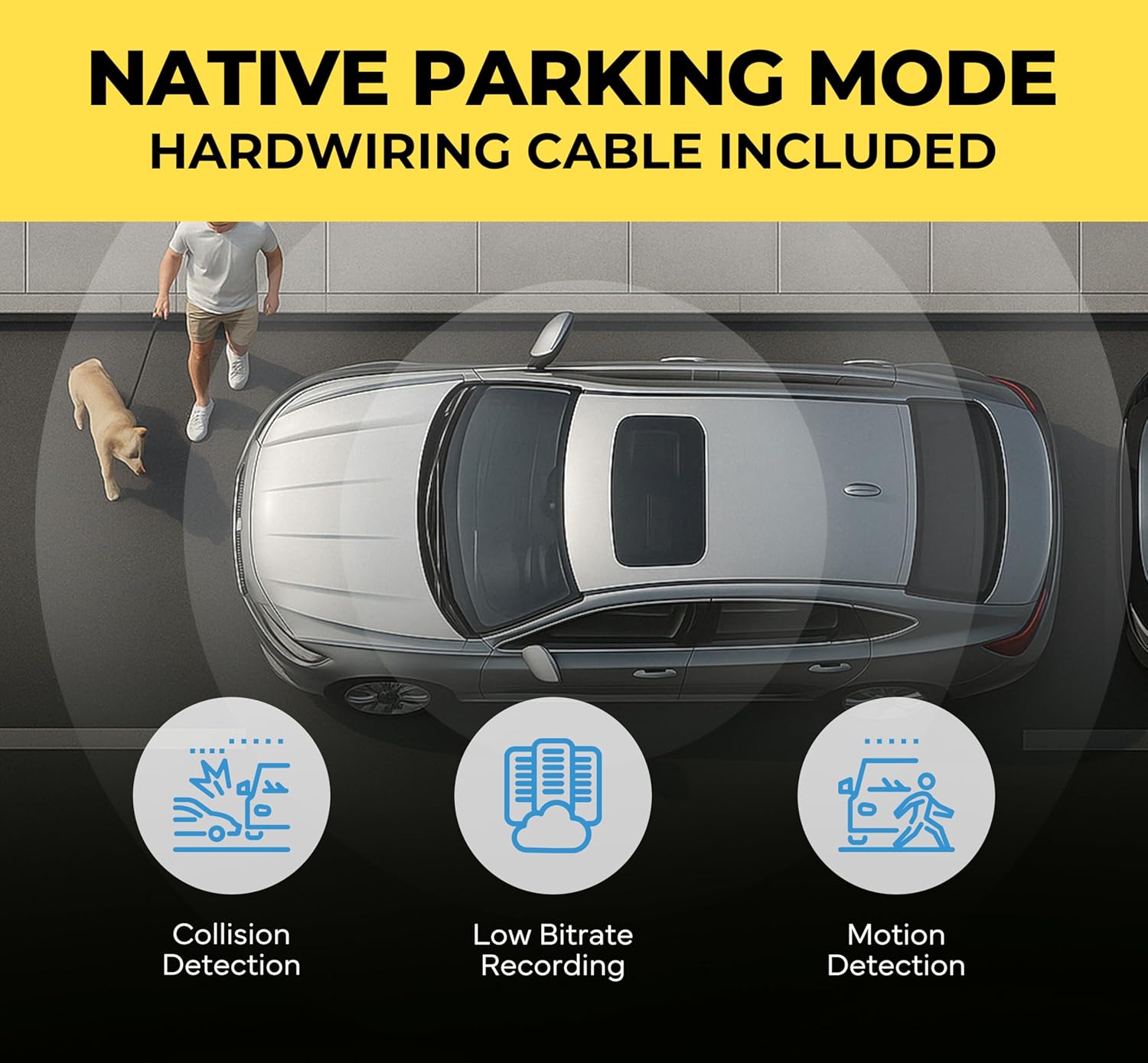
Image 1: Included Components. This image displays all items found in the BlackVue DR970X Box-2CH Plus package, such as the main unit, front and rear cameras, SOS button, external GPS, power cables, camera connection cables, microSD card, card reader, and installation tools.
- 1 x Main unit
- 1 x Front camera
- 1 x Rear camera
- 1 x SOS button
- 1 x External GPS module
- 1 x Main unit cigarette lighter power cable
- 2 x Camera connection cables
- 1 x Main unit hardwiring power cable
- 1 x microSD card (128 GB)
- 1 x microSD card reader
- 1 x Quick start guide
- 1 x Velcro strip
- 1 x Pry tool
- 1 x Main unit key
- 1 x Allen wrench
- Spare mount sticky pads and screws
- 8 x Cable clips
2. Setup and Installation
2.1. Physical Installation
The DR970X Box-2CH Plus features a modular design, allowing for discreet placement of the main recording unit and compact cameras.
- Main Unit Placement: The main recording unit, which houses the microSD card, should be installed in a secure and hidden location, such as under a seat or in the glove compartment. This design helps prevent overheating and enhances security.
- Front Camera Installation: Mount the front camera on the windshield, typically behind the rearview mirror, to ensure an unobstructed view of the road ahead. Use the provided adhesive pads for secure attachment.
- Rear Camera Installation: Mount the rear camera on the rear windshield, ensuring it captures a clear view of the vehicle's rear. Connect it to the main unit using the provided camera connection cable.

Image 2: Stealth Recording with Secure Box Design. This image illustrates the modular design, showing the main unit hidden in the glove compartment and the compact front camera mounted discreetly on the windshield.
2.2. Power Connection
The dash cam can be powered via the cigarette lighter adapter or hardwired for Parking Mode functionality.
- Cigarette Lighter Power: For basic operation, connect the main unit using the cigarette lighter power cable to your vehicle's 12V auxiliary power socket.
- Hardwiring for Parking Mode: To enable Parking Mode, use the hardwiring cable to connect the dash cam to your vehicle's fuse panel. This allows the dash cam to continue monitoring your vehicle when the ignition is off, with built-in battery protection to prevent draining the vehicle's battery.
2.3. MicroSD Card Insertion
Insert the provided microSD card into the designated slot on the main recording unit. Ensure the card is inserted correctly until it clicks into place.
2.4. Initial Setup with BlackVue App
The BlackVue App is essential for initial setup, managing settings, and accessing recordings.
- Download the App: Download the free BlackVue App from the Google Play Store or Apple App Store.
- Power On: Turn on your vehicle's ignition to power the dash cam. Ensure the Wi-Fi LED on the dash cam is active.
- Connect via Wi-Fi: On your smartphone, go to Wi-Fi settings and connect to your BlackVue dash cam's Wi-Fi network. The Wi-Fi password is typically printed on a sticker on the dash cam or its packaging.
- Register Device: Open the BlackVue App, create an account, and register your dash cam by scanning the QR code found on the product box or under the dash cam's mount.

Image 3: Seamless Pairing with the BlackVue App. This image demonstrates connecting the dash cam to the BlackVue app on a smartphone for easy setup and control.
Video 2: BlackVue Dash Cameras - Wi-Fi Tutorial. This video guides users through connecting their BlackVue dash cam to Wi-Fi, managing video files, and updating firmware via the BlackVue App.
3. Operating Instructions
3.1. Recording Modes
The DR970X Box-2CH Plus supports various recording modes to ensure comprehensive coverage:
- Normal Recording: Continuous recording while the vehicle is in motion.
- Event Recording: Triggered by impacts or sudden changes in speed detected by the G-sensor. These videos are saved separately to prevent overwriting.
- Manual Recording: Initiated by pressing the SOS button, allowing you to manually record important events.
- Parking Mode: Automatically activated when the vehicle's ignition is turned off (requires hardwiring). It records motion and impact events while parked.

Image 4: Crash Detection with Pre-Buffer. This image highlights the dash cam's ability to record 10 seconds before and 1 minute after an impact, ensuring no critical moments are missed.
3.2. Parking Mode with Battery Protection
When hardwired, the dash cam automatically switches to Parking Mode. It continuously monitors your vehicle's battery voltage and automatically shuts down if the voltage drops below a set threshold, preventing battery drain. Voltage cutoff and timer values can be configured via the BlackVue App.

Image 5: Native Parking Mode. This image explains the Native Parking Mode feature, including hardwiring for continuous monitoring and battery protection.
3.3. Cloud Features
The BlackVue DR970X Box-2CH Plus is Cloud compatible via a Wi-Fi hotspot or an optional CM100G LTE module, offering advanced remote functionalities:
- Remote Live View: Access a real-time view through your dash cam from anywhere.
- Push Notifications: Receive instant alerts on your smartphone for detected impacts or events in Parking Mode.
- Live Event Upload (Auto Backup): Event videos are automatically uploaded to the Cloud for secure storage.
- Real-time Location Tracking: Monitor your vehicle's location.
- Two-Way Voice Communication: Communicate through the dash cam (if supported by accessories).

Image 6: Cloud Dashcam, Always On! This image illustrates the various cloud functionalities available through the BlackVue app, including live view, instant alerts, and cloud backup.
Video 3: BlackVue Cloud Promo Video. This video demonstrates the benefits and setup process for BlackVue Cloud features, including remote access and notifications.
4. Maintenance
4.1. MicroSD Card Management
Regular maintenance of the microSD card is crucial for optimal performance:
- Formatting: Periodically format the microSD card using the BlackVue App to ensure stable recording and prevent data corruption.
- Replacement: MicroSD cards have a limited lifespan. Replace the card if you experience frequent errors or recording issues.
4.2. Firmware Updates
Keep your dash cam's firmware updated to ensure the latest features and bug fixes. Firmware updates can be performed via the BlackVue App (Firmware Over-The-Air - FOTA) or by manually loading the firmware onto the microSD card.
4.3. Cleaning
Gently clean the camera lenses and the main unit with a soft, dry cloth. Avoid using harsh chemicals that could damage the device.
5. Troubleshooting
If you encounter issues with your BlackVue DR970X Box-2CH Plus, consider the following common solutions:
- No Power: Ensure all power cables are securely connected. If hardwired, check the fuse connection.
- Recording Issues: Format the microSD card. If issues persist, try a new BlackVue-approved microSD card.
- Wi-Fi Connection Problems: Verify the Wi-Fi password and ensure the dash cam's Wi-Fi is enabled. Try restarting both the dash cam and your smartphone.
- Cloud Connectivity Issues: Ensure your dash cam has a stable internet connection (via Wi-Fi hotspot or LTE module). Check your BlackVue Cloud account status in the app.
- Audio Buzzing: Some users have reported audio buzzing. Ensure all cables are properly routed and not interfering with other vehicle electronics. If the issue persists, contact customer support.
- Overheating: The modular design helps mitigate overheating. Ensure the main unit is placed in a well-ventilated, cooler location within the vehicle.
6. Specifications
Key technical specifications for the BlackVue DR970X Box-2CH Plus:
| Feature | Specification |
|---|---|
| Front Camera Resolution | 4K Ultra HD (3840x2160) @ 30FPS |
| Rear Camera Resolution | Full HD (1920x1080) @ 30FPS |
| Front Sensor | STARVIS 2 CMOS sensor |
| Rear Sensor | STARVIS CMOS sensor |
| Field of View (Front) | 146 Degrees |
| Field of View (Rear) | 131 Degrees |
| Connectivity | Built-in Wi-Fi (5GHz), Optional LTE via CM100G LTE module |
| GPS | External GPS included |
| Storage | Micro SD Card (up to 512GB supported, 128GB included) |
| Special Features | Separate Secure Recording Box, Native Parking Mode with Battery Protection, Cloud Features, Heat Resistant Design |

Image 7: 4K STARVIS 2 Sensor. This image demonstrates the superior low-light performance of the STARVIS 2 sensor for the front camera and the wide field of view for both front and rear cameras.
7. Warranty and Support
7.1. Warranty Information
The BlackVue DR970X Box-2CH Plus comes with a 2-year manufacturer warranty, providing extended confidence in your purchase.
7.2. Customer Support
For further assistance, detailed FAQs, or to contact customer support, please visit the official BlackVue website. You can also refer to the quick start guide included in your package for immediate assistance.


