
SteelSeries SteelSeries Alias USB Mic for PC
SteelSeries Alias USB Microphone User Manual
Model: SteelSeries Alias USB Mic for PC
Introduction
The SteelSeries Alias USB Microphone is designed for high-quality audio capture for gaming, streaming, and podcasting. It features a unidirectional polar pattern, USB connectivity, and integrates with Sonar software for advanced audio control, including AI noise cancellation. The microphone also includes LED indicators for audio status and a customizable RGB light for ambient effects. An integrated shock mount helps reduce unwanted vibrations.
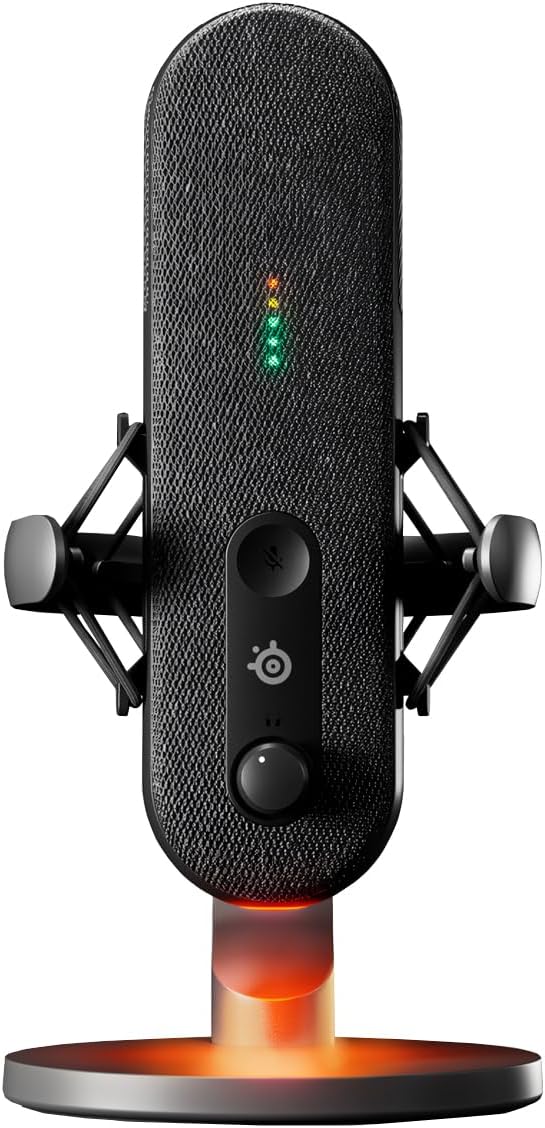
Image: Front view of the SteelSeries Alias USB Microphone, showcasing its sleek design and the LED indicators that display audio levels and mute status.
Setup Guide
1. Unboxing and Components
Carefully remove all components from the packaging. The box should contain the SteelSeries Alias USB Gaming Microphone and its integrated stand.

Image: An exploded view illustrating the main microphone unit, the detachable desk stand, and the screw used for assembly or alternative mounting.
2. Connecting the Microphone
- Place the microphone on a stable surface using its integrated stand.
- Locate the USB Type-C port at the bottom of the microphone.
- Connect the provided USB Type-C cable to the microphone and the other end to an available USB port on your PC.

Image: A visual representation of connecting the USB-C cable to the microphone's port, highlighting the simple plug-and-play setup.
3. Software Installation (Sonar for Streamers)
For optimal performance and access to advanced features like AI Noise Cancellation and customizable RGB lighting, download and install the SteelSeries Sonar software from the official SteelSeries website. This software also provides comprehensive audio mixing and routing capabilities.
- Visit the official SteelSeries website.
- Navigate to the support or software section for the Alias microphone.
- Download and run the Sonar software installer.
- Follow the on-screen instructions to complete the installation.
- After installation, ensure the SteelSeries Alias is selected as your default input device in your operating system's sound settings and within the Sonar software.

Image: The SteelSeries Alias microphone positioned on a desk, with a computer screen in the background showing the detailed interface of the Sonar audio software, illustrating its integration.
Operating the Microphone
1. Microphone Controls
The SteelSeries Alias features intuitive controls for easy operation:
- Mute Button: Located on the front of the microphone. Press to toggle mute on/off. The LED indicators will change to reflect the mute status.
- Volume Control: A knob on the front of the microphone to adjust the headphone monitoring volume.
- Gain Knob: Located on the back of the microphone. This knob controls the input sensitivity (gain) of the microphone. Adjust this to ensure your voice is captured at an appropriate level without distortion.

Image: A detailed view of the SteelSeries Alias microphone, highlighting the brand logo and the gain control knob, which allows for precise input level adjustments.

Image: An underside view of the microphone, clearly showing the USB-C connection port for power and data, and the 3.5mm headphone jack for direct audio monitoring.
2. LED Indicators
The front-facing LED lights provide visual feedback on your audio status:
- Green/Yellow/Red: Indicate real-time audio levels. Aim for levels that are mostly green, occasionally yellow, and rarely red to avoid clipping.
- Red (Solid): Indicates the microphone is muted.
3. Polar Pattern and Placement
The Alias microphone utilizes a Unidirectional polar pattern, meaning it primarily picks up sound from the front, while rejecting sound from the sides and rear. For best results:
- Position the microphone directly in front of you, facing your mouth.
- Maintain a consistent distance from the microphone (e.g., 6-12 inches) to ensure consistent audio levels.
- Utilize the integrated shock mount to minimize vibrations and handling noise.

Image: A detailed shot of the microphone's internal shock mount, designed to isolate the capsule from vibrations and desk noise.

Image: An abstract graphic depicting sound waves converging towards a microphone, illustrating the concept of sound capture and directional sensitivity, regardless of proximity or vocal intensity.
4. Sonar Software Features
The Sonar software unlocks the full potential of your Alias microphone:
- AI Noise Cancellation: Reduces background noise for clearer audio. Configure sensitivity levels within Sonar.
- Customizable RGB Lighting: Personalize the microphone's base lighting to match your setup or mood.
- Audio Mixer: Manage multiple audio sources and outputs, including game audio, chat, and microphone levels.
- Equalizer: Fine-tune your microphone's sound profile for specific applications or vocal characteristics.
Maintenance
To ensure the longevity and optimal performance of your SteelSeries Alias microphone, follow these simple maintenance guidelines:
- Cleaning: Use a soft, dry, lint-free cloth to wipe down the exterior of the microphone. Avoid using abrasive cleaners, solvents, or aerosol sprays, as these can damage the finish or internal components.
- Storage: When not in use, store the microphone in a clean, dry environment away from extreme temperatures and direct sunlight.
- Handling: Handle the microphone with care. Avoid dropping it or subjecting it to strong impacts, which can damage the internal capsule or shock mount.
- Cable Care: Do not bend or crimp the USB cable excessively. Always grasp the connector, not the cable, when plugging or unplugging.
Troubleshooting
If you encounter issues with your SteelSeries Alias microphone, refer to the following common problems and solutions:
- No Sound or Low Volume:
- Ensure the microphone is properly connected to your PC's USB port.
- Check the microphone's mute button; ensure the LED indicator is not solid red.
- Adjust the gain knob on the back of the microphone.
- Verify that "SteelSeries Alias" is selected as the default input device in your operating system's sound settings and within the Sonar software.
- Check the volume levels in your communication software (e.g., Discord, Zoom) and within Sonar.
- Background Noise or Echo:
- Ensure AI Noise Cancellation is enabled and configured correctly in the Sonar software.
- Adjust the microphone's gain. Too high gain can pick up more ambient noise.
- Ensure the microphone is positioned correctly, utilizing its unidirectional pattern by facing it directly towards your mouth.
- Check for other audio software or drivers that might be conflicting with Sonar. Disable or uninstall unnecessary audio enhancements.
- Microphone Disconnects Randomly:
- Try connecting the microphone to a different USB port on your PC.
- Ensure the USB cable is securely connected at both ends. Try a different USB-C cable if available.
- Update your PC's USB drivers.
- Disable USB selective suspend settings in your Windows power options (for PC users).
- Missing Components (e.g., Boom Arm Attachment):
The SteelSeries Alias USB Gaming Microphone is designed to be used with its included integrated stand. While it can be mounted on a standard boom arm, specific boom arm attachments are typically sold separately and are not included with the microphone itself. Please verify the contents listed in the "What's in the Box" section of your product packaging.
Specifications
| Model Name | SteelSeries Alias USB Mic for PC |
| Brand | SteelSeries |
| Connectivity Technology | USB |
| Connector Type | USB Type-C |
| Polar Pattern | Unidirectional |
| Microphone Form Factor | Handheld (with integrated stand) |
| Hardware Platform | PC |
| Color | Black |
| Item Dimensions (L x W x H) | 12.2 x 10.3 x 6.8 inches |
| Item Weight | 3.08 pounds |
| Included Components | Alias USB Gaming Microphone |
| UPC | 657768932052 |
Warranty Information
Specific warranty terms and conditions for the SteelSeries Alias USB Microphone are provided by the manufacturer. Please refer to the warranty card included with your product packaging or visit the official SteelSeries website for detailed information regarding warranty coverage, duration, and claims process.
Customer Support
For technical assistance, troubleshooting beyond this manual, or general inquiries about your SteelSeries Alias USB Microphone, please contact SteelSeries customer support. You can typically find support contact information, FAQs, and additional resources on the official SteelSeries website:
Ask a question about this manual
Ask about setup, troubleshooting, compatibility, parts, safety, or missing instructions. Manuals+ will review the question and use this page’s manual context to help answer it.