
1. Introduction
This manual provides detailed instructions for the safe and efficient operation of your Xprinter XP-P323B Portable Thermal Printer. Please read this manual thoroughly before using the device to ensure proper functionality and to prevent damage. The XP-P323B is designed for printing receipts and labels, offering portability and high-speed capabilities for various business needs.
2. Safety Information
- Do not expose the printer to water or excessive moisture.
- Avoid dropping the printer or subjecting it to strong impacts.
- Use only the specified power adapter and accessories.
- Keep the printer away from heat sources and direct sunlight.
- Do not attempt to disassemble or repair the printer yourself. Contact qualified service personnel.
- Ensure proper ventilation during operation.
3. Package Contents
Verify that all items are present in the package:
- Xprinter XP-P323B Portable Thermal Printer
- Power Adapter (not explicitly listed but standard)
- USB Cable (not explicitly listed but standard)
- Sample Thermal Paper Roll (not explicitly listed but standard)
- User Manual (this document)
4. Product Overview
The Xprinter XP-P323B is a compact and efficient thermal printer designed for various printing tasks. It supports NV logo download and picture printing (BMP format), along with concentration adjustment for print quality.
4.1. Printer Components

Figure 1: Front view of the Xprinter XP-P323B Portable Thermal Printer, showing the power button, display, and a sample label being printed.
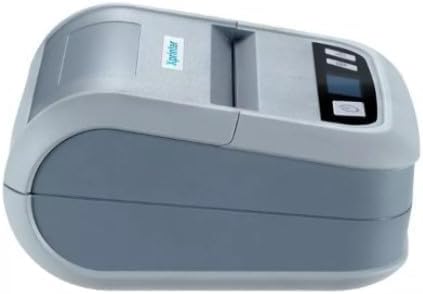
Figure 2: Side view of the Xprinter XP-P323B, highlighting its compact design and the Xprinter logo.
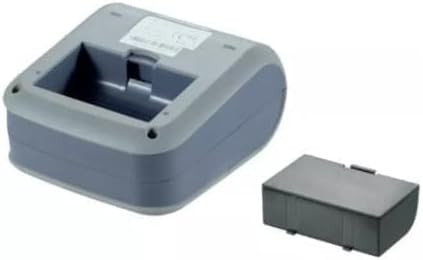
Figure 3: Underside view of the Xprinter XP-P323B, showing the base and the removable battery compartment.
5. Setup
5.1. Charging the Battery
- Connect the power adapter to the printer's charging port.
- Plug the power adapter into a wall outlet.
- The charging indicator light will illuminate. Allow the printer to charge fully before first use.
5.2. Loading Thermal Paper/Labels
- Open the paper compartment cover by gently pushing the release latch.
- Insert the thermal paper roll with the printing surface facing the print head. Ensure the roll is seated correctly.
- Pull a small amount of paper out past the print head.
- Close the paper compartment cover firmly until it clicks into place.
5.3. Connecting to a Device
The XP-P323B supports USB and Bluetooth connectivity.
5.3.1. USB Connection
- Connect the printer to your computer using the provided USB cable.
- Install the necessary printer drivers (available from the Xprinter website or included software).
5.3.2. Bluetooth Connection (for Smartphones/iOS)
- Ensure the printer is powered on.
- On your smartphone or iOS device, go to Bluetooth settings and enable Bluetooth.
- Search for available devices and select 'XP-P323B' (or similar name).
- Enter the pairing PIN if prompted (refer to printer documentation for default PIN, often '0000' or '1234').
- Once paired, you can use a compatible printing application to send print jobs.
6. Operating the Printer
6.1. Basic Printing
- Ensure the printer is connected to your device and has paper loaded.
- Open the document or image you wish to print on your connected device.
- Select the print option within your application.
- Choose 'XP-P323B' as the printer.
- Adjust print settings as needed (e.g., paper size, print quality).
- Initiate the print job.
6.2. NV Logo and Picture Printing
The printer supports downloading and printing NV (Non-Volatile) logos and BMP format pictures. This functionality typically requires specific software or commands. Refer to the advanced programming guide or software documentation for detailed instructions on how to upload and print custom logos or images.
6.3. Adjusting Print Concentration
Print concentration can be adjusted to optimize print quality. This setting is usually accessible through the printer driver software on a computer or within the settings of a compatible mobile printing application. Consult your software's help section for specific steps.
7. Maintenance
7.1. Cleaning the Printer
- Exterior: Wipe the exterior of the printer with a soft, damp cloth. Do not use harsh chemicals or abrasive cleaners.
- Print Head: The thermal print head should be cleaned periodically to ensure optimal print quality. Use a cotton swab lightly dampened with isopropyl alcohol. Gently wipe the print head surface. Allow it to dry completely before closing the cover and resuming operation.
- Paper Path: Remove any paper dust or debris from the paper path using a soft brush or compressed air.
7.2. Storage
When not in use for extended periods, store the printer in a cool, dry place, away from direct sunlight and extreme temperatures. Remove the paper roll if storing for a very long time to prevent dust accumulation.
8. Troubleshooting
| Problem | Possible Cause | Solution |
|---|---|---|
| Printer does not power on | Low battery; Power adapter not connected; Faulty power adapter | Charge the battery; Ensure power adapter is securely connected; Try a different power outlet or adapter |
| No print output | No paper; Paper loaded incorrectly; Printer not connected; Driver issue | Load paper correctly; Re-establish connection; Reinstall printer drivers |
| Poor print quality | Dirty print head; Low print concentration; Low battery | Clean the print head; Adjust print concentration in software; Charge the battery |
| Bluetooth connection fails | Bluetooth off on device; Incorrect pairing PIN; Printer out of range | Enable Bluetooth; Re-enter correct PIN; Move device closer to printer |
9. Specifications
| Brand | Xprinter |
| Model Number | XP-P323B |
| Item Dimensions (D x W x H) | 15D x 7W x 10H centimeters |
| Connectivity Technology | USB |
| Printer Technology | Thermal |
| Special Features | Portable |
| Color | Grey |
| Compatible Devices | Smartphones |
| Controller Type | iOS |
| Maximum Media Size | 4 x 6 inch |
| Print Media | Labels |
| Paper Size | 4 x 6 inch |
| Printer Output | Monochrome |
| Maximum Print Speed (Black and White) | 40 mm/s (estimated from context) |
| Item Weight | 300 Grams |
10. Warranty and Support
For warranty information and technical support, please refer to the warranty card included with your product or visit the official Xprinter website. Keep your purchase receipt as proof of purchase for warranty claims.


