Introduction
This manual provides essential information for the safe and efficient operation, maintenance, and troubleshooting of your Samsung PowerBot-E Smart Robot Vacuum Cleaner, model VR05R5050WK/AX. Please read this manual thoroughly before using the appliance and retain it for future reference.
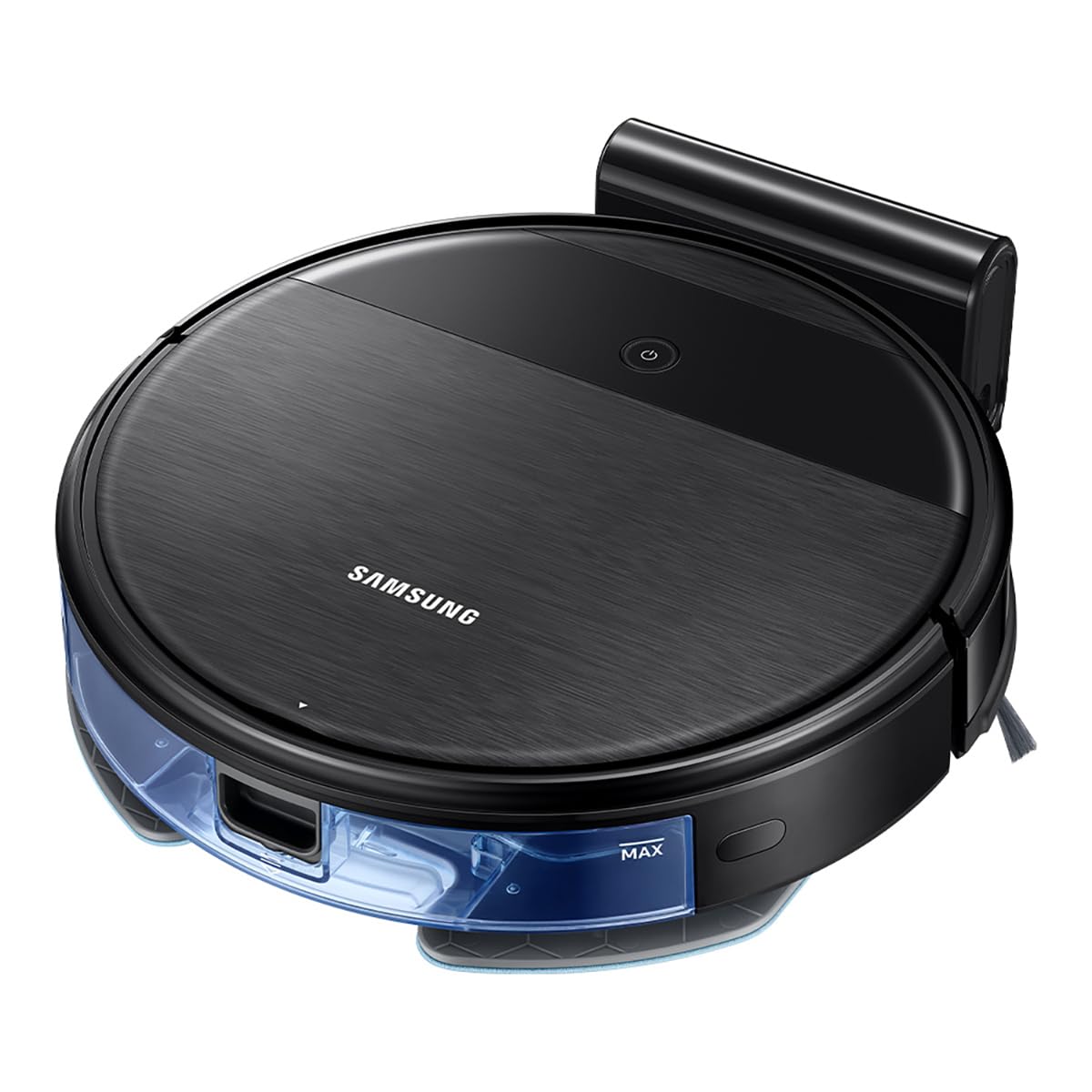
The Samsung PowerBot-E is designed to clean and mop floors simultaneously, offering a 2-in-1 cleaning system. It features Wi-Fi control for remote operation and a smart sensing system to prevent collisions and falls.
Package Contents
Verify that all components are present in the package:
- PowerBot-E Robot Vacuum Cleaner
- Docking Station
- Filter (1 installed, 1 extra)
- Mop (2 units)
- Remote Control
- Side Brush (1 installed, 1 extra)

Important Safety Information
Always follow basic safety precautions when using electrical appliances to reduce the risk of fire, electric shock, or injury.
- Do not operate the vacuum cleaner near flammable materials or liquids.
- Ensure the charging dock is placed on a flat, stable surface away from water.
- Keep hair, loose clothing, fingers, and all parts of the body away from openings and moving parts.
- Do not pick up large objects, sharp objects, or liquids with the vacuum.
- Supervise children and pets when the vacuum is operating.
- Only use manufacturer-recommended attachments and accessories.
Setup
1. Charging the Battery
- Place the docking station against a wall in an open area, ensuring there are no obstacles within 0.5 meters to either side and 1.5 meters in front.
- Connect the power adapter to the docking station and plug it into a wall outlet.
- Place the PowerBot-E onto the docking station. Ensure the charging contacts on the vacuum align with those on the dock. The indicator light will show charging status.
- Allow the vacuum to fully charge before first use (approximately 4 hours). A full charge provides up to 150 minutes of cleaning time.

2. Installing Side Brushes and Mop Pad
- Turn the robot vacuum upside down.
- Align the side brushes with the corresponding posts and press them down until they click into place.
- Attach a clean mop pad to the mop holder. Fill the water tank if using the mopping function.
- Slide the mop holder with the attached pad into the slot at the rear of the vacuum until it clicks.


3. Wi-Fi Connection (SmartThings App)
- Download the Samsung SmartThings app from your device's app store.
- Create a Samsung account or log in.
- Follow the in-app instructions to add your PowerBot-E device. This will enable remote control and scheduling features.
Operating Instructions
Starting a Cleaning Cycle
- Manual Start: Press the Power button on the top of the vacuum. The vacuum will begin cleaning in Auto mode.
- Remote Control: Use the provided remote control to start, stop, or select cleaning modes.
- SmartThings App: Use the app to start cleaning, set schedules, or choose specific cleaning modes from your smartphone.
Cleaning Modes
- Auto Mode: The vacuum cleans systematically until the battery is low, then returns to the docking station.
- Spot Mode: Cleans a specific area more intensely.
- Edge Mode: Cleans along walls and furniture edges.
- Max Mode: Provides maximum suction power for deep cleaning.
2-in-1 Vacuuming and Mopping
The PowerBot-E can vacuum and mop simultaneously. When the mop pad is attached and the water tank is filled, the vacuum automatically detects the mop and adjusts water flow for optimal mopping.

Smart Sensing System
The integrated smart sensing system helps the vacuum navigate around obstacles and avoid falling down stairs. For optimal performance, ensure the floor is clear of small objects, cables, and thick rugs that could obstruct its path.
Maintenance
Regular maintenance ensures optimal performance and extends the lifespan of your robot vacuum.
1. Emptying the Dustbin
- Press the dustbin release button and pull out the dustbin.
- Open the dustbin lid and empty its contents into a trash can.
- Rinse the dustbin with water if necessary, ensuring it is completely dry before reinserting.
2. Cleaning the Filter
- Remove the filter from the dustbin.
- Tap the filter gently to remove dust. Do not wash the HEPA filter with water.
- Replace the filter every 3-6 months, or as needed, to maintain suction power.
3. Cleaning the Main Brush and Side Brushes
- Remove the main brush cover and lift out the main brush.
- Use the cleaning tool (if provided) or scissors to cut and remove any hair or debris wrapped around the brush.
- Pull off the side brushes and remove any tangled hair or debris. Reattach them securely.

4. Cleaning the Mop Pad and Water Tank
- Remove the mop pad after each use and wash it thoroughly. Allow it to air dry completely.
- Empty any remaining water from the water tank and rinse it. Ensure the tank is dry before storage.
5. Cleaning Sensors and Charging Contacts
- Wipe the cliff sensors (located on the bottom of the vacuum) and charging contacts (on the vacuum and docking station) with a clean, dry cloth.
Troubleshooting
| Problem | Possible Cause | Solution |
|---|---|---|
| Vacuum does not start or respond. | Low battery; Power switch off; Obstruction. | Charge the vacuum; Ensure power switch is ON; Remove any obstructions. |
| Vacuum gets stuck frequently. | Cables, small objects, or thick rugs on the floor. | Clear the cleaning area of obstacles. Avoid using on very thick carpets. |
| Poor cleaning performance. | Full dustbin; Clogged filter; Tangled brushes. | Empty dustbin; Clean or replace filter; Clean main and side brushes. |
| Vacuum does not return to charging dock. | Docking station obstructed; Vacuum too far from dock; Dirty charging contacts. | Ensure clear path to dock; Manually place on dock; Clean charging contacts. |
| Mopping function not working. | Water tank empty; Mop pad not attached correctly. | Fill water tank; Ensure mop pad is securely attached. |
If the problem persists, please refer to the Samsung support website or contact customer service.
Specifications
| Feature | Detail |
|---|---|
| Model Name | Aspiradora Robot PowerBot-E (VR05R5050WK/AX) |
| Brand | Samsung |
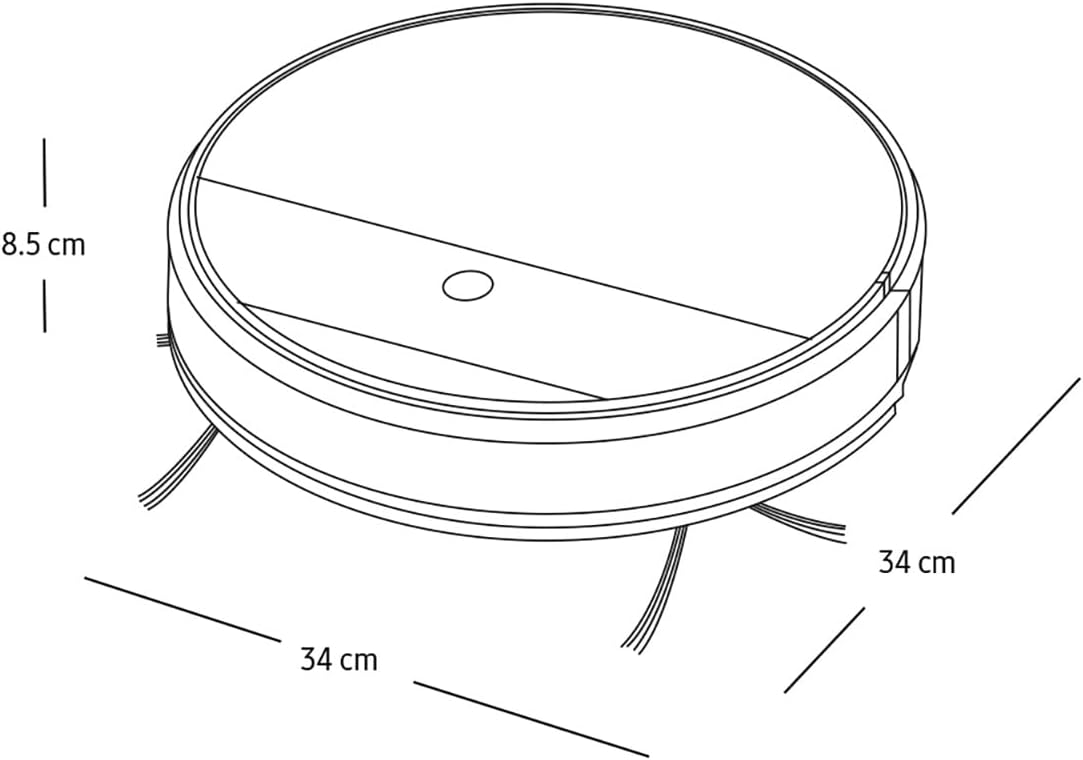
| Dimensions (L x W x H) | 34L x 34W x 8.5H Centimetres |
| Weight | 3 Kilograms |
| Battery Life | Up to 150 minutes |
| Control Method | Remote Control, App Control (SmartThings) |
| Surface Recommendation | All Floor Types |
| Noise Level | 77 Decibels |
| Included Components | Docking Station, Filter, Mop, Remote Control, Side Brush |
Warranty and Support
For warranty information, please refer to the warranty card included with your product or visit the official Samsung website. Keep your purchase receipt as proof of purchase for warranty claims.
For technical support, spare parts, or service inquiries, please contact Samsung Customer Service or visit their support portal:
- Samsung Official Website: www.samsung.com
- Customer Support: Refer to your regional Samsung website for local contact numbers.


