
1. Introduction
Thank you for choosing the OSALO Desktop Calculator OS-8812T. This 12-digit desktop calculator is designed for both home and office use, offering a large display, comfortable keys, and essential functions including a tax calculation feature. This manual provides detailed instructions for setup, operation, maintenance, and troubleshooting to ensure optimal performance and longevity of your device.
2. Key Features
- Tax Rate Calculator Function: Simplifies tax calculations with integrated tax rate adjustments (TAX+, TAX-).
- Large 12-Digit LCD Display: High-resolution display for clear and easy readability, tilted at 15 degrees for improved viewing comfort.
- Ergonomic Concave Round Buttons: Designed for comfortable and accurate input, adapting to your fingertips.
- Sensitive Keys: Ensures quick and precise typing.
- Dual Power Source: Operates on solar energy and a single LR44 battery (included), providing reliable power and energy efficiency.
- Anti-Slip Design: Features anti-slip mats for stability during use.
3. Product Overview and Dimensions
Familiarize yourself with the calculator's layout and physical specifications.

Image: Front and side view of the OSALO Desktop Calculator OS-8812T, illustrating its dimensions (189mm length, 140mm width, 31mm height, 15-degree display tilt).

Image: Detailed view of the OSALO Desktop Calculator OS-8812T with key functions labeled, including Operation Symbol Display, Grand Total (GT), Memory Plus/Minus (M+, M-), Back Space, All Clear (AC), Tax Rate Settings (TAX+, TAX-), Memory Load/Clear (MRC), and Root (√).
4. Setup
4.1 Power Source
The OSALO OS-8812T calculator operates using a dual power system: solar energy and a single LR44 battery. The calculator will automatically switch to battery power in low light conditions.
Battery Installation/Replacement:
- Ensure the calculator is turned off.
- Locate the battery compartment on the back of the calculator.
- Use a small screwdriver to open the battery cover.
- Insert one LR44 battery, ensuring the correct polarity (+/-).
- Replace the battery cover and secure it.

Image: The underside of the OSALO Desktop Calculator, highlighting the battery compartment and the anti-slip mats at each corner.
4.2 Initial Use
Press the AC (All Clear) button to clear any previous calculations and ensure the display shows '0'. The calculator is now ready for use.
5. Operating Instructions
5.1 Basic Arithmetic Operations
Perform addition, subtraction, multiplication, and division using the respective keys (+, -, ×, ÷) and the equals (=) key.
5.2 Tax Calculation Function
The calculator features dedicated keys for tax calculations (TAX+, TAX-). This function simplifies adding or subtracting a predefined tax rate.
Setting the Tax Rate:
- Press AC to clear the display.
- Press the RATE button.
- Enter the desired tax rate (e.g., 8 for 8%).
- Press RATE again to save the tax rate. The display will show the set rate.
Using Tax Functions:
- TAX+: To add tax to an amount, enter the amount, then press TAX+. The display will show the amount including tax.
- TAX-: To subtract tax from an amount, enter the amount, then press TAX-. The display will show the amount excluding tax.
- RECALL: To check the currently set tax rate, press RECALL.

Image: A table demonstrating the purpose, operation, and result for various tax functions, including setting an 8% tax rate, calculating total amount after tax, and total amount before tax.
5.3 Memory Functions
- M+: Adds the displayed value to the memory.
- M-: Subtracts the displayed value from the memory.
- MRC: Recalls the memory content. Pressing it twice clears the memory.
- GT (Grand Total): Accumulates the results of all calculations. Pressing it twice clears the grand total.
5.4 Other Functions
- %: Percentage key.
- √: Square root key.
- Back Space (►): Deletes the last entered digit.
- C/CE: Clear Entry. Clears the last entry without clearing the entire calculation.
5.5 Ergonomic Design
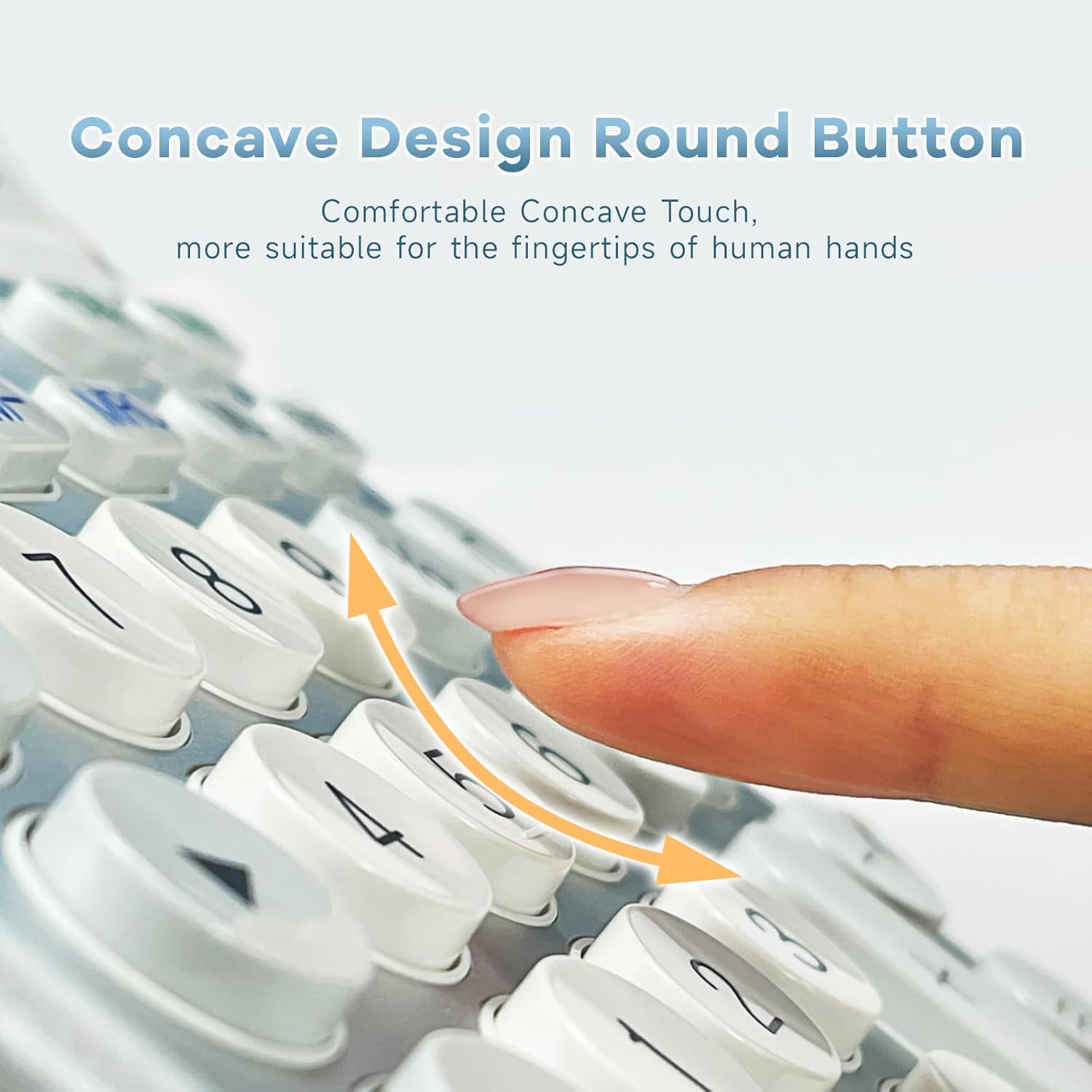
Image: A close-up view of the calculator's concave round buttons, designed for comfortable and precise finger placement during operation.

Image: A diagram illustrating the 30-degree ergonomic tilt of the calculator, showing how it provides an optimal viewing angle for users at a desk.
5.6 Instructional Videos
Video: This video demonstrates the OSALO Desktop Calculator's large display, comfortable buttons, and solar power feature, showcasing its quick response and suitability for office and financial tasks.
Video: This video highlights the OSALO Calculator's large display, large buttons, and solar power capabilities, emphasizing its ease of use for various calculations.
6. Maintenance
6.1 Cleaning
To clean the calculator, gently wipe the surface with a soft, dry cloth. For stubborn dirt, slightly dampen the cloth with water and mild soap, then wipe dry immediately. Avoid using abrasive cleaners, solvents, or spraying liquids directly onto the calculator.
6.2 Battery Care
If the calculator will not be used for an extended period, it is recommended to remove the LR44 battery to prevent leakage and potential damage to the device.
6.3 Storage
Store the calculator in a cool, dry place away from direct sunlight, extreme temperatures, and high humidity. Keep it away from strong magnetic fields.
7. Troubleshooting
- Display is blank or dim:
- Ensure sufficient light for solar power.
- Check if the LR44 battery is correctly installed and not depleted. Replace if necessary.
- Press AC to reset.
- Incorrect calculations:
- Press AC to clear all previous operations and memory.
- Verify the input sequence and numbers.
- Check if any memory functions (M+, M-, GT) are active and affecting the result.
- Keys are unresponsive:
- Ensure the calculator is powered on.
- Clean around the keys to remove any debris.
- If the issue persists, try replacing the battery.
8. Specifications
| Feature | Specification |
|---|---|
| Brand | OSALO |
| Model Name | OS 8812T |
| Display Type | LCD |
| Display Size | 12 Centimeter (approx. 4.7 inches) |
| Number of Digits | 12 |
| Power Source | Solar and Battery |
| Battery Type | 1 x LR44 (included) |
| Material Type | Metal, Plastic |
| Product Dimensions | 18.9 x 14 x 0.1 cm (7.44 x 5.5 x 0.04 inches) |
| Weight | 240 g |
| Color | White & Silver |
9. Safety Information
- Do not attempt to disassemble or modify the calculator.
- Keep the calculator away from water and other liquids to prevent damage.
- Avoid dropping the calculator or subjecting it to strong impacts.
- Keep batteries out of reach of children. If swallowed, seek immediate medical attention.
10. Warranty and Support
For warranty information and customer support, please refer to the documentation provided with your purchase or contact OSALO customer service directly. Keep your proof of purchase for any warranty claims.