
1. Introduction
Welcome to the user manual for your new Generic M10 TWS Bluetooth 5.1 Earbuds. This guide provides detailed instructions on how to set up, operate, and maintain your earbuds to ensure optimal performance and longevity. Please read this manual carefully before using the product.
2. Package Contents
- Generic M10 TWS Bluetooth Earbuds (Left and Right)
- Charging Case
- USB Charging Cable
- User Manual
- Ear Tips (various sizes, typically S/M/L)
3. Product Overview
The Generic M10 TWS Earbuds are designed for a superior audio experience with Bluetooth 5.1 connectivity, noise reduction, and a built-in microphone for calls. The compact charging case also features a digital display for battery status.

Image 3.1: M10 TWS Earbuds and Charging Case. The case features a digital display indicating battery levels for both earbuds and the case itself.

Image 3.2: M10 Bluetooth Headset highlighting the three-screen digital display for battery information.

Image 3.3: Close-up of the HD LED display on the charging case, showing individual earbud battery indicators and the case's charge percentage.
4. Setup
4.1 Charging the Earbuds and Case
Before first use, fully charge the earbuds and the charging case. The charging case acts as a power bank for the earbuds.
- Place the earbuds into the charging case. Ensure they are correctly seated; magnetic contacts will hold them in place.
- Connect the USB charging cable to the charging port on the case and the other end to a USB power source (e.g., wall adapter, computer).
- The LED digital display on the case will show the charging status. The percentage indicates the case's battery level, and individual bars indicate earbud charging.
- Once fully charged, disconnect the charging cable.
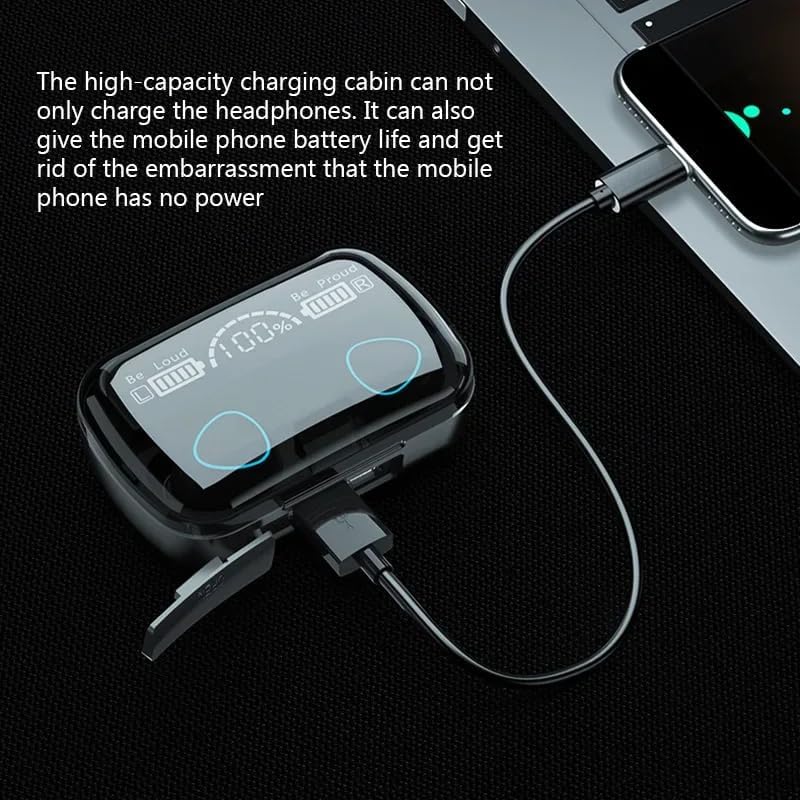
Image 4.1: The charging case can also be used to charge other devices, functioning as a portable power bank.

Image 4.2: The large capacity charging cabin ensures extended battery life for the earbuds and can serve as a backup power source.
4.2 Pairing with a Device
The earbuds will automatically enter pairing mode when removed from the charging case.
- Ensure the earbuds are charged.
- Open the charging case and remove both earbuds. They will automatically power on and attempt to pair with each other.
- On your smartphone or Bluetooth-enabled device (iPhone, Android, etc.), go to the Bluetooth settings.
- Search for available devices and select "M10" (or similar name) from the list.
- Once connected, you will hear a confirmation tone, and the earbuds will be ready for use.
- For subsequent uses, the earbuds will automatically connect to the last paired device when removed from the case.
4.3 Wearing the Earbuds
For optimal sound quality and comfort, ensure the earbuds are properly seated in your ears.
- Identify the Left (L) and Right (R) earbuds.
- Gently insert each earbud into the corresponding ear canal.
- Rotate the earbud slightly until it fits snugly and comfortably.
- If necessary, try different sized ear tips to achieve the best seal and comfort.

Image 4.3: Proper placement of the earbud in the ear for secure fit and optimal audio performance.
5. Operating Instructions
The M10 TWS Earbuds feature touch controls for various functions.
5.1 Power On/Off
- Power On: Remove earbuds from the charging case. They will power on automatically. Alternatively, press and hold the touch panel on both earbuds for 3 seconds.
- Power Off: Place earbuds back into the charging case. They will power off automatically. Alternatively, press and hold the touch panel on either earbud for 5 seconds.
5.2 Music Playback
- Play/Pause: Tap the touch panel on either earbud once.
- Next Track: Double-tap the touch panel on the right earbud.
- Previous Track: Double-tap the touch panel on the left earbud.
5.3 Call Management
- Answer/End Call: Tap the touch panel on either earbud once.
- Reject Call: Press and hold the touch panel on either earbud for 2 seconds.
5.4 Voice Assistant
- Activate Voice Assistant: Triple-tap the touch panel on either earbud.
5.5 Gaming Mode / Low Latency
The earbuds feature an upgraded V5.0 chip for stable transmission, which can provide a low-latency experience suitable for gaming and video playback.

Image 5.1: The M10 earbuds are designed to provide a stable and low-latency audio experience for gaming and media consumption.
6. Maintenance
Proper maintenance ensures the longevity and performance of your earbuds.
- Cleaning: Regularly clean the earbuds and charging case with a soft, dry, lint-free cloth. Do not use harsh chemicals or abrasive materials.
- Ear Tips: Remove ear tips and clean them with mild soap and water if necessary. Ensure they are completely dry before reattaching.
- Charging Contacts: Keep the charging contacts on both the earbuds and the case clean and free of debris to ensure proper charging.
- Storage: When not in use, store the earbuds in their charging case to protect them and keep them charged.
- Water Resistance: The earbuds are rated as water-resistant. This means they can withstand splashes and sweat but are not suitable for submersion in water. Avoid exposing them to heavy rain or swimming.
7. Troubleshooting
If you encounter issues with your M10 TWS Earbuds, refer to the following common problems and solutions:
- Earbuds not pairing with each other:
Place both earbuds back into the charging case, close the lid, then open it and remove them again. This often resets their connection. If the issue persists, try manually resetting them (refer to specific reset instructions if available, or consult manufacturer support).
- Earbuds not connecting to device:
Ensure Bluetooth is enabled on your device. Forget "M10" from your device's Bluetooth list and attempt to pair again. Make sure the earbuds are charged and within range.
- No sound from one earbud:
Check if both earbuds are charged. Try placing them back in the case and removing them. If one earbud is not pairing with the other, follow the steps for "Earbuds not pairing with each other."
- Charging issues:
Ensure the charging cable is securely connected to both the case and the power source. Clean the charging contacts on the earbuds and inside the case. Try a different USB cable or power adapter.
- Poor sound quality:
Ensure the earbuds are properly seated in your ears and that the ear tips provide a good seal. Clean any debris from the earbud nozzles. Move closer to your connected device to avoid interference.
8. Specifications
Below are the technical specifications for the Generic M10 TWS Bluetooth 5.1 Earbuds:
| Feature | Detail |
|---|---|
| Brand | Generic |
| Model | M10 TWS |
| Connectivity Technology | Bluetooth 5.1 |
| Wireless Communication Technology | Bluetooth |
| Noise Control | Active Noise Cancellation (ANC) |
| Compatible Devices | iPhone, Android |
| Water Resistance Level | Water Resistant |
| Cable Feature | Cable-free |
| Product Weight | 100 g |
| Package Dimensions | 11.2 x 10.1 x 3.9 cm |
| Specific Uses | Sport, Gaming, Music, Work, Commute, Travel |

Image 8.1: Dynamic unit design for enhanced audio analysis and high-fidelity sound quality, contributing to strong bass performance.
9. Warranty and Support
Your Generic M10 TWS Bluetooth 5.1 Earbuds come with a standard manufacturer's warranty. For specific warranty terms and conditions, please refer to the documentation included with your purchase or contact the retailer.
If you require further assistance or have questions not covered in this manual, please contact customer support through your point of purchase. Please have your product model and purchase date available when contacting support.


