Introduction
The UltraPro One Touch Replacement Remote is designed to provide immediate control for your television without complex programming. This remote is pre-programmed for popular TV brands including Samsung, LG, Sony, Vizio, and Roku TVs, and also offers universal control for other audio/video equipment. It features dedicated buttons for common streaming applications and an AUX button for an additional device.

Figure 1: UltraPro One Touch Replacement Remote and its packaging.

Figure 2: The UltraPro One Touch Replacement Remote, ready for use.
Setup Guide
1. Battery Installation
The remote requires two (2) AA batteries (not included). To install:
- Locate the battery compartment on the back of the remote.
- Slide the battery cover downwards and remove it.
- Insert two AA batteries, ensuring the positive (+) and negative (-) terminals align with the markings inside the compartment.
- Replace the battery cover by sliding it back into place until it clicks securely.
2. Initial TV Pairing (One Touch)
The UltraPro One Touch remote is designed for instant pairing with supported TV brands:
- Ensure your TV is powered on.
- Point the remote at your TV.
- Press and hold the dedicated TV device button that matches your TV's brand (e.g., SAMSUNG, LG, SONY, VIZIO, or ROKU TV).
- Release the button once your TV responds. The remote is now paired and ready for use.

Figure 3: Tap your TV brand button for instant setup.
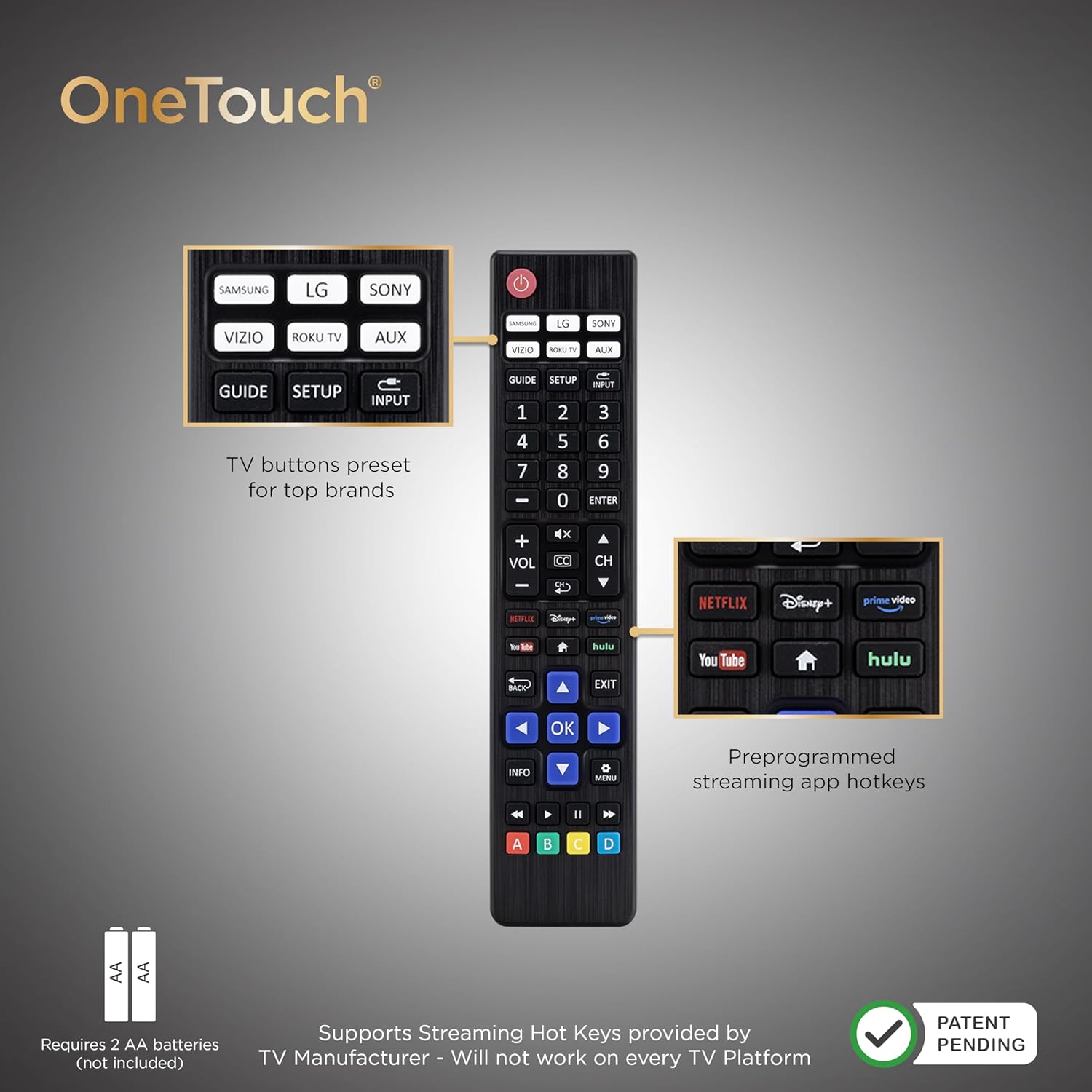
Figure 4: Remote layout highlighting key features and battery requirement.
Operating Your Remote
This remote allows control of your TV and one additional device (AUX).

Figure 5: The remote supports controlling two devices: your TV and one other device.
1. TV Control
After initial pairing, the remote's standard buttons (Power, Volume, Channel, Mute, Navigation, OK, Back, Exit, Menu, Info, Guide, Input) will control your TV's functions.
2. Streaming App Hotkeys
The remote includes pre-programmed hotkeys for direct access to popular streaming applications:
- Netflix
- Disney+
- Prime Video
- Hulu
- YouTube
Simply press the corresponding button to launch the app. Note that functionality may vary based on your TV's operating system and manufacturer support.
3. AUX Device Control
The AUX button is pre-programmed for use with Roku boxes. It can be reprogrammed to control a different audio/video device (e.g., Blu-ray/DVD player, cable/satellite receiver, soundbar) using auto code search or direct code entry programming methods. Refer to the online step-by-step programming videos for detailed instructions.
4. Master Volume Feature
The master volume feature allows you to adjust the volume regardless of which device is currently being controlled by the remote. This is particularly useful when controlling an AUX device but wanting to adjust the TV's volume.

Figure 6: Detailed view of the remote's preprogrammed TV buttons, AUX button, and streaming app hotkeys.
Device Compatibility
Supported Devices
- Roku boxes
- Roku TV
- Samsung TVs
- LG TVs
- Sony TVs
- Vizio TVs
- Most major TV brands (universal control)
Limitations
This remote is generally not compatible with:
- Roku streaming sticks
- Amazon Fire TV streaming sticks
Additionally, specific app hotkey functionality (e.g., YouTube, Disney+) may not work on all TV platforms or models, even for supported brands, due to manufacturer software variations. Roku's operating system does not support number buttons for channel selection.

Figure 7: Compatibility overview for the UltraPro One Touch Remote.
Troubleshooting
Remote Not Responding
- Check Batteries: Ensure fresh AA batteries are correctly installed with proper polarity.
- Line of Sight: Make sure there are no obstructions between the remote and the device you are trying to control. The remote uses infrared (IR) signals.
- Re-pair TV: If the remote stops controlling your TV, try the initial TV pairing process again by pressing and holding your TV's brand button.
Streaming App Hotkeys Not Working
- TV Compatibility: App hotkey functionality depends on your TV manufacturer's support. Not all apps may launch on every TV platform, even if the brand is supported.
- LG TV YouTube Button: Some LG TV models may not support the YouTube hotkey directly from this remote.
- Roku Number Buttons: Roku OS generally does not support number buttons for direct channel entry.
AUX Device Not Responding
- Reprogram AUX: If the AUX button is not controlling your desired device, it may need to be reprogrammed using auto code search or direct code entry. Refer to online resources for programming instructions.
Product Specifications
| Feature | Specification |
|---|---|
| Brand | UltraPro |
| Model Number | 80829 |
| Compatible Devices | Television, Streaming Device |
| Max Supported Devices | 2 (TV + 1 AUX device) |
| Special Features | Lightweight, No Programming Required (for main TV brands), Pre-Programmed, Universal |
| Connector Type | Infrared |
| Batteries Required | 2 x AA (not included) |
| Product Dimensions | 8.71 x 28.84 x 70.71 cm (approx. 3.43 x 11.35 x 27.84 inches) |
| Item Weight | 49.9 g (approx. 1.76 oz) |

Figure 8: Physical dimensions of the remote control.
Technical Support
For further assistance or questions regarding your UltraPro One Touch Replacement Remote, please contact our U.S.-based technical support team.
- Availability: Monday-Friday, 7 AM - 8 PM Central Time.
- Online Resources: Step-by-step programming videos and additional support materials are available online.
Please refer to the product packaging or the manufacturer's official website for specific contact details.


