1. Introduction
This manual provides essential information for setting up, operating, maintaining, and troubleshooting your Dell Vostro 3710 Small Form Factor (SFF) Business Desktop Computer. Please read this manual thoroughly before using your computer to ensure proper operation and to prevent damage.

Image: Front view of the Dell Vostro 3710 SFF Desktop Computer, highlighting its compact design and key features like Wi-Fi 6 and Intel Core i3 processor, running Windows 11 Professional.
2. Safety Information
Observe the following safety precautions to prevent injury and damage to your equipment:
- Ensure the power supply voltage matches the local power grid.
- Do not block ventilation openings. Maintain adequate space around the computer for airflow.
- Avoid exposing the computer to moisture, extreme temperatures, or direct sunlight.
- Disconnect the power cable before cleaning or performing any maintenance.
- Only use Dell-approved accessories and replacement parts.
3. Initial Setup
Follow these steps to set up your Dell Vostro 3710 SFF desktop computer:
- Unpack the Computer: Carefully remove the computer and all accessories from the packaging.
- Connect the Monitor: Connect your monitor to the HDMI 1.4b port or DisplayPort on the back of the computer.
- Connect Keyboard and Mouse: Plug the wired keyboard (Dell Multimedia Wired Keyboard - KB216 Black) and mouse (Dell Optical Mouse-MS116 - Black) into any available USB ports (USB 2.0 or USB 3.2 Gen 1) on the front or back of the computer.
- Connect to Network (Optional): For a wired connection, connect an Ethernet cable to the RJ-45 Ethernet port on the back. For wireless, ensure the Intel Wi-Fi 6 AX201 card is installed and configured after initial setup.
- Connect Power: Connect the power cable to the AC power-supply port on the back of the computer and then to a power outlet.
- Power On: Press the power button located on the front of the computer.
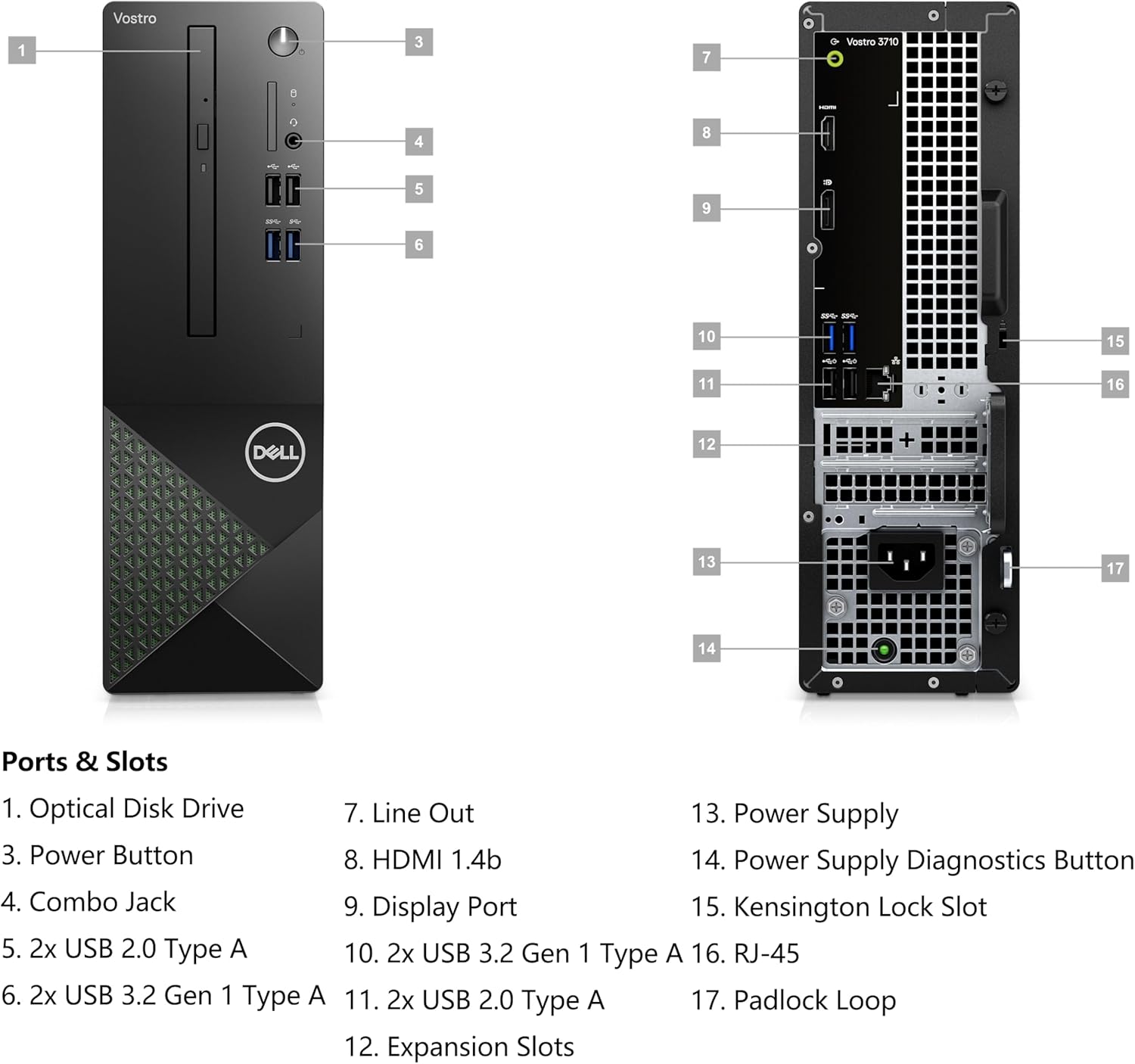
Image: Detailed diagram illustrating the various ports and slots on both the front and rear panels of the Dell Vostro 3710 SFF desktop, with corresponding numerical labels for identification.
4. Operating Your Computer
4.1 Power On/Off
- To Power On: Press the power button on the front panel.
- To Shut Down: In Windows 11, click the Start button, then Power, and select "Shut down".
- To Restart: In Windows 11, click the Start button, then Power, and select "Restart".
- To Sleep: In Windows 11, click the Start button, then Power, and select "Sleep".
4.2 Using the Optical Drive (DVDRW)
Your computer is equipped with a DVDRW optical drive for reading and writing CDs and DVDs.
- To open the drive tray, press the eject button on the drive.
- Place the disc label-side up on the tray and gently push the tray back into the computer.
4.3 Port Overview
The Dell Vostro 3710 SFF features a variety of ports for connectivity:
| Port Type | Location | Quantity | Description |
|---|---|---|---|
| Optical Disk Drive | Front | 1 | For CDs and DVDs. |
| USB 2.0 | Front | 2 | For peripherals like keyboard, mouse. |
| USB 3.2 Gen 1 | Front | 2 | High-speed data transfer for external drives, etc. |
| Global Headset Jack | Front | 1 | For headphones with microphone. |
| USB 2.0 with Smart Power | Back | 2 | For peripherals, with enhanced power delivery. |
| USB 3.2 Gen 1 | Back | 2 | High-speed data transfer. |
| Audio Line-out | Back | 1 | For external speakers or audio systems. |
| RJ-45 Ethernet | Back | 1 | For wired network connection. |
| HDMI 1.4b | Back | 1 | Video output for monitors. |
| AC Power-supply | Back | 1 | Connects to the power cable. |

Image: Rear view of the Dell Vostro 3710 SFF Desktop Computer, displaying the arrangement of its various connectivity ports including USB, HDMI, Ethernet, and audio jacks.
5. Maintenance
5.1 Cleaning Your Computer
- Use a soft, lint-free cloth dampened with water or a mild cleaning solution to clean the exterior.
- For dust, use compressed air to clear vents and ports. Ensure the computer is powered off and unplugged.
- Do not spray liquids directly onto the computer.
5.2 Software Updates
Regularly update your operating system (Windows 11 Pro) and drivers to ensure optimal performance and security. Dell provides driver updates on its official support website.
6. Troubleshooting
This section addresses common issues you might encounter with your Dell Vostro 3710 SFF.
| Problem | Possible Cause | Solution |
|---|---|---|
| Computer does not power on. | Power cable loose, power outlet issue, PSU failure. | Check power cable connections. Try a different power outlet. Ensure the power supply unit (PSU) is functioning. |
| No display on monitor. | Monitor cable loose, incorrect input selected on monitor, monitor power off. | Verify monitor cable (HDMI/DisplayPort) is securely connected to both computer and monitor. Ensure monitor is powered on and set to the correct input source. |
| Monitor resolution limited to 1920x1080 (1080P). | Outdated graphics drivers, monitor cable limitation, monitor settings. |
|
| Keyboard or mouse not responding. | Loose connection, faulty device, driver issue. | Ensure USB cables are firmly connected. Try different USB ports. Test with another keyboard/mouse if available. |
| No internet connection. | Ethernet cable disconnected, Wi-Fi disabled, router issue, driver issue. | Check Ethernet cable. Ensure Wi-Fi is enabled in Windows settings. Restart router/modem. Update network drivers. |
7. Specifications
Detailed technical specifications for the Dell Vostro 3710 SFF Business Desktop Computer:
| Component | Detail |
|---|---|
| Processor | 12th Gen Intel Core i3-12100 (12 MB cache, 4 cores, 8 threads, 3.30 GHz to 4.30 GHz Turbo) |
| Operating System | Windows 11 Pro, English 64bit |
| Video Card | Intel UHD Graphics 730 (Integrated) |
| Memory (RAM) | 64GB DDR4 SDRAM |
| Storage | 1TB PCIe SSD |
| Optical Drive | DVDRW |
| Keyboard | Dell Multimedia Wired Keyboard - KB216 Black - US |
| Mouse | Dell Optical Mouse-MS116 - Black |
| Wireless | Intel Wi-Fi 6 AX201 2x2 802.11ax, Bluetooth wireless card |
| Power Supply | 180 W internal Power Supply Unit (PSU) |
| Dimensions (H x W x D) | 290 mm (11.42 in.) x 92.6 mm (3.65 in.) x 292.80 mm (11.53 in.) |
| Starting Weight | 3.60 kg (7.94 lb) |
| Max Weight | 4.52 kg (9.96 lb) |
| Chassis Materials | Black with Sage Green mesh |

Image: Illustration detailing the height, width, depth, and starting weight of the Dell Vostro 3710 SFF Desktop Computer.
8. Warranty and Support
For warranty information and technical support, please refer to the documentation included with your purchase or visit the official Dell support website.
- Dell Support Website: www.dell.com/support
- You will need your service tag, which is typically located on a label on the computer chassis, to access specific support resources for your device.