1. Introduction and Overview
This manual provides essential instructions for the safe and efficient operation of your AMEELA 4K Projector, model YG600 Plus. Please read this manual thoroughly before using the projector and retain it for future reference.
Key Features:
- Native 1080P Resolution: Delivers Full HD 1920 x 1080 resolution with 600 ANSI Lumens brightness.
- Large Screen Projection: Supports up to a 300-inch display.
- Flexible Image Adjustment: Features 50% zoom function and 4P keystone correction (±45°).
- Dual-Band WiFi: Integrated 5G/2.4G WiFi for seamless wireless mirroring from iOS, Android, and Win10 devices.
- Bluetooth 5.2: Supports two-way audio transmission for connecting external speakers/headphones or using the projector as a standalone Bluetooth speaker.
- Dolby Audio Support: Provides immersive 360° stereo surround sound.
- Extensive Connectivity: Equipped with 2 HDMI, 1 AV, 2 USB ports, and a 3.5mm headphone jack.
- Versatile Installation: Supports front, rear, and ceiling mounting with 360° rotation.
Package Contents:
- AMEELA YG600 Plus Projector
- Remote Control
- HDMI Cable
- AV Cable
- Power Cable
- Lens Cap
- Portable Bag
2. Safety Information
To ensure safe operation and prolong the lifespan of your projector, please observe the following safety precautions:
- Do not look directly into the projector lens when the lamp is on.
- Ensure proper ventilation around the projector to prevent overheating. Do not block ventilation openings.
- Use only the power adapter supplied with the projector.
- Avoid placing the projector in unstable locations or near water.
- Do not attempt to open or repair the projector yourself. Refer all servicing to qualified personnel.
- Keep the projector away from extreme temperatures, humidity, and dust.
- Unplug the projector during lightning storms or when unused for extended periods.
3. Product Diagram and Components
Familiarize yourself with the projector's physical components and connection ports.
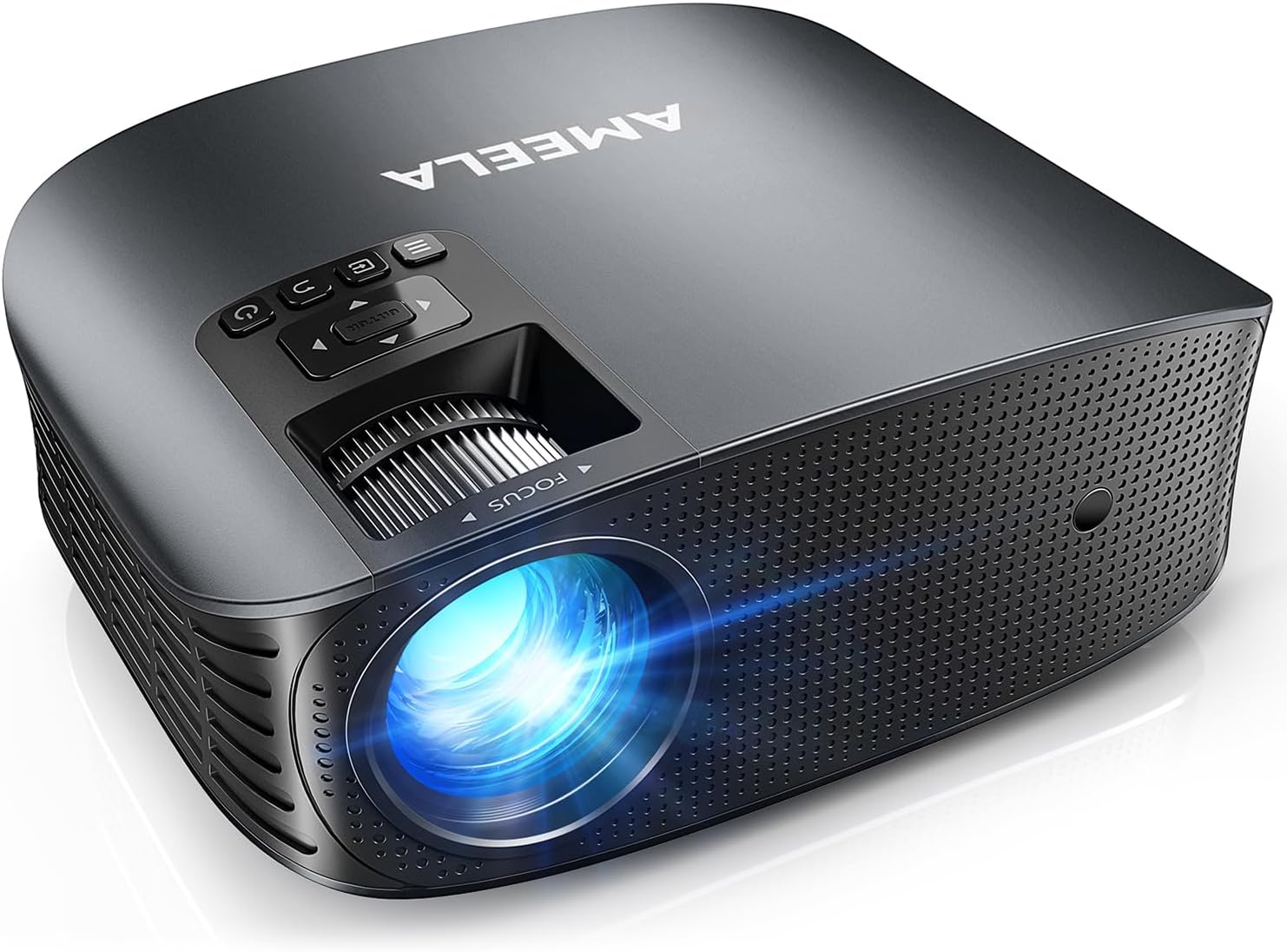
Image 3.1: Front view of the AMEELA YG600 Plus Projector, showing the lens, focus ring, and control panel.

Image 3.2: Rear view of the AMEELA YG600 Plus Projector, highlighting the input/output ports including AV, HDMI 1, HDMI 2, USB 1, and USB 2.
Control Panel:
- Power Button: Turns the projector on/off.
- Menu Button: Accesses the projector's settings menu.
- Navigation Buttons: Used to navigate through menus and adjust settings.
- Source Button: Selects input source (HDMI, AV, USB).
Ports:
- HDMI (x2): Connects to devices like laptops, game consoles, TV sticks, and Blu-ray players.
- AV: Connects to older devices using an AV cable.
- USB (x2): Connects to USB drives for media playback (supports up to 128GB).
- 3.5mm Audio Out: Connects to external headphones or speakers.
4. Setup
4.1 Placement
The AMEELA YG600 Plus projector offers flexible placement options:
- Tabletop: Place on a stable, flat surface.
- Tripod: Mount onto a compatible tripod using the threaded hole on the bottom.
- Ceiling Mount: Install on the ceiling for a permanent setup. The projector supports 360° rotation for various orientations.

Image 4.1: Illustration of various installation methods: ceiling mount, tabletop placement, and tripod installation.
4.2 Power Connection
- Connect the power cable to the projector's power input port.
- Plug the other end of the power cable into a power outlet.
- Press the power button on the projector or remote control to turn it on.
4.3 Focus and Keystone Correction
Adjust the image for optimal clarity and shape.
- Focus: Rotate the focus ring on the projector lens until the image appears sharp and clear.
- Keystone Correction: If the projected image is trapezoidal, use the 4P keystone correction function (accessible via the menu or remote) to adjust the corners of the image until it forms a perfect rectangle. The projector supports ±45° adjustments.
- Zoom Function: Use the zoom function (accessible via the menu or remote) to adjust the image size from 100% down to 50% without moving the projector.

Image 4.2: Visual representation of 4P/4D keystone correction and zoom function, demonstrating how to achieve a perfectly rectangular image.
5. Operation
5.1 Connecting Devices
The projector supports various input sources:
- HDMI: Connect your laptop, game console, TV stick, or Blu-ray player to either HDMI 1 or HDMI 2 port. Select the corresponding HDMI input source from the projector's menu.
- AV: Use the provided AV cable to connect to devices with AV output. Select the AV input source.
- USB: Insert a USB flash drive (up to 128GB) into a USB port to play media files directly. Select the USB input source and navigate to your files.
5.2 Wireless Connectivity (WiFi)
The projector features dual-band 2.4G/5G WiFi for screen mirroring.
- Go to the projector's WiFi settings menu.
- Select your WiFi network and enter the password.
- For iOS devices, use Airplay to mirror your screen.
- For Android phones and Win10 laptops, use Miracast to mirror your screen.

Image 5.1: Depiction of the projector's 2.4G/5G dual-band WiFi capability, enabling wireless screen mirroring from iOS, Android, and Windows devices.
5.3 Bluetooth Connectivity
The projector supports Bluetooth 5.2 for audio connections.
- Connecting External Audio: Go to the projector's Bluetooth settings. Pair with your Bluetooth speaker, headphones, or soundbar to enhance audio output.
- Using as a Bluetooth Speaker: The projector can also function as a standalone Bluetooth speaker. Pair your mobile device with the projector to play audio through its built-in speakers.

Image 5.2: Illustration of the projector's Bluetooth 5.2 function, showing connection to a smartphone and external Bluetooth audio devices.
5.4 Audio Settings (Dolby Audio)
The AMEELA YG600 Plus supports Dolby Audio, providing an immersive sound experience. Ensure your audio source is compatible with Dolby Audio for optimal performance. Adjust volume and other audio settings through the projector's menu.
6. Maintenance
Regular maintenance helps ensure optimal performance and longevity of your projector.
6.1 Cleaning the Lens
Use a soft, lint-free cloth specifically designed for optical lenses. Gently wipe the lens in a circular motion. Avoid using abrasive cleaners or excessive pressure, which can scratch the lens.
6.2 Cleaning the Projector Body
Wipe the exterior of the projector with a soft, dry cloth. For stubborn dirt, slightly dampen the cloth with water or a mild, non-abrasive cleaner. Ensure no liquid enters the projector's vents or ports.
6.3 Storage
When not in use for extended periods, store the projector in a cool, dry, and dust-free environment. Use the provided lens cap to protect the lens from dust and scratches. If possible, store it in its original packaging or a protective bag.
7. Troubleshooting
If you encounter issues with your projector, refer to the following common problems and solutions:
| Problem | Possible Cause | Solution |
|---|---|---|
| No image displayed | Power issue, incorrect input source, loose cable connection | Check power cable, select correct input source, ensure cables are securely connected. |
| Image is blurry | Out of focus | Adjust the focus ring on the lens. |
| Image is trapezoidal | Projector not perpendicular to screen | Use the 4P keystone correction function to adjust the image shape. |
| No sound | Volume too low, incorrect audio output, external device issue | Increase volume, check audio settings, ensure external audio devices are connected correctly or try internal speakers. |
| Remote control not working | Dead batteries, obstruction, remote out of range | Replace batteries, remove obstructions, ensure remote is pointed at the projector's IR receiver. |
| WiFi connection unstable | Weak signal, interference | Ensure projector is within WiFi range, minimize interference from other devices, try connecting to 2.4G or 5G band. |
8. Specifications
Detailed technical specifications for the AMEELA YG600 Plus Projector:
| Feature | Specification |
|---|---|
| Brand | AMEELA |
| Model Number | YG600 Plus |
| Color | Black |
| Display Resolution | 1920 x 1080 (Native Full HD) |
| Maximum Display Resolution | 1920 x 1080 |
| Brightness | 600 ANSI Lumens |
| Display Type | LCD |
| Connectivity Technology | HDMI, AV, USB, Wi-Fi (2.4G/5G Dual-Band), Bluetooth 5.2 |
| Compatible Devices | Laptops, Smartphones, Game Consoles, Blu-ray Players, TV Sticks, USB Drives, Bluetooth Audio Devices |
| Product Dimensions | 35L x 25W x 12H centimeters |
| Form Factor | Portable |
| Mounting Type | Wall Mount, Ceiling Mount, Tabletop, Tripod |
| Included Components | HDMI Cable, AV Cable, Power Cable, Remote Control, Lens Cap, Portable Bag |
9. Warranty and Support
For warranty information, please refer to the documentation included with your product at the time of purchase or visit the official AMEELA website. Warranty terms and conditions may vary by region and retailer.
If you require technical support or have questions not covered in this manual, please contact the seller or the AMEELA customer support team through their official channels. Please have your model number (YG600 Plus) and purchase details ready when contacting support.