
AMOROM AM-P1
Contents
AMOROM Indoor Security Camera User Manual
Model: AM-P1
Brand: AMOROM
1. Introduction
Thank you for choosing the AMOROM Indoor Security Camera. This manual provides detailed instructions for setting up, operating, and maintaining your camera to ensure optimal performance and security for your home. The AMOROM camera offers 360-degree coverage, advanced night vision, two-way audio communication, AI-powered motion detection, and seamless integration with smart home systems like Amazon Alexa and Google Assistant.
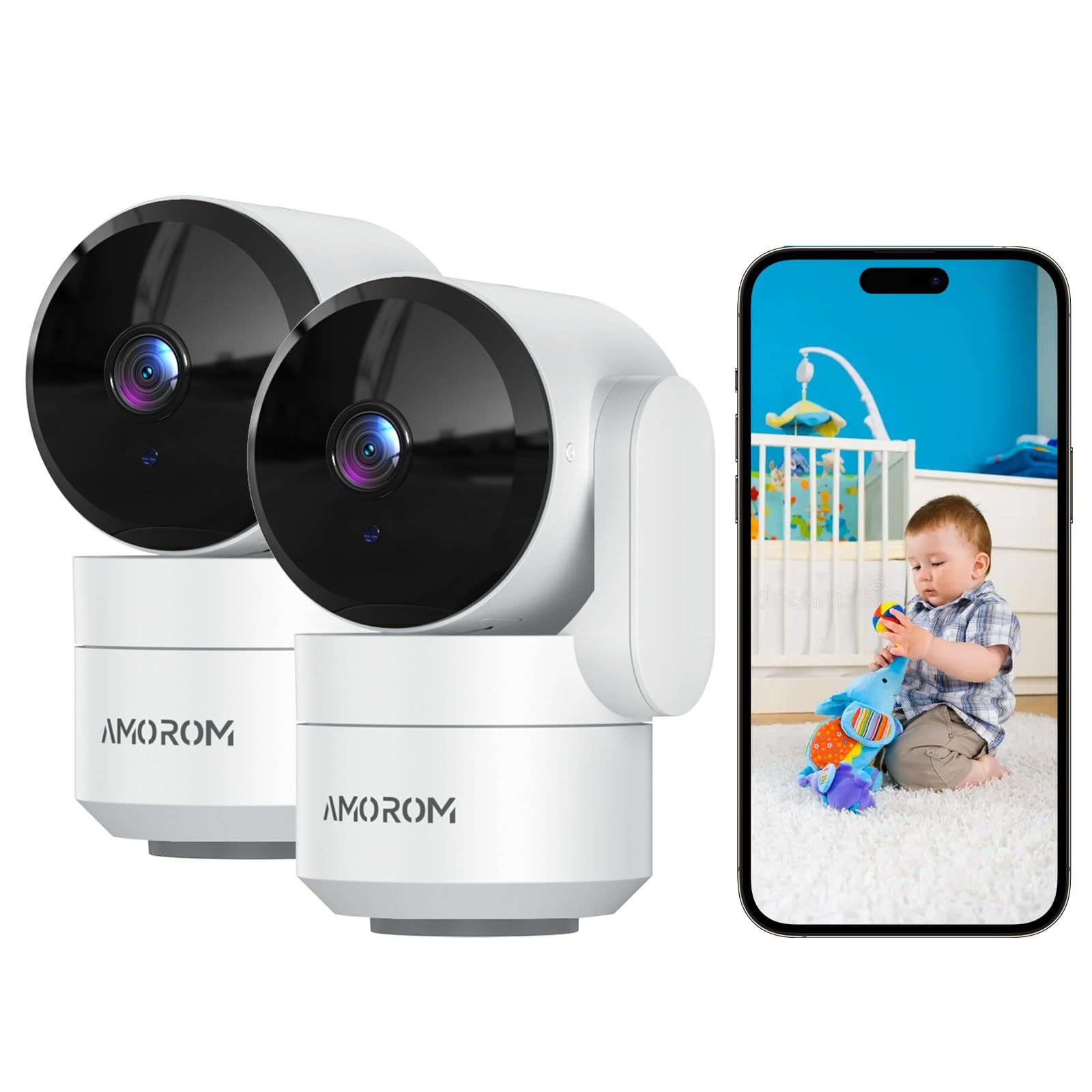
Image: The AMOROM Indoor Security Camera provides comprehensive home monitoring.
2. What's in the Box
Please verify that all components are present in your package:
- Indoor Camera × 2
- Power Adapter × 2
- Type-C Charging Cable × 2
- Screw Bags × 2
- Camera Mount × 2
- User Manual × 1
3. Product Overview
3.1 Key Features
360° Coverage & Night Vision
The camera features 360° pan/tilt/zoom functionality, allowing you to monitor an entire room. Its integrated infrared system provides clear night vision up to 30 feet, ensuring continuous surveillance even in low-light conditions.
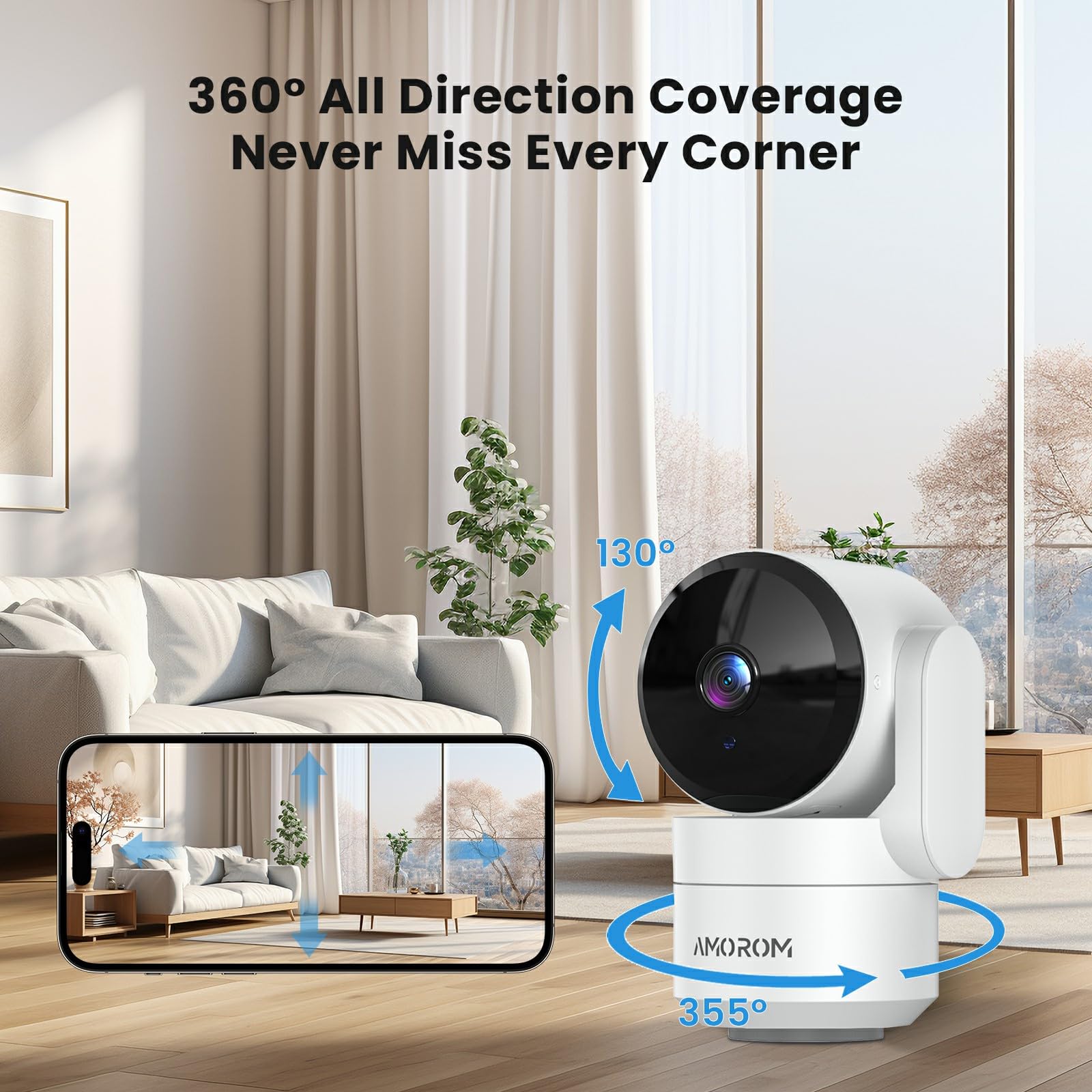
Image: 360° All Direction Coverage.
Voice Control & 2-Way Audio
Communicate directly through the camera using its built-in microphone and speaker. The camera is compatible with Amazon Alexa and Google Assistant, enabling voice commands for live feed access.
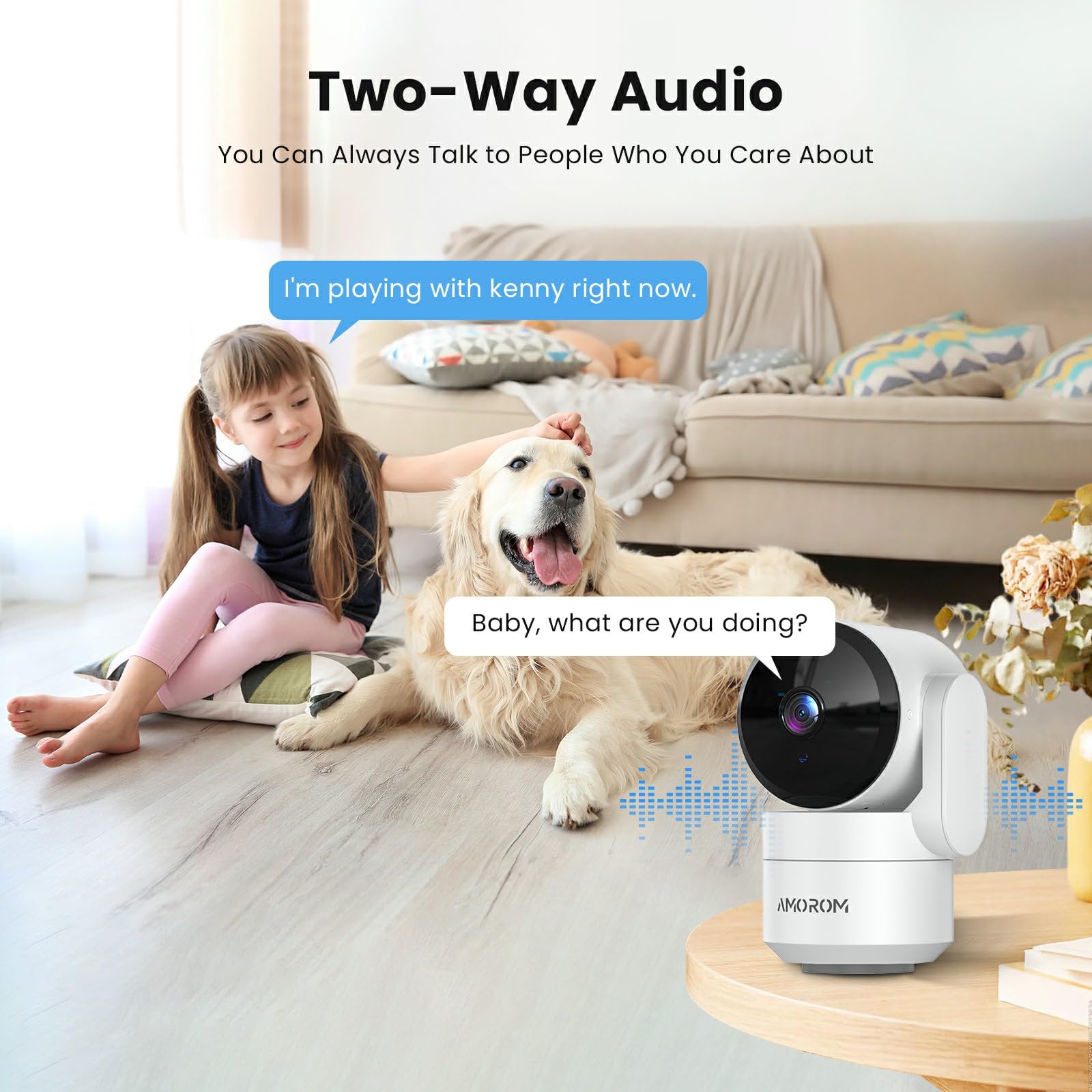
Image: Two-Way Audio functionality.
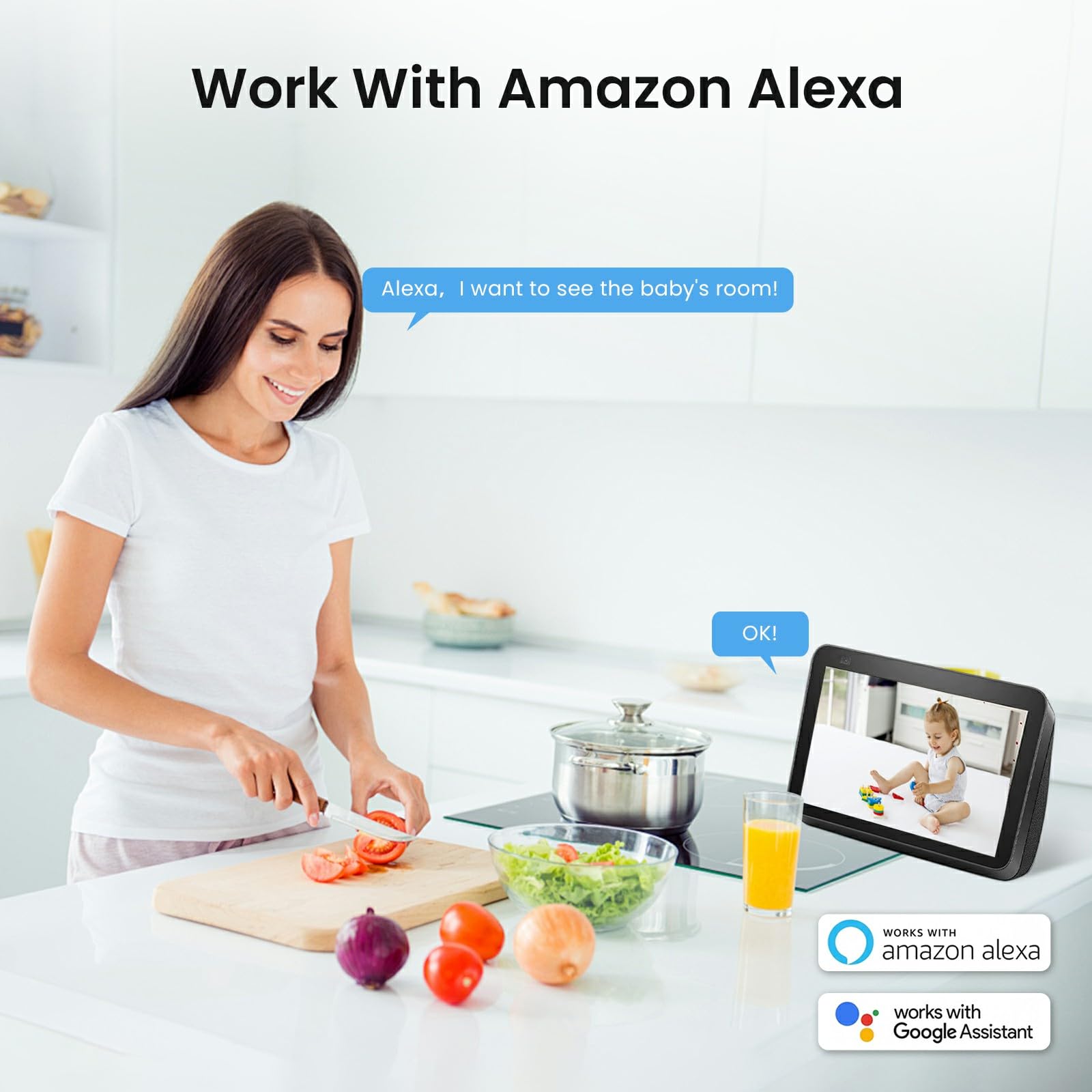
Image: Works with Amazon Alexa and Google Assistant.
AI Motion Detection & Instant Alerts
Advanced AI motion detection sends immediate alerts to your smartphone upon detecting movement or unusual activity, providing real-time security monitoring.
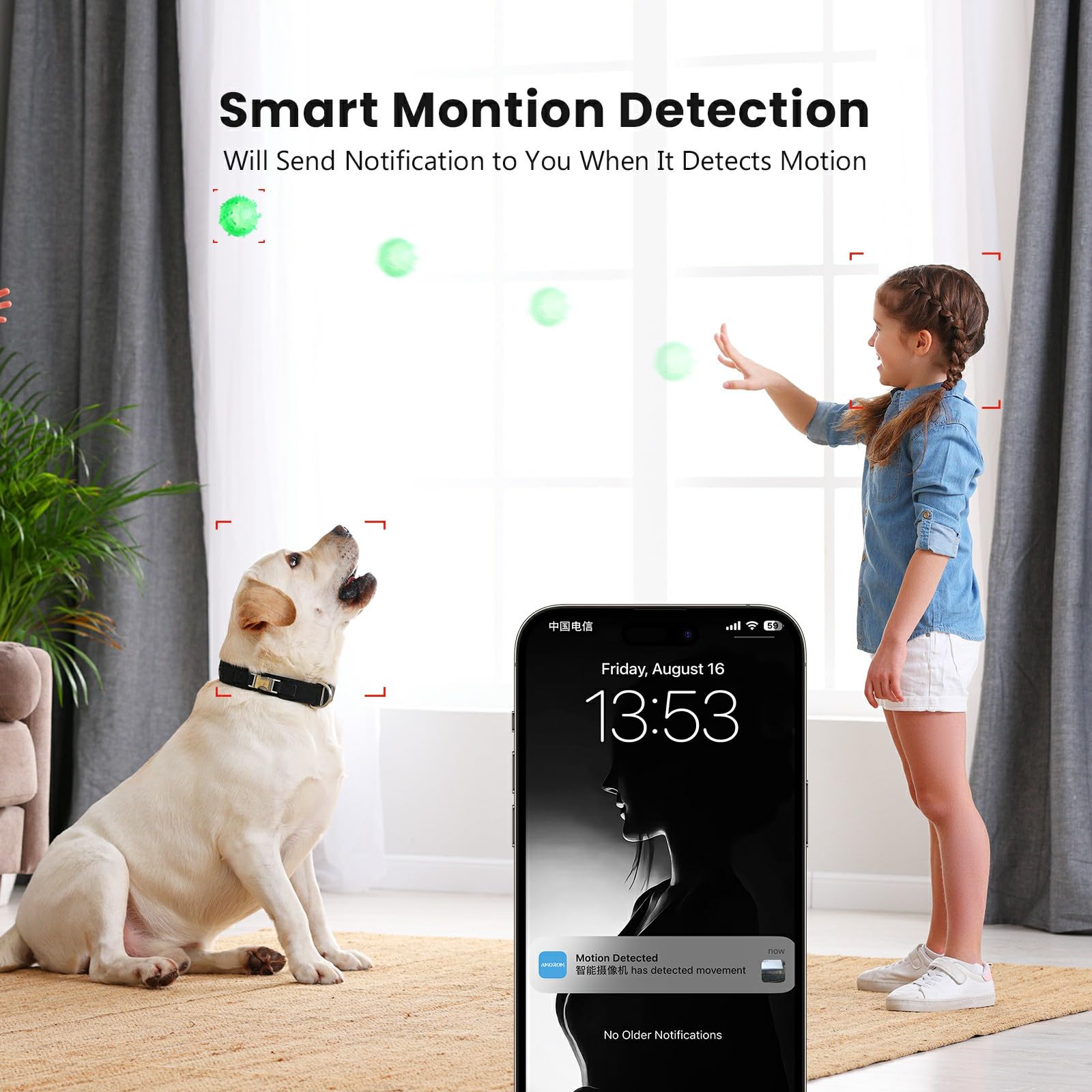
Image: Smart Motion Detection sends notifications.
Privacy Mode
For enhanced privacy, the camera features a privacy mode that automatically turns off the camera and points it downward with a single tap in the AMOROM app, without needing to unplug the device.
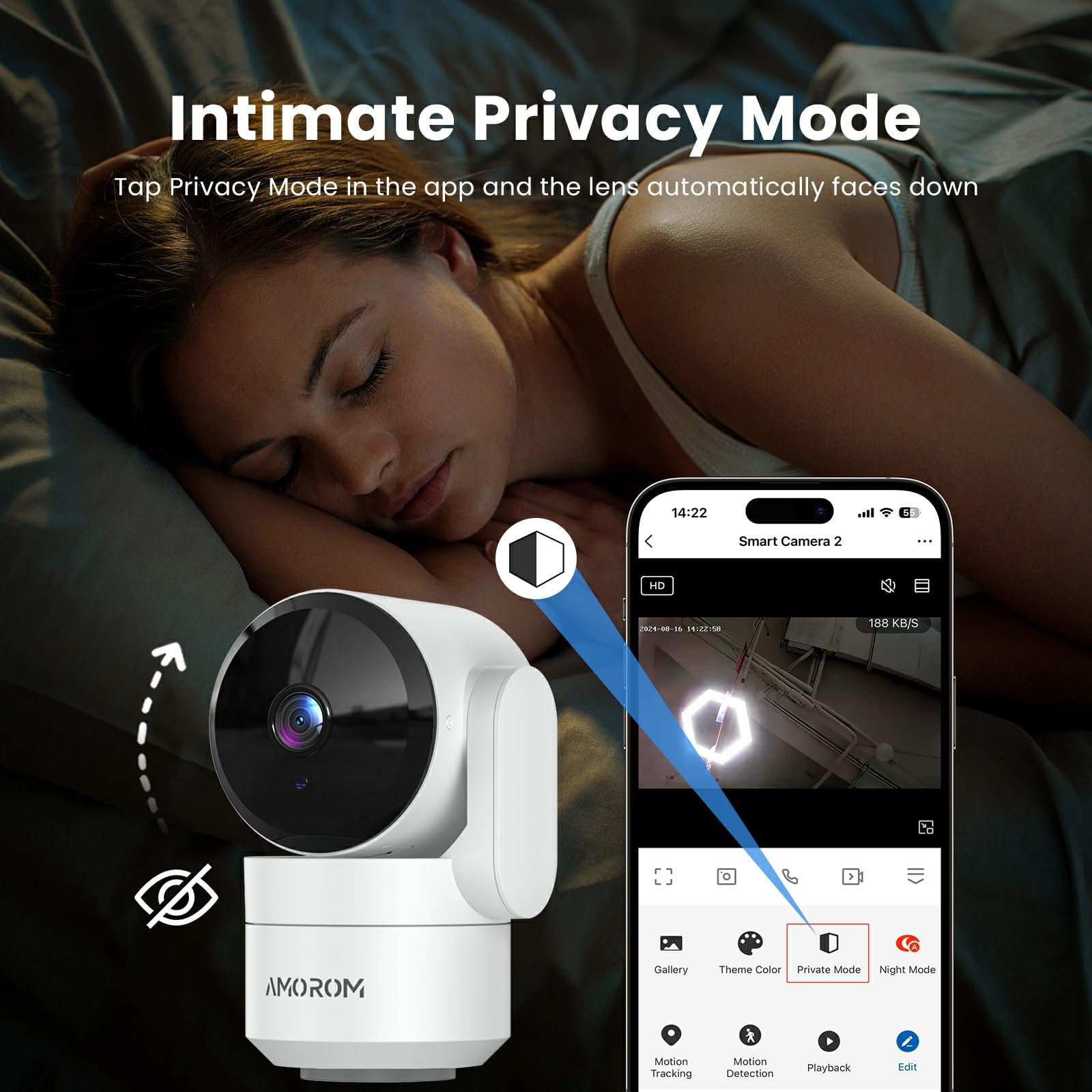
Image: Intimate Privacy Mode for user privacy.
Multi-User Access & Multiple Views
The AMOROM app supports unlimited users, allowing multiple family members to access the live feed simultaneously. You can also add up to 16 cameras and view their live feeds on one screen.
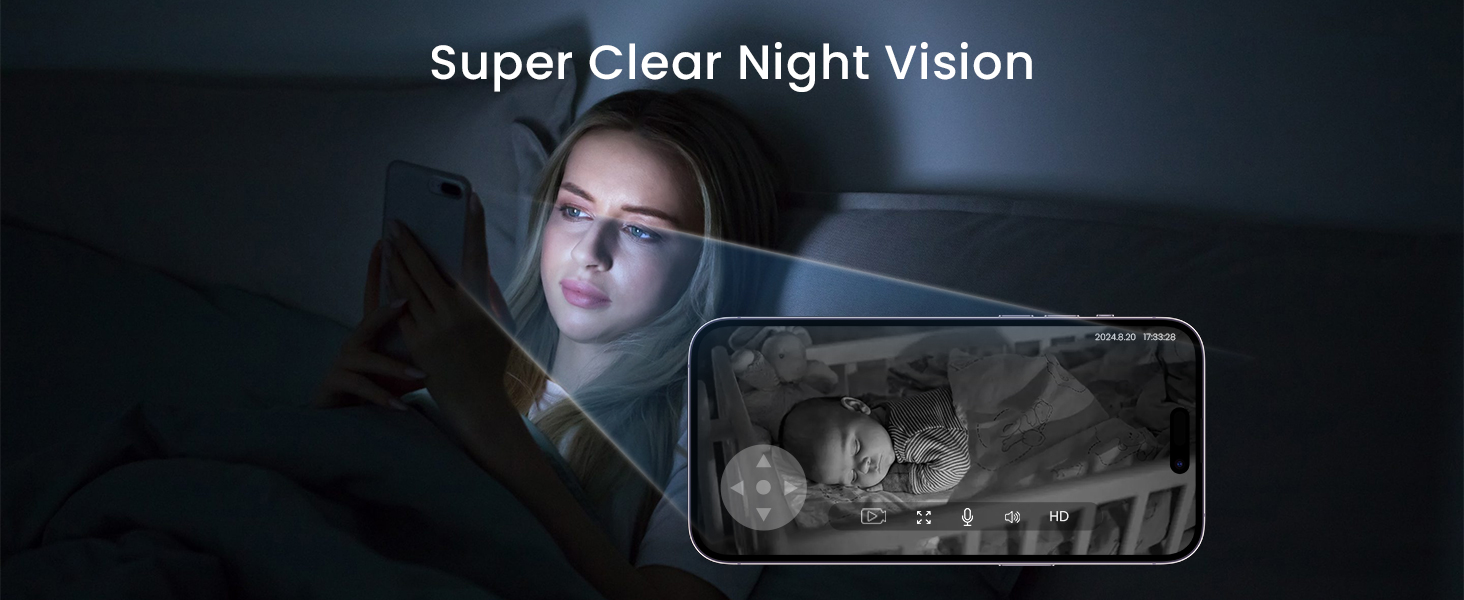
Image: Multiple Users Sharing and Multiple Views.
Two Storage Options
Recordings can be stored locally on a MicroSD card (up to 128GB, sold separately) or securely in the cloud via the AMOROM app. All cloud videos are encrypted and protected with AWS Cloud.
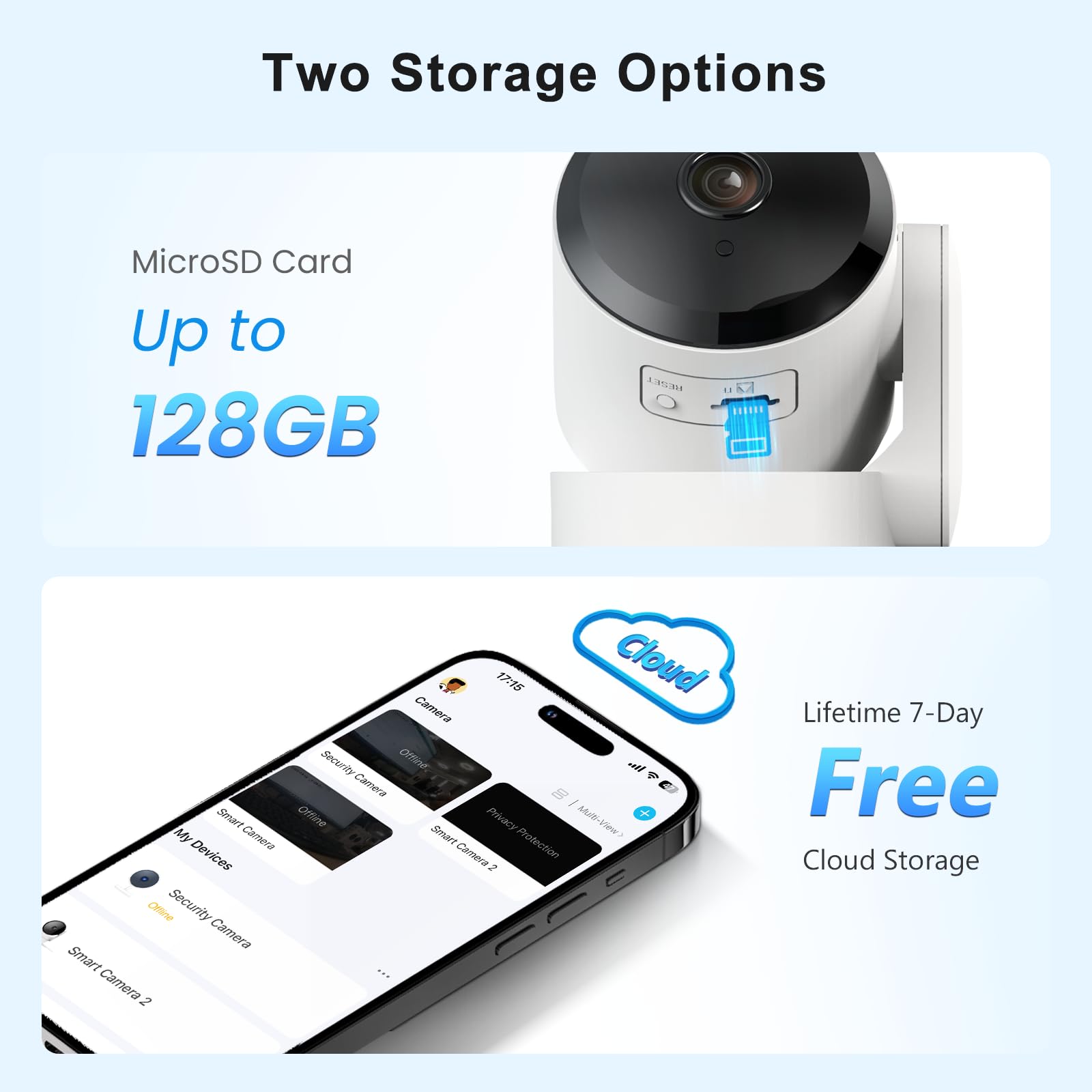
Image: Two Storage Options: MicroSD Card and Free Cloud Storage.
AI Fire Detection
The camera incorporates advanced AI algorithms to immediately recognize flames, providing a mobile alarm system for 24/7 support to protect your safety and property.
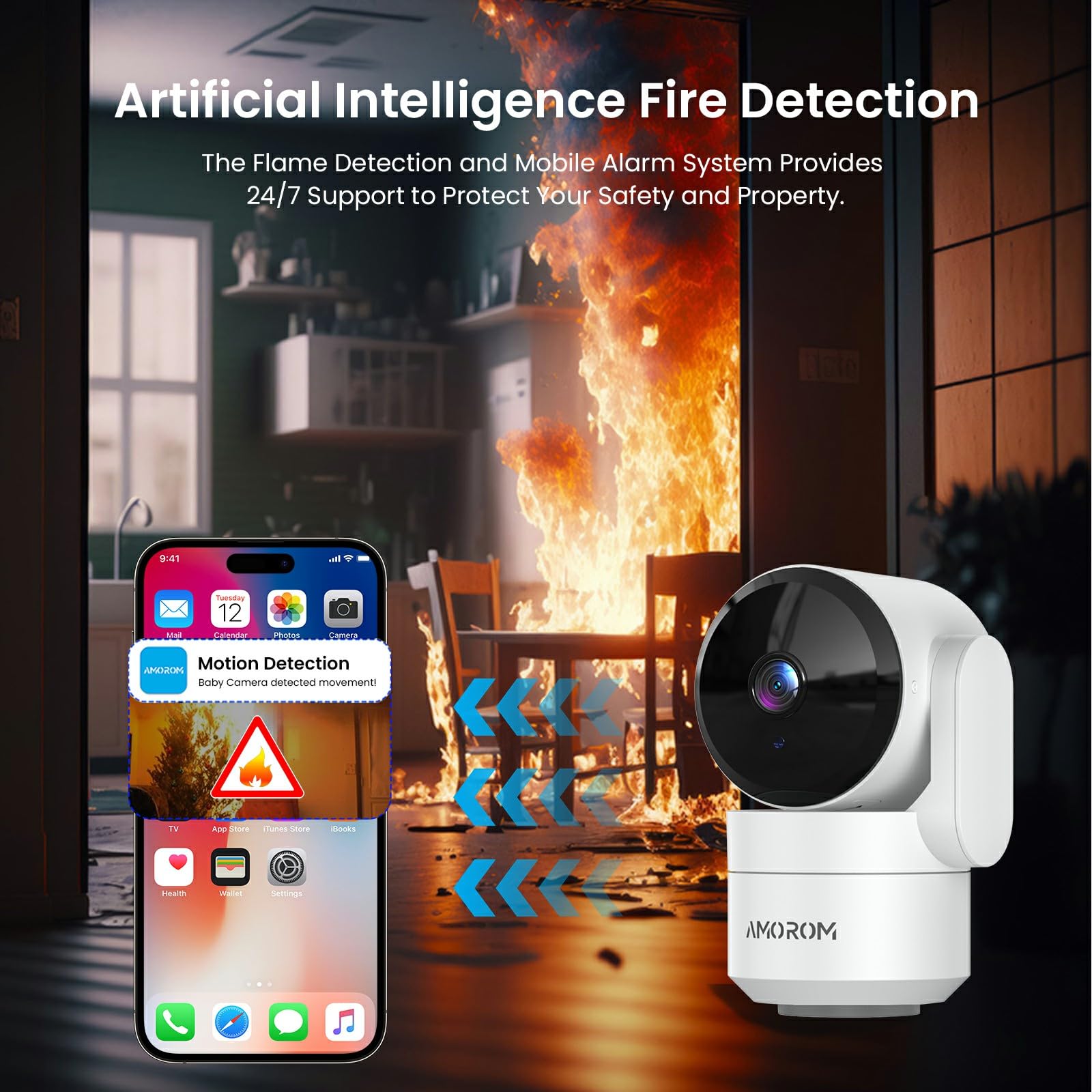
Image: Artificial Intelligence Fire Detection.
4. Setup Guide
4.1 Download the AMOROM App
Search for "AMOROM" in your smartphone's app store (iOS or Android) and download the official application. Create an account or log in if you already have one.
Image: AMOROM App - Access Anywhere.
4.2 Powering On and Initial Connection
- Connect the camera to a power source using the provided power adapter and Type-C charging cable.
- Wait for the camera's indicator light to flash, indicating it's ready for pairing.
- Open the AMOROM app and follow the on-screen instructions to add a new device.
- Ensure your smartphone is connected to a 2.4GHz Wi-Fi network. This camera model only supports 2.4GHz Wi-Fi.
- Scan the QR code displayed on your phone with the camera lens, or follow alternative pairing methods provided in the app.
- Once connected, the camera's indicator light will turn solid.
4.3 Mounting the Camera
The camera can be placed on a flat surface or mounted to a wall using the included camera mount and screws.
- Choose a suitable location for optimal viewing coverage.
- If wall-mounting, use the camera mount as a template to mark drill holes.
- Drill holes and insert wall anchors if necessary.
- Secure the camera mount to the wall using the provided screws.
- Attach the camera to the mount.
5. Operating Instructions
5.1 Live View and Pan/Tilt Control
From the AMOROM app, select your camera to access the live feed. Use the on-screen controls to pan (horizontal movement), tilt (vertical movement), and zoom to adjust the viewing angle.
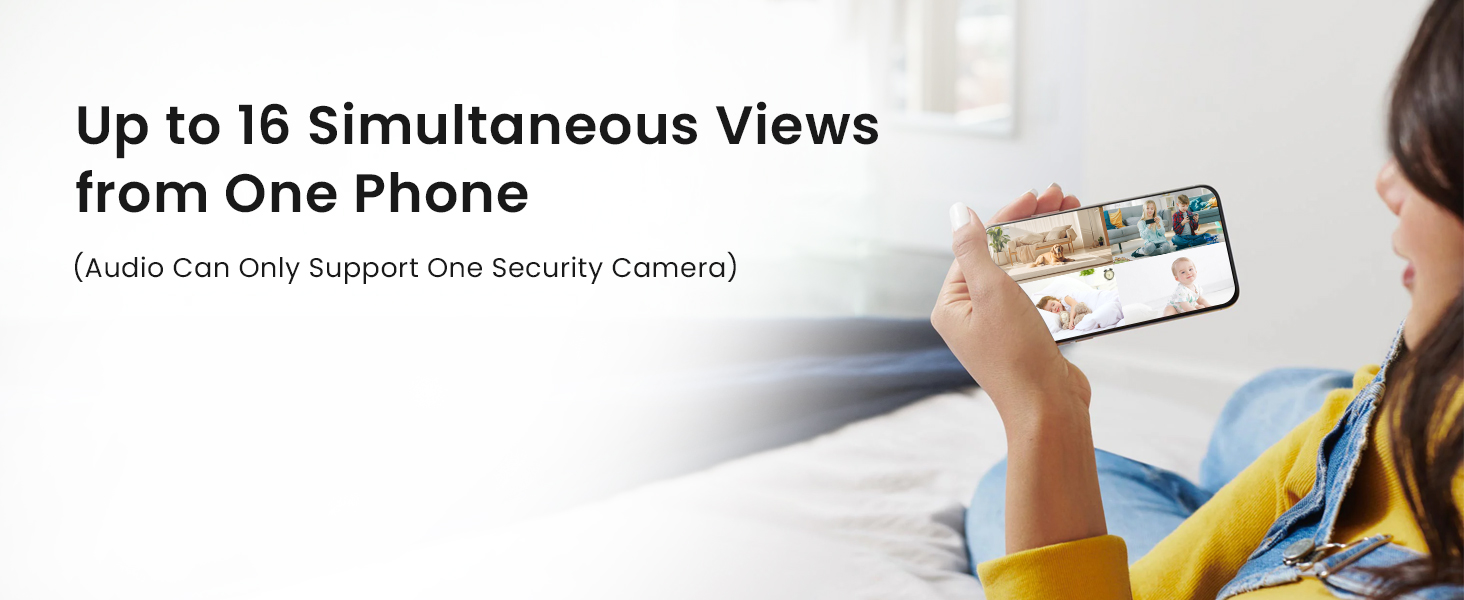
Image: 360° Full View Capture Everything.
5.2 Two-Way Audio Communication
Tap the microphone icon in the live view interface to speak through the camera. Tap the speaker icon to listen to audio from the camera's surroundings.
5.3 Motion Detection and Alerts
Configure motion detection sensitivity and alert preferences within the app's settings. You will receive instant notifications on your phone when motion is detected.
5.4 Privacy Mode Activation
To activate privacy mode, navigate to the camera settings in the AMOROM app and select "Privacy Mode." The camera lens will automatically rotate downwards, disabling video and audio recording.
5.5 Storage Management
Insert a MicroSD card (up to 128GB) into the designated slot for local storage. Alternatively, subscribe to the cloud storage service via the app for secure, encrypted online storage. Note that playback of recorded video may require a cloud storage subscription.
5.6 Voice Assistant Integration
Link your AMOROM account with Amazon Alexa or Google Assistant through their respective apps. Once linked, you can use voice commands like "Alexa, show me the baby's room" to view the live feed on compatible smart displays.
6. Maintenance
- Cleaning: Gently wipe the camera lens and body with a soft, dry cloth. Avoid using harsh chemicals or abrasive materials.
- Software Updates: Regularly check the AMOROM app for firmware updates. Keeping your camera's software up-to-date ensures optimal performance, security, and access to new features.
- Placement: Ensure the camera is placed in a stable location, away from direct sunlight, extreme temperatures, and high humidity.
7. Troubleshooting
| Problem | Possible Cause / Solution |
|---|---|
| Camera won't connect to Wi-Fi. |
|
| No video playback from MicroSD card. |
|
| Two-way audio is unclear or distorted. |
|
| Motion detection alerts are not received. |
|
8. Specifications
| Feature | Detail |
|---|---|
| Model Number | AM-P1 |
| Indoor/Outdoor Usage | Indoor |
| Connectivity Protocol | Wi-Fi (2.4GHz Only) |
| Power Source | Corded Electric |
| Video Capture Resolution | 1080p |
| Viewing Angle | 360 Degrees (Pan/Tilt) |
| Night Vision Range | 30 Feet |
| Storage Options | MicroSD (up to 128GB), Cloud Storage |
| Compatible Devices | Smartphone |
| Controller Type | Google Assistant, Amazon Alexa |
| Dimensions (L x W x H) | 3.15 x 1.97 x 2.36 inches |
| Item Weight | 1.19 pounds |
| Material | Plastic |
| Included Components | Indoor Camera × 2, Power Adapter × 2, Type-C Charging Cable × 2, Screw Bags × 2, Camera Mount × 2, User Manual × 1 |
9. Warranty and Support
AMOROM is committed to providing excellent customer service. If you encounter any issues or have questions regarding your camera, please do not hesitate to contact our 24/7 customer support team. We are here to ensure you have the best possible experience with your product.
For support, please refer to the contact information provided on the product packaging or within the AMOROM app.
Image: 24/7 Customer Support.
Documents and downloads
Ask a question about this manual
Ask about setup, troubleshooting, compatibility, parts, safety, or missing instructions. Manuals+ will review the question and use this page’s manual context to help answer it.