
Septpenta 300Mbps 2.4G Smart WiFi Router
Septpenta 300Mbps 2.4G Smart WiFi Router User Manual
Model: 300Mbps 2.4G Smart WiFi Router
1. Introduction
This manual provides detailed instructions for setting up, operating, maintaining, and troubleshooting your Septpenta 300Mbps 2.4G Smart WiFi Router. Please read this manual carefully before using the device to ensure proper functionality and optimal performance.
Package Contents
- 1 x Septpenta 300Mbps WiFi Router
- 1 x Network Cable
- 1 x Power Adapter (US Plug 100-240V)
- 1 x User Manual
2. Product Overview
Key Features
- High Speed: Wireless transmission rate up to 300Mbps for fast and stable internet connectivity, suitable for office and gaming needs.
- Wide Coverage: The 2.4GHz frequency signal can penetrate walls and obstacles, providing wider WiFi signal coverage throughout your home or office.
- Multiple Interfaces: Equipped with one RJ45 input port and three RJ45 output ports, allowing simultaneous connection of multiple devices such as computers, printers, and TVs.
- Simple Setup: Features an easy-to-use setup interface, enabling quick establishment of a wireless network connection without complex configurations.
- Reliable and Stable: Rigorously tested for high reliability and stability, ensuring continuous operation and a consistent internet connection.
Physical Components
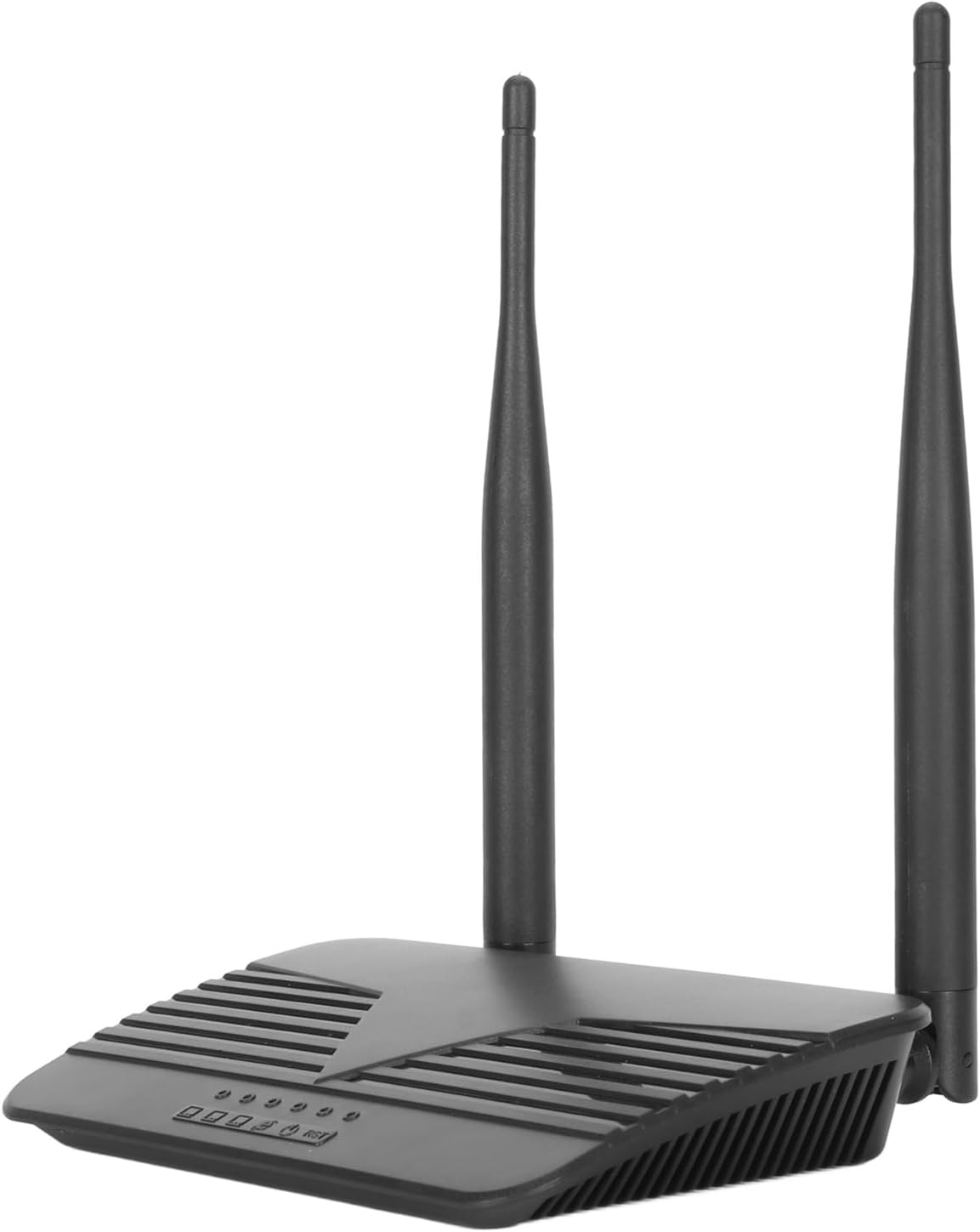
Front view of the Septpenta 300Mbps WiFi Router, showcasing its compact design and dual antennas.
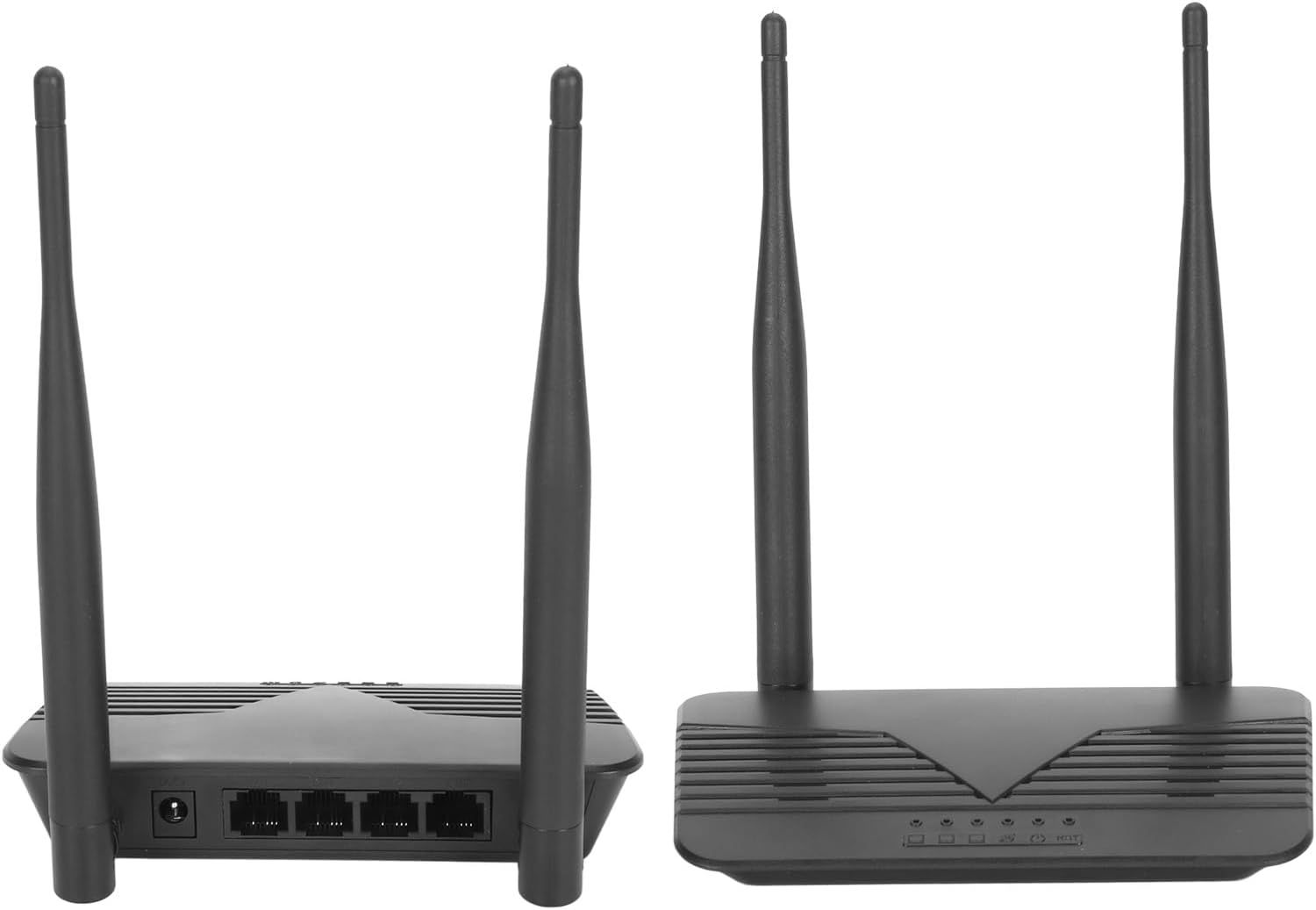
Side-by-side view of the Septpenta WiFi Router, showing both the front with indicator lights and the rear with port connections.

A close-up of the Septpenta WiFi Router's rear panel, clearly showing the power input, one RJ45 input port, and three RJ45 output ports for connecting various devices.
3. Setup Guide
Initial Hardware Connection
- Connect Power: Plug the power adapter into the router's power input port and then into a standard electrical outlet.
- Connect Internet: Connect your modem's Ethernet cable to the router's RJ45 input port (often labeled WAN or Internet).
- Connect Devices (Optional): For wired connections, use Ethernet cables to connect your computers, gaming consoles, or other devices to the router's RJ45 output ports (often labeled LAN).

The complete package contents including the Septpenta WiFi Router, its power adapter, and a blue network cable, ready for setup.
Network Configuration
Once the hardware is connected, you can configure your router. Refer to the specific user manual included in your package for detailed steps on accessing the router's web-based management interface. Typically, this involves:
- Connecting a computer to the router via Wi-Fi or Ethernet.
- Opening a web browser and entering the router's default IP address (e.g., 192.168.1.1).
- Logging in with the default username and password (usually found on a sticker on the router or in the included manual).
- Following the on-screen wizard to set up your internet connection and Wi-Fi network name (SSID) and password.

The Septpenta WiFi Router positioned on a desk, illustrating the ease of its setup interface for quick network configuration.
4. Operating Instructions
Connecting Devices to Your Network
- Wi-Fi Connection: On your wireless device (smartphone, laptop, tablet), search for available Wi-Fi networks. Select your router's SSID (network name) and enter the Wi-Fi password you configured during setup.
- Ethernet Connection: For devices with an Ethernet port, simply connect an Ethernet cable from the device to one of the router's LAN ports.

The Septpenta WiFi Router on a desk, with a user in the background connecting a mobile device to the wireless network.
Optimizing Wireless Coverage
The 2.4GHz frequency of this router is designed to penetrate walls and obstacles effectively, providing wide coverage. For best results, place the router in a central location within your home or office, away from large metal objects or appliances that may cause interference.

The Septpenta WiFi Router with a background depicting extended signal reach, highlighting its wide 2.4GHz WiFi coverage.
Understanding Speed and Performance
With a transmission rate of up to 300Mbps, the router provides sufficient bandwidth for common internet activities such as browsing, streaming standard definition video, and online gaming. Actual speeds may vary based on network conditions, connected devices, and internet service provider.

The Septpenta WiFi Router against a background suggesting high data transfer, emphasizing its 300Mbps transmission rate for fast internet.
5. Maintenance
General Maintenance Tips
- Placement: Place the router in an open area, away from obstructions, to ensure optimal signal distribution.
- Ventilation: Ensure the router has adequate ventilation to prevent overheating. Do not cover ventilation holes.
- Cleaning: Gently clean the router with a soft, dry cloth. Do not use liquid cleaners or aerosols.
- Firmware Updates: Periodically check the manufacturer's website for firmware updates. Keeping your router's firmware up-to-date can improve performance, security, and add new features.
- Rebooting: If you experience network issues, try rebooting the router by unplugging it from the power source for 10-15 seconds, then plugging it back in.
6. Troubleshooting
Common Issues and Solutions
| Problem | Solution |
|---|---|
| No Internet Connection | Check if all cables are securely connected. Reboot your modem and router. Contact your Internet Service Provider (ISP) to ensure there are no service outages. |
| Slow Wi-Fi Speed | Ensure the router is centrally located. Reduce interference from other electronic devices. Limit the number of connected devices or bandwidth-heavy activities. |
| Cannot Access Router Settings | Verify your device is connected to the router. Ensure you are using the correct IP address and login credentials. Try clearing your browser's cache or using a different browser. |
| Wi-Fi Signal Drops Frequently | Relocate the router to avoid physical obstructions. Check for firmware updates. Consider changing the Wi-Fi channel in the router settings to avoid interference. |
7. Specifications
Technical Details
| Specification | Detail |
|---|---|
| Item Type | 300Mbps WiFi Router |
| Material | ABS |
| Frequency | 2.4 GHz |
| Speed | 300Mbps |
| Interface Type | 1xRJ45 (Input), 3xRJ45 (Output) |
| Plug Specification | US Plug 100-240V |
| Special Feature | WPS (Wi-Fi Protected Setup) |
| Wireless Communication Standard | 2.4 GHz Radio Frequency |
| Compatible Devices | Personal Computer, and other network-enabled devices |
| Recommended Uses | Home, Office, Gaming |
| Connectivity Technology | Ethernet, Wireless |
| Item Weight | 10.2 ounces (0.29 Kilograms) |
8. Warranty and Support
Warranty Information
Septpenta products are manufactured to high quality standards. For specific warranty terms and conditions, please refer to the warranty card included with your product or visit the official Septpenta website.
Customer Support
If you encounter any issues or have questions not covered in this manual, please contact Septpenta customer support for assistance. Contact details can typically be found on the product packaging or the official brand website.
Ask a question about this manual
Ask about setup, troubleshooting, compatibility, parts, safety, or missing instructions. Manuals+ will review the question and use this page’s manual context to help answer it.