1. Product Overview
The BEENOZO 2K Outdoor WiFi Surveillance Camera (Model D5) is a fully wireless security solution designed for both indoor and outdoor use. It features a high-definition 2K resolution, color night vision, and advanced PIR motion detection. Powered by a rechargeable battery and a solar panel, it offers continuous operation with minimal maintenance. The camera supports two-way audio, local SD card storage, and cloud storage options, providing comprehensive monitoring and communication capabilities.

Image 1.1: The BEENOZO 2K Outdoor WiFi Surveillance Camera, showing the camera unit mounted on a wall bracket with the accompanying solar panel.
2. Key Features
- 100% Wireless & Solar Powered: Equipped with an 8000mAh rechargeable battery and a solar panel for continuous operation, requiring only two hours of daily sunlight for full charge.
- HD 2K 1296P Resolution: Delivers clear and detailed 2K (1296p) video quality, offering superior clarity compared to 1080p cameras.
- Color Night Vision: Advanced lens and dual external lights provide full-color images even in low-light conditions.
- PIR Motion Detection & Alarm: Built-in PIR sensor accurately identifies human movement, reducing false alarms. Customizable alerts include white light flashing, siren, and app notifications.
- Two-Way Audio: Integrated microphone and speaker allow for real-time communication with individuals in front of the camera.
- Real-Time Video & Multi-Camera View: Access live video feeds and support simultaneous viewing of up to four cameras within the O-KAM Pro app.
- SD/Cloud Storage: Supports local storage via Micro SD card and optional cloud storage for recorded footage.
- Easy Installation & IP66 Waterproof: Designed for simple setup and features IP66 weather resistance for durability in various outdoor conditions.

Image 2.1: Visual comparison highlighting the superior clarity of 2K resolution compared to standard 1080p.
3. Package Contents
Please check the package contents upon unboxing to ensure all components are present:
- BEENOZO 2K Outdoor WiFi Surveillance Camera (Model D5)
- Solar Panel
- Mounting Bracket(s)
- Mounting Screws and Wall Plugs
- USB Charging Cable
- User Manual (This document)
- AAA Batteries (1 included, pre-installed or separate)
4. Setup Guide
4.1 Initial Charging
Before first use, fully charge the camera's built-in battery using the provided USB cable. Connect the cable to the camera's charging port and a standard 5V USB power adapter (not included). A full charge ensures optimal performance and battery life, especially before relying solely on solar power.
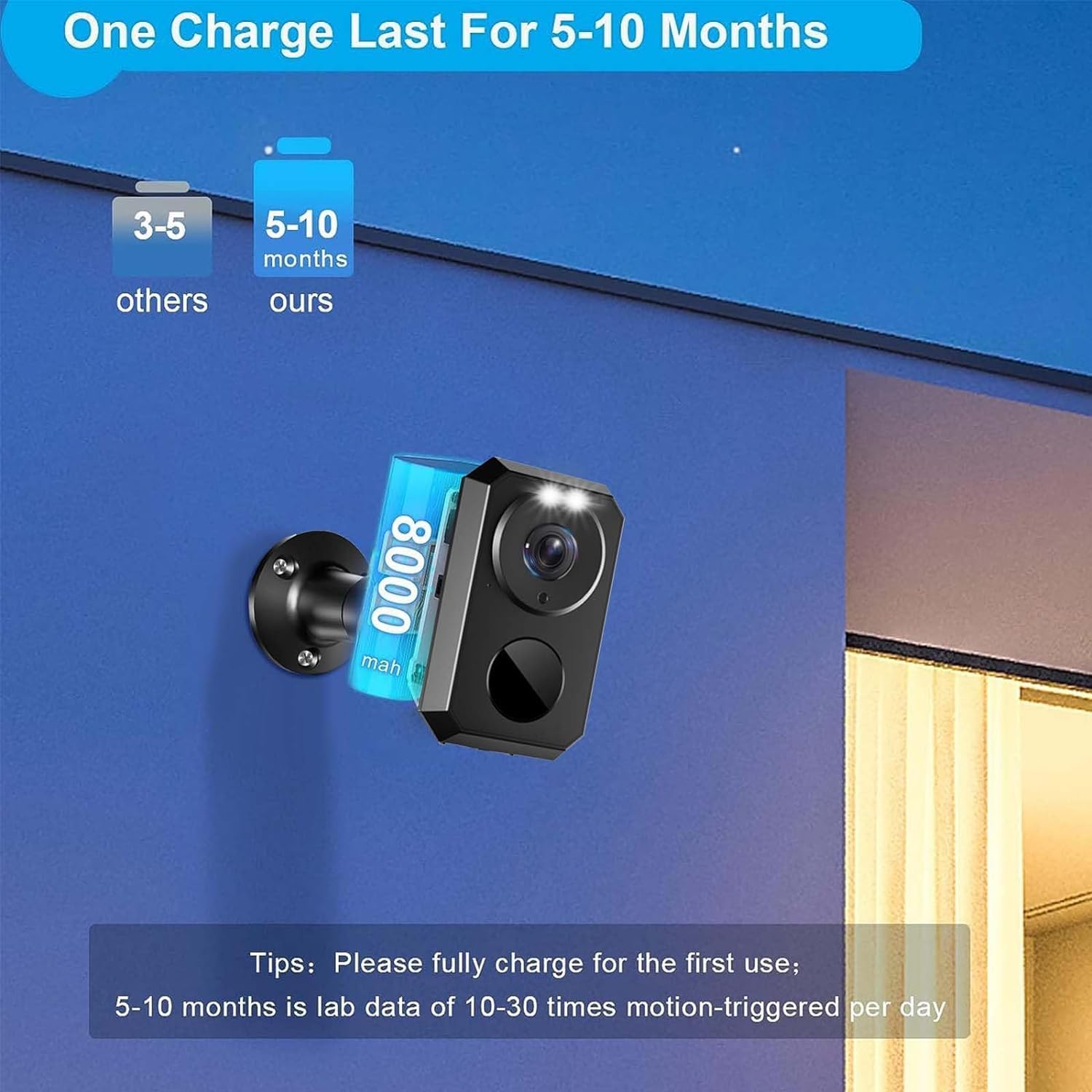
Image 4.1: Illustration showing the camera mounted and a tip to fully charge the battery for first use, indicating 5-10 months of battery life based on 10-30 motion triggers per day.
4.2 App Installation and Account Registration
The BEENOZO camera operates with the O-KAM Pro application. Follow these steps to install and set up your account:
- Download the App: Scan the QR code provided on the product packaging or in the quick start guide, or search for "O-KAM Pro" in your device's app store (Google Play Store for Android, Apple App Store for iOS).
- Register Account: Open the O-KAM Pro app. If you are a new user, select "Register" and follow the on-screen prompts to create an account using your email address. If you already have an account, simply log in.

Image 4.2: Visual guide for the initial setup process, including scanning the QR code for the O-KAM app, account registration/login, Wi-Fi configuration, and adding the camera.
For app download, you can also visit the official download page: veepai.com/veecam_download.html
4.3 Connecting to Wi-Fi
Ensure your Wi-Fi network is 2.4GHz. The camera does not support 5GHz Wi-Fi. Follow the in-app instructions to connect your camera:
- In the O-KAM Pro app, tap "Add Device" or the "+" icon.
- Select your camera model or choose "Add Camera Manually".
- Follow the prompts to enter your 2.4GHz Wi-Fi network name (SSID) and password.
- The app will generate a QR code. Hold your phone's screen in front of the camera lens (approx. 15-20 cm away) until you hear a confirmation sound from the camera, indicating successful connection.
- Once connected, you can name your camera and begin live viewing.
4.4 Physical Installation
Choose a suitable location for your camera and solar panel. Consider areas with good Wi-Fi signal and direct sunlight exposure for the solar panel.
- Mounting Location: Identify a stable surface (wall, eaves) that provides the desired viewing angle and is within Wi-Fi range.
- Drill Holes: Use the mounting bracket as a template to mark and drill holes. Insert wall plugs if mounting on masonry.
- Attach Bracket: Securely fasten the camera mounting bracket to the surface using the provided screws.
- Attach Camera: Mount the camera onto the bracket and adjust its angle for optimal coverage.
- Solar Panel Placement: Install the solar panel in a location that receives maximum direct sunlight throughout the day. Connect the solar panel cable to the camera's charging port.

Image 4.3: An example of the camera and solar panel installed outdoors on a building, demonstrating a typical setup.

Image 4.4: Illustration of the solar panel providing power to the camera, ensuring continuous operation.
5. Operating Instructions
5.1 Live View and Playback
- Open the O-KAM Pro app and select your camera from the device list to access the live view.
- From the live view interface, you can initiate two-way audio, capture screenshots, record video manually, and access recorded footage.
- To view recorded events, navigate to the "Playback" or "History" section within the app. You can filter by date and event type.
5.2 Motion Detection and Alerts
The camera uses PIR (Passive Infrared) motion detection to identify human movement and minimize false alarms.
- Sensitivity Settings: Adjust the PIR sensitivity in the app settings to optimize detection for your environment.
- Alerts: When motion is detected, the camera can trigger various alerts:
- App Notifications: Receive instant push notifications on your smartphone.
- White Light Flashing Alarm: The camera's built-in lights can flash to deter intruders (can be set to auto or manual).
- Siren Alert: An audible siren can be activated (can be set to auto or manual).
- Customizable Detection Zones: Define specific areas within the camera's view where motion detection should be active, reducing irrelevant alerts.

Image 5.1: Depiction of the camera's PIR motion detection capability, highlighting its 30ft range and 99% accuracy in identifying human figures.
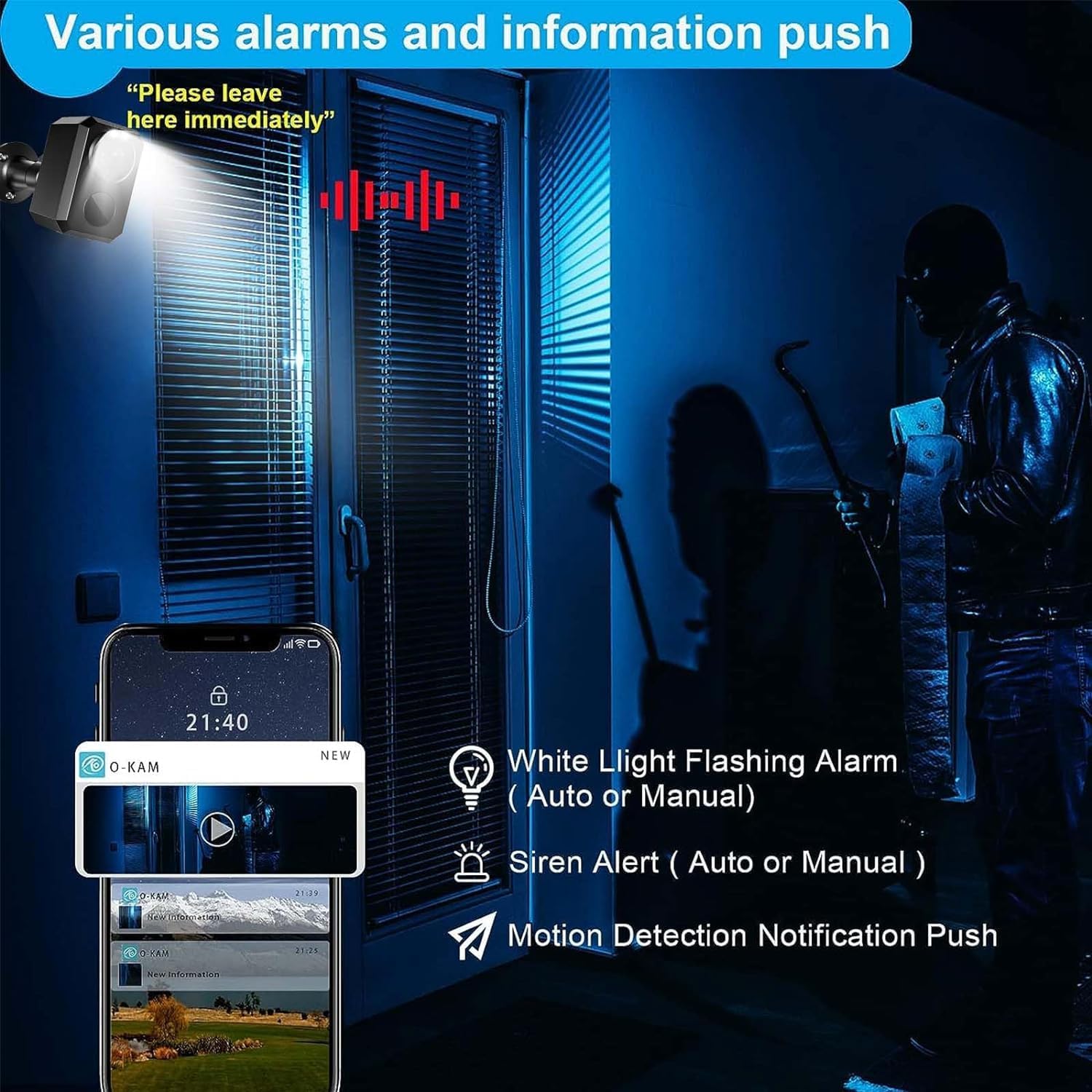
Image 5.2: Overview of the camera's alarm features, showing how it can use flashing lights, a siren, and app notifications to alert users and deter intruders.

Image 5.3: Illustration of customizable detection zones, allowing users to specify areas for motion monitoring.
5.3 Two-Way Audio
Use the two-way audio feature to communicate with visitors or deter unwanted individuals.
- From the live view in the O-KAM Pro app, tap the microphone icon to speak through the camera's speaker.
- The camera's built-in microphone will pick up audio from the monitored area, allowing you to hear what's happening.

Image 5.4: A visual representation of the two-way audio function, enabling real-time conversation through the camera.
5.4 Night Vision
The camera offers advanced night vision capabilities:
- Color Night Vision: The camera can capture full-color video even in very low light conditions, providing more detail than traditional black and white infrared night vision.
- Infrared (IR) Night Vision: For extremely dark environments, the camera automatically switches to IR mode, providing clear black and white footage.
Image 5.5: Example of the camera's colorful night vision, demonstrating its ability to capture clear images in dark conditions.
5.5 Storage Options
The BEENOZO camera supports two primary storage methods for recorded footage:
- Micro SD Card: Insert a Micro SD card (up to 128GB, not included) into the designated slot on the camera for local storage. This allows you to record continuously or based on motion detection without relying on internet connectivity for storage.
- Cloud Storage: The O-KAM Pro app offers optional cloud storage services. This provides off-site backup of your recordings, accessible from anywhere with an internet connection. Subscription fees may apply for cloud services.

Image 5.6: Illustration of the camera's support for both cloud and local Micro SD card storage.
5.6 Sharing Camera Access
You can share access to your camera's live feed and recordings with family members or trusted individuals through the O-KAM Pro app.
- In the app, navigate to the camera settings and look for a "Share Device" or "Family Management" option.
- Invite others by entering their O-KAM Pro account details. They will then be able to view the camera feed.

Image 5.7: Visual representation of sharing camera access with multiple users.
6. Maintenance
- Cleaning: Periodically clean the camera lens and solar panel with a soft, damp cloth to ensure clear images and efficient solar charging. Avoid abrasive cleaners.
- Battery Monitoring: Check the battery level regularly via the O-KAM Pro app. While the solar panel provides continuous charging, prolonged periods of low sunlight may require manual charging via USB.
- Firmware Updates: Keep the camera's firmware updated through the O-KAM Pro app to ensure optimal performance, security, and access to new features.
- SD Card Management: If using an SD card, periodically review and back up important footage. Consider formatting the SD card every few months to maintain performance.

Image 6.1: The O-KAM app displaying a low battery notification, prompting the user to charge the camera.
7. Troubleshooting
| Problem | Possible Cause | Solution |
|---|---|---|
| Camera not connecting to Wi-Fi. | Incorrect Wi-Fi password; 5GHz Wi-Fi network; camera too far from router; weak signal. |
|
| Battery not holding charge / Draining quickly. | Insufficient sunlight for solar panel; frequent motion triggers; extreme temperatures. |
|
| Fuzzy or unclear image. | Dirty lens; condensation inside lens; poor lighting. |
|
| No motion detection alerts. | PIR sensitivity too low; app notifications disabled; detection zone not set correctly. |
|
| Cannot access recorded footage. | SD card full/corrupted; no SD card inserted; cloud storage subscription expired. |
|
8. Specifications
| Feature | Detail |
|---|---|
| Model Number | D5 |
| Video Capture Resolution | 2K (1296p) |
| Power Source | Solar Power, Rechargeable Battery (8000mAh) |
| Connectivity Protocol | Wi-Fi (2.4GHz only) |
| Viewing Angle | 120 Degrees |
| Material | Metal |
| Item Dimensions (L x W x H) | 8 x 8 x 10 cm |
| Item Weight | 440 g |
| Waterproof Rating | IP66 |
| Special Features | Night Vision (Color), PIR Motion Detection, Two-Way Audio, Luminous Alarm, Sound Alarm |
| Storage Options | Micro SD Card (up to 128GB), Cloud Storage |
| Operating Temperature | (Not specified, but implied by outdoor use) |
9. Warranty and Support
BEENOZO is committed to providing quality products and thoughtful service. For any product-related inquiries, technical support, or warranty claims, please contact BEENOZO customer service through the contact information provided on the product packaging or the official BEENOZO website.
Please retain your proof of purchase for warranty purposes.


