1. Product Overview
The Narpult Smart Lock Key Fobs are designed to provide convenient keyless entry for your smart door lock system. These smart IC cards are compatible with Narpult Smart Door Locks and other smart locks that utilize the TTLock application. Each fob allows for quick and easy unlocking with a simple touch.

Image 1.1: Two Narpult Smart Lock Key Fobs, black rectangular fobs with a yellow fingerprint icon and a black loop for attachment.
2. Safety Information
Please read and understand all safety instructions before using the key fobs. Improper use may result in damage to the product or the associated smart lock.
- Keep the key fobs dry. Moisture can damage the internal electronics.
- Avoid extreme temperatures. Do not expose the fobs to direct sunlight for prolonged periods or to very cold conditions.
- Do not attempt to disassemble or modify the key fobs. This will void the warranty and may cause malfunction.
- Keep out of reach of small children to prevent accidental ingestion or damage.
- Handle with care. Avoid dropping or subjecting the fobs to strong impacts.
3. Package Contents
Your Narpult Smart Lock Key Fobs package should contain the following items:
- 2 x Narpult Smart IC Cards (Key Fobs)
4. Setup and Pairing
These key fobs are designed to be added to your existing smart lock system via the TTLock application. Please ensure your smart lock is already set up and connected to the TTLock app before proceeding.
- Open the TTLock App: Launch the TTLock application on your smartphone or tablet.
- Select Your Lock: From the main screen, select the smart lock to which you wish to add the key fobs.
- Navigate to Card Management: Look for an option related to "Cards," "IC Cards," or "Fobs" within the lock's settings or management section. The exact wording may vary depending on the app version.
- Add a New Card: Select the option to "Add Card" or "Generate IC Card."
- Follow On-Screen Prompts: The app will guide you through the process. Typically, you will be instructed to touch the new key fob to the smart lock's keypad or designated IC card reading area.
- Confirmation: Once the fob is successfully added, the app will provide a confirmation message. You can assign a name to the card for easier management if the app allows.
There is no limit to the number of IC cards you can add to a single lock. You can also easily delete lost or unused cards from the TTLock app at any time.
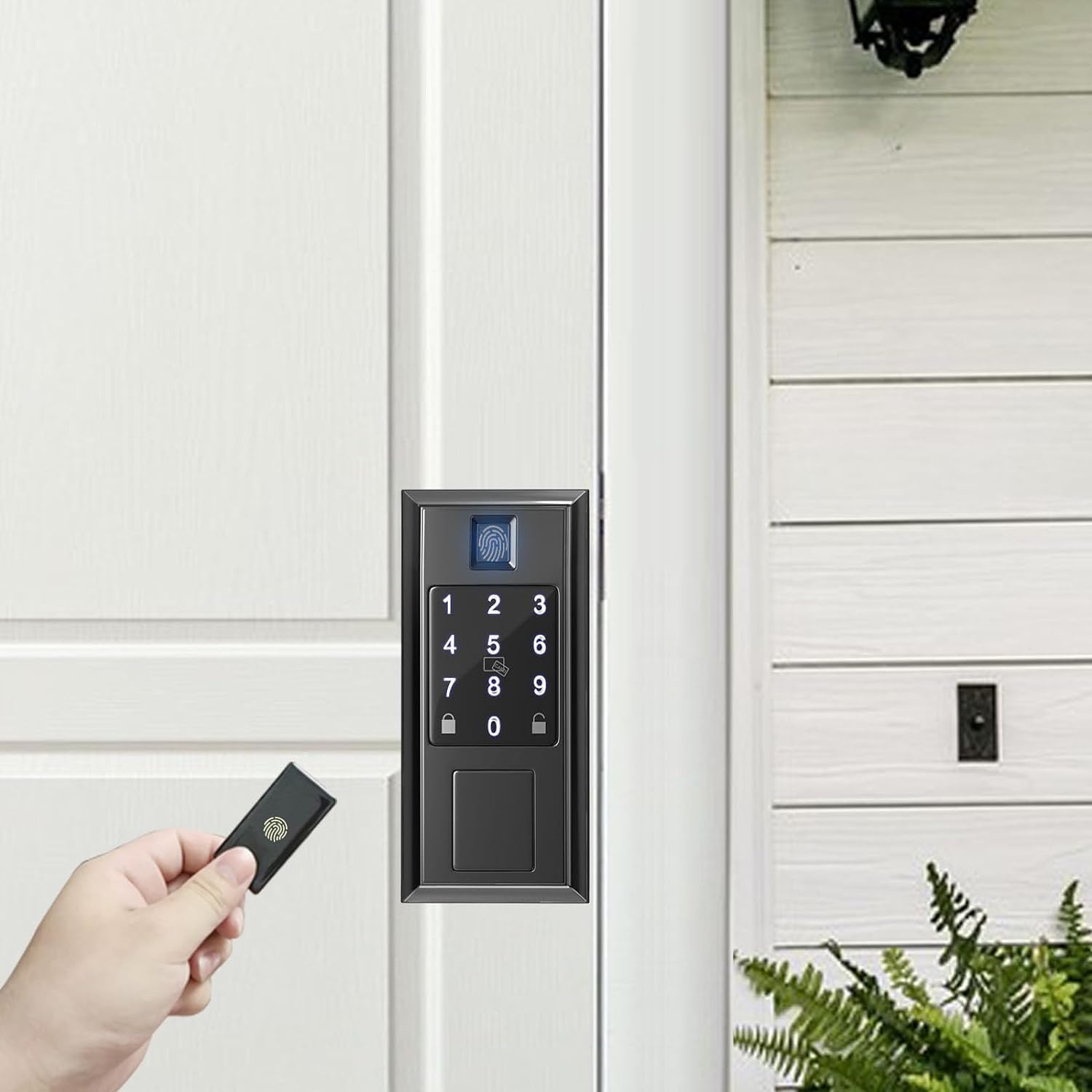
Image 4.1: A hand holding a Narpult key fob near the keypad of a black smart door lock, illustrating the pairing process.

Image 4.2: A hand holding a Narpult key fob near a bronze-colored smart door lock with a circular keypad, demonstrating interaction.
5. Operating Instructions
5.1 Unlocking the Door
To unlock your door using the Narpult Smart Lock Key Fob:
- Ensure the key fob is registered with your smart lock via the TTLock app.
- Place the key fob on the center of the smart lock's keypad, specifically where an IC card pattern or symbol is located.
- Hold the fob tightly close to the reading area for a moment until you hear a confirmation sound or see an indicator light on the lock. The door will then unlock.
Important Note: The IC card can be used to unlock your door, but it cannot be used to lock your door. Locking must be done manually or via the smart lock's other functions (e.g., keypad, app, auto-lock).
5.2 Video Demonstration: Key Fob Unlock
Video 5.1: A short demonstration showing a Narpult key fob being used to unlock a smart door lock. The video illustrates the simple touch-to-unlock functionality.

Image 5.2: A Narpult key fob attached to a keychain with several other keys, highlighting its portability and ease of carrying.

Image 5.3: A Narpult key fob being placed into a small coin purse, demonstrating its compact size (1.9 x 1 x 0.03 inches) for easy storage.
6. Maintenance
To ensure the longevity and proper functioning of your Narpult Smart Lock Key Fobs, follow these simple maintenance guidelines:
- Cleaning: Wipe the fobs with a soft, dry cloth to remove dust or smudges. Do not use abrasive cleaners or solvents.
- Storage: Store the fobs in a cool, dry place when not in use. Avoid storing them near strong magnetic fields.
- Protection: While durable, avoid unnecessary bending or excessive force on the fobs to prevent internal damage.
7. Troubleshooting
If you encounter issues with your Narpult Smart Lock Key Fobs, please refer to the following common solutions:
| Problem | Possible Cause | Solution |
|---|---|---|
| Fob does not unlock the door. | Fob not properly registered. | Verify the fob is correctly added to your smart lock via the TTLock app (refer to Section 4). |
| Fob not placed correctly on the lock. | Ensure the fob is placed directly on the IC card reading area of the lock's keypad and held firmly. | |
| Smart lock battery is low or dead. | Check the battery status of your smart lock in the TTLock app or on the lock itself. Replace batteries if necessary. | |
| Fob is lost or stolen. | Security risk. | Immediately delete the lost fob from your smart lock system using the TTLock app to prevent unauthorized access. |
For issues related to the smart lock itself (e.g., app connectivity, mechanical problems), please consult the user manual provided with your Narpult Smart Door Lock or the TTLock app's help section.
8. Product Specifications
| Feature | Detail |
|---|---|
| Brand | Narpult |
| Model Name | Smart IC Card |
| Part Number | NPUSFOB-2 |
| Item Model Number | NSC-cardfob |
| Special Feature | Fob Unlock |
| Lock Type Compatibility | Biometric (compatible with Narpult Smart Locks and TTLock app enabled locks) |
| Item Dimensions (L x W x H) | 1.9 x 1 x 0.03 inches |
| Material | Plastic |
| Recommended Uses | Narpult Smart Lock Unlocking by Fobs |
| Style | Key Fob |
| Color | 2 Fobs (referring to the pack quantity) |
| Number of Pieces | 2 |
| Included Components | 2 Smart Cards |
| Controller Type | Hand Control |
| Shape | Square |
| Item Weight | 0.32 ounces |
| Control Method | Touch |
| Connectivity Protocol | Bluetooth (for smart lock connection via app) |
| Batteries Required? | No |
9. Warranty and Support
For specific warranty information regarding your Narpult Smart Lock Key Fobs, please refer to the documentation included with your original smart lock purchase or contact the seller directly. Warranty terms may vary.
If you require further assistance or have questions not covered in this manual, please contact Narpult customer support through their official website or the contact information provided with your product.
You can also visit the Narpult Store on Amazon for more information and products.


