
Bewinner Bewinnerr3bi8n2x17
Bewinner 128GB MP3&MP4 Player User Manual
Model: Bewinnerr3bi8n2x17
Product Overview
The Bewinner 128GB MP3&MP4 Player is a versatile portable media device designed for music and video playback. It features touch controls, a built-in speaker, and Bluetooth connectivity for an enhanced user experience. Please note that an SD card is required for operation and is not included with the player.

Front and back view of the Bewinner MP3&MP4 Player, highlighting its sleek design and the TF (microSD) card slot on the side.

The player's screen displaying various functions such as music, video, dictionary, record, text, and explorer, demonstrating its multifunctional capabilities and touch button operation.
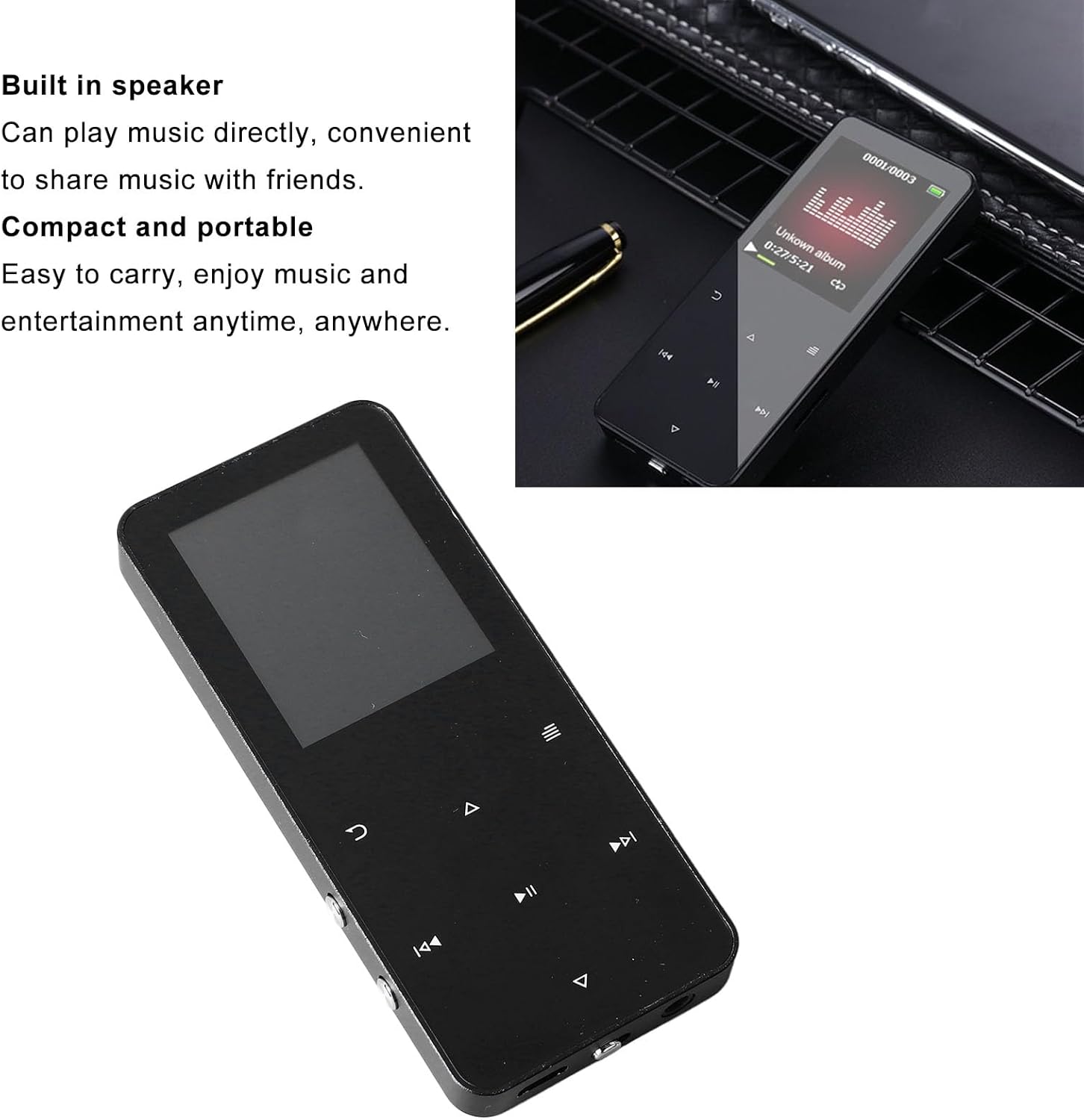
A close-up of the player showcasing its built-in speaker, allowing for direct audio playback without headphones, and emphasizing its compact and portable design.

The player's screen showing the recording interface, indicating the presence of a built-in microphone for voice recording.

The Bewinner MP3&MP4 Player held in a hand, demonstrating its compact size and the visible screen with user interface.

The MP3&MP4 Player resting on a wooden desk, showcasing its screen and control buttons in a typical usage scenario.

A side view of the Bewinner MP3&MP4 Player, highlighting its slim profile and the placement of side buttons.
What's in the Box
Upon opening the package, you should find the following items:
- Bewinner MP3 Player
- USB Cable
- User Manual (this document)

Image showing the MP3 player, USB cable, and user guide as included components in the product packaging.
Setup
1. Insert SD Card
The Bewinner MP3&MP4 Player requires an SD card (not included) to store music, videos, and other files. Locate the TF (microSD) card slot on the side of the device. Gently insert a compatible microSD card into the slot until it clicks into place. Ensure the card is inserted correctly to avoid damage.

A detailed view of the back of the MP3&MP4 Player, clearly showing the TF (microSD) card slot for memory expansion.
2. Charging the Device
Before first use, fully charge the player. Connect the included USB cable to the player's charging port and the other end to a USB power adapter (not included) or a computer's USB port. The charging indicator on the screen will show the charging status. A full charge typically takes 2-3 hours.
3. Powering On/Off
To power on the device, press and hold the power button located on the side until the screen lights up. To power off, press and hold the power button again until the device shuts down.
4. Initial Language Selection
Upon first power-on, you may be prompted to select your preferred language. Navigate through the options using the directional buttons and confirm your selection. If not prompted, you can change the language later in the settings menu.
Operating Instructions
This section provides detailed instructions on how to use the various features of your Bewinner MP3&MP4 Player.
Official product video demonstrating the user interface navigation, language selection, music playback, video playback, and dictionary function of the Bewinner MP3&MP4 Player.
Navigation
The player features touch-sensitive buttons below the screen for navigation. Use the directional buttons (up, down, left, right) to move between menu items and the central button to confirm selections. The 'Return' button (curved arrow) takes you back to the previous screen, and the 'Menu' button (three horizontal lines) opens context-sensitive options.
Music Playback
- From the main menu, select "Music".
- Browse your music by "All Songs", "Artists", "Albums", or "Genres".
- Select a song to begin playback.
- Use the play/pause, next/previous track buttons for control.
- Adjust volume using the dedicated volume buttons on the side of the device.
Video Playback
- From the main menu, select "Video".
- Browse your video files.
- Select a video to begin playback.
- Supported video formats may vary; ensure your videos are compatible for optimal playback.
Bluetooth Connectivity
- From the main menu, select "Bluetooth".
- Turn on Bluetooth.
- The player will search for nearby Bluetooth devices.
- Select your desired device (e.g., Bluetooth headphones, speaker) from the list to pair.
- Once paired, audio will be routed through the connected Bluetooth device.
Other Functions
- Record: Use the built-in microphone to record audio. Access recordings via the "Record" menu.
- Text: Read text files (e.g., e-books) stored on your SD card.
- Dictionary: Access the built-in dictionary for word lookups.
- Explorer: Browse and manage files and folders on your SD card.
- Tools: Access additional utilities.
- Settings: Customize various device settings, including display, time, and language.
Maintenance
Proper care and maintenance will extend the life of your Bewinner MP3&MP4 Player.
- Cleaning: Use a soft, dry, lint-free cloth to clean the device. Do not use liquid cleaners or aerosols.
- Battery Care: To preserve battery life, avoid fully discharging the battery frequently. Charge the device regularly, even if not in use for extended periods.
- Storage: Store the player in a cool, dry place away from direct sunlight, extreme temperatures, and humidity.
- SD Card Handling: Always safely eject the SD card from the device's software menu before physically removing it to prevent data corruption.
- Avoid Impacts: Protect the device from drops and impacts, which can damage internal components or the screen.
Troubleshooting
If you encounter issues with your player, refer to the following common problems and solutions:
- Device does not turn on:
- Ensure the device is fully charged. Connect it to a power source and wait a few minutes before attempting to power on again. If the issue persists, try a different USB cable or power adapter.
- No sound during playback:
- Check the volume level. Ensure headphones are properly connected if you are using them. If using Bluetooth, verify that the player is successfully paired with your Bluetooth audio device and that the volume on both devices is turned up. Ensure the audio file is not corrupted.
- SD card not recognized:
- Ensure the SD card is inserted correctly and fully into the slot. Try reinserting the card. If the problem continues, try a different SD card to determine if the card itself is faulty. Ensure the SD card is formatted to a compatible file system (e.g., FAT32).
- Bluetooth connection issues:
- Make sure Bluetooth is enabled on both the player and the target device. Ensure both devices are within close proximity. Try unpairing and re-pairing the devices. Restarting both devices can also resolve connectivity problems.
- Screen is unresponsive or frozen:
- Press and hold the power button for about 10-15 seconds to force a restart. If the device has a reset pinhole, use a thin object (like a paperclip) to press the reset button.
Specifications
| Feature | Description |
|---|---|
| Brand | Bewinner |
| Model Number | Bewinnerr3bi8n2x17 |
| Memory Storage Capacity | 128 GB (via SD Card, not included) |
| Color | Black |
| Screen Size | 0.96 Inches |
| Connectivity Technology | Bluetooth |
| Special Features | Video Playback, Bluetooth, Built-in Speaker, Built-in Microphone |
| Compatible Devices | Laptop, Headphone, Personal Computer |
| Media Type | SD Card |
| Included Components | MP3 Player, USB Cable, User Manual |
Warranty and Support
For warranty information or technical support, please refer to the product packaging or contact Bewinner customer service directly. You can also visit the official Bewinner store on Amazon for more information and contact options:
Ask a question about this manual
Ask about setup, troubleshooting, compatibility, parts, safety, or missing instructions. Manuals+ will review the question and use this page’s manual context to help answer it.