Introduction
Welcome to the user manual for your new NEWISION 10-inch Android Tablet. This tablet is designed to provide a versatile and immersive experience for entertainment, productivity, and communication. Featuring a vibrant 10.1-inch IPS HD display, a responsive 1.6GHz Quad-Core processor, and the Android 12.0 GO operating system, it offers smooth performance for various applications. With 4GB (2+2GB Expand) RAM and 32GB of internal storage, expandable up to 1TB, you have ample space for your files and apps. The 6000mAh battery ensures extended usage, and Wi-Fi 6.0 support provides fast and stable connectivity. Please read this manual thoroughly to understand the features and proper operation of your device.
What's in the Box
- 1 x NEWISION 10-inch Android Tablet
- 1 x Charger
- 1 x Type-C Cable
- 1 x Quick Start Guide
Product Overview
The NEWISION M10 tablet combines powerful performance with a user-friendly design. Below are some key features and components.
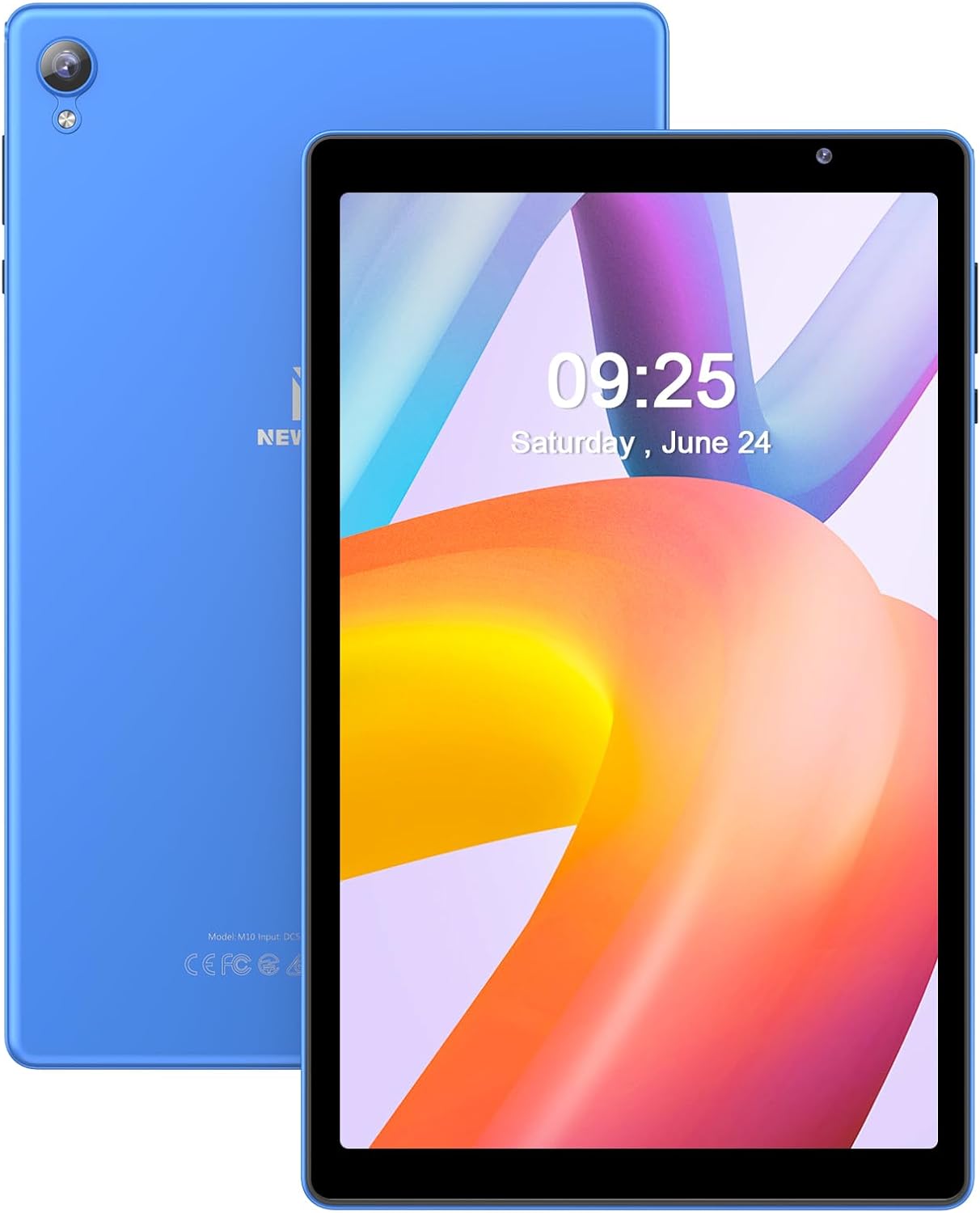
Figure 1: Front and back view of the NEWISION 10-inch Android Tablet, showcasing its sleek blue design and camera placement.
Key Features
- Display: Immerse yourself in the vibrant world of our 10.1-inch IPS HD display with a resolution of 1280x800 pixels. The screen delivers brilliant colors, crisp text, and vivid video playback, making it perfect for watching videos, attending online classes, and reading. The tablet also features an Eye Health Mode, optimizing backlighting to reduce eye strain and provide a comfortable reading experience.
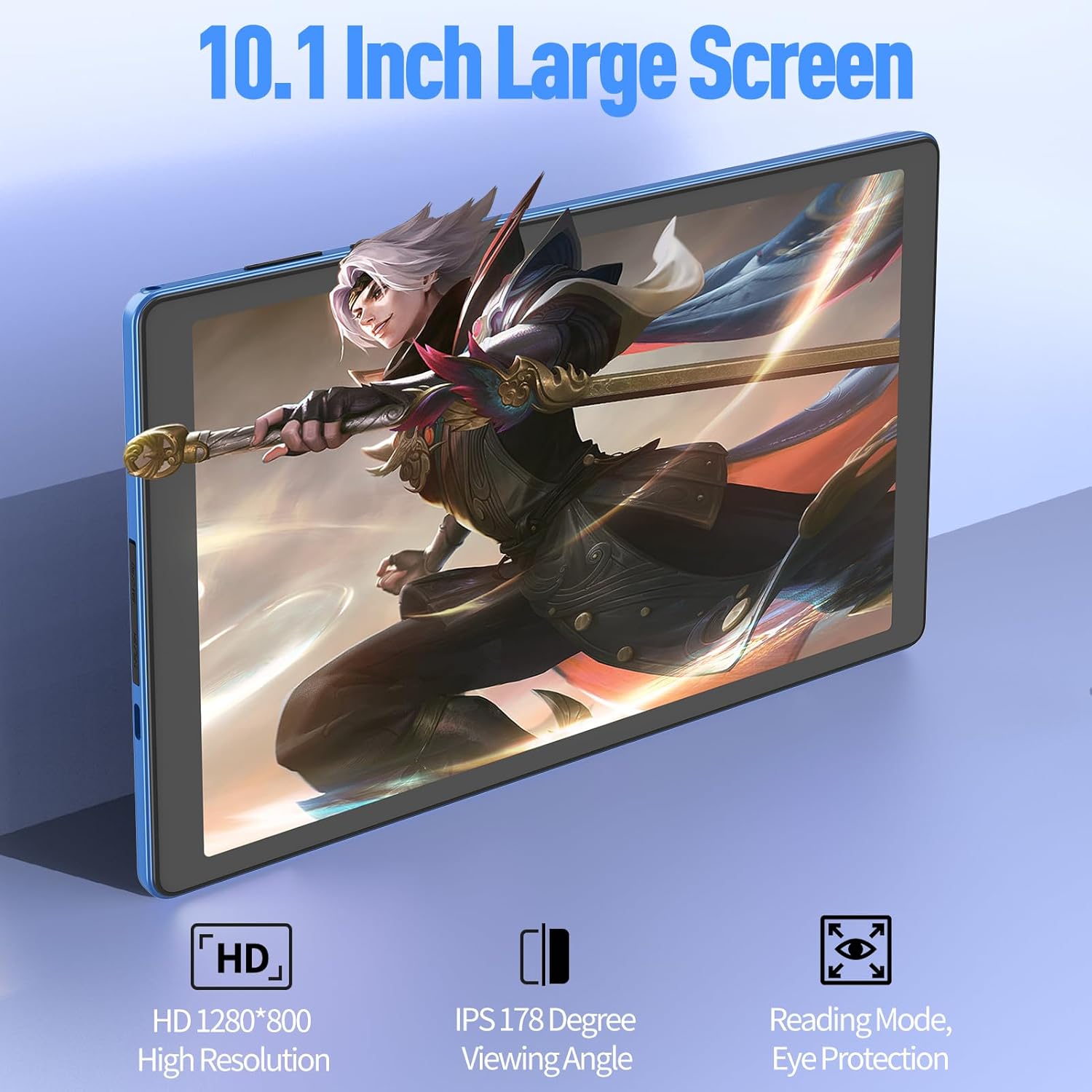
Figure 2: The tablet's 10.1-inch large screen with HD 1280x800 resolution and IPS 178-degree viewing angle, designed for an immersive visual experience.
- Performance & Storage: Powered by a stable Quad-Core A133 processor clocked up to 1.6GHz, this tablet ensures faster app launches, smoother video playback, and overall superior performance. With 4GB (2+2GB Expand) of RAM and 32GB of internal storage (expandable up to 1TB with a TF card, not included), you can run apps seamlessly and store an extensive collection of files, songs, pictures, videos, and games.

Figure 3: Internal architecture of the tablet, illustrating the stable processor and expandable storage capabilities.
- Operating System: Our tablet runs on the latest Android 12.0 GO system, paired with a powerful and energy-efficient quad-core processor. This combination ensures seamless multitasking, improved energy efficiency, and faster processing speeds compared to previous generations.
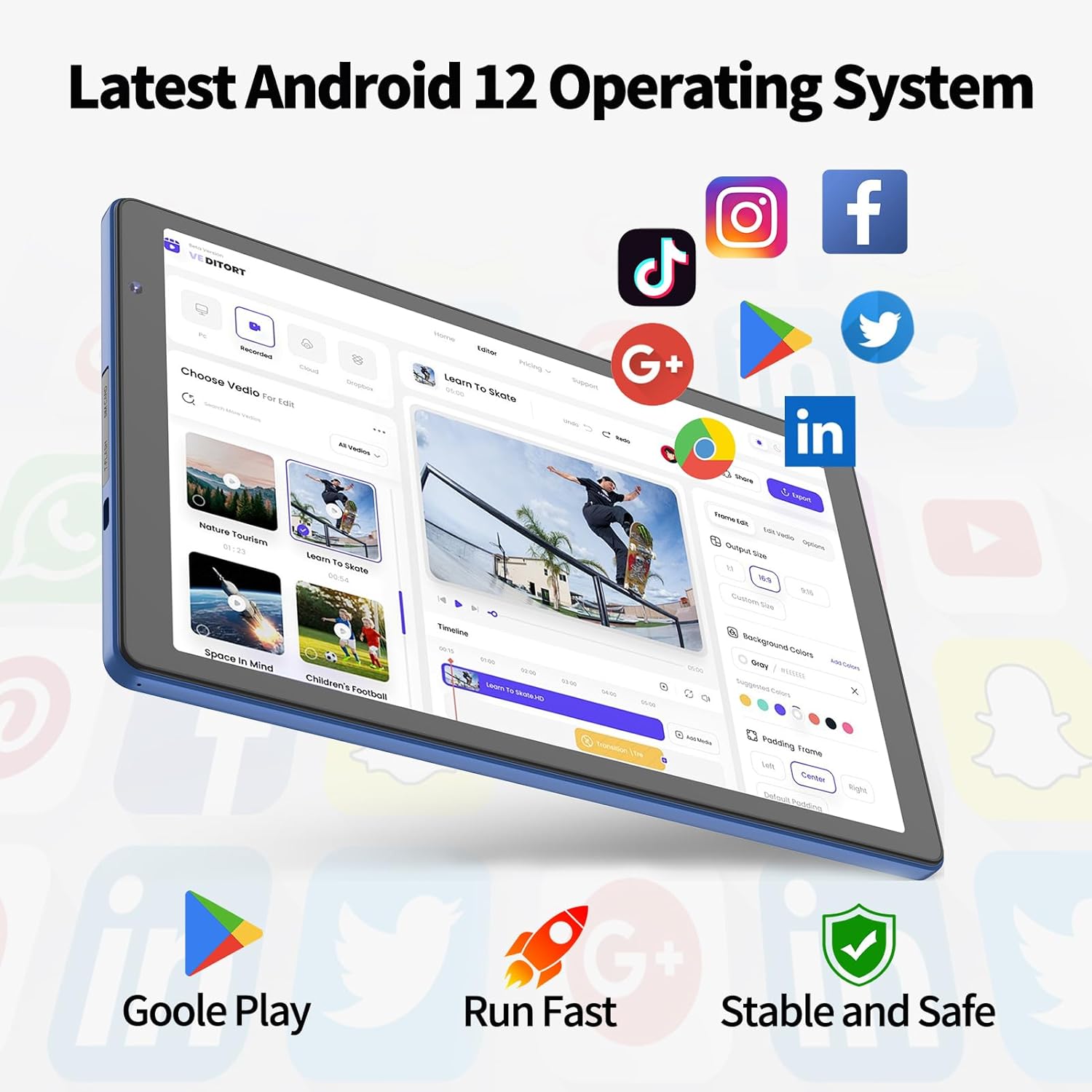
Figure 4: The tablet running the Android 12 operating system, ready for various applications.
- Connectivity: The tablet supports Wi-Fi 6.0 networks, ensuring a stable wireless signal and faster transmission speeds. Wi-Fi 6.0 also helps conserve power, making your tablet more energy-efficient. Stay connected and enjoy browsing the internet, reading e-books, watching movies, and listening to music while traveling or on business trips, also allowing you to download thousands of apps. It also offers excellent connectivity options with Bluetooth.
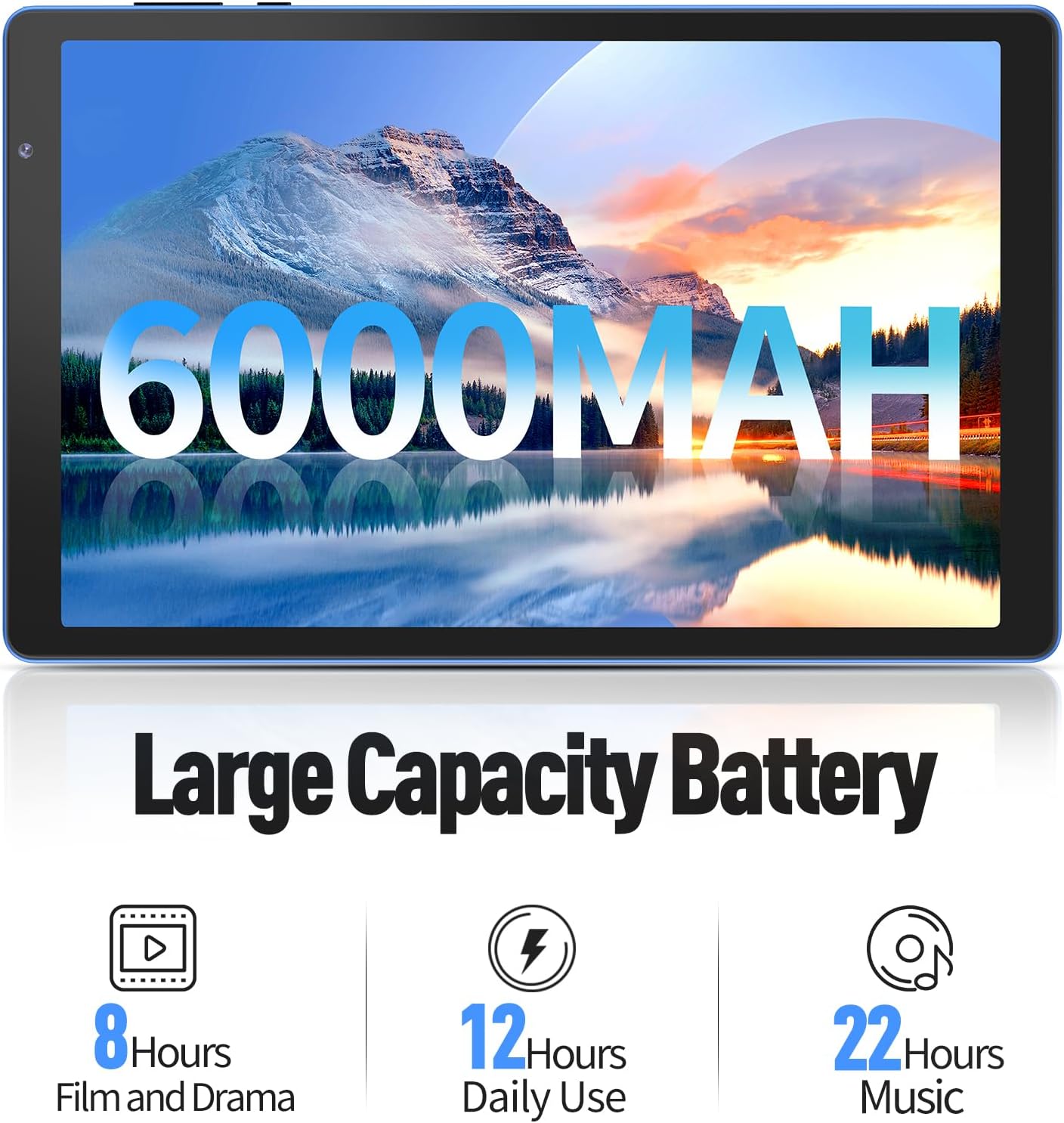
Figure 5: The tablet's advanced Wi-Fi 6 technology for enhanced connectivity.
- Battery & Charging: This tablet features a high-capacity 6000mAh battery, ensuring a seamless experience for up to 10 hours of uninterrupted reading, browsing, movie watching, and gaming. It charges via a Type-C port.

Figure 6: The tablet's 6000mAh large capacity battery, providing extended usage times.
- Audio & Design: The tablet boasts a sleek gray narrow-edge body design, providing a modern and stylish look. For an immersive multimedia experience, we have incorporated dual speakers to deliver realistic, high-quality sound.
Setup Guide
1. Initial Charging
Before first use, it is recommended to fully charge your tablet.
- Connect the Type-C cable to the tablet's charging port.
- Connect the other end of the cable to the provided charger.
- Plug the charger into a power outlet.
- The battery indicator on the screen will show charging status. Allow the tablet to charge until it reaches 100%.
2. Powering On/Off
- To Power On: Press and hold the Power button (usually located on the side) for a few seconds until the NEWISION logo appears.
- To Power Off: Press and hold the Power button until a power-off menu appears on the screen. Select "Power off" and confirm.
- To Restart: From the power-off menu, select "Restart".
3. Initial Setup Wizard
The first time you power on your tablet, you will be guided through a setup wizard.
- Language Selection: Choose your preferred language.
- Wi-Fi Connection: Select your Wi-Fi network from the list and enter the password. This is crucial for downloading apps and accessing online content.
- Google Account: Sign in with your Google account or create a new one. This is necessary for accessing the Google Play Store, Gmail, and other Google services.
- Date & Time: Confirm your date and time settings.
- Security: Set up a screen lock (PIN, pattern, or password) for security.
- Follow any remaining on-screen prompts to complete the setup.
Operating Instructions
1. Basic Navigation
- Tap: Touch the screen once to open an app, select an item, or press a button.
- Touch & Hold: Press and hold an item to access more options or move it.
- Swipe: Drag your finger across the screen to scroll through pages, lists, or switch between home screens.
- Pinch-to-Zoom: Place two fingers on the screen and pinch them together or spread them apart to zoom in or out.
2. Connecting to Wi-Fi
- Go to Settings > Network & internet > Wi-Fi.
- Toggle Wi-Fi On.
- Select your desired network from the list.
- Enter the password if prompted and tap Connect.
3. Downloading and Managing Apps
- Google Play Store: Tap the "Play Store" icon on your home screen or app drawer. Search for apps, games, movies, and books.
- Install Apps: Select an app and tap "Install".
- Uninstall Apps: Touch and hold the app icon on the home screen or in the app drawer, then drag it to "Uninstall" or select "App info" and then "Uninstall". Alternatively, go to Settings > Apps > See all apps, select the app, and tap "Uninstall".
4. Camera Usage
Your tablet is equipped with dual cameras for capturing photos and videos.
- Open the Camera app.
- Tap the shutter button to take a photo.
- Switch between front and rear cameras using the camera switch icon.
- Select video mode to record videos.
Maintenance
- Cleaning: Use a soft, lint-free cloth to clean the screen and body of the tablet. Avoid using harsh chemicals or abrasive materials.
- Battery Care: To prolong battery life, avoid fully discharging the tablet frequently. Charge it when the battery level is low, and avoid leaving it plugged in for extended periods after it's fully charged.
- Software Updates: Regularly check for and install system updates to ensure optimal performance and security. Go to Settings > System > System update.
- Storage Management: Periodically clear unnecessary files and uninstall unused apps to free up storage space and improve performance.
- Environmental Conditions: Avoid exposing the tablet to extreme temperatures, direct sunlight, or excessive moisture.
Troubleshooting
| Problem | Possible Solution |
|---|---|
| Tablet won't turn on. | Ensure the tablet is charged. Connect it to the charger and wait a few minutes before attempting to power on again. If it still doesn't turn on, try holding the power button for 10-15 seconds for a forced restart. |
| Wi-Fi connection issues. | Check if Wi-Fi is enabled in settings. Restart your Wi-Fi router. Forget the network and reconnect. Ensure you are within range of the Wi-Fi signal. |
| Tablet is running slow. | Close unused apps running in the background. Clear cache data for frequently used apps. Uninstall unnecessary apps. Restart the tablet. Consider a factory reset as a last resort (back up data first). |
| Apps are crashing or freezing. | Ensure the app is updated to its latest version. Clear the app's cache and data (Settings > Apps > [App Name] > Storage & cache). Reinstall the app. |
| Battery drains quickly. | Reduce screen brightness. Turn off Wi-Fi, Bluetooth, and GPS when not in use. Close background apps. Limit notifications. Check battery usage in settings to identify power-hungry apps. |
Specifications
| Feature | Detail |
|---|---|
| Brand | NEWISION |
| Model Name | M10 |
| Operating System | Android 12.0 GO |
| Screen Size | 10.1 Inches |
| Screen Resolution | 1280 x 800 Pixels (IPS HD) |
| Processor | Quad-Core A133, 1.6 GHz |
| RAM | 4GB (2+2GB Expand) |
| Internal Storage | 32GB ROM |
| Expandable Storage | Up to 1TB with TF card (not included) |
| Battery Capacity | 6000mAh |
| Average Battery Life | 10 Hours |
| Connectivity | Wi-Fi 6.0, Bluetooth |
| Charging Port | Type-C |
| Audio | Dual Speakers, 3.5mm Headphone Jack |
| Cameras | Front and Rear Cameras |
| Color | Blue |
| Item Weight | 1.06 pounds |
| Product Dimensions | 9 x 6.8 x 0.3 inches |
Warranty and Support
For warranty information and technical support, please refer to the warranty card included in your product packaging or visit the official NEWISION website. If you encounter any issues not covered in this manual, please contact NEWISION customer service for assistance.
Online Support: Visit the NEWISION official website for FAQs, driver downloads, and contact information.


